
Sitemaps are an easy way for webmasters to inform search engines about pages on their sites available for crawling. Zoey sitemaps are created in a XML format to include meta data about each URL allowing search engines to get the most information from these pages and create more accurate results for thier users. Which in turn brings you potential customers who know what they are looking for is in your store.
All major search engines use the same format for their sitemaps. Zoey refers to them as Google Sitemaps but they are supported by Yahoo!, Microsoft, and other search engines as well.
| 1 | Create your Sitemap |
| 2 | Adjust Generation and Priority Settings |
| 3 | Providing your Sitemap to Search Engines |
| Learn More |
Create your Sitemap
Once you're ready to tell the world about your new store you'll need to create (also known as generate) the site map. We recommend doing this after you have gone live using your own domain to assure users will be going to your store with your own url rather than the Zoey URL you were assigned upon store creation.
From the Apps section of your control panel, you'll need to access the XML Sitemap (Google Sitemap). If you already have this in your apps, great! If not, click on Browse More Apps and look for it in our apps store. Select the app and Add to My Apps. There are a bunch of cool apps in this area, but the below is the one you are looking for:

Back in My Apps, click Manage to the right of the first option, Generate Sitemap. In the top right, click Add Sitemap and proceed to the actual creation which will look like the following:
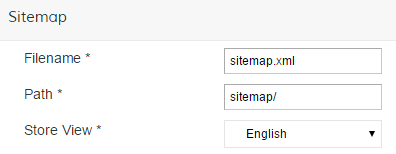
The Filename and Path have already been filled out for you, all you need is to select the store view / language this is for. Finish the creation with Save & Generate above. If you only have one language, you're all set- if you have multiple languages repeat this process until you have a sitemap for each.
Adjust Generation and Priority Settings
In My Apps you'll see there's another option for the sitemap app- XML Sitemap (Google Sitemap). In order to prioritize your pages in the order they should be crawled and to set up auto generation for updates, click on Manage to the right of XML Sitemap (Google Sitemap)
First are the Category, Product, and CMS Page Options. All three have the same settings available:
- Frequency
This gives search engines general estimates on how often your catalog and pages are updated and will need to be reindexed. You can choose from: Always, Hourly, Daily, Weekly, Monthly, Yearly or Never - Priority
This lets search engines know which type of pages you deem most important to index. The priority levels must be between 0 and 1, with 1 being the highest priority, the first to index, and 0 as the lowest or last to index.
By default, Products are given the highest priority, then Categories, then CMS Pages. Zoey has set this for you based on how often or infrequently these pages are normally updated. The more you update, the more quickly you want search engines to implement this information
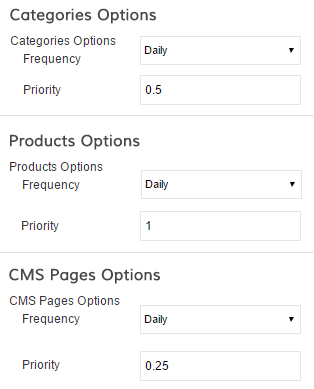
You can also have Zoey regularly update your sitemap and information for you. There is the option to do this manually by going back to Generate Sitemap and click Generate to the right of your created sitemap.
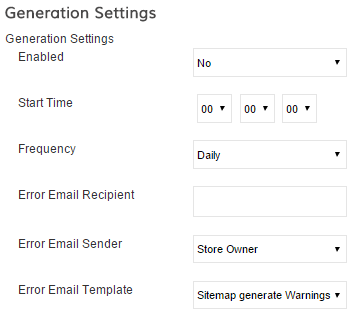
Here's what you can update here:
- Enable Generation Settings - Select Yes to enable automatic generation based on your selections or No to opt for only manual generation
- Start Time - When does the automatic generation begin? We recommend to do this in off hours when changes are not being made to your site. By default it is set to midnight
- Frequency - Is a new sitemap generated Daily, Weekly, or Monthly
- Error Email Recipient - If there is an error while the sitemap is generated, who should be alerted? You can enter one or more emails as long as there is a comma and space between each email (email1@mystore.com, email2@mystore.com)
- Error Email Sender - Choose one of the email addresses you added in Set up > Emails to be listed as the sender
- Error Email Template - The default template will be selected, but you can certainly customize your own through Set up > Emails
Be sure to save any changes you have made!
Providing your Sitemap to Search Engines
After you generated your sitemap in Step 1 of this tutorial a URL was created to house your sitemap. To find this URL, go to Apps > XML Sitemap > Generate Sitemap. For each of your sitemaps (one for each language) there will be a link under Link for Google which will be similar this example:
https://myzoeystore.zoeysite.com/sitemap/sitemap.xml
This link can be given to any search engine to help index and crawl your site. For more information on providing this to them, please contact that search engine's support. Here are some of the most common ones:
Learn More
There's a lot of things you can do next, but here are some suggestions:
Comments
1 comment
This page does not say how to publish the page, and how to utilize the sitemap.xml. Would be nice to add the topics.
Please sign in to leave a comment.