
You can create links that point to pages within your store or to external websites. With the design tools you have the option to create custom links in three different ways:
- Add custom links to your header navigation,
- Turn any piece of text into a link
- Use button blocks to create buttons that function as links
| 1 | Creating Navigation Links |
| 2 | Creating Text Links |
| 3 | Adding a Button Block |
| 4 | Learn More |
Creating Navigation Links
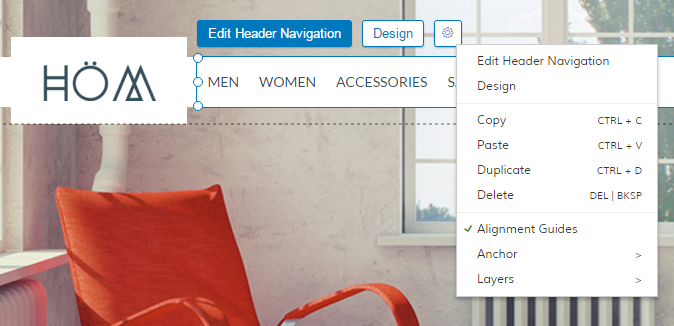
From Edit My Design open the Homepage. Click on the Navigation block and select Edit Header Navigation.
There are three ways you can start editing a block: 1. Right click on the block and select from the menu. 2. Click on the block and then the gear icon to select the action from the menu. 3. Click on the block and then on the blue button Edit Header Navigation.
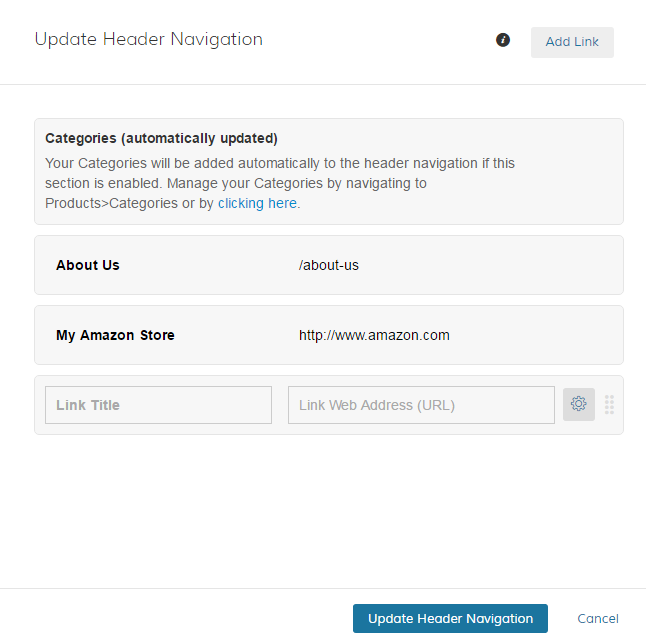
A new window will open. To add a link, click on Add Link in the top right corner of this window. You can enter a specific title and the URL it should point to. If you want to link to a page within your Zoey store, you can simply use the URL key starting with a forward slash. You can also link to an external site - in this case use the full URL.
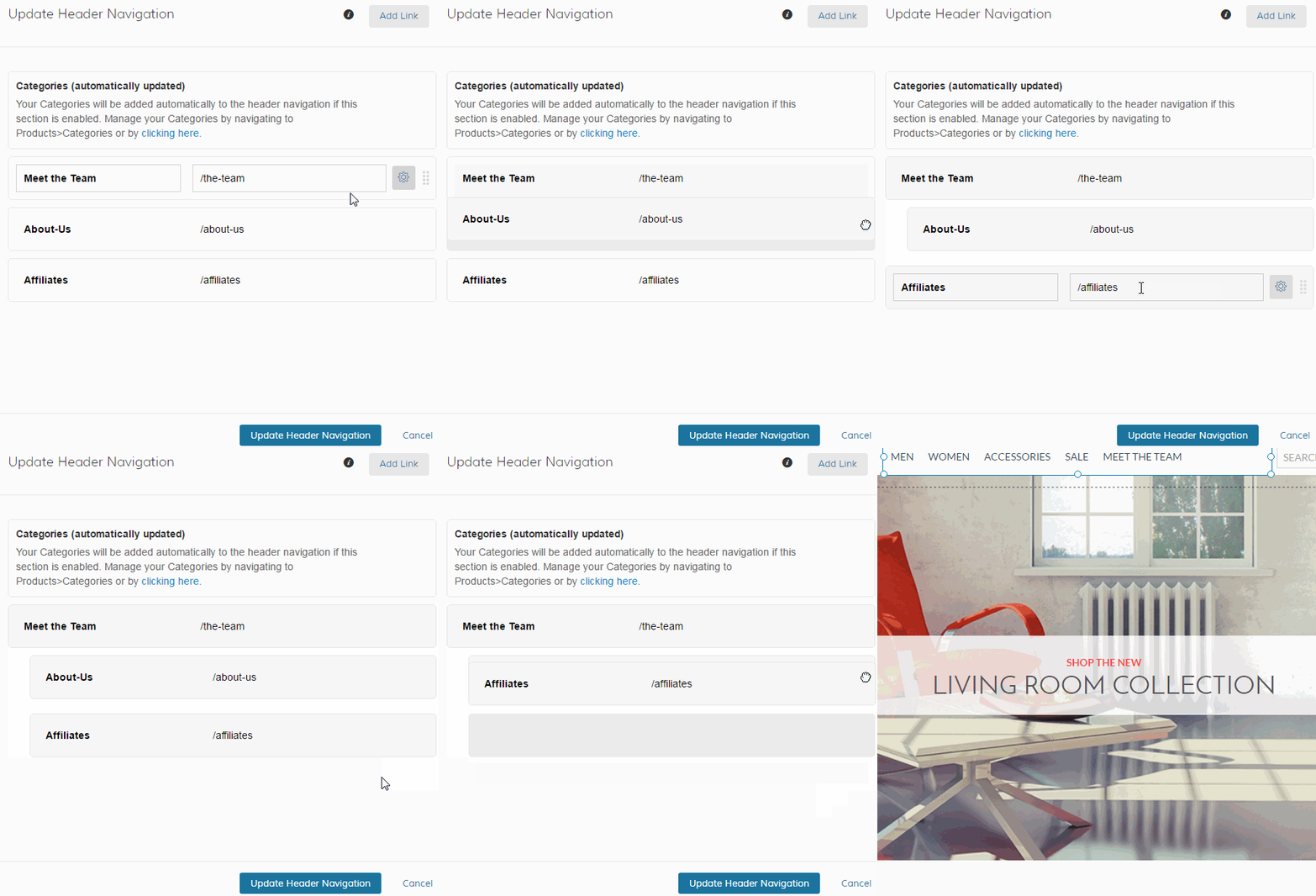
The design tools also allow you to create dropdown menus with custom links. Just drag the link underneath the top level link. Start by hovering over the dotted area to the right of the link, then drag it into position. In that same way you can drag out a link and make it stand on it's own.
Creating Text Links
You can use a text block to create text links. These are commonly used in areas of your site like the footer or in content pages like your About Us page.
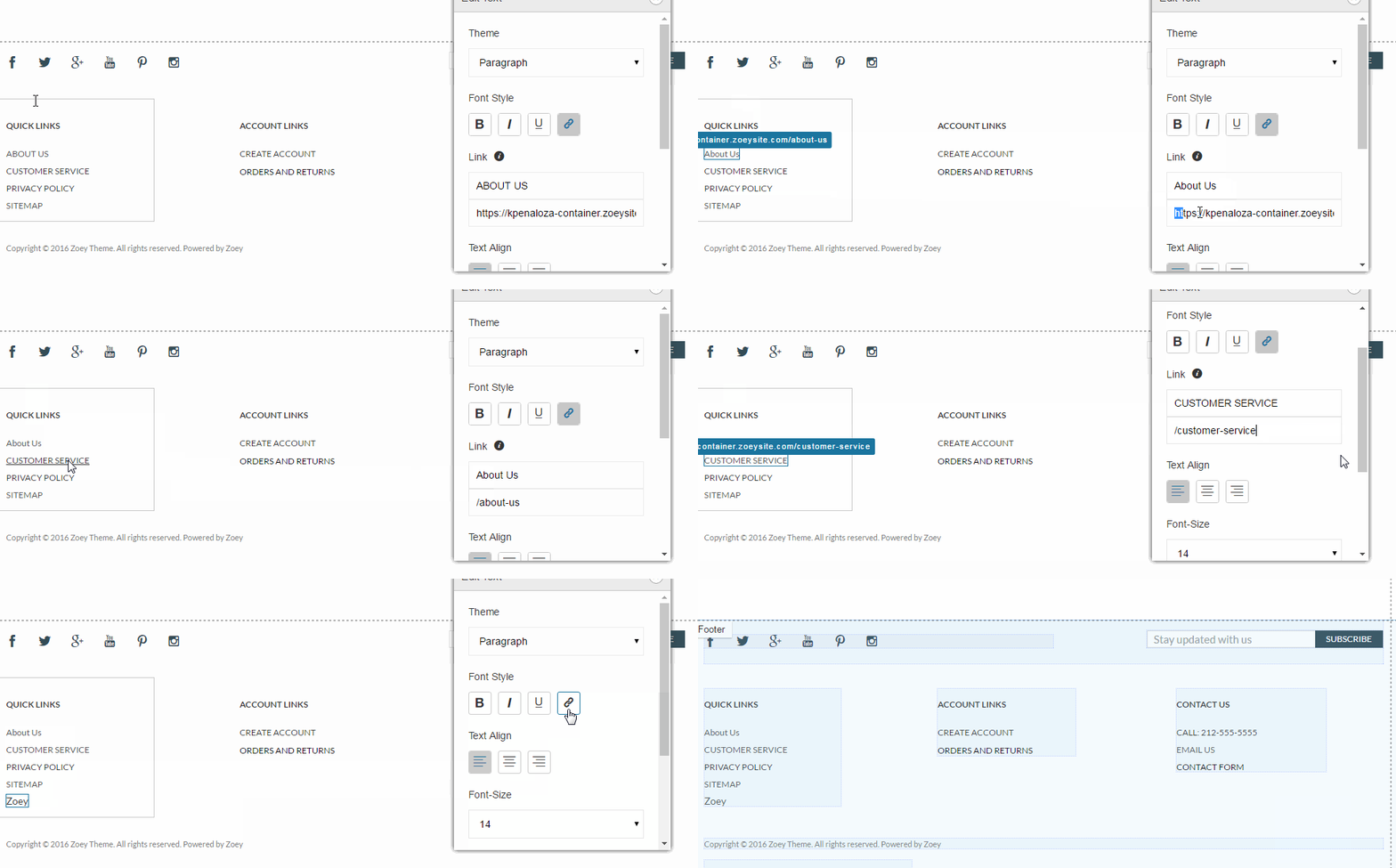
To turn a piece of text into a link, just click on the text block and select Edit Text. Next, highlight the text you want to turn into a link and click on the link icon. Finally, enter the URL key with a forward slash to link to a page within your store or the full URL to link to an external page.
Create a mailto link so that upon clicking your email address it automatically opens the default email client. Instead of entering a URL you would use the format mailto:email@address.com (exchange "email@address.com" with your email address).
Adding a Button Block
A button block allows you to add buttons to your site that function as links to pages of your site or to external websites.
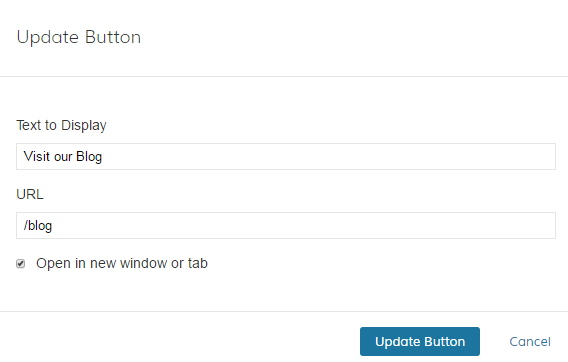
To add a button, just click on the block menu (+ icon) in the top left of the design tools and add the button block to your page. Next, click on the button and select either Settings or Design. Under Settings you can change the button text and add the URL or URL key. Clicking Design allows you to adjust the styling on the button.
If you want the page or external website to open in a new window, just check the box labeled “Open in new window or tab”. This is especially helpful if you want to link to an external site, but also want to keep shoppers on your store.
Comments
0 comments
Please sign in to leave a comment.