
To create a new tax rate:
- From your Control Panel, click Set-up > Tax > Manage Tax Zones & Rates.
- On the Manage Tax Rates page, click Add New Tax Rate in the upper right.
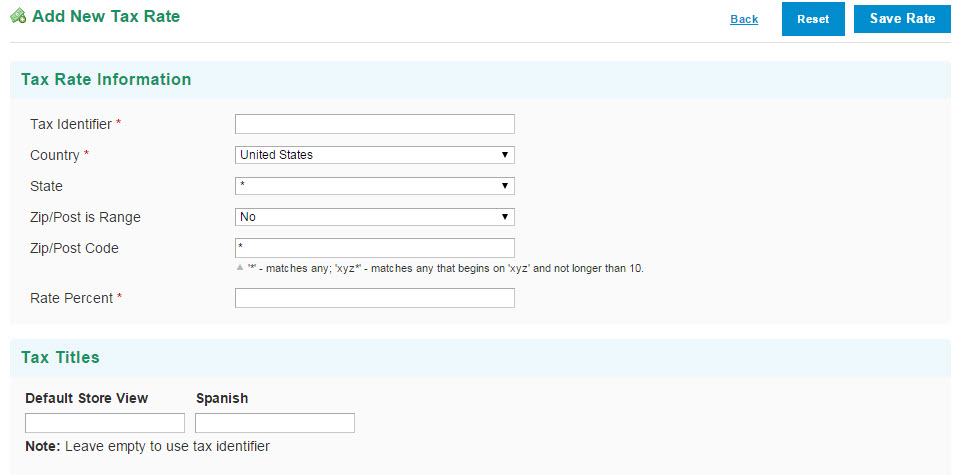
- Set the Tax Rate Information (and optional Tax Titles) options as shown in the following table.
Option Description Tax Identifier This is the title of the newly created tax rate. Do not use spaces. This identifier is not visible to customers if the alternate Tax Titles section is used. Country Select the country to which the specific tax applies. Country is required. State Available for countries that have states. You have the following options: - To apply the tax rates to all states, click * (asterisk), a wildcard character that enables you to apply the same tax rate to all states in the selected country.
- To select a state, click the name of a state to which to apply a tax rate.
Zip/Post is Range - If you click No, specify the zip or postal code in the Zip/Post Code field. You can use the * (asterisk) wildcard character in this field; for example,90* means all zip codes from 90000 through 90999.
- Click Yes if you want this tax applied to a specific range of Zip codes.
Range From / Range To Specify the starting and ending Zip or postal code ranges. Rate Percent Specify the tax rate percent as a value of 0 (zero) or greater. For example, enter 9.75for a tax rate of 9.75%. Tax Titles This option applies only if you have a store in different languages and you want to have the languages displayed differently. Tax Titles let you name your tax rate if you have a store that is translated into different languages and you use the same tax rates for all languages. - Click the Save Rate button to save your changes.
- The Manage Tax Rates page is displayed, where you can arrange your tax rates by using the sort filters at the top of the grid, and by clicking the column headings to sort the tax rates.
Comments
0 comments
Please sign in to leave a comment.