
| 1 | Visit Tax Configurations |
| 2 | Add New Tax Rules |
| 3 | Save |
| 4 | Edit Existing Tax Rules (Optional) |
| 5 | Further Reading |
Tax Rules are formulas that combine your Tax Classes and Tax Rates to ensure your customers are taxed correctly in every scenario. Tax Rules allow you to set a consistent application of your Tax Rates to specific product and customer groups.
How might this work? Some merchants may have customers that purchase products retail while others are tax exempt. Other stores may also sell products that have differing tax. Tax Rules work to match the correct tax with every transaction scenario your business may encounter.
Note: You will need to have a Tax Rate and Product and Customer Classes configured before creating a tax rule.
Step 1 - Visit Tax Configurations
From your Control Panel, hover your cursor over Set-up and select Tax.
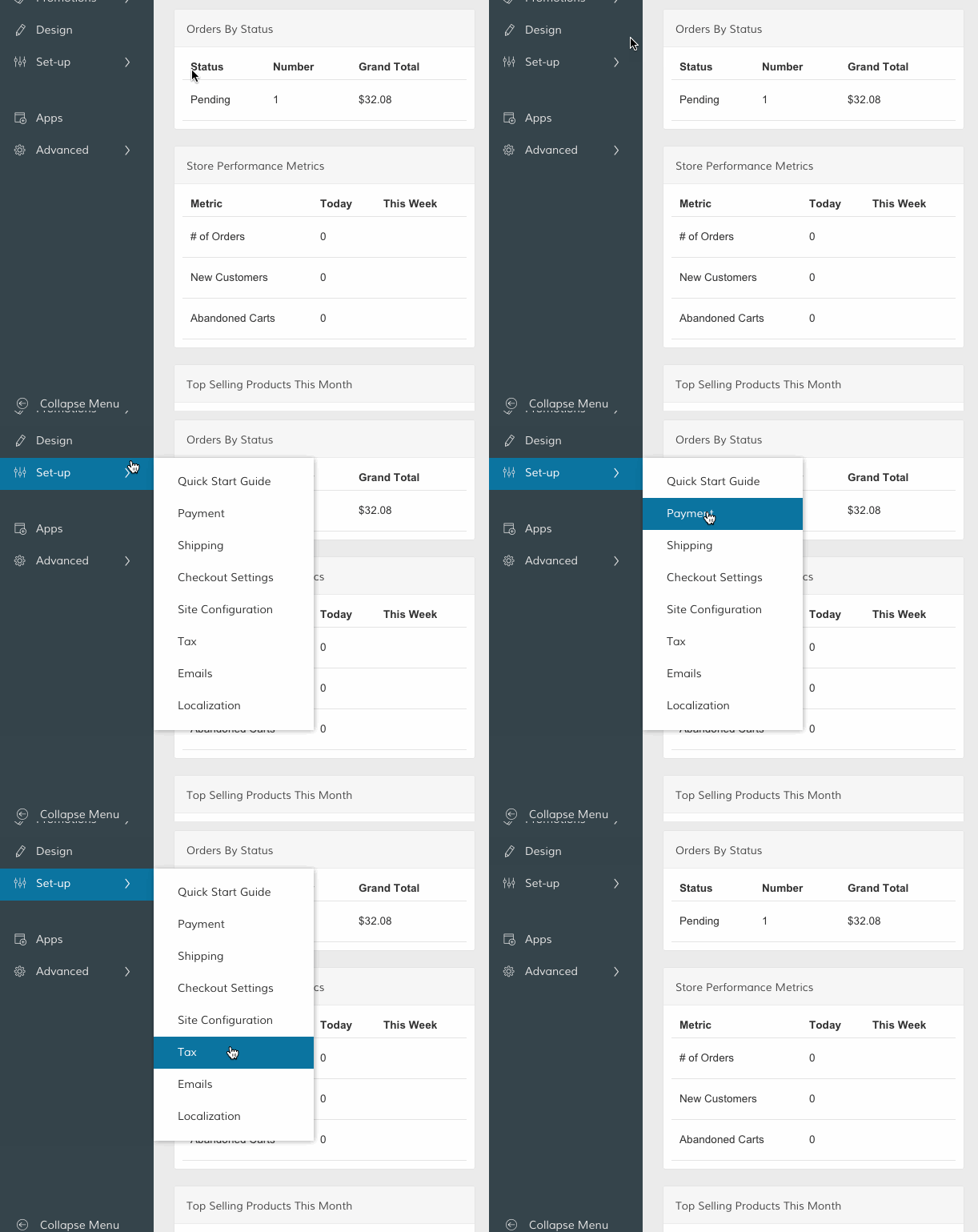
From your Tax page, scroll to the Tax Rules section and click the corresponding Manage icon.

Step 2 - Add New Tax Rule
From the Tax Rules page, click Add New Tax Rule.
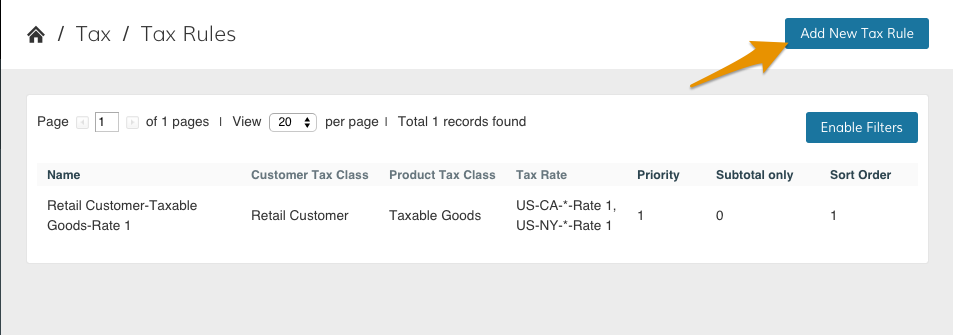
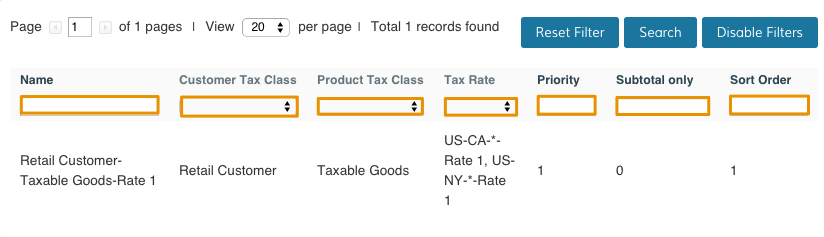
From the New Rule page, you can customize your tax rule based on the tax classes and tax rates you've created.
- Name - Create a title for your tax rule.
- Customer Tax Class - Select a customer tax class to associate with your tax rule.
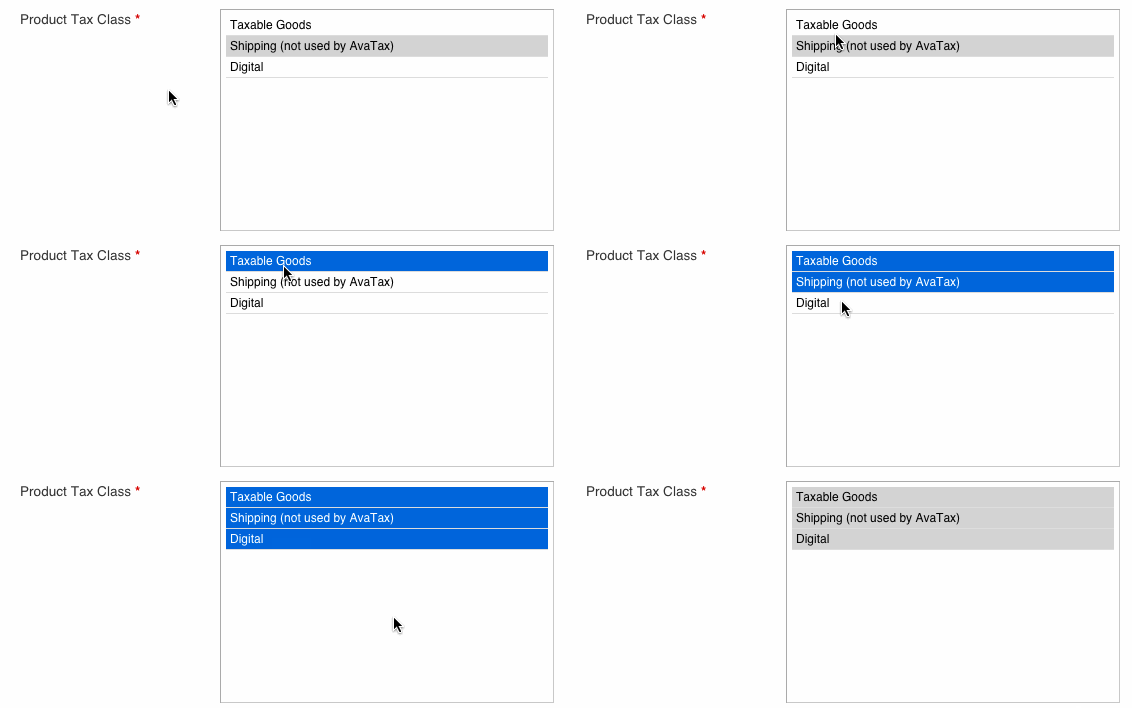
- Product Tax Class - Select a product tax class to associate with your tax rule.
- Tax Rate - Select a tax rate to associate with your tax rule.
- Priority - Enter a numeric value to determine which tax rates are applied first. Tax rates with identical priorities are added, while differing tax rates are compounded.
Note: You can select multiple options by holding CTRL (Windows) or Command (Mac) while clicking on different options within a field.
Step 3 - Save

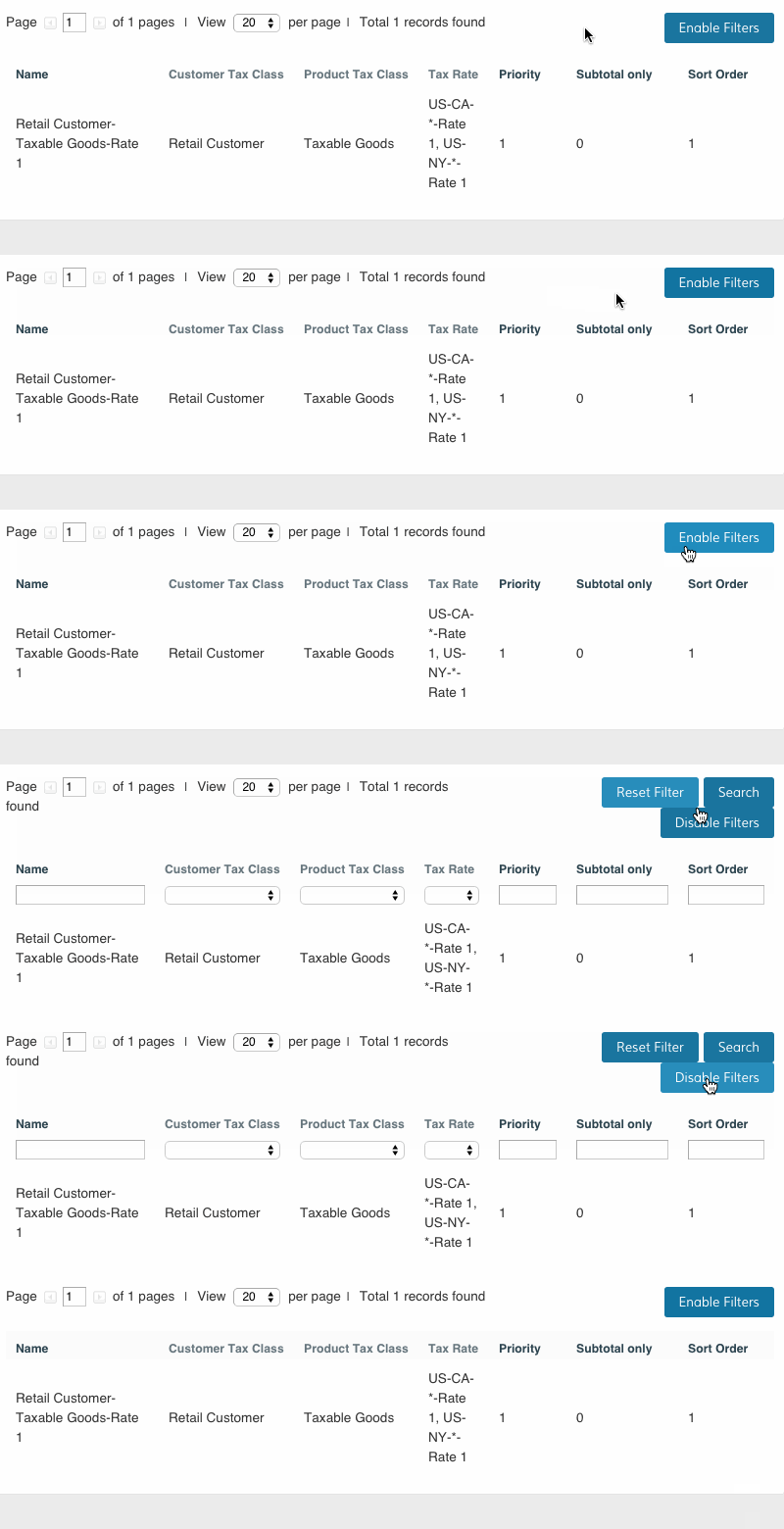
Step 4 - Edit Existing Tax Rules (Optional)
Comments
0 comments
Please sign in to leave a comment.