
There are multiple ways to offer Free Shipping to your customers but by far the easiest to set up is the Free Shipping method which exists just for this purpose! This will offer Free Shipping as an option as long as the customer has over the specified order total in their cart and is shipping to an allowed country.
Please note that if you want to do free shipping by weight or number of items ordered, you will need to enter it as a Table Rate.
| 1 | Add Free Shipping as a Method |
| 2 | Configure Free Shipping Settings |
| 3 | Save and Refresh |
| 4 | Alternatives ways to offer Free Shipping |
Add Free Shipping as a Method
Start by going to the Shipping area of your Control Panel by click on Set-up > Shipping from the main menu.
By default, you should have Free Shipping enabled. If you do not see this, click on Add Shipping Method at the top of the page or View More Shipping Methods at the bottom of the page.
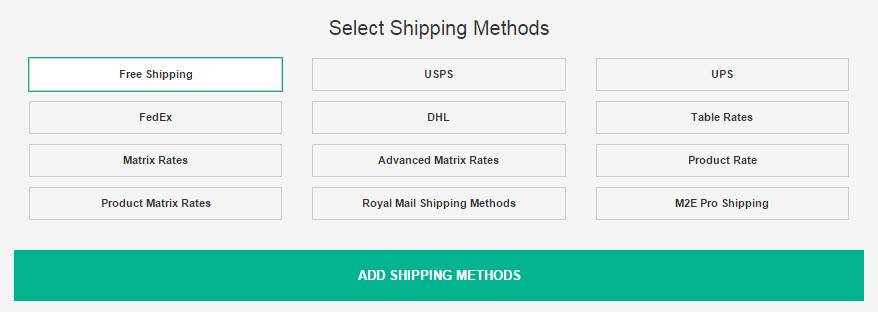
A list of available options will appear at the bottom of the page. Click on Free Shipping as shown below and Add Shipping Methods.
Configure Free Shipping Settings
Click on the button to the left ofFree Shipping:
- Set Up if you have not enabled this method
- Configure if it is enabled

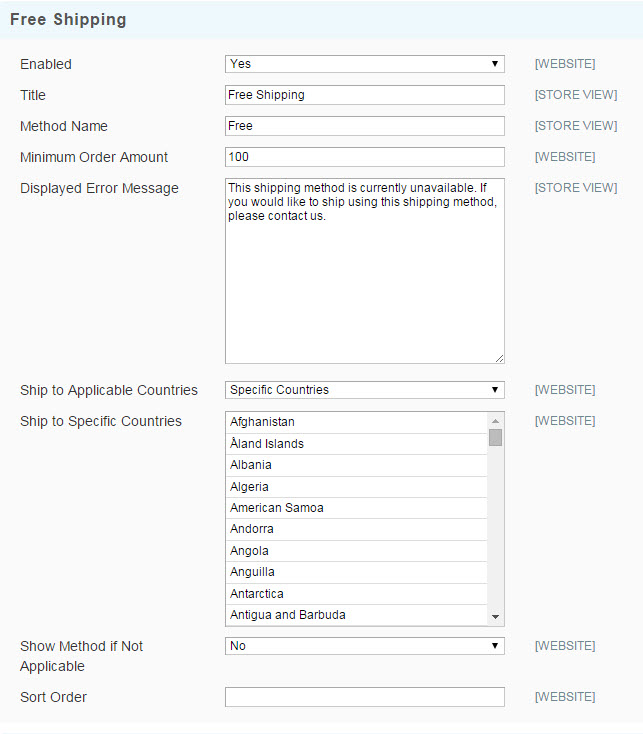
Fill in the fields:
- Enabled - Is this being offered? Yes will offer this option to all applicable customers during checkout
- Title Name - We recommend labeling this Free Shipping and shown how a carrier's name such as USPS or FedEx would be shown
- Method Name - This gives the customer a little more information about the shipping option. You may want to note how this item will be shipped such as Ground or Standard 3 Day.
- Minimum Order Amount - How much will the customer need to purchase before they are given this option? In the example, any order over $100 is eligible for free shipping.
Enter the amount as a simple number, without currency symbols - Displayed Error Message - If a customer selects this and is not eligible, what error will they receive?
- Ship to Applicable / Specific Countries - Select which countries are eligible. You can select multiple countries by holding the CTRL key and clicking on the options you wish to add.
- Show Method if Not Applicable - Will customers checking out with under the required amount be able to see this option?
- Sort Order - Where on your list of shipping options do you want this to display? Leave blank to be sorted by default.
Save and Refresh
Save and you are all set up to allow free shipping! We recommend testing this yourself in your store by creating an order that fits the requirements and begin checkout!
Alternatives ways to offer Free Shipping
There are many ways to offer free shipping other than this- USPS, UPS, DHL and FedEx for example have this set up in their methods!
If you are using rules other than the order total to determine free shipping, you can also see:
- Table Rate Shipping - Use for weight, price or number of item based shipping with the option to restrict to more specific destination such as a state rather than a country.
- Create a Discount Code - If you need product or category specific free shipping, Discount Codes are the way to go! This can be very complex, but is also gives you the most control.
Comments
0 comments
Please sign in to leave a comment.