
Coupon Codes are a great way to set up discounts based on the items in a customer's cart. Set a dollar amount off, a percent off, Buy One Get One Free, the combinations are endless and you can also restrict these discounts based on product, customer group or attribute.
A quick example of this is offering a 10% discount off any order. When the user enters GET10 in their shopping cart- the code we set up for this discount, and the customer gets a 10% discount!
Create a Discount Code and Configure General Settings
In your Control Panel, click on Promotions > Discount Rules where you can Edit an existing coupon by clicking on it or set up a new discount by clicking Create a Discount Rule in the top right corner.
You will now be in the General Information section where we will set up our very basic settings. Here are all the fields for this section- those with an asterisk ( * ) are required fields:
- Coupon Name * - Give the Coupon a name for Internal Reference only
- Description - Also for Internal Reference, you can leave a more detailed note about the use or function of this coupon
- Status *
Use Active for the coupon to be in affect as soon as it is saved, or as soon as the From Date begins
Use Inactive if this discount has expired or is a work in progress - we recommend using Inactive until you have finished this tutorial, entered all your settings and are ready to test - Customer Groups * - Select the Customer Groups who can use this coupon. Remember that all users checking out as Guest will be in the NOT LOGGED IN group
- Coupon *
No Coupon - Discount will automatically will take affect if the conditions are met, such as 20% off all orders without restriction for users in a custom created VIP Group (Customers will need to sign in to their accounts before this takes affect)
Specific Coupon - Customers will need to enter a predefined code before they can receive the discount. Once you select this option another field will open called Coupon Code (Required if you have selected this option) where you can set the Code. Use numbers or letters, spaces not recommended. Examples would be: XMAS2015, WELCOME15 or FBLIKE
Want to Generate unique codes? Check off Use Auto Generation - Uses per Coupon - Only for Specific Coupons, limit the number of times the coupon can be used store wide. For example if you have a flash sale where the first 100 customers using FIRST100 gets a discount, but the 101st person to use the discount will not be able to use the coupon and that sale will be over.
- Uses per Customer - Enter a numerical value to enforce how many times a customer can use the discount, such as setting it to 1 for a customer can only use this once as a Welcome offer. This will only work for logged in customers and not guest purchases- you may want to deselect "NOT LOGGED IN" from the Customer Groups
- From Date & To Date fields allow you to set a date range for the rule to take effect. If you leave the date range empty, the rule can be enabled as soon as it is set to active and will not expire.
- Priority - Set the priority for your coupon. This is only needed if you are using the "Stop Further Rules Processing" Rule in the actions area- making a rule with the priority of 1 be used before a rule with the priority of 2.
- Public In RSS Feed - If you use an RSS feed, you can decide if this is public or not with a simple Yes or No
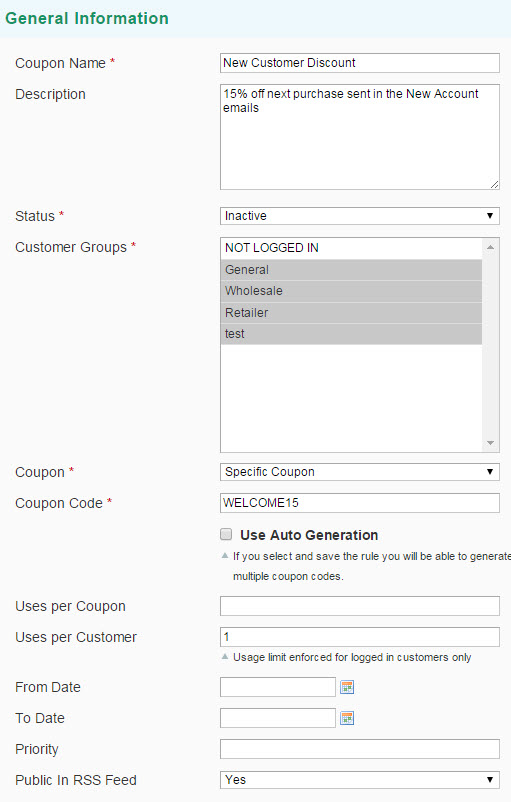
Here's an example of the settings for a Coupon for 15% off one purchase for all New Accounts.
Configure your Conditions
In the Navigation panel on the left, select Conditions. Conditions set the requirements for the shopping cart that must be met before your store allows the discount to be applied.
If there are no exemptions to this Coupon code based on the cart, such as no minimum dollar amount of products or price in the cart, and you are allowing this discount to work on ALL items in your catalog, move on to the next step of Actions.
If you are allowing the discount on a Product basis rather than the Shopping Cart, move onto the next step of Actions.
The first rule which appears by default, states:
- If ALL of these conditions are TRUE:
The statement has two bolded items (ALL and TRUE) which when clicked, offer a dropdown of additional options for that part of the statement. You can create different conditions by changing the combination of these values:
- Click ALL to choose ALL or ANY.
- Click TRUE to select TRUE or FALSE.
Remembering you can change any of the bolded items is the key to creating the perfect set of conditions!
Click the green icon at the beginning of the next line. Then, choose one of the following options from the list to describe the condition you want to set for your rule.
- Product attribute combination
If an item is FOUND / NOT FOUND in the cart with ALL / ANY of these conditions true:
Further conditions to add as is or is not to this statement are:
Price in Cart
Quantity in Cart
Row Total in Cart
Attribute Set
Category
SKU
and any additional Attributes you have set as Use in Promo Code Rules
- Products sub-selection
Product attribute combination but with these default parameters:
If total quantity is ... for a subselection of items in cart matching ALLof these conditions
- Total Quantity can also be changed to Total Amount
- Is has the options of Is Not, Equals or Greater Than, Equals or Less Than, Greater Than, Less Than, is one of, or is not one of
- Use the ... to enter a numerical value - Here's an example of a coupon that will only work once the customer has more than 10 items from the Sale Category in the cart.

- Conditions combination
Allows you to create a condition using a combination of the above conditions - Cart Attribute
Create your conditions based on the Shopping Cart's:
- Sub Total
- Total Items Quantity
- Payment Method
- Shipping Method
- Shipping Postcode
- Shipping Region
- Shipping State / Providence
- Shipping Country
All of these will give you the Is, Is Not, Equals or Greater Than, Equals or Less Than, Greater Than, Less Than, is one of, or is not one of options, as well as a a place to enter the value or a dropdown selection of ones you can use.
To add more conditions, click the green icon and repeat the process until you conditions are complete.
If at any time you want to delete part of the statement, click the red icon at the end of the line.
Set the Actions
Action describe how prices are updated when the conditions of the rule are met.
- In the panel on the left, select Actions.
- Set Apply to one of the following discount options:
- Percent of product price discount: Discounts item by subtracting from original price. For example, Enter 10 in Discount Amount to define a final price that is 10% reduction from the original price.
- Fixed amount discount: Discounts item by subtracting from original price of each product in your cart based on fixed amount. For example: Enter 10 in Discount Amount to define a final price that is $10 reduction from the original price.
- Fixed amount discount for whole cart: Discounts item by defining the final price based on percentage. For example: Enter 10 in Discount Amount to define a final price that is $10 off entire cart.
- Buy X get Y free (discount amount is Y): Discounts are applied to the “Y” item.
- Enter the Discount Amount.
- In the Maximum Qty Discount is Applied field, enter the largest number of products to which this discount applies.
- If the rule is based on Buy X get Y Free, enter a number in the Discount Qty Step (Buy X) field to specify how often the discount can be used at a given time. For example, if the rule says, “Buy 2, get 1 free,” and the customers buys 6 products, do they get 3 products for free? You can put a limit on the number of times the rule can be applied to a single sale.
- To specify how free shipping is applied when used with the coupon, set Free Shipping to one of the following:
- No: Free shipping is not available when a coupon that is based on the rule is used.
- For matching items only: Free shipping is available only for specific items in the cart that match the rule.
- For shipment with matching items: Free shipping is available for the entire cart when a coupon that is based on the rule is used.
- Set Stop Further Rules Processing to Yes to stop processing the other rules as soon as this one is applied.
Remember: Only one Discount Code can be applied at a time. - To define an additional rule that applies to specific items in the cart only after the requirements in Conditions are met, click the green add icon and choose an item from the following sections in the list:
- Cart item attribute
- Price in cart
- Quantity in cart
- Row total in cart
- Product attribute set
- Category
- SKU
- Any Custom Attribute that has been set up with "Use for Promo Rule Conditions"
To learn more see: Adding and Managing Attributes
- When complete, click the Save Rule button.
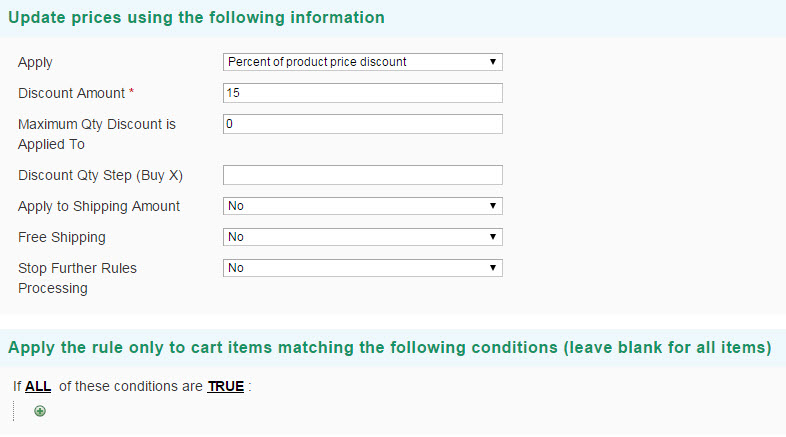
Here's the Actions set up for our 15% off example with no limit on what and how much or little the customer buys:
Add Labels (Optional)
You can create default labels for the rule which will be used in all store views, or create specific labels for each view.
- In the panel on the left, select Labels.
- In the Default Label section, enter the text to be used as the Default Rule Label for All Store Views.
- In the Store View Specific Labels section, enter the translated text for each Main Store language.
Save and Test your Promotion
Click the Save button!
Go back to Coupon Information and set the Status to Active.
Now view your store and run a test order to make sure you have the coupon operating the way you want it!
Generate and Export Codes (Optional)
Once you have saved your Coupon, you can go back into your Coupon and find Manage Coupon Codes. You can now put together the structure of what your codes will look like:
- Coupon Qty *
- Code Length * Excluding prefix, suffix and separators
- Code Format *
- Code Prefix
- Code Suffix
- Dash Every X Characters
Click Generate to create!
Below this area you will find all the generated codes as well as information on their usage. This can be exported as well as deleted.
Comments
0 comments
Please sign in to leave a comment.