
If you need to provide access to the Control Panel of your store to multiple people, you add each person as a user, with their own user name and password. You then assign each user one of the following permissions:
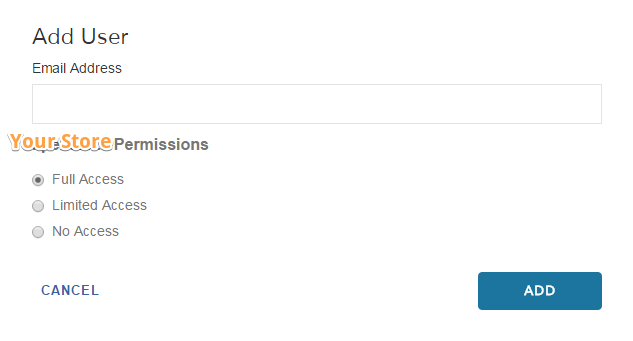
Full Access will allow the user to access all areas of your store, including the Account Manager. However, while they can view the information in there, such as Billing, they won't be able to change anything.
Limit Access will give you the option to select only specific areas you want to grant access for.
No Access will delete an existing user.
Step 1: Add User with Permissions
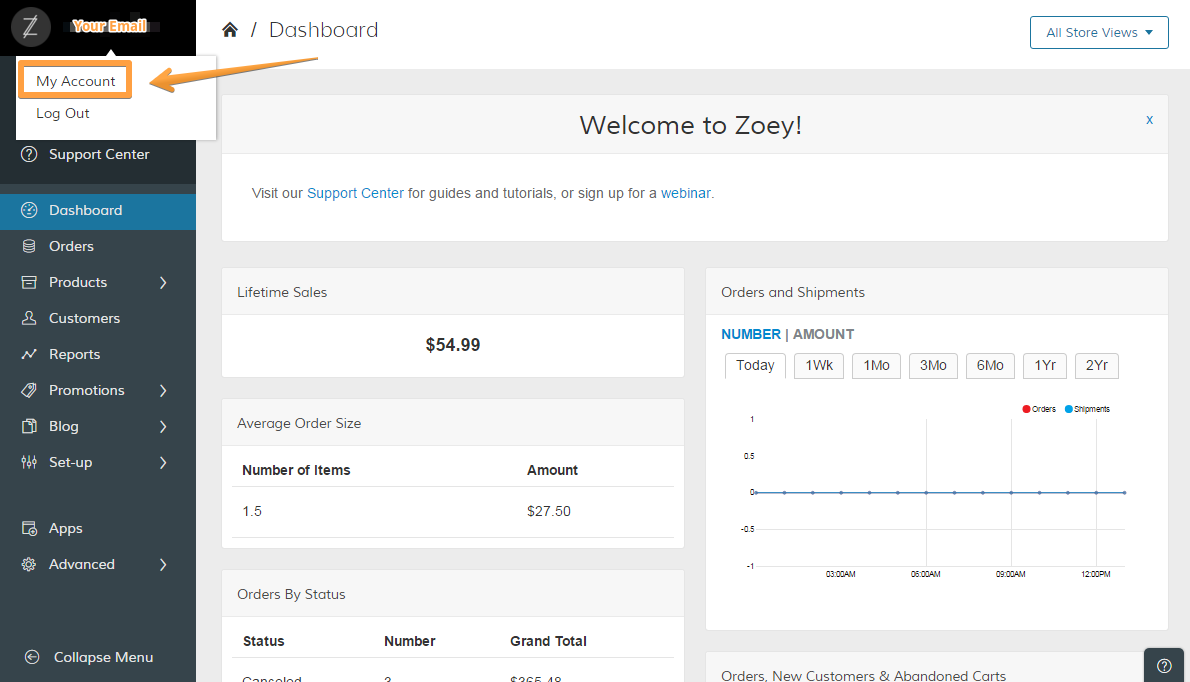
In your Control Panel, hover your cursor over your Email Address and select My Account.
Under Users click Add User and enter their email address, then select the Permission or role you want to grant. Click on Add to finish the user set up - Once you click the "ADD" button an email is sent automatically to the email address you entered. The new user has to confirm to be granted access to your store.
Step 2: Edit or Delete a User
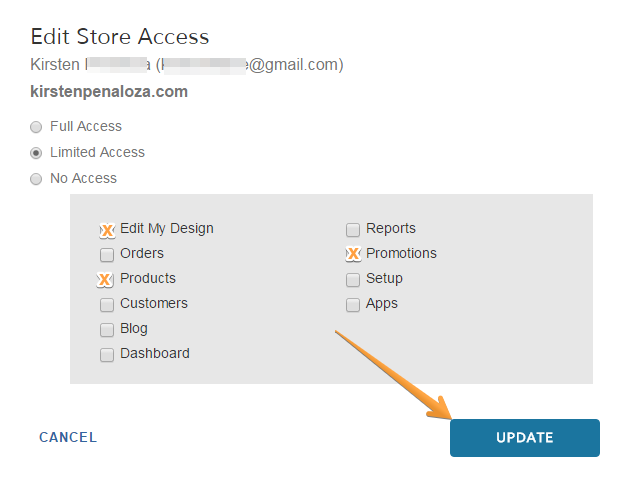
If you want to change the Permissions or delete an existing user, click on the pencil icon to the right of the user name or email address. In the new window you can change from Full Access to Limited Access or select and unselect the areas for a Limited Access.
To delete a User, select No Access - when you are finished click the blue Update button.
Both, Store Owner and Users can log in from https://login.zoeysite.com/.
Comments
0 comments
Please sign in to leave a comment.