
Once you have your RocketWeb Google Shopping feed all set up and have generated your new feed, you may want to schedule Google Merchant Center to grab the feed file from your server and then fetch it regularly according to the schedule you pick. Follow along with these instructions to set this up:
- Login to your Google Merchant Center
- Click Feeds in the left navigation.
- Click the New Data Feed button.
- In Basic Information, set the following:
- Mode can be either Standard or Test. We recommend starting with Test and fixing errors before moving on to a Standard Feed that will be live.
- Feed Type should be set as Products
- Select your Target Country
- Give your Feed a Name which will be used for your reference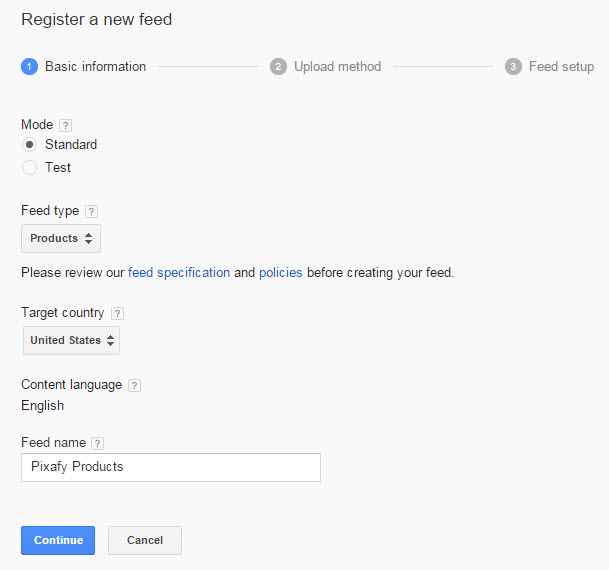
- Click Continue
- In Upload Method select Automatic upload (scheduled fetch)
- Click Continue
- In Feed Setup:
- Specify the name of the file (no spaces) for your reference.
- Set the Fetch Frequency and Time based on your business's needs. This should be at some time after your feed finishes building each night.
- Set your Timezone
- Enter the feed url: http://YOURSTORENAME.com/media/feeds/google_base_default.txt
If you have changed or customized the RocketWeb feed name in your settings you may need to update this URL. This is based off of the default settings.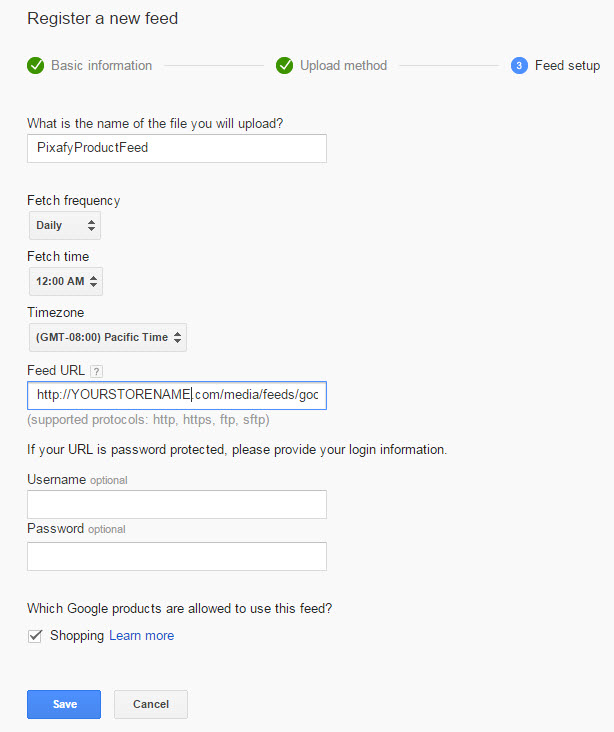
- Click Save
You will have to option to "Fetch Now" and we recommend doing so to view any errors or warnings!
Comments
0 comments
Please sign in to leave a comment.