
Zoey allows you to set up currencies for customers worldwide. Quickly change your primary currency and allow multiple currencies from around the world to meet the needs of your primary markets.
| 1 | Visit Localization settings |
| 2 | Add or change currency |
Step 1 - Visit Localization settings
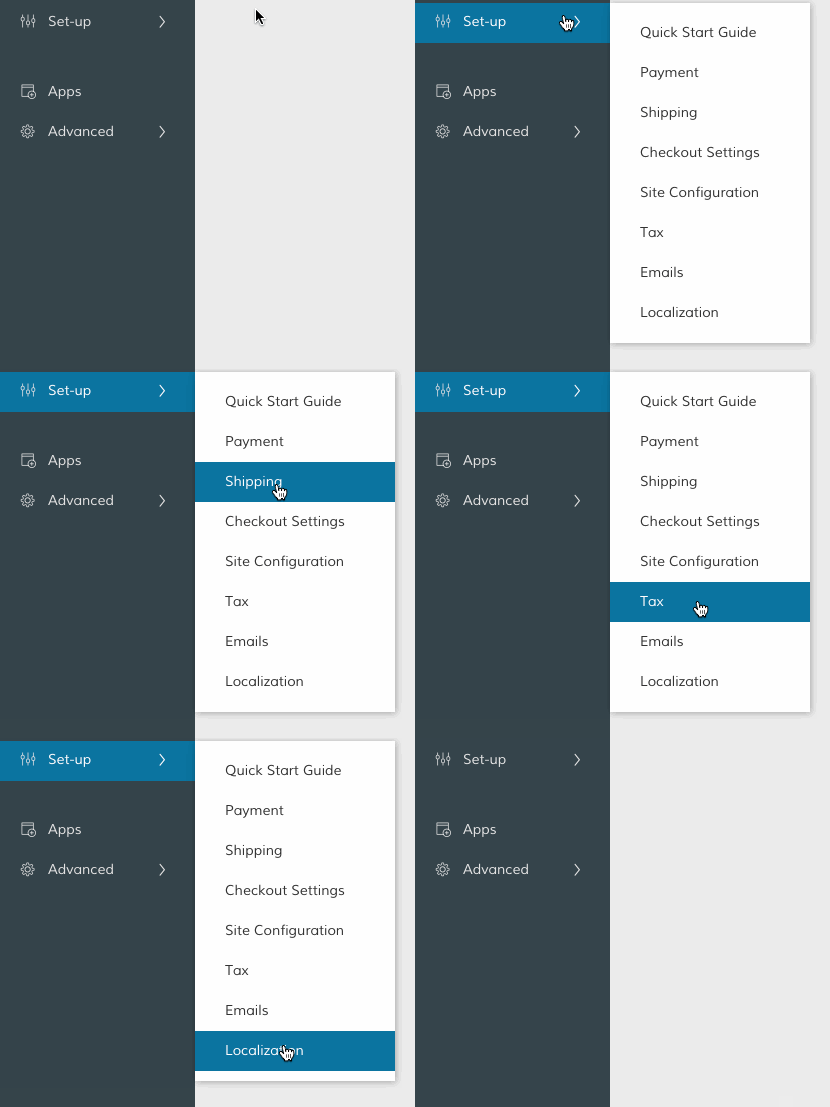
In your Control Panel, hover over Set-up, then select Localization.
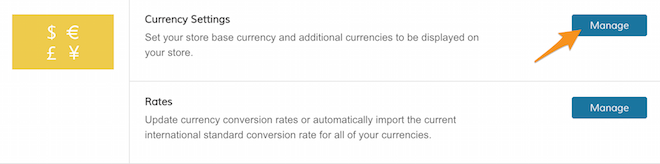
Scroll down to Currency Settings and click Manage.
Step 2 - Add or change your currency
From Currency Options, adjust your currency settings.
- Base Currency - This is the main currency used for payment transactions. This currency is directly associated with the price of products entered throughout your settings. If you have more than one allowed currency, adjust the exchange rates from Set-up > Localization > Rates to ensure the currency selected on the frontend displays an accurate price.
- Default Display Currency - Select a default display currency that appears throughout the frontend of your store.
- Allowed Currencies - Select which currencies your store allows for purchase. Hold Command (Mac) or CTRL (PC) to select multiple options. If there's more than one allowed currency, customers will be able to select from a dropdown that shows the price in the currency of their choice.
When you finish making your updates, click Save in the top-right hand corner.
Comments
0 comments
Please sign in to leave a comment.