
MailChimp is a popular, easy to use email service. It's a great resource for customers looking for a simple, yet powerful email solution. We explain how to connect MailChimp with Zoey and use it to generate customer email sign-ups.
| 1 | Create MailChimp account |
| 2 | Connect MailChimp to Zoey |
| 3 | Import contacts from MailChimp to Zoey |
| 4 | Export contacts to MailChimp from Zoey |
| 5 | Learn more about MailChimp |
Why MailChimp?
- Designed to support email lists both small and large, featuring customers with millions of subscribers.
- You can manage MailChimp from desktop, tablets and mobile phones.
- Easy integration with your social media channels
- Built-in tools to discover relevant customer analytics, track revenue generated from email signups, and create A/B tests.
- Easy integration with your Zoey's store, including quick configuration with the checkout page and newsletter sign-up.
Step 1 - Create MailChimp account
You can sign up for an account here. MailChimp has a helpful walkthrough on account creation as well.
Step 2 - Connect MailChimp to Zoey
In the Control Panel, click Apps to find MailChimp. Next to the main MailChimp section, click Manage.

In the MailChimp Configuration page, set Enabled to Yes.
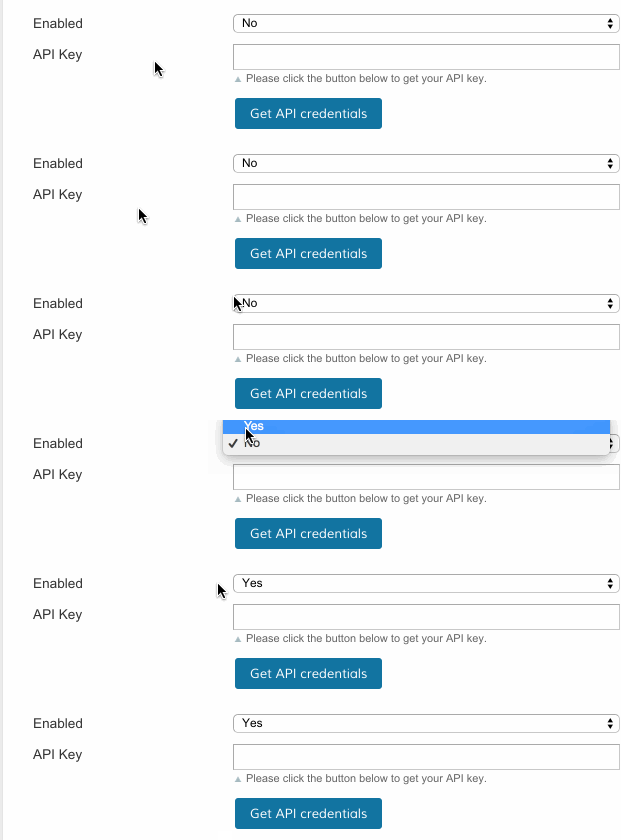
Then, click Get API credentials.
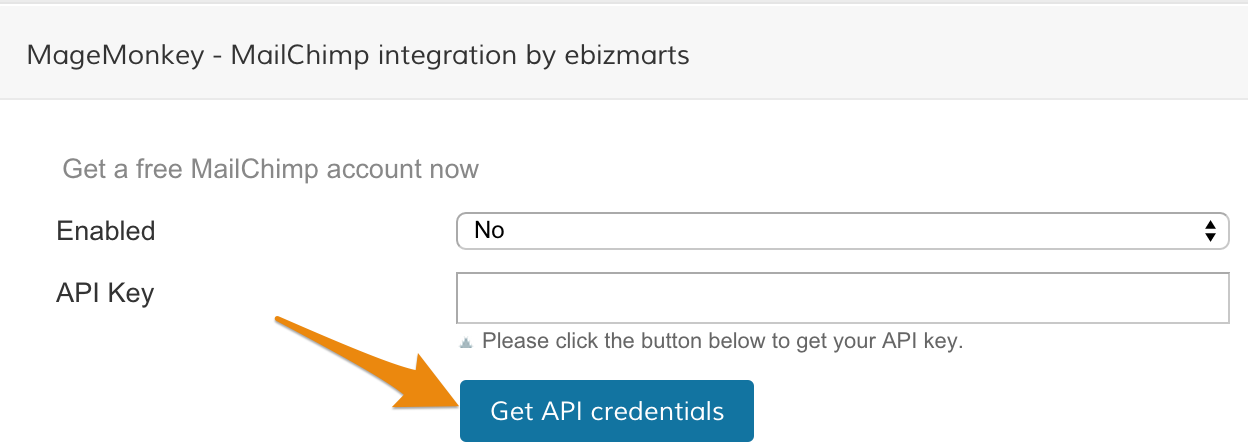
A pop-up will open prompting you to login. Enter your MailChimp Username and Password, then click Log In.
Copy the API Key. Be sure to not include any spaces!
Back in Zoey's MailChimp app, paste your key into the API Key field.
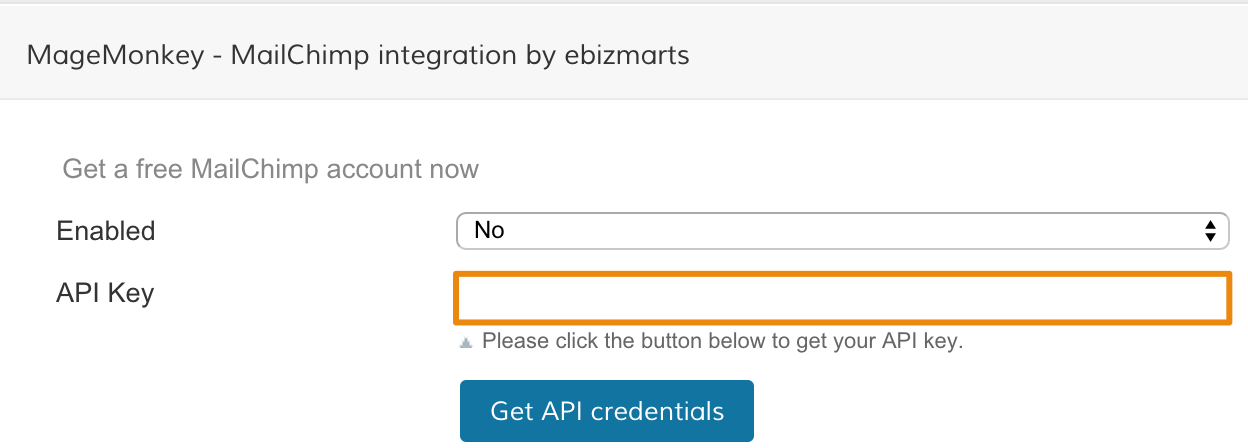
When you finish click Save Config to finish connecting your MailChimp account with your store.
Import contacts from MailChimp to Zoey
Please note before you import:
When you use the Mailchimp Email Import tool it will import all the emails from Mailchimp and create accounts for each email address not already in your Zoey customer list. This will also send out an email notification to each customer notifying that an account has been created for your store.
From Apps > MailChimp, within the Import Emails section, click Manage.
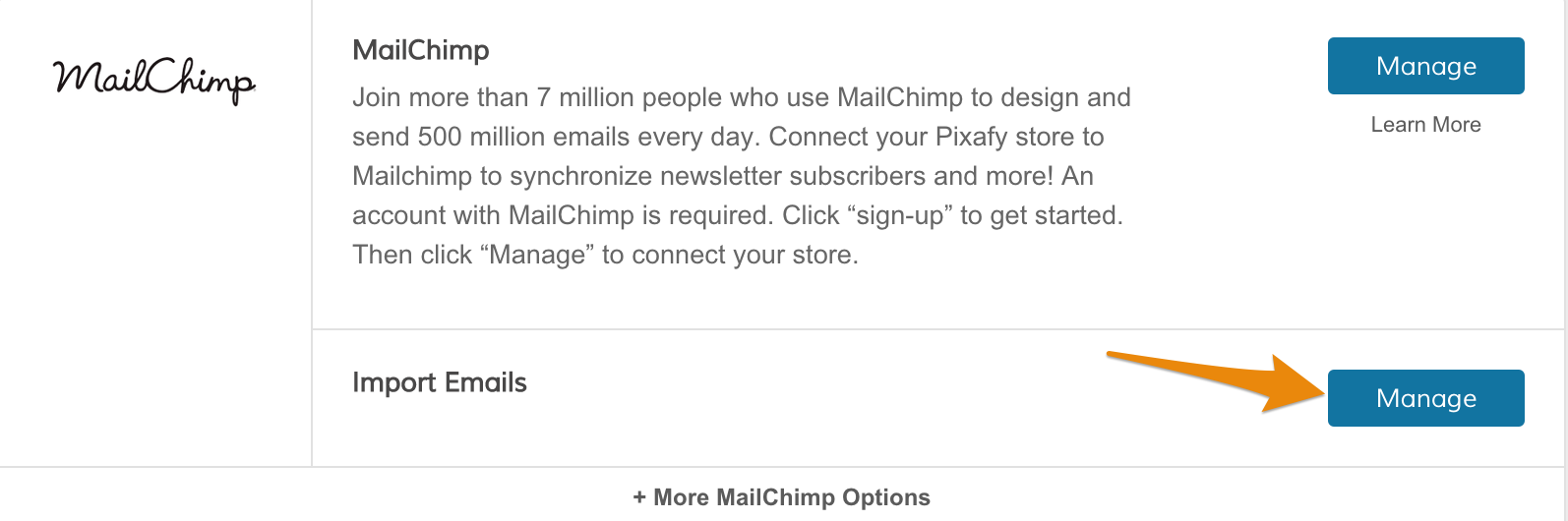
From the New Import page, select your Import Configuration settings.
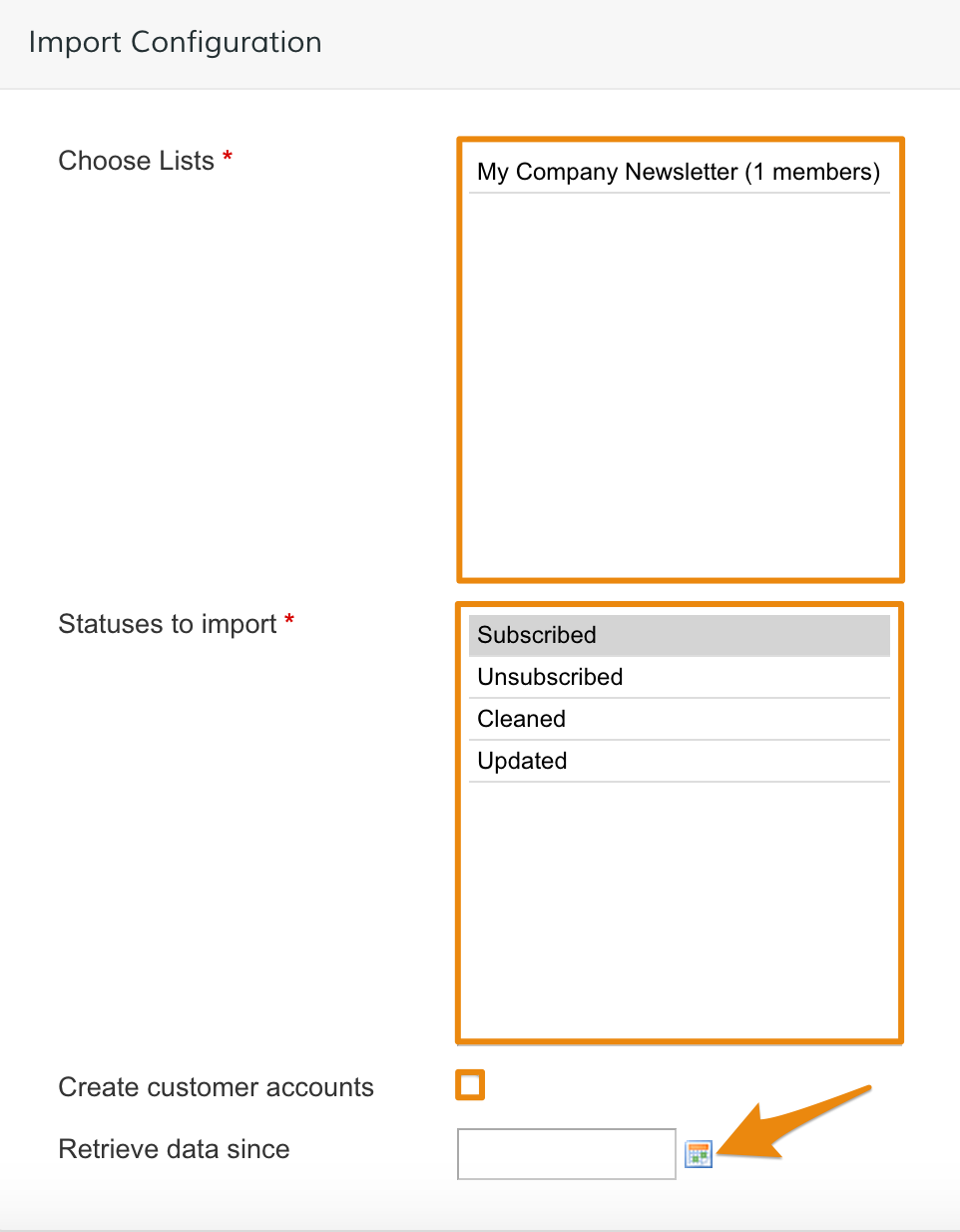
- Choose Lists - Select which lists you wish to import.
- Statuses to Import - You can import current subscribers, those that have unsubscribed, or people that have either been cleaned (removed) from a list
- Create customer accounts - Select the checkbox to automatically create a new account for users that have signed up for your list in MailChimp but are not in your Zoey store. If their email is connected to an account in Zoey, a duplicate account will not be created.
- Retrieve data since - Click the calendar icon to select the earliest date you want to import subscriber data.
When you finish, click All set!
Export contacts to MailChimp from Zoey
From Apps > MailChimp, click +More MailChimp Options to find Export Emails, select Manage.
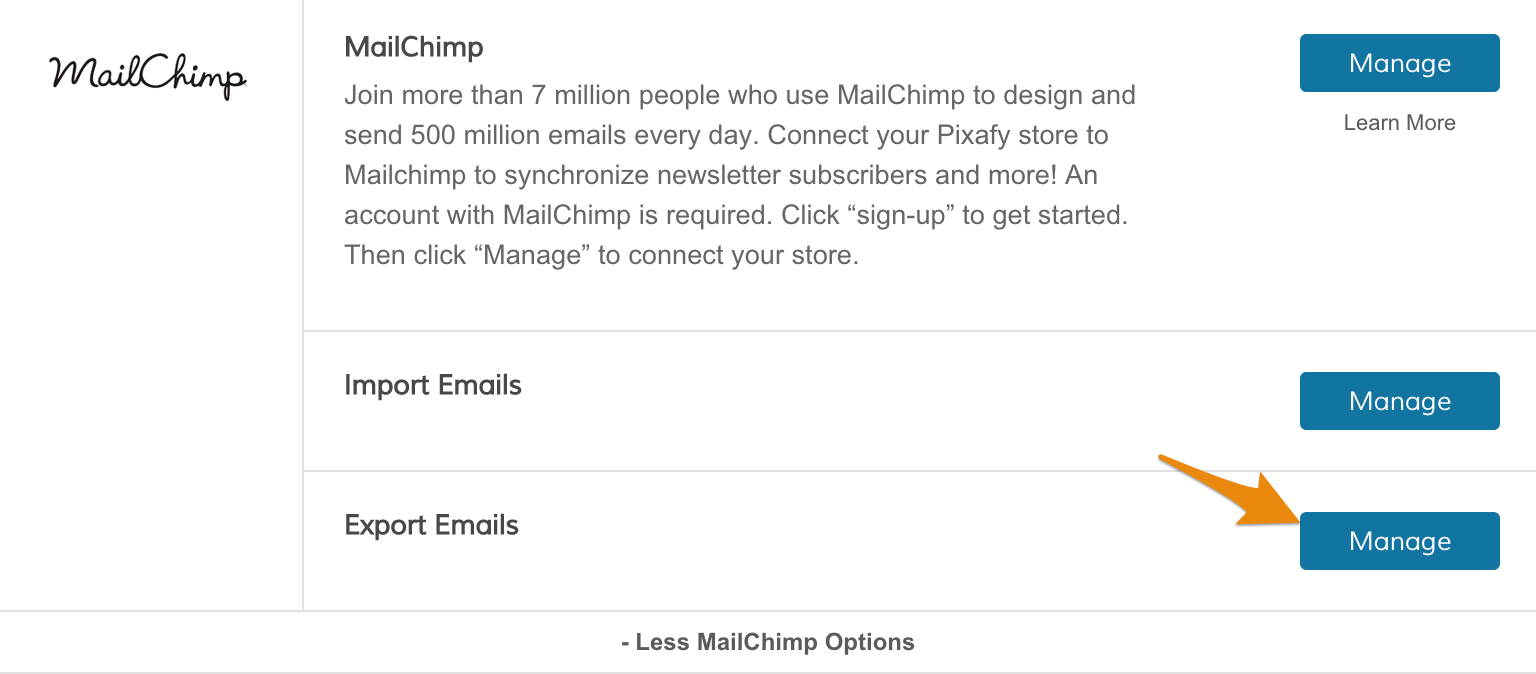
From your Export Email page, update your Export Configuration fields.
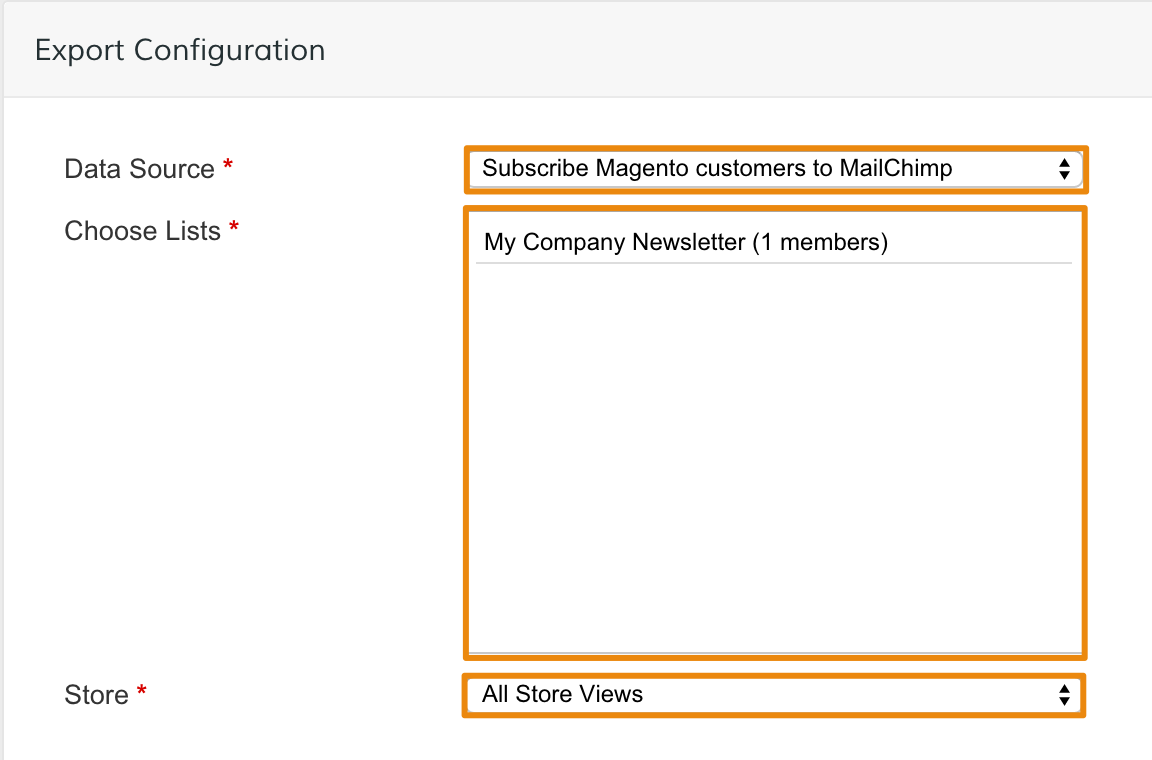
- Data Source - Select Subscribe Magento customers to MailChimp to send all store customer information into MailChimp. Select Send Magento Newsletter subscribers to MailChimp to send newsletter subscriber contact info into MailChimp.
- Choose Lists - Select a list to export to MailChimp.
- Store - Select a store view to export related contact information.
When you finish, click All set!
Note: Once you finish your export, you won't have to export again. MailChimp and Zoey sync contact information automatically.
Learn More about MailChimp
If you have any questions about using MailChimp, they have an extensive knowledge base with helpful support articles on managing your MailChimp account.
Comments
0 comments
Please sign in to leave a comment.