
You can use Mandrill to capture potential revenue from customers that may have left their shopping carts but can be persuaded to finish their purchase.
Abandoned Carts are orders that have not been completed although items are in the shopping cart. Information on whose cart this is can only be captured if they are either logged in or are a guest who have proceeded past the billing information stage and entered their email.
Step 1 - Visit Mandrill autoresponder settings
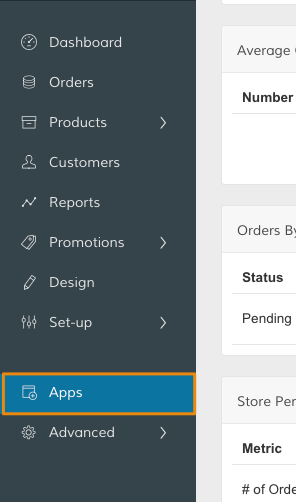
In the Control Panel, select Apps.
Then, scroll down to Mandrill and click +More Mandrill Options.
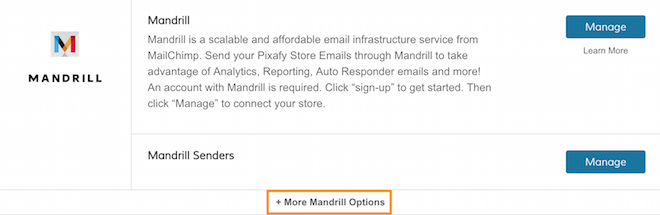
In the Autoresponder subsection, click Manage.

Step 2 - Configure Abandoned Cart module
In the Abandoned Cart module, select Enabled. This will open up additional settings:

Then, begin configuring your module.
- First Date - Set the first date an abandoned cart will be processed for the module. Abandoned carts before this date are omitted.
- Sender - Configure the sender of the emails of abandoned carts. This is based on what you configured in Set-up > Emails > Store Email Addresses.
- Redirect page - The CMS page to redirect the customer when they click on the email url. You can redirect customers to any of your CMS pages, or to the cart page.
- Mandrill Tag - Enter the Mandrill tag you want to use for abandoned cart emails. This tag is used for filtering emails when tracking stats.
- Max number of email to send - Send up to five (5) emails to recover an abandoned cart.
- Email Subject - Enter a subject line for each email sent and be configured.
- Email Template - The first three (3) email templates are configured by default. These settings are based on Mandrill's recommended best practices for abandoned cart management. Edit these email templates from Set-up > Emails > Email Templates.
- Send email after - In the first email, you can set this field to be days or hours. The value for every other email refers to the amount of days your store will wait until the email is sent. This starts from the moment your customer's cart cart was originally abandoned. Value must be equal or greater than 1.
- Unit - You can choose if you want to send the first email after a few hours or send it after a few days. Depending on this value, the Send email after field corresponding to the first email will be taken as days or hours. Value must be equal or greater than 1.
- Customer Groups - Segment abandoned cart correspondence by your customer group. There's no Customer Groups selected by default, so ensure you have at least one so the email gets sent.
- Auto Login link - Enable this option to auto login registered customers.
Step 3 - Add a coupon (optional)
One way to capture potential customers that abandon their carts is by sending them a coupon. This gives your visitors an incentive to finish their purchase.
Scroll down to the Coupon section, then work through the following fields:
- Create Coupon - Select Enable to automatically create a coupon for customers that abandoned their carts.
- On Email Number - Indicates how often a coupon is sent via email.
- Option - Choose Specific to use an existing coupon code. Then enter the code in the Coupon Code field. If you choose Automatic, the following fields will appear:

- Expires On - Enter a numeric value for the amount of days your coupon will last before it expires.
- Coupon Length - Length of characters of the coupon code.
- Discount Type - Choose between a fixed amount or a percentage for your discount value.
- Discount Amount - Enter a numeric value corresponding to your choice in the Discount Type field.
- Label for Coupon - Enter a label to display in checkout when customer applies the coupon.
Step 4 - A/B test abandoned cart notifications (optional)
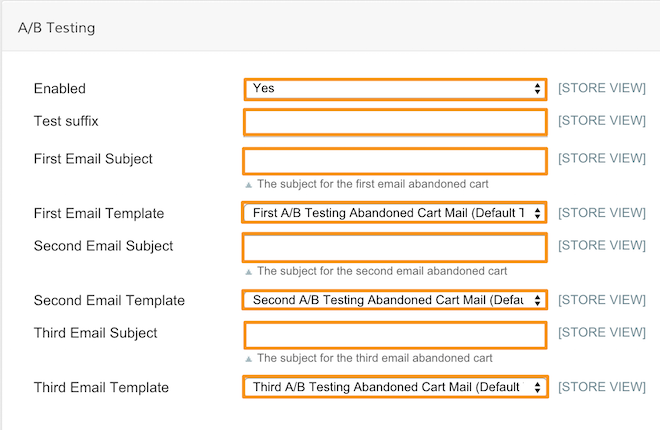
Mandrill allows you to perform A/B tests to determine the success of your abandoned carte notifications.
- Under the A/B Testing section, click Enabled. A series of options will expand.
- Customize the subject line for each email in the test.
- Select an email template for each email sent to your customers. You can customize the template from Set-up > Emails > Email templates. We explain how to create email templates here.
- Set a Test suffix. Your test emails will be tagged with the usual tag set on General, but this suffix will be added at the end separated with an underscore. This differentiates them on https://mandrillapp.com.
Step 5 - Configure email caching settings (optional)
Mandrill can create a popup form to catch emails of store visitors. Those emails are used for later abandoned cart emails.
- In the Catch Email on Popup menu, select Yes. This will open up a set of options for customizing the popup form.
- Configure your popup form.
- Set Create Coupon? to yes to enable a coupon for customer emails received through the popup.
Note: Ebizmarts, the creator of the integration, has a helpful explanation of the customization options.
View sent abandoned cart emails
You can view email auto-responses sent from Apps > Mandrill > Autoresponders Sent.

Monitor abandoned cart statistics
From Apps > Mandrill > Abandoned Cart Dashboard, click Manage.

You can view statistics tracking the revenue gained from your abandoned cart interactions. Basic analytics on the emails sent to abandoned cart customers can be browsed as well.
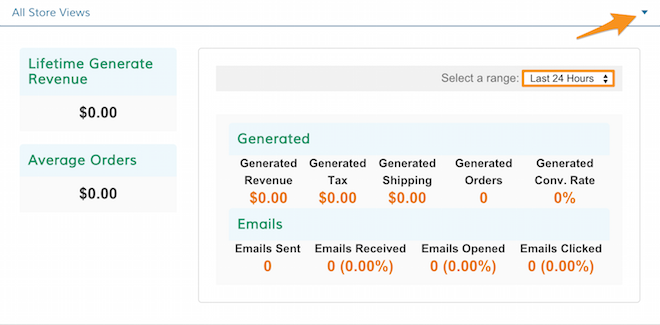
Use the Select a range menu to filter metrics within a timeframe. Click the arrow to view your metrics filtered by your store views.
Comments
0 comments
Please sign in to leave a comment.