
A SSL Certificate is security protocol that encrypts data and sends information over a secure channel from one destination to another. Any time your customers are prompted to enter personal information, such as checkout or their account pages, they will be sent to the secure part of your site- the part utilizing the SSL.
| Step 1 | Visit Account Settings |
| Step 2 | Generate an SSL Certificate Request |
| Step 3 | Sign up with Rapid SSL |
| Step 4 | Instal SSL Certificate on Zoey |
This tutorial will show you how to purchase and install your SSL Certificate through our recommended SSL provider RapidSSL.
Note: You will need to have access to one of these email addresses to receive your SSL certificate:
- admin@[Your Domain].com
- administrator@[Your Domain].com
- hostmaster@[Your Domain].com
- webmaster@[Your Domain].com
- postmaster@[Your Domain].com
If you don't have an email associated with your domain, you can create one through a third party. We recommend Google Business Apps, but most domain providers (GoDaddy, Hover, etc) offer email hosting services too! Zoey does not offer email registration at this time.
Note: You must be the primary account holder to complete this tutorial. You also must have an upgraded account- trial accounts will not be able to access these options.
Step 1 - Visit Account Settings
From your Control Panel, hover over your Email Address and select My Account.
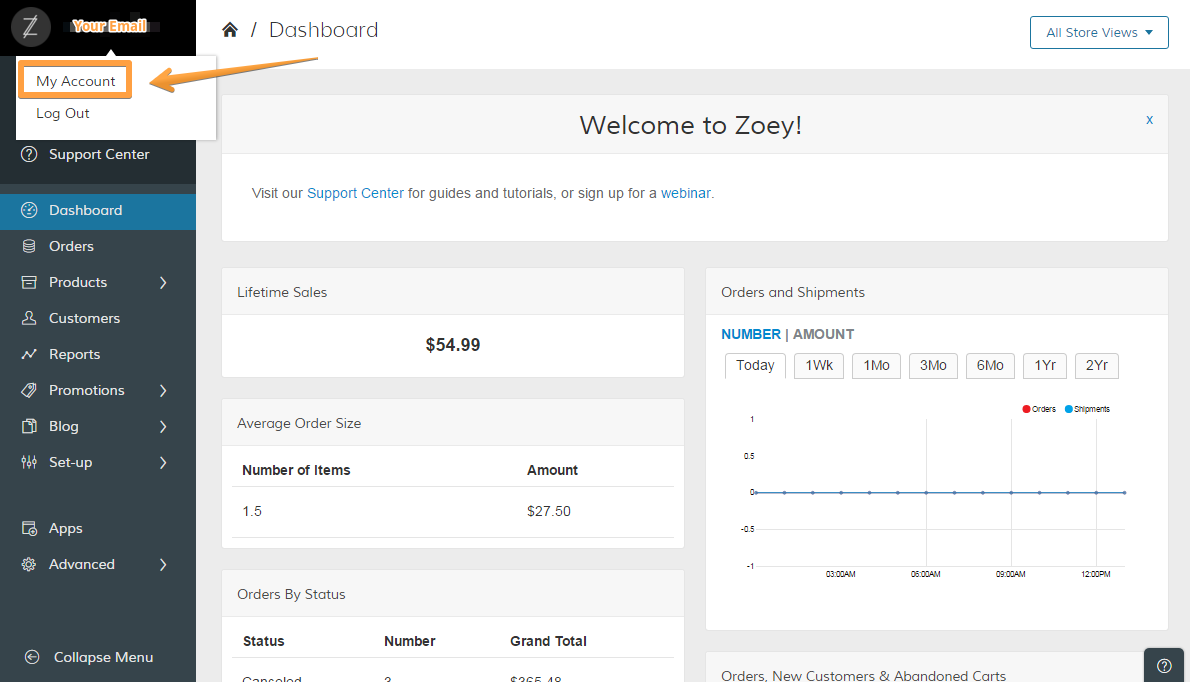
Under My Store click on the pencil icon next to Secure Certificate (SSL).
Step 2 - Generate an SSL Certificate Request
A new window opens, where you need to fill all the fields and click on Generate Certificate Request (CSR).
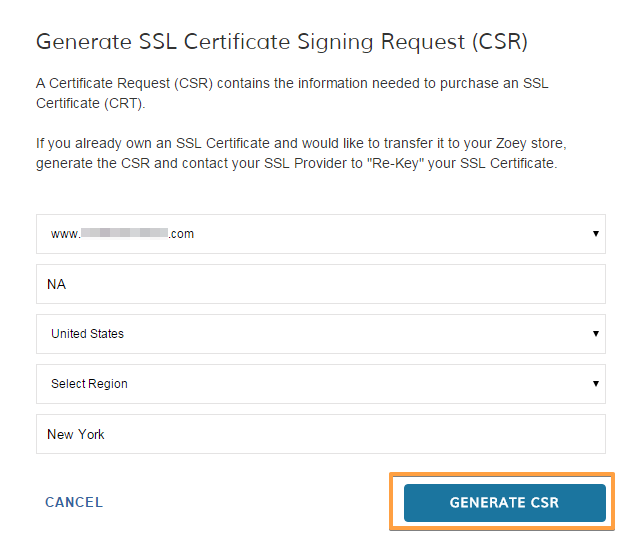
This will prompt you to the next step where you have to copy the CSR to submit it to Rapid SSL. Don't click out of this window!
Step 3 - Purchase your Certificate
Copy your newly generated certificate request.
In a new window or browser tab, visit the Rapid SSL website and click Buy/Renew in the box titled RapidSSL Certificates.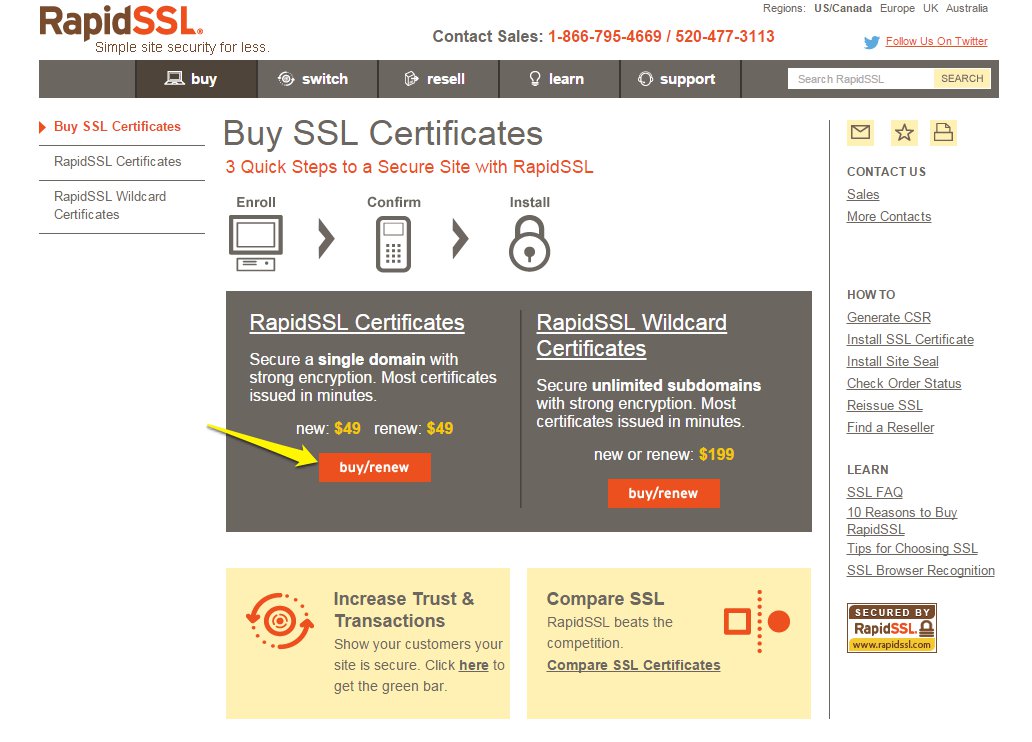 A pop-up box will appear – this is where you will purchase your SSL Certificate. We will walk through the various purchasing options within Rapid SSL. If you have any questions while navigating your SSL purchase, we recommend contacting Rapid SSL customer support.
Validity Period
Select the validity period for your certificate (we recommend 1 year for flexibility, should you change your domain).
Renewal
If this is your first SSL certificate, select Initial Order. If you are renewing a certificate, select “Renewal.”
Competitive Replacement
Under Competitive Replacement if you have an active certificate issued from a competitor of RapidSSL, you are eligible for a replacement certificate free of charge. Select Yes, I have a server certificate from a competitor if you’d like to take advantage of this offer. If you don’t or if this is your first SSL, select No, I can’t take advantage of this offer.
Click Continue at the bottom of the page when you are ready.
Contact Information
Fill out the contact information for your site administrator, technical contact, and billing contact. Scroll to the bottom and click Continue.
Enter CSR
From here, scroll to the field titled Certificate Signing Request
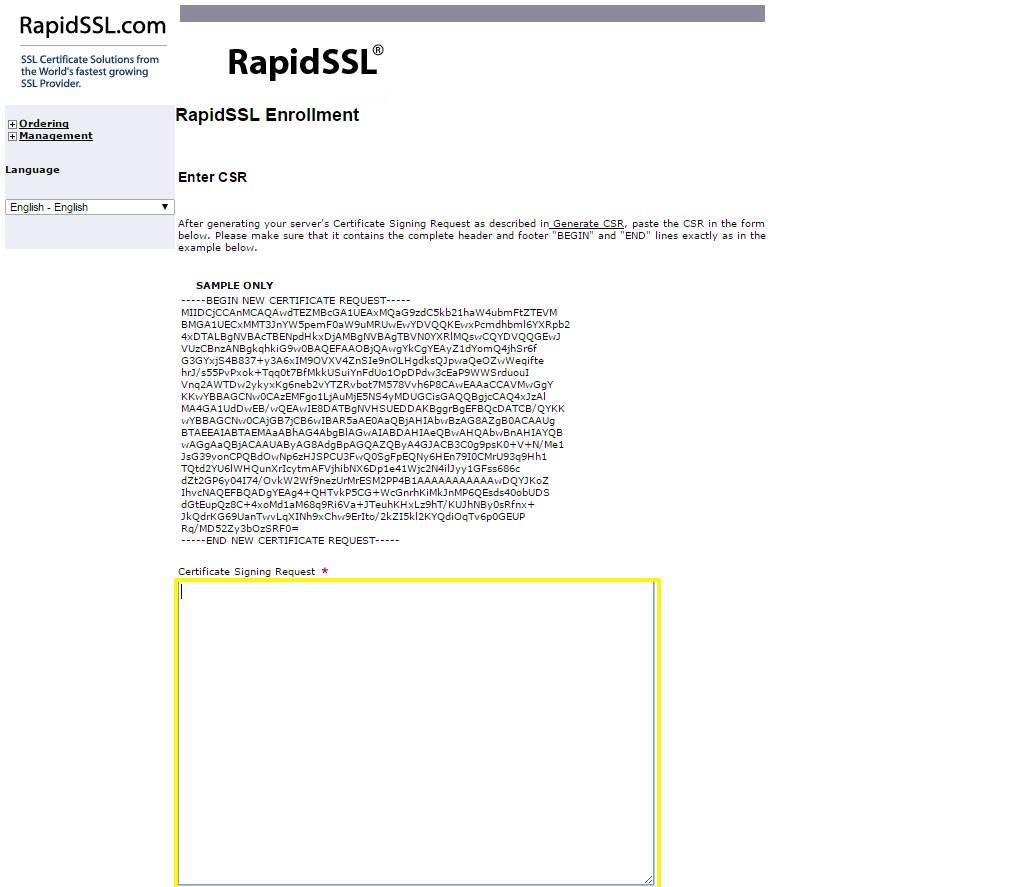
Paste your CSR file, generated in your Zoey Account Settings area (refer to Step 2) into the box and click Continue.
Check the URL shown in Common Name is correct and click Continue.
Verify Server URL
Under Verify Server URL, you have the opportunity to confirm the website URL intended for your SSL Certificate. If this information is incorrect, return to your Zoey Account to generate a new CSR with the proper information and enter it in Rapid SSL using Replace CSR.
Once you have verified the information for your SSL, click Continue.
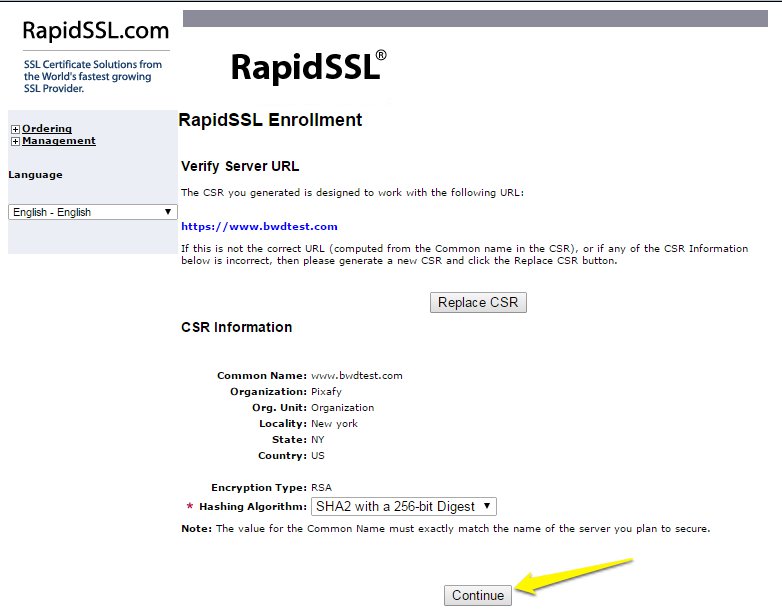
Note: Under CSR Information, in the “Hashing Algorithm” dropdown, select SHA2.
If you do not have this option, you can use SHA-256 cert and root
Assign Contact Email
Select the correct email address for which RapidSSL can send you a certificate approval request. Then, click Continue.
Fill in all appropriate billing information, and click continue. Once you have completed your billing information, RapidSSL will email you a certificate approval request. You should also expect an automated call from RapidSSL to confirm. RapidSSL will send you a CRT Certificate as well as an Intermediary Certificate.
Step 4 - Install SSL Certificate on Zoey
Back in your Zoey Account Settings area, you will see two fields, one for CRT Certificate and one for Intermediary Certificate.
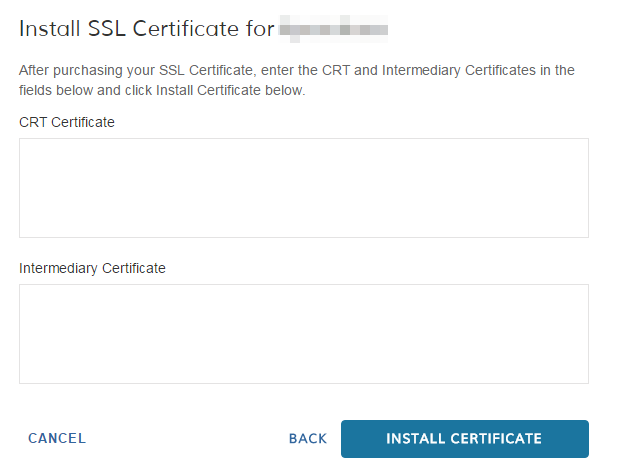
Copy and paste the RapidSSL-provided certificates into their corresponding boxes.
Then, click INSTALL CERTIFICATE.
Congratulations, you’ve done it! Your SSL will take approximately 15 minutes to take effect. Once this is complete, you will be able to update your Store Secure Address (URL) if you have already completed the Update Your Store's Domain tutorial.
Comments
0 comments
Please sign in to leave a comment.