
For most third party integrations such as shipping, external sales (like eBay or Facebook stores) you will need to set up a API role and associated user! One of the most common issues with this is remembering to assign your user to the role. Be sure not to skip this last step and save afterwards!
1. Create an API role.
We need a catalog resources access role.
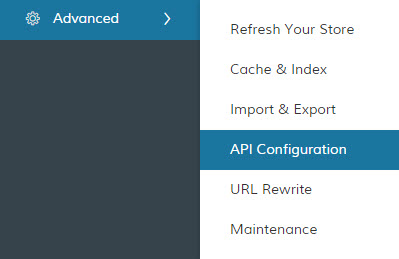
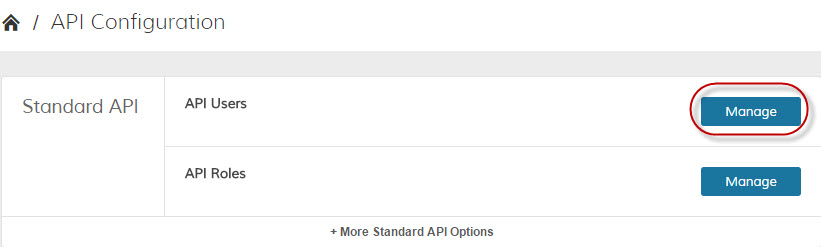
In your Control Panel menu go to Advanced > API Configuration
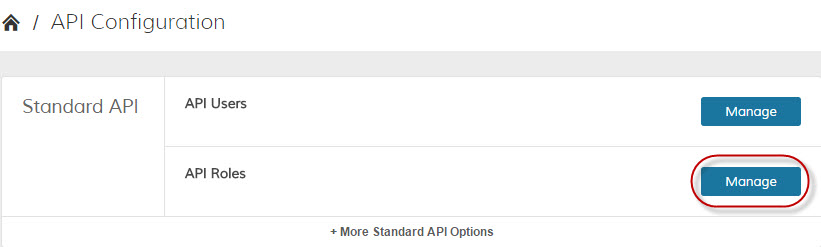
Unless you are specifically asked for a REST or OAUTH, use the Standard API.
Click on Manage next to API Roles
In the top right hand corner, you will now have "Add a New Role". If you are editing an existing role, they will be listed on this page as well. For now, let's Add a New Role.
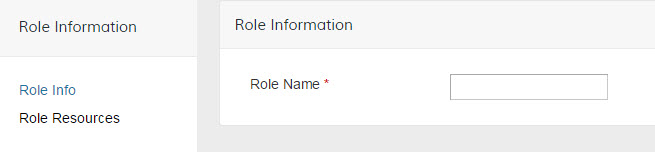
Name your Role and click on Role Resources to continue. The Role Name is for internal purposes only.
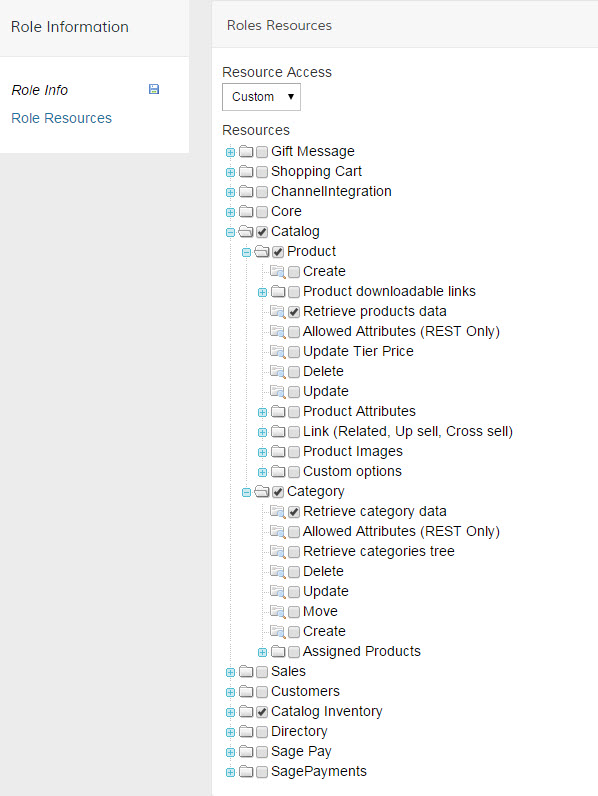
This example API Role and user is only pulling product information so we are restricting it to the following. You can also change access from Custom to All.
Save the role.
2. Create an API user.
To remotely access your Zoey store, you need an API username and API key, so you need to create a new user.
In your Control Panel menu go to Advanced > API Configuration
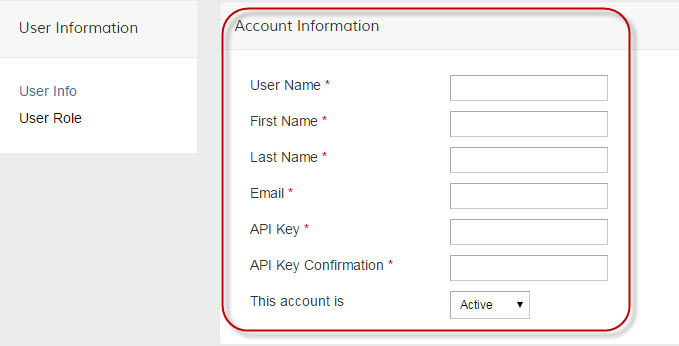
Fill out the user information and be sure to set the account to Active.
The API key is akin to a password, so enter anything you will be able to remember such as "Zoey123".
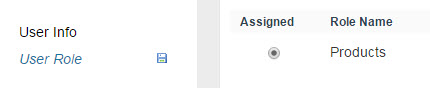
In User Role section, select the role you've just created.
Save the user. You will need this User Name and API Key as you set up your new integration!
Some integrations also ask for your API URL. There are two URLs you can use:
v1: http://yourstorename.com/api/soap/?wsdl
v2: http://yourstorename.com/api/v2_soap?wsdl=1
Comments
0 comments
Please sign in to leave a comment.