
Without a payment method, your store is no different than a catalog. Create a payment method so your customers can complete their transaction! We integrate with a variety of payment gateways you can use to receive payment for orders.
| 1 | Visit Payment Page |
| 2 | Add Payment Method |
| 3 | Enable Payment Option |
| 4 | Remove Payment Option (Optional) |
| 5 | Learn More |
Step 1 - Visit Payment Page
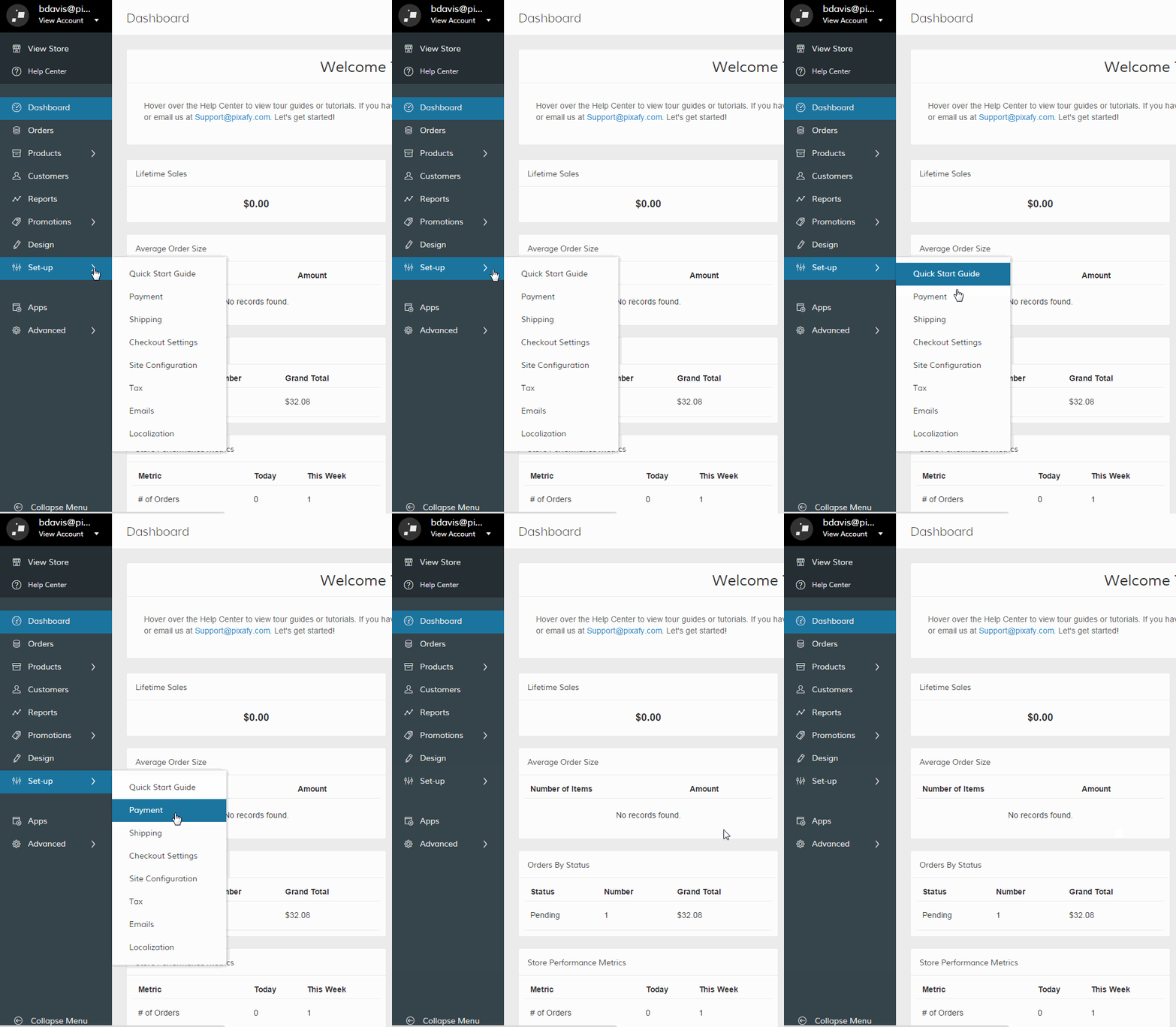
After logging in, hover your cursor over Set-up and select Payment.
Step 2 - Add Payment Method
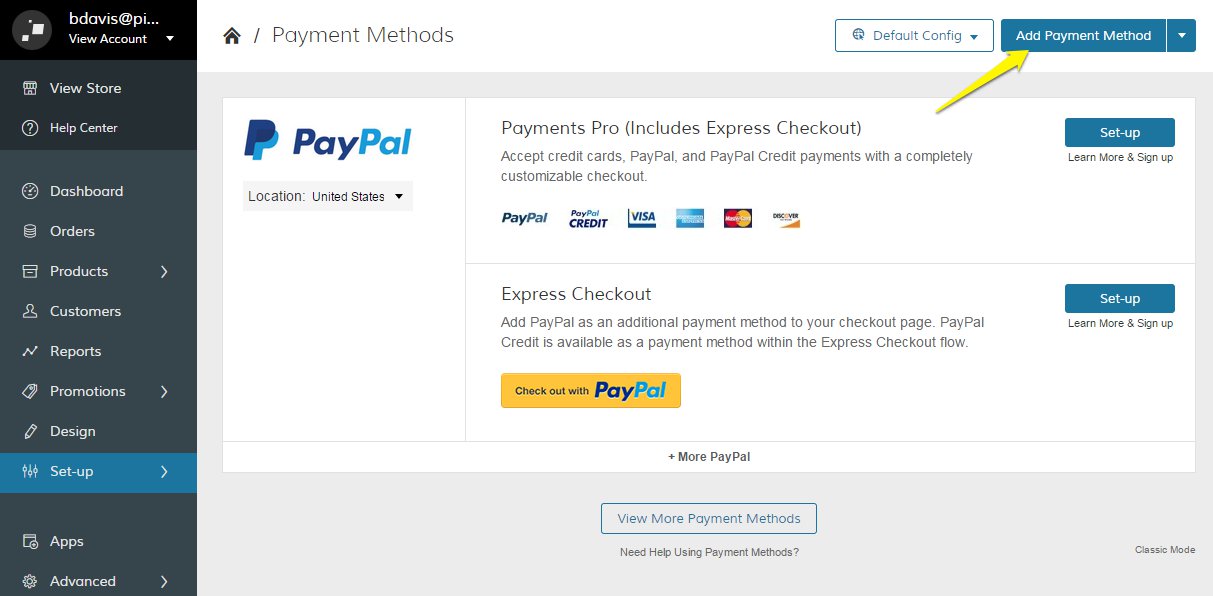
Click Add Payment Method from the top right.
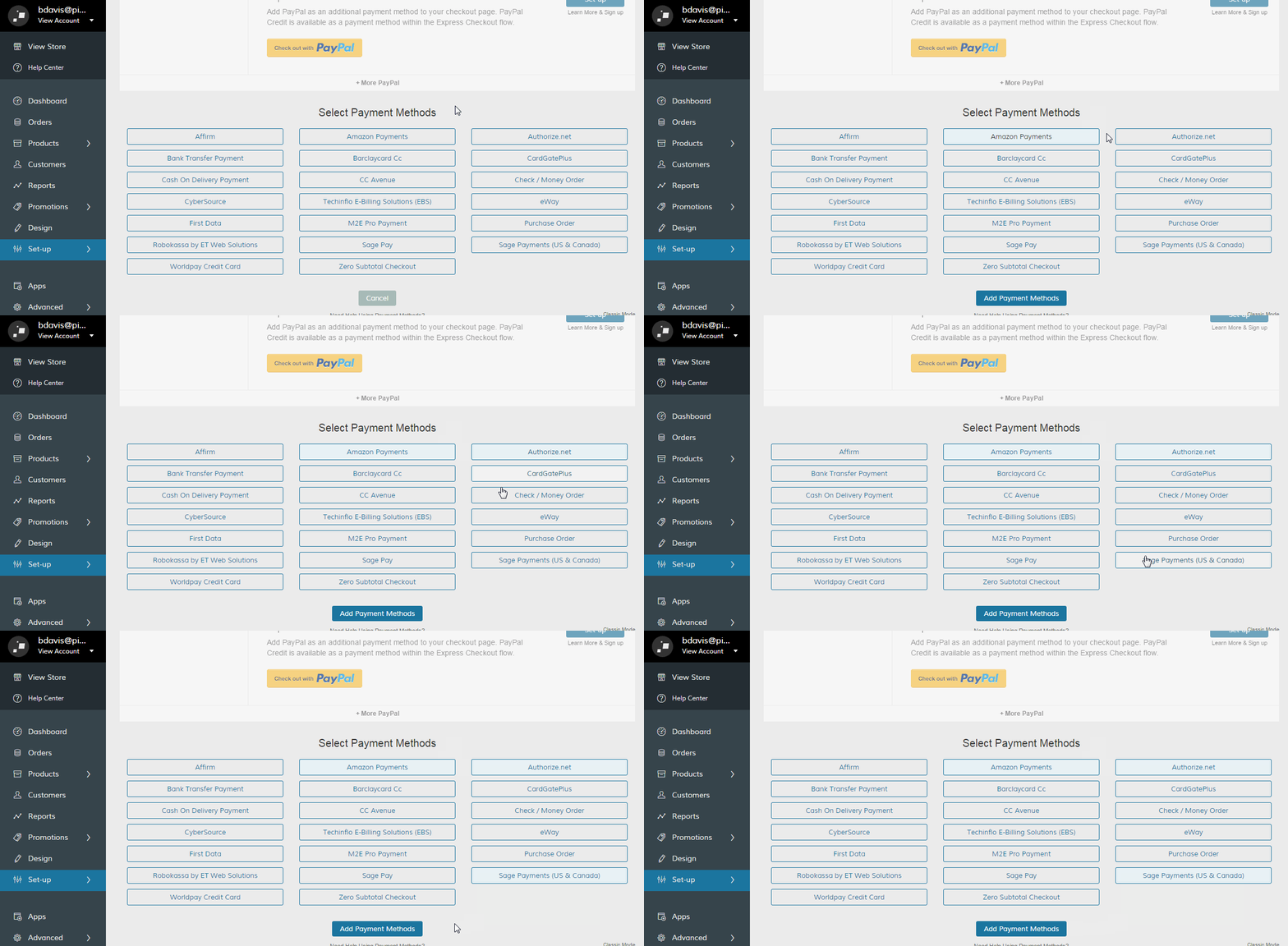
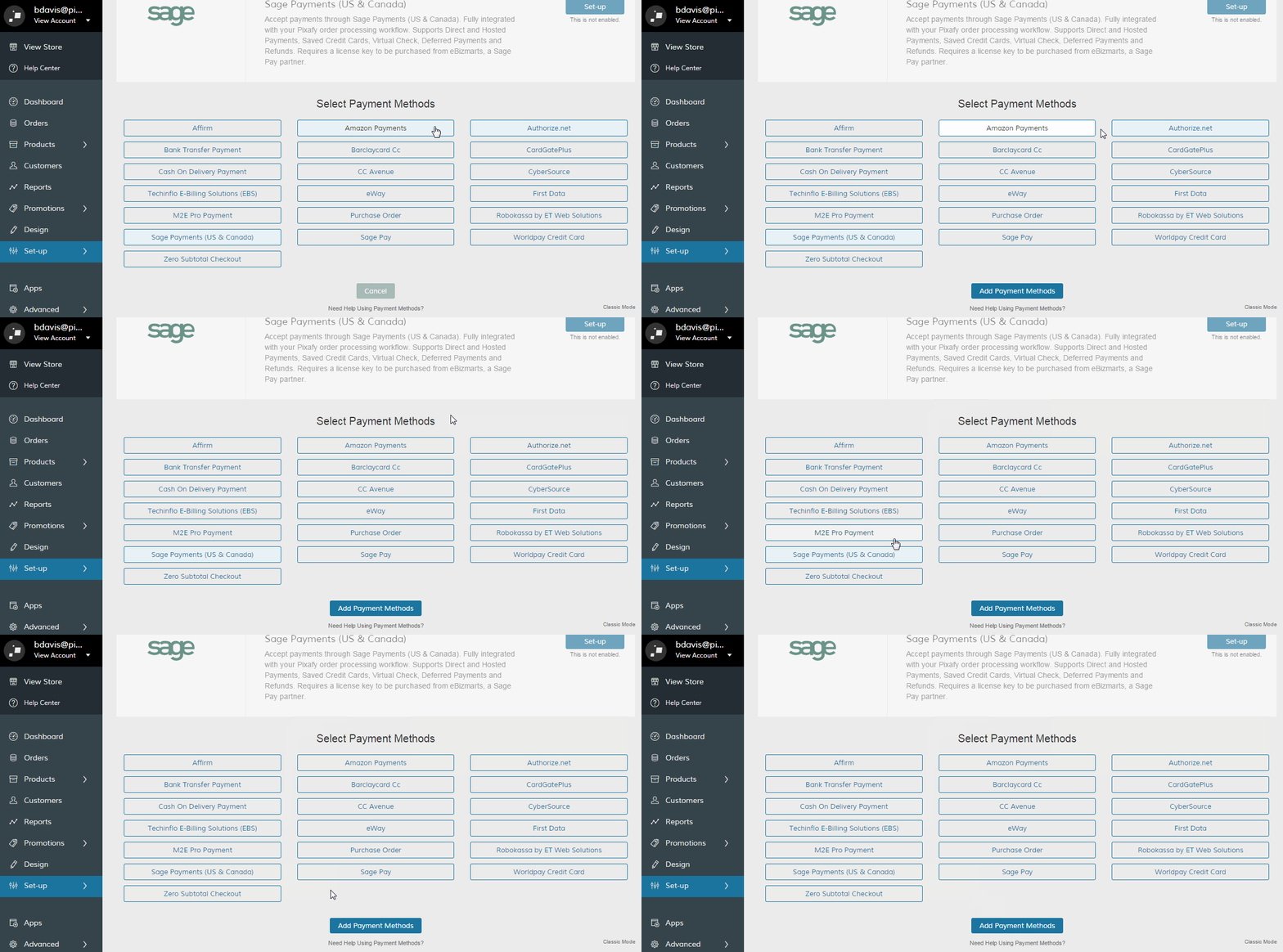
You will be brought to the bottom of the page where you will see Select Payment Methods along with a list of Payment Methods you can add to your store.
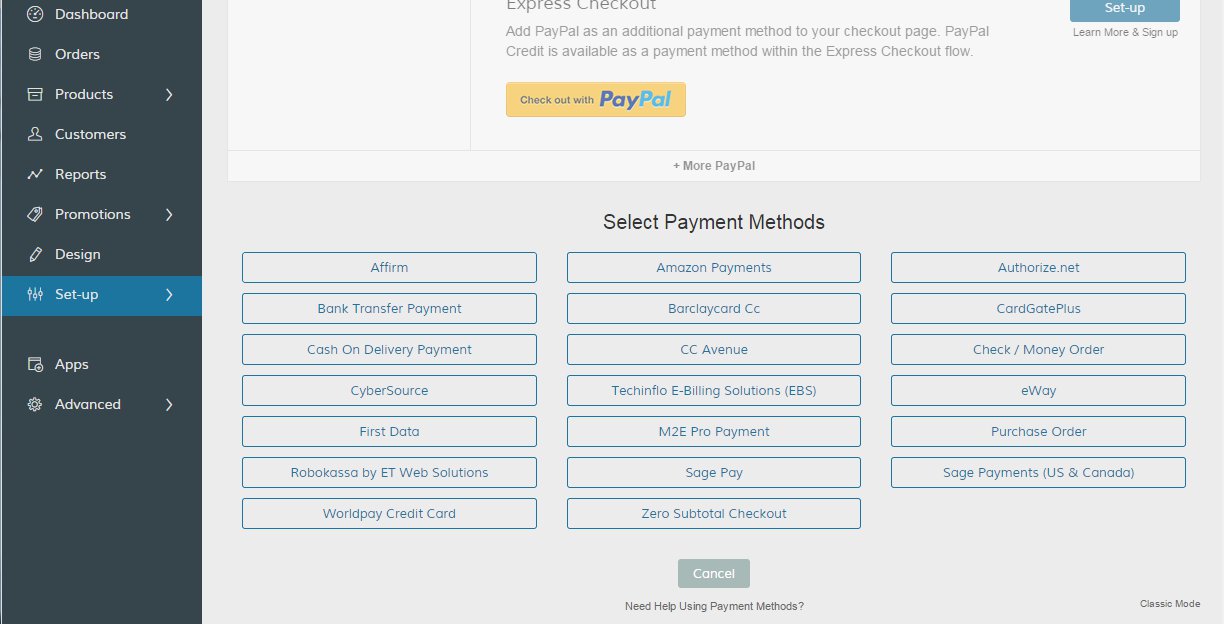
Note: We have plenty of payment options available. For additional information on each transaction partner, check out our full list of supported gateways.
Select the payment options you prefer from the list. You can choose a single payment option:
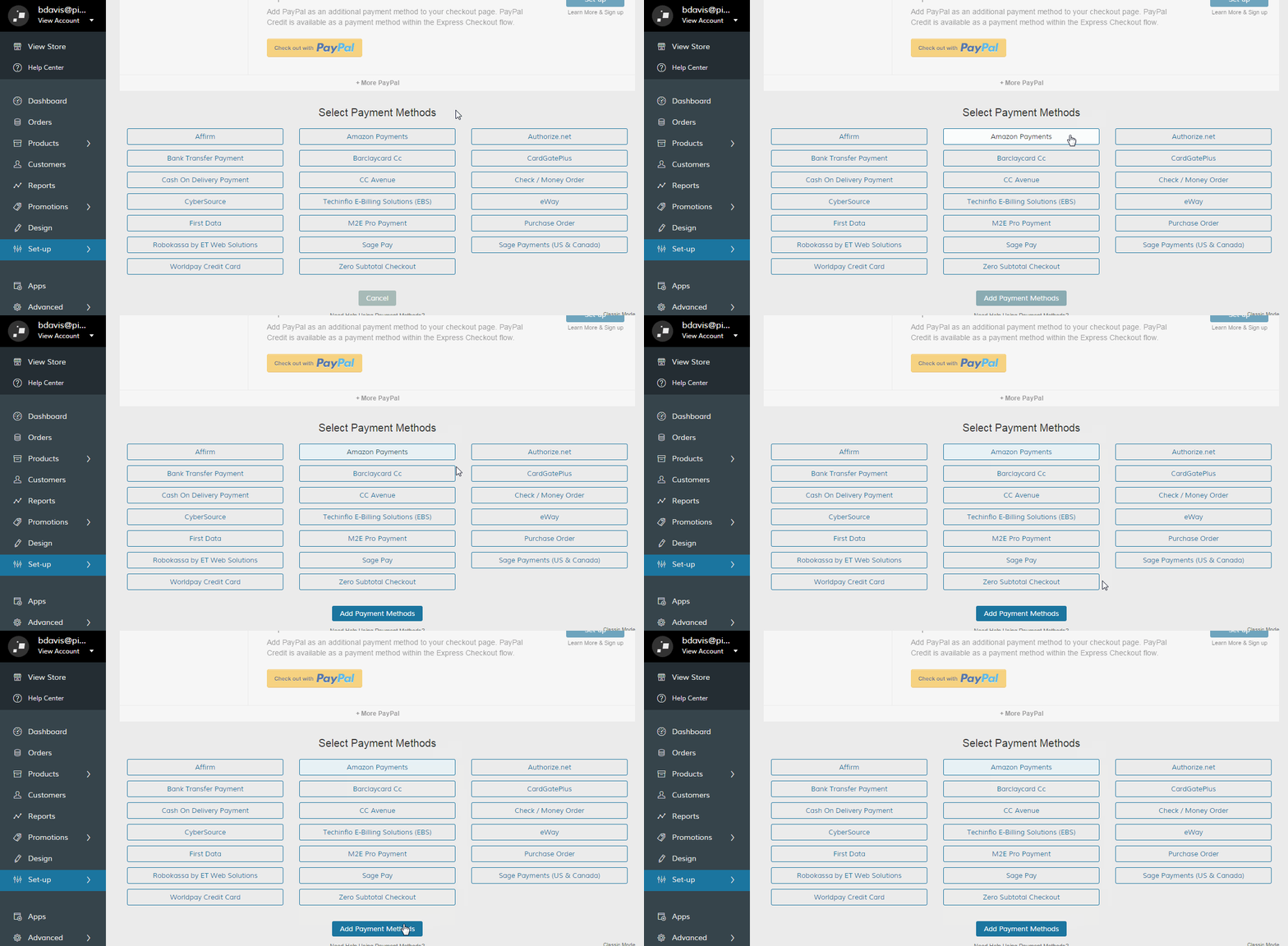
Or, you can add multiple payment methods by selecting each option you want to include.
Once you have made your selections, click Add Payment Methods.
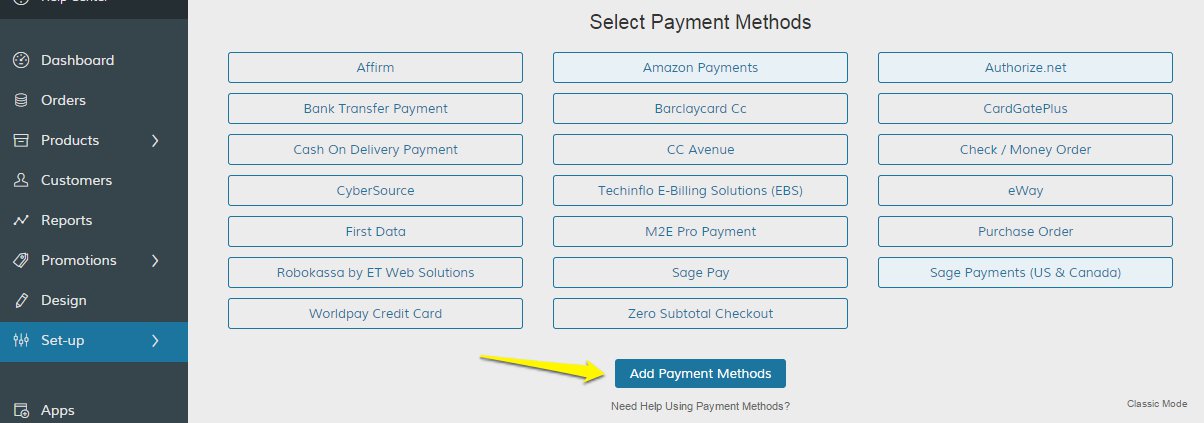
Your changes will save and refresh the page, so you can then go to Set-up or Configure to start using these new methods!
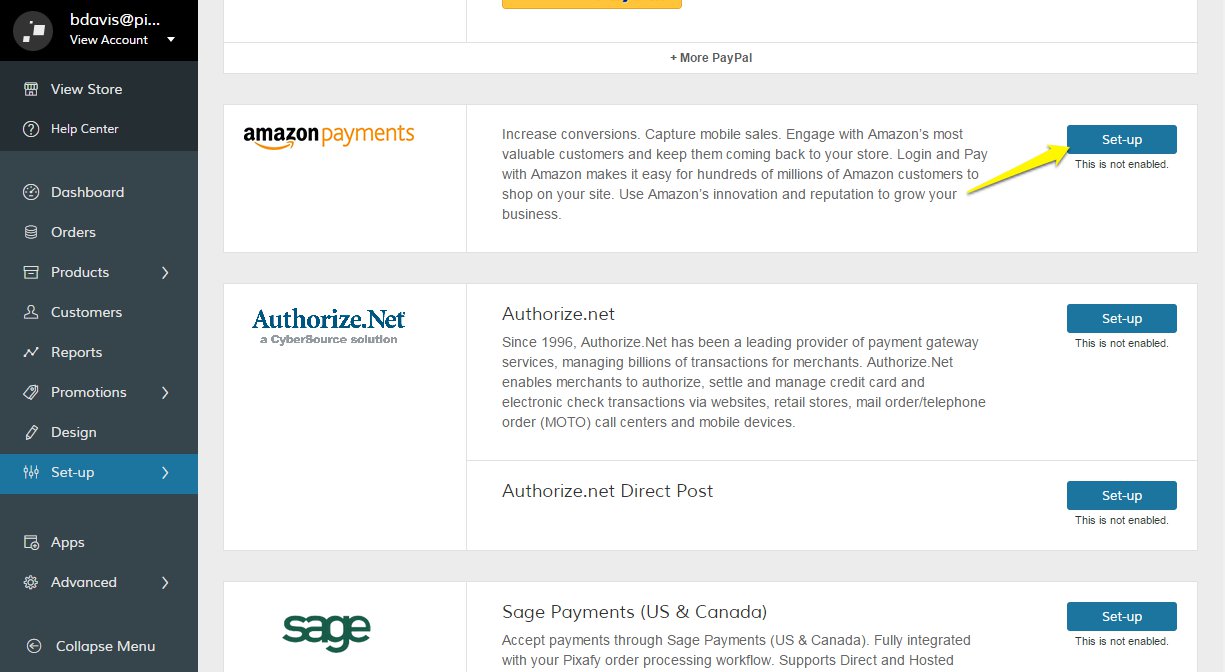
Step 3 - Enable Payment Option
After selecting you payment options, you will see a Set-up icon appear to the right of each payment option.
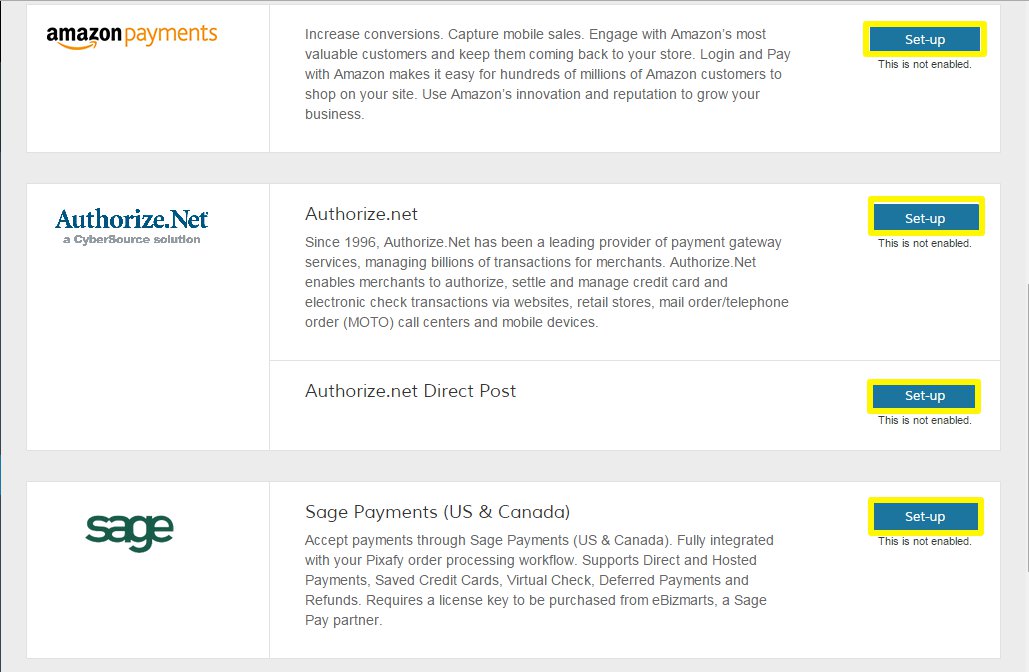
Click on the Set-up icon of the corresponding option to begin customizing your new option.

Once you have completed your payment option, click Save.
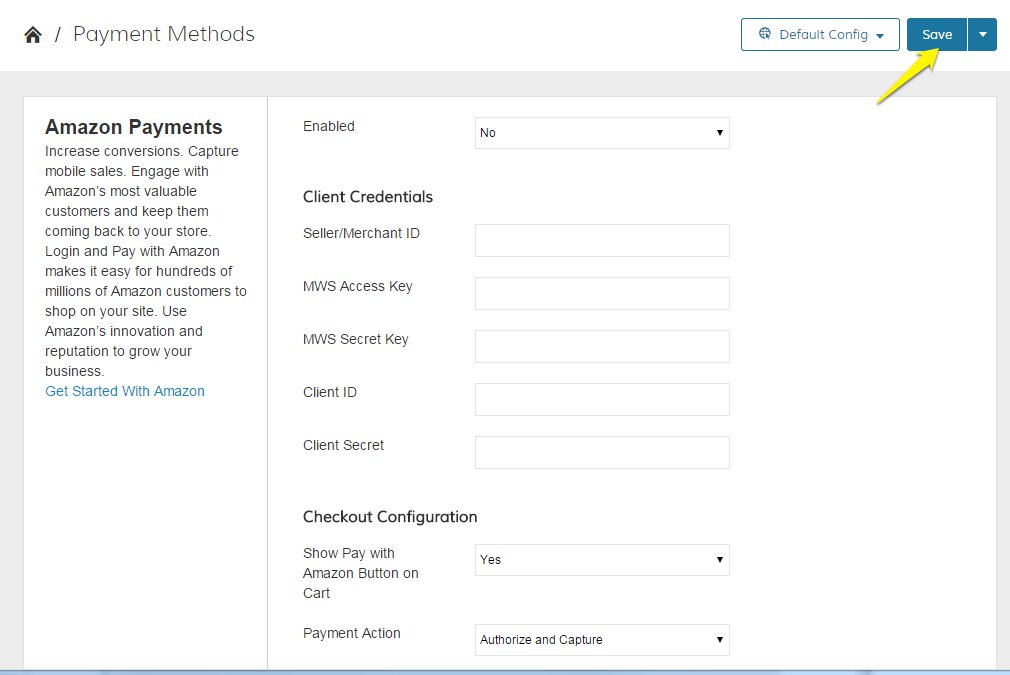
Note: Each payment method has a unique set of configuration options based on the nature of the transaction and the requirements of the service (PayPal, Amazon, Authorize, etc.)
Step 4 - Remove Payment Options (Optional)
There are two ways you can remove a payment method from the Payment Methods page.
One, you can navigate to the option and click Disable under the Set Up or Configure and confirm when prompted.

As an alternative, you can remove the payment options by clicking View More Payment Options and deselecting the options you would want to remove.
Learn More
We have some great guides on using our payment methods.
Comments
0 comments
Please sign in to leave a comment.