
Amazon Payments is a popular payment gateway that allows customers to pay for online products with their Amazon account. It's secure, familiar, and easy-to-use -- a great way to grow your business.
| 1 | Visit Payment Methods page |
| 2 | Add Amazon Payment Method |
| 3 | Set-up and Configure Payments |
Step 1 - Visit Payment Methods Page
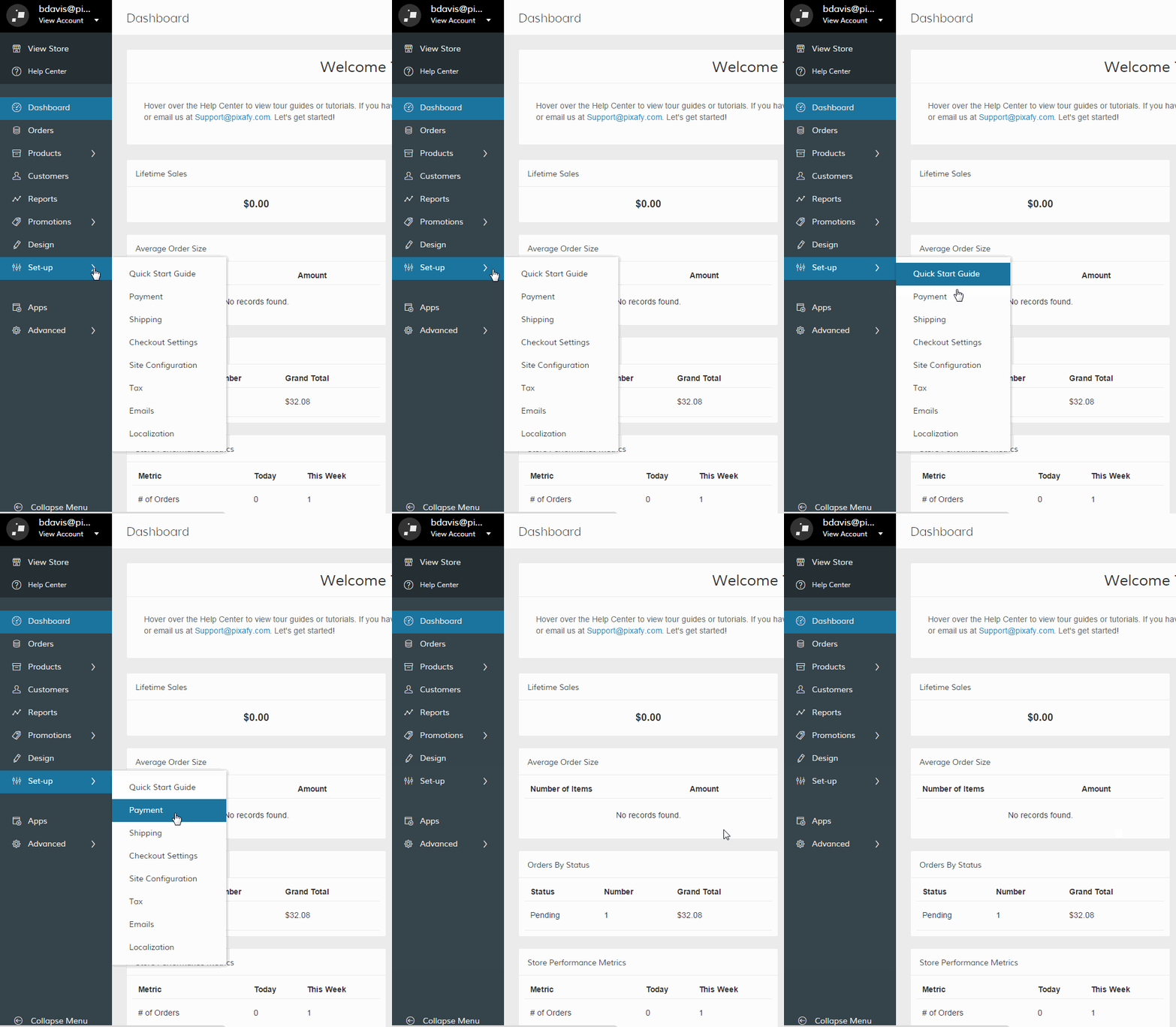
After logging in, hover your cursor over Set-up and select Payment.
Step 2 - Add Amazon Payment Method
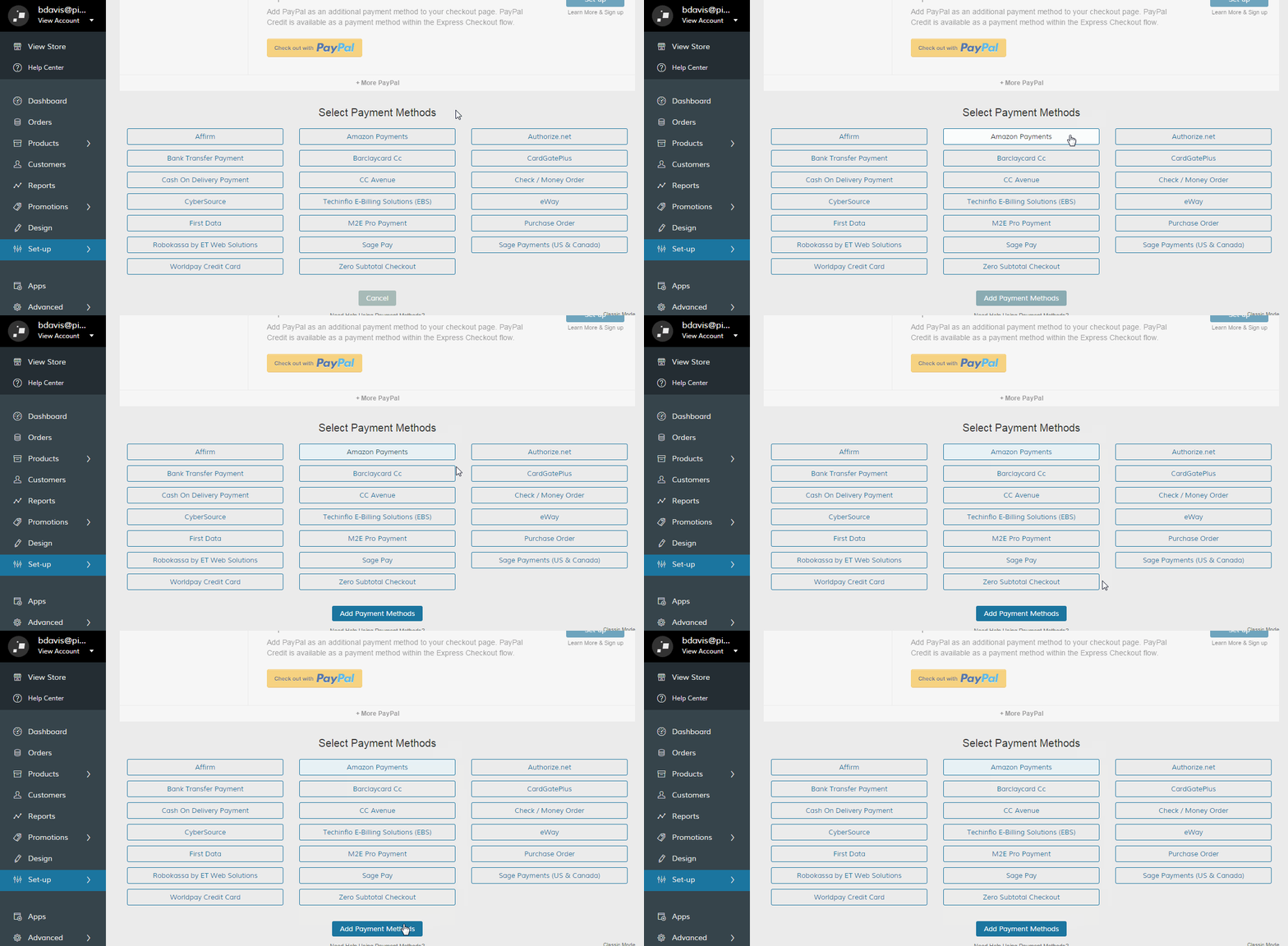
Click Add Payment Method from the either the top right corner of your page, or the bottom of the page. Select Amazon Payments and click the Add Payment Methods icon that appears at the bottom of your Payments page.
Step 3 - Set-up and Configure Amazon Payments
From the Amazon Payments option, click Set-up.

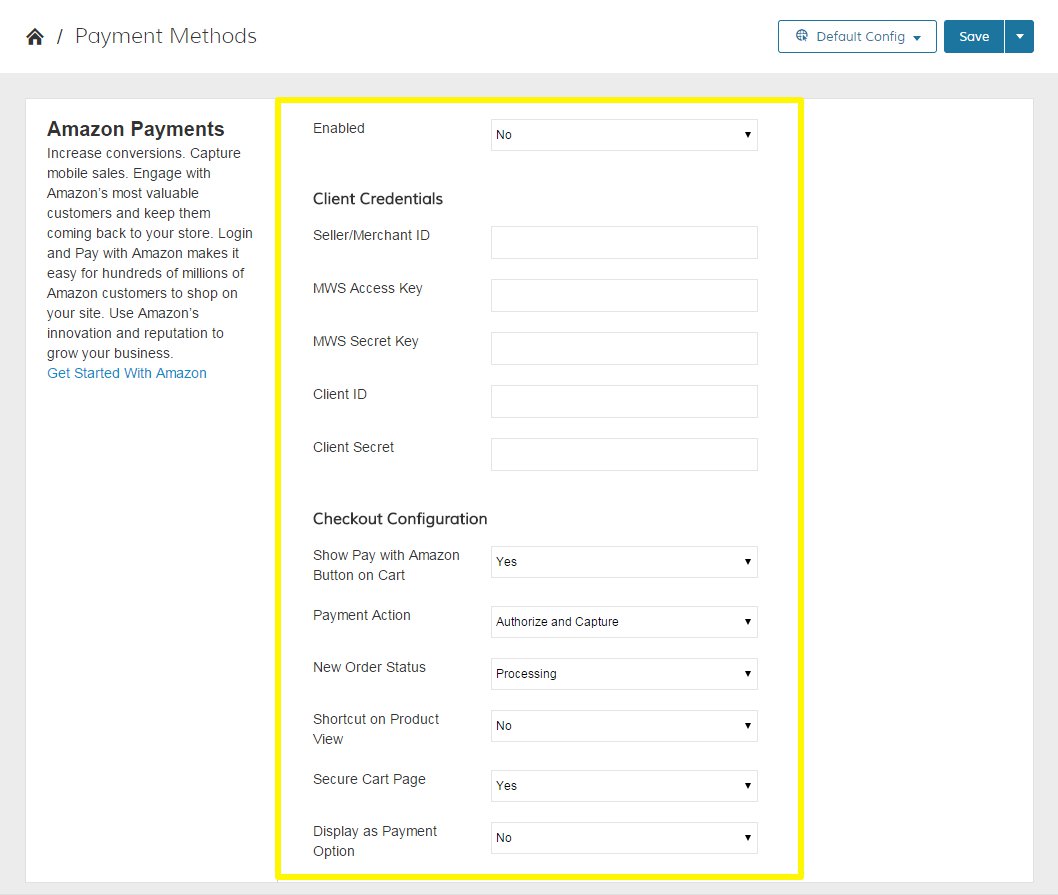
You will see a list of fields that can be adjusted to enable and customize your Amazon Payments gateway.
Enabled
Set Enabled to Yes to display your Amazon Payments gateway as a payment option when your customer checks out.

Client Credentials
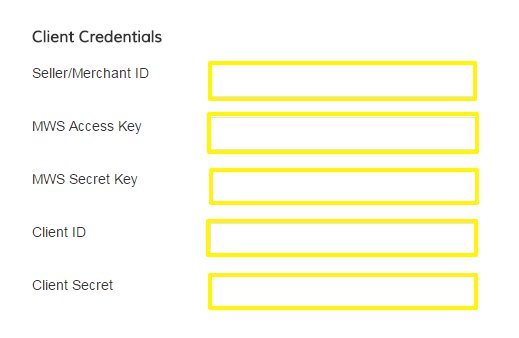
Add your Amazon Marketplace Web Services (Amazon MWS) credentials. You can learn more about Amazon MWS here.
Having issues finding your Client ID and Secret? Check out Amazon's walk through for setting this up here: Getting Started - Register Your Login with Amazon Application
Checkout Configuration
Set your Checkout Configurations to adjust how your Amazon Payments gateway functions and displays.
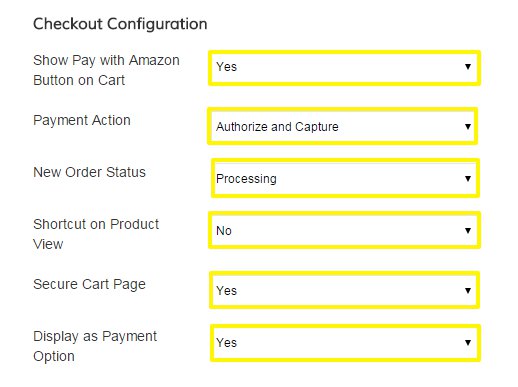
| Show Pay with Amazon on Cart | Displays a payment button while your customer is viewing their cart |
| Payment Action | Decide the process on receiving a payment. Authorize Only verifies if your customer has enough money in their account to complete the transaction. You will have to send an invoice to receive their payment. Authorize and Capture both verifies your customer's payment while also debiting the funds into your account. |
| New Order Status | Useful for communicating the state of your customer's order. If you choose Authorize Only as your Payment action, we recommend Pending so your customer knows the transaction has not been completed until you accept their payment. We recommend Processing if your Payment action is Authorize and Capture. |
| Shortcut on Product View | Provide a quick icon for accessing the product. |
| Secure Cart Page | Sets a page with additional security for your shopping cart |
| Display as Payment Option | Set Yes to display your Amazon Payments gateway as a payment option when your customer checks out. |
After choosing your settings, click Save.
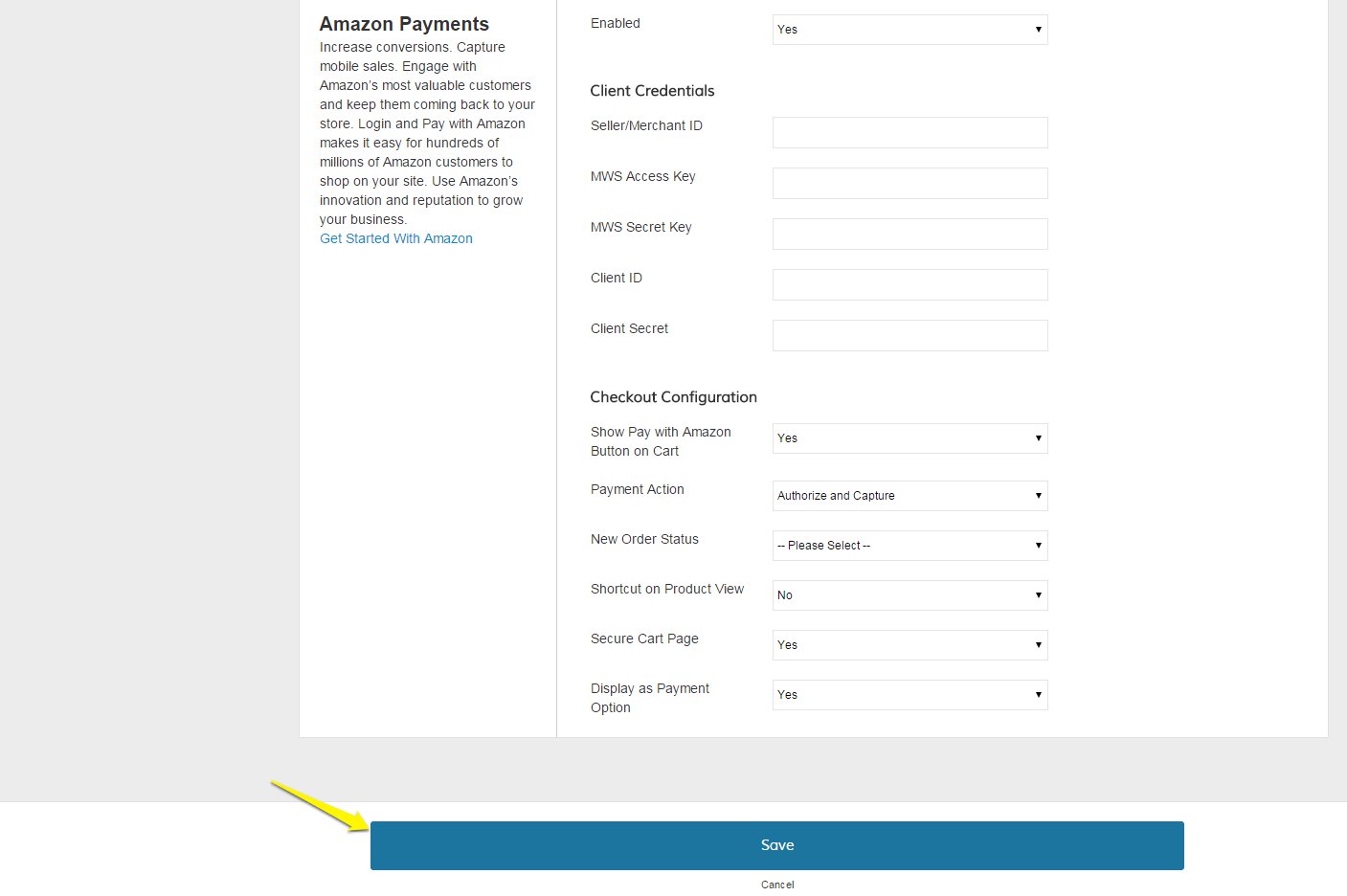
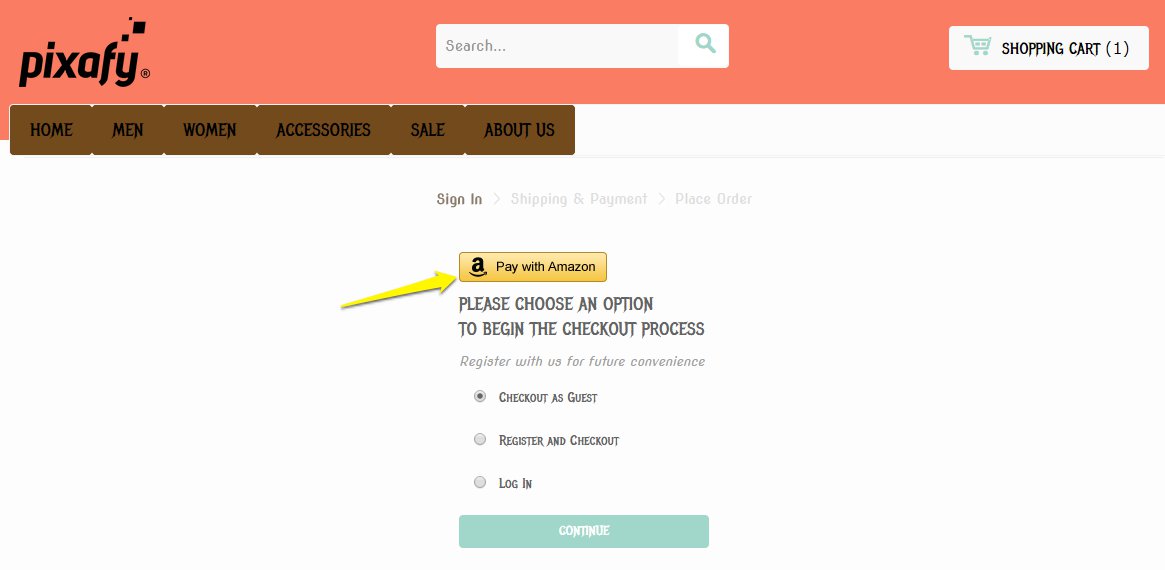
Here's how your Amazon Payments button will display from your customer's shopping cart.
You may also need to add Allowed JavaScript Origins and Allowed Return URLs to your Amazon account. You can use the following:
Allowed JavaScript Origins: (Optional)
https://YourSecureURL.com/
Allowed Return URLs: (Optional)
https:
https:
Please refer to you Zoey Account page for more information on your Secure Store URL. In order to use your own domain name here, you will need to have an SSL installed.
Comments
0 comments
Please sign in to leave a comment.