
PayPal is one of the largest online transaction services in the world, a familiar and trusted name in payment gateways. PayPal's Payments Pro allows customers to check out while remaining in your store. It's a helpful tool to keep the entire customer experience streamlined and avoid redirecting users to another site for payment.
Note: PayPal Express Checkout is the new and improved version of PayPal Payments Standard. PayPal Standard is no longer supported by either PayPal or Zoey. If you are using PayPal Standard, please switch to Express Checkout for the latest tools and features for you and your customers!
Note: PayPal Payments Pro requires a upgraded account which is not included in a basic PayPal account. If you are unsure about your account setup, including if your PayPal account is eligible for Payments Pro, we recommend contacting PayPal for further assistance.
| 1 | Visit PayPal Settings |
| 2 | Enter API Credentials |
| 3 | Configure your Advanced Settings |
| 4 | Configure PayPal Express Checkout |
| 5 | Add PayPal Credit (optional) |
| 6 | Enable, Save and View in store |
| 7 | Learn More |
Visit PayPal Settings
From your Control Panel, hover over Set-up and select Payment. By default, you should have PayPal shown at the top of the page, but if not, you can add it as a payment method.

Using the dropdown menu under the PayPal logo, choose the Location or Country in which your PayPal account was created. Selecting the wrong country may cause issues with setting up this payment gateway.
Next, click Set-up in the PayPal Payments Pro section to access your settings.
Enter API credentials
From your PayPal Payments Pro settings, click Get your API Credentials. If you do not have a PayPal pro account, click Sign up with PayPal.
Note: PayPal Payments Pro requires a upgraded account which is not included in a basic PayPal account. If you are signing up for PayPal, we recommend contacting PayPal for further assistance.
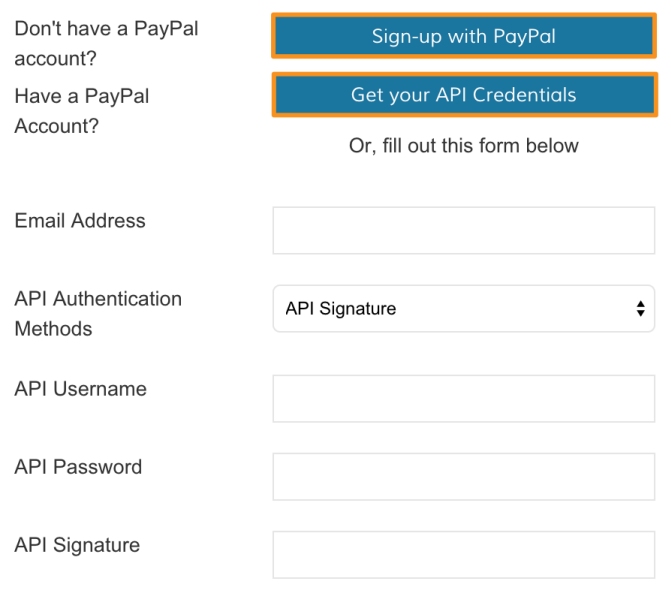
Either option will open up a pop-up window from PayPal to guide you through generating your API information. Sign in and follow PayPal's instructions to complete the process.
If for any reason you are unable to bring your API information over via this tool, you can also access your API information directly from the PayPal website.
Click here to learn about finding your API information
Note: Some older PayPal accounts will need to access their information this way especially if they use an API Certificate rather than API Signature. If your account uses a Certificate, please note API Signatures and Certificates are not interchangeable and you will need to select the correct API Authentication Method in Zoey.
Configure your Advanced Settings
You can configure your PayPal settings from Payments Pro Advanced Options.
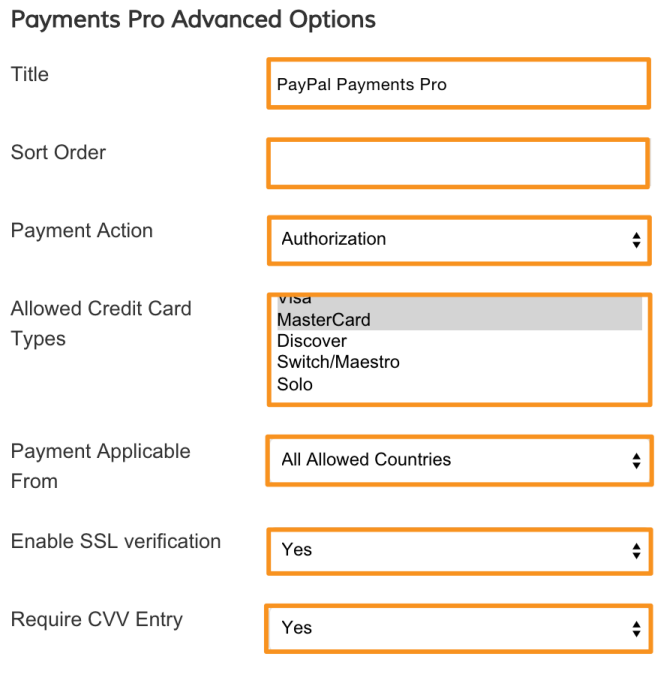
- Title
Create a title to identify the payment method during checkout. Many users opt for "Credit or Debit Card" - Sort Order
If you offer multiple payment methods, enter a numeric value to determine the sequence. 1 will show before 2, which will be before 3 and so on. If multiple methods have the same sort order, they will be shown in the sequence they are shown in your control panel - Payment Action
If you want PayPal to place a hold on the customer's funds for the purchase but withdraw the funds later through invoicing, select Authorize
If you want the funds automatically captured at the time the order is placed, select Sale - Allowed Credit Card Types
Select the card types you accept for PayPal purchases. Hold Command (Mac) or CTRL (PC) to select multiple options - Payment Applicable From
Select All Allowed Countries to allow customers from any country to pay for their orders through PayPal
If you only allow customers from specific countries to purchase via PayPal, select Specific Countries. Then, highlight the countries you permit payments from. Hold Command (Mac) or CTRL (PC) to select multiple options. - Enable SSL Verification
To enable host authenticity verification, select Yes
This option should only be used if you have installed your own SSL which you can learn about here: Purchase and Install an SSL - Require CVV Entry
Select Yes to require customers enter their CVV (Card Verification Value- the three or four digit number on the card) for additional security
Remember, you can always change these selections at a later date!
Configure PayPal Express Checkout
PayPal Payments Pro also enables Express Checkout which will allow customers to pay with their PayPal account in addition to paying via card. These settings look very similar to the above and we recommend keeping them the same as your Payments Pro settings for Payment Action, Payment Applicable From and Enable SSL Verification.
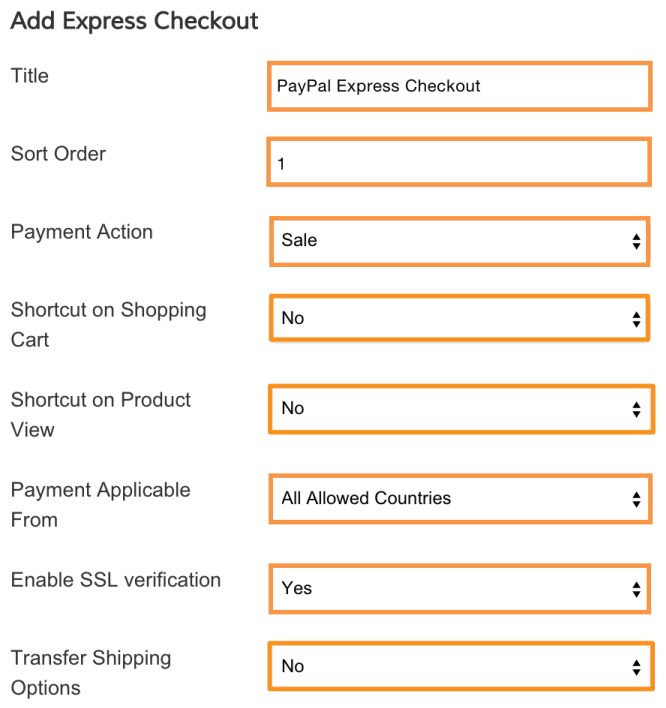
- Shortcut on Shopping Cart
Select Yes to display a link to PayPal Express Checkout in the shopping cart displaying the option - Shortcut on Product View
Select Yes to display a link to PayPal Express Checkout when viewing the product - Transfer Shipping Options
If this option is enabled, the customer can change their shipping address and shipping method on the PayPal website.
These can also be changed at any time.
If you only wish to use PayPal Express Checkout and not Payments Pro, please see: Using PayPal Express Checkout
Add PayPal Credit (optional)
You have the option to allow customers to use PayPal Credit when purchasing from your store. To learn more about PayPal Credit, please contact PayPal or visit PayPal's Site.
To make this option available, select Yes under Enable PayPal Credit. Then, click Get Publisher ID.
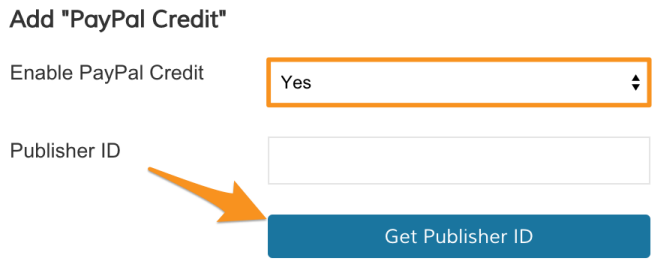
A pop up window from PayPal will appear. Follow PayPal's directions to receive your Publisher ID.
Enable, Save and View in Store
After completing your PayPal Settings for both Payments Pro and Express Checkout, scroll back up to your API information and change Enable this Solution to Yes. We recommend taking one last look over your settings before clicking Save.
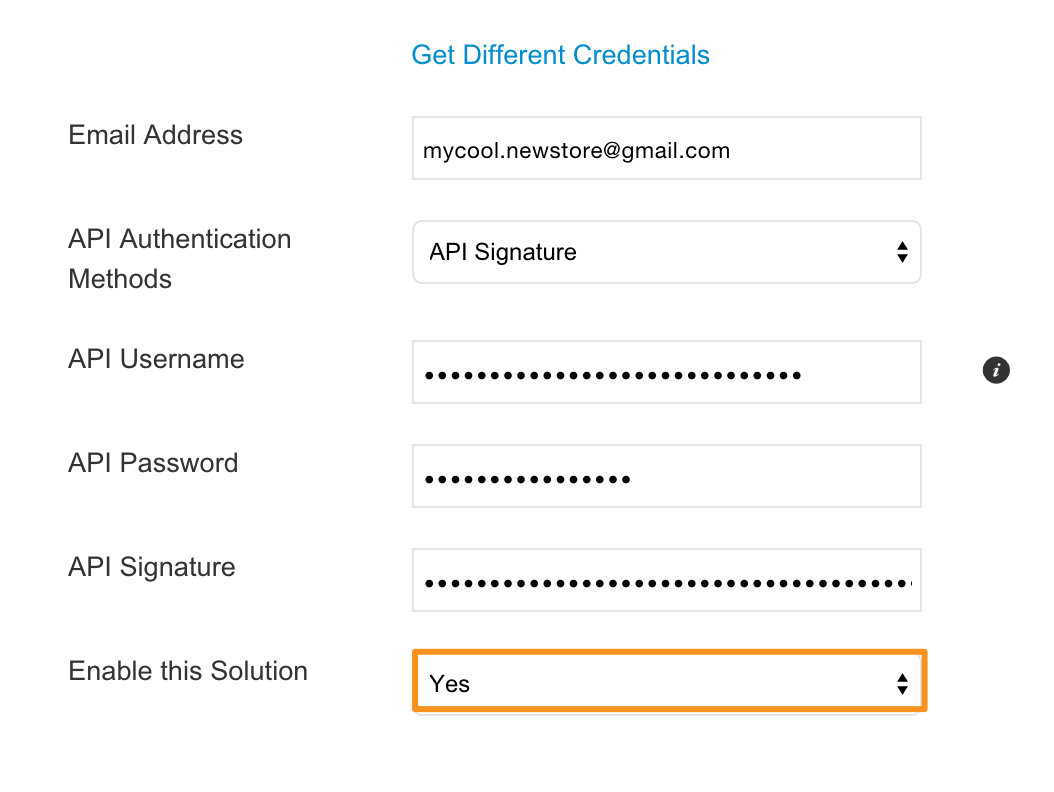
You are now all set to take payments through PayPal Payments Pro as well as PayPal Express Checkout! We highly recommend going to your storefront and creating an order to test this is working as intended.
Should you have any issues completing checkout we recommend checking your errors against our tutorial Troubleshooting PayPal.
Learn More
Here are some other tutorials that may be of interest to you!
Comments
0 comments
Please sign in to leave a comment.