
Zero Subtotal Checkout allows customers the complete their order when the grand total (including shipping) is zero. For example if you have a 100% off coupon or offer gift cards, this is the only way customers can check out without making a payment.
Note: Customers will still have to select "No Information Required" in the Payment Information section of the Checkout page.
| 1 | Visit Zero Subtotal Checkout Settings |
| 2 | Configure and Enable |
| 3 | Save |
| 4 | Learn More |
Step 1 - Visit Zero Subtotal Checkout Settings
In your Control Panel, hover over Set-up and select Payments. Here you will have all your currently active payment gateways as well as any inactive gateways you have added for future use. If you do not see Zero Subtotal Checkout, you can click here to learn about Adding additional Payment Methods.
To the right of Zero Subtotal Checkout, click Set-up.

Step 2 - Configure and Enable
On your Zero Subtotal Checkout configuration page, set Enabled to Yes and customize your settings:
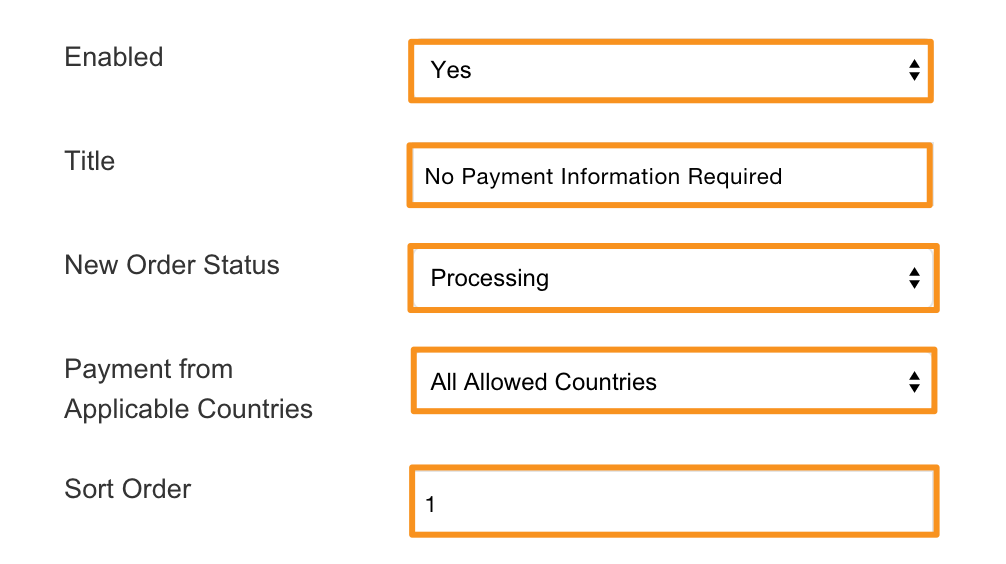
- Title
Select a name for your payment gateway that appears on the frontend. - New Order Status
Select a status for each order paid with cash. - Payment from Applicable Countries
Select All Allowed Countries to place no country restriction on cash payments. Select Specific Countries to restrict payment to individual countries. Hold Command (Mac) or CTRL (PC) to select multiple options. - Sort Order
Enter a numeric value to determine the order your payment option appears (0 = first, 1 = second, 2 = third, and so on.)
Step 3 - Save
When you finish your configurations, click Save from the top right hand corner. You can now checkout from your store with a $0.00 subtotal!
Lean More
Now that you are able to check out with no subtotal, you might want to set up some ways to use this!
Comments
0 comments
Please sign in to leave a comment.