
A packing slip is a sales document that accompanies shipments sent from your store, and lists each item included in the package. You can print a packing slip for a single order, or print multiple packing slips as a batch, or group. However, before a packing slip can be printed, it must first be set up for the order.
To view or print the PDF, you must have a PDF reader. You can download Adobe Reader at no charge.

Print-Ready PDF Packing Slip
To print a packing slip:
- From the Control Panel, select Sales
- Select View Shipments from the Drop-Down on the top-right of your screen.

- To print a single packing slip, click on the shipment's line to view or use the drop down to the right.
Click the Print button at the top of the page. - To print multiple packing slips, select the check box for each packing slip to be printed. You can also use the check box at the top of the page to Select Visible or Unselect All.
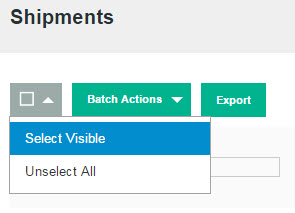
- In the Bulk Actions drop-down, select either "PDF Packingslips" or "Print Shipping Labels".
Before using Print Shipping Labels, please review this tutorial to help you set them up correctly. Printing Shipping Labels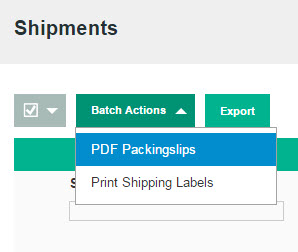
- When prompted, do one of the following:
- Click Save, and follow the prompts to save the file to your computer. When the download is complete, open the PDF in Adobe Reader, and print the document.
- To view the document, click Open. The print-ready PDF packing slip opens in Adobe Reader. From here, you can either print the packing slip or save it to your hard disk.
- In the Bulk Actions drop-down, select either "PDF Packingslips" or "Print Shipping Labels".
Comments
0 comments
Please sign in to leave a comment.