
As an alternative to using a credit or debit card, you can offer your customers the ability to use bank transfers to send payments for their order. This method is handled offline using the information you provide to the customer.
| 1 | Add Bank Transfer to Payment Methods |
| 2 | Configure your Settings |
| 3 | Save and Test |
Step 1 - Add Bank Transfer to Payment Methods
In your Control Panel, hover over Set-up and select Payment.
Scroll down and select Bank Transfer. Then, click Add Payments
When you finish, scroll to the Bank Transfer Payment section and click Set-up.

Step 2 - Configure your Settings
When you're ready, configure your settings:
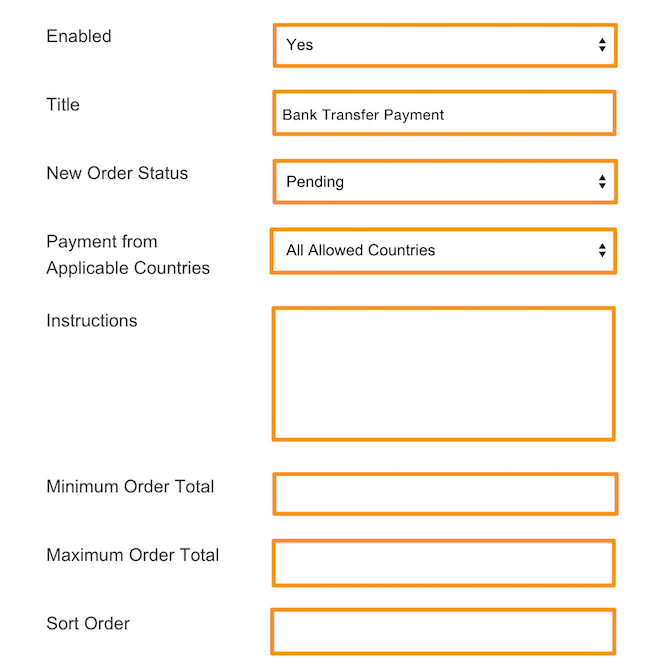
- Enable - Select Yes to enable the bank transfer payment method.
- Title - Select a name for your payment gateway that appears on the frontend.
- New Order Status - Select a status for each order paid via bank transfer.
- Payment from Applicable Countries - Select All Allowed Countries to place no country restriction on customers paying with a bank transfer. Select Specific Countries to restrict payment to individual countries. Hold Command (Mac) or CTRL(PC) to select multiple countries.
- Instructions - Enter instructions for the customer into the text box.
- Minimum and Maximum Order Total - Set the minimum and maximum currency value for orders purchased through bank transfer payment.
- Sort Order - Enter a numeric value to determine the order your payment option appears.
Step 3 - Save
When you finish making your edits, click Save.
Comments
0 comments
Please sign in to leave a comment.