
TaxJar is a powerful tax management tool that allows you to quickly create accurate sales tax reports, filtered intelligently by every tax jurisdiction your products are sold.
| 1 | Why TaxJar? |
| 2 | Visit TaxJar Settings |
| 3 | Get TaxJar API token |
| 4 | Connect TaxJar to Zoey |
| 5 | Learn more about TaxJar |
Why TaxJar?
- Automated sales tax reports- Enjoy jurisdiction-level sales tax reporting in every state to make sales tax tracking and filing a breeze
- Simple Product-Level Taxability- from clothing in New York to food in California, TaxJar SmartCalcs supports special sales tax circumstances for the products you sell.
-
Sourcing Rules- handles origin-based and destination-based sales tax sourcing rules. Don’t spend another minute figuring out every state’s complex sales tax sourcing systems.
Learn more about this great app on TaxJar.com
Step 1 - Visit TaxJar settings
In your Control Panel, click Apps. Scroll down to TaxJar and click Manage.

Step 2 - Get TaxJar API token
On your TaxJar settings, click Get your TaxJar API Credentials.
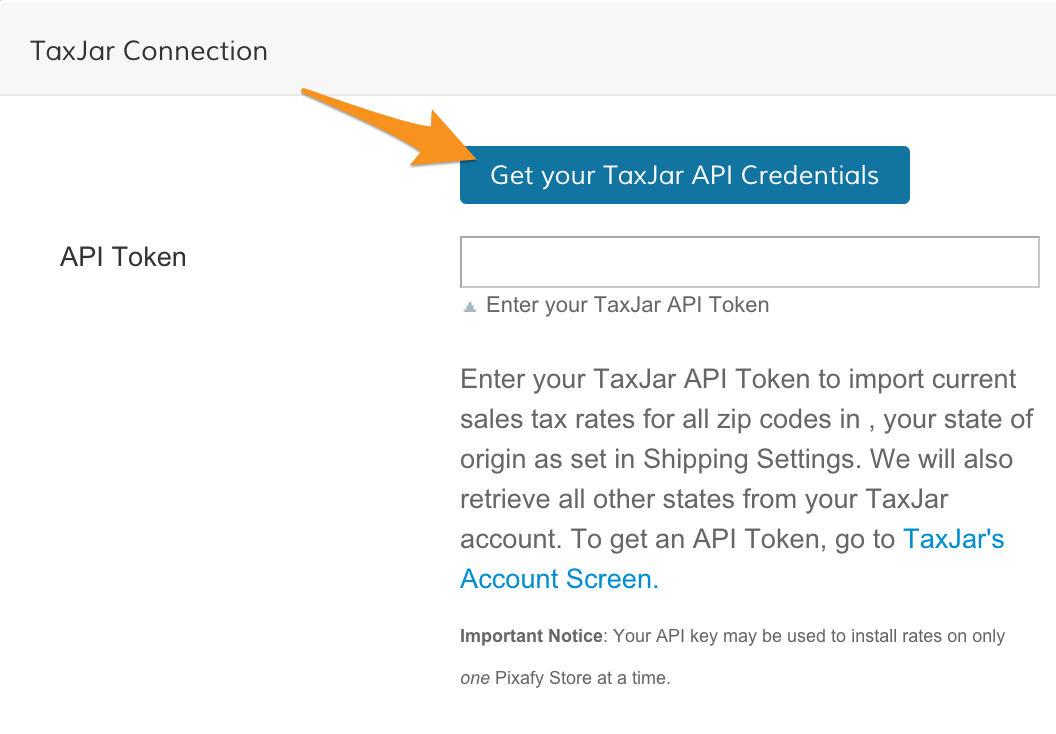
You will be routed to your TaxJar account, prompted to login. If you do not have a TaxJar account, sign up here.
From TaxJar's settings, click the Connect to Zoey icon.
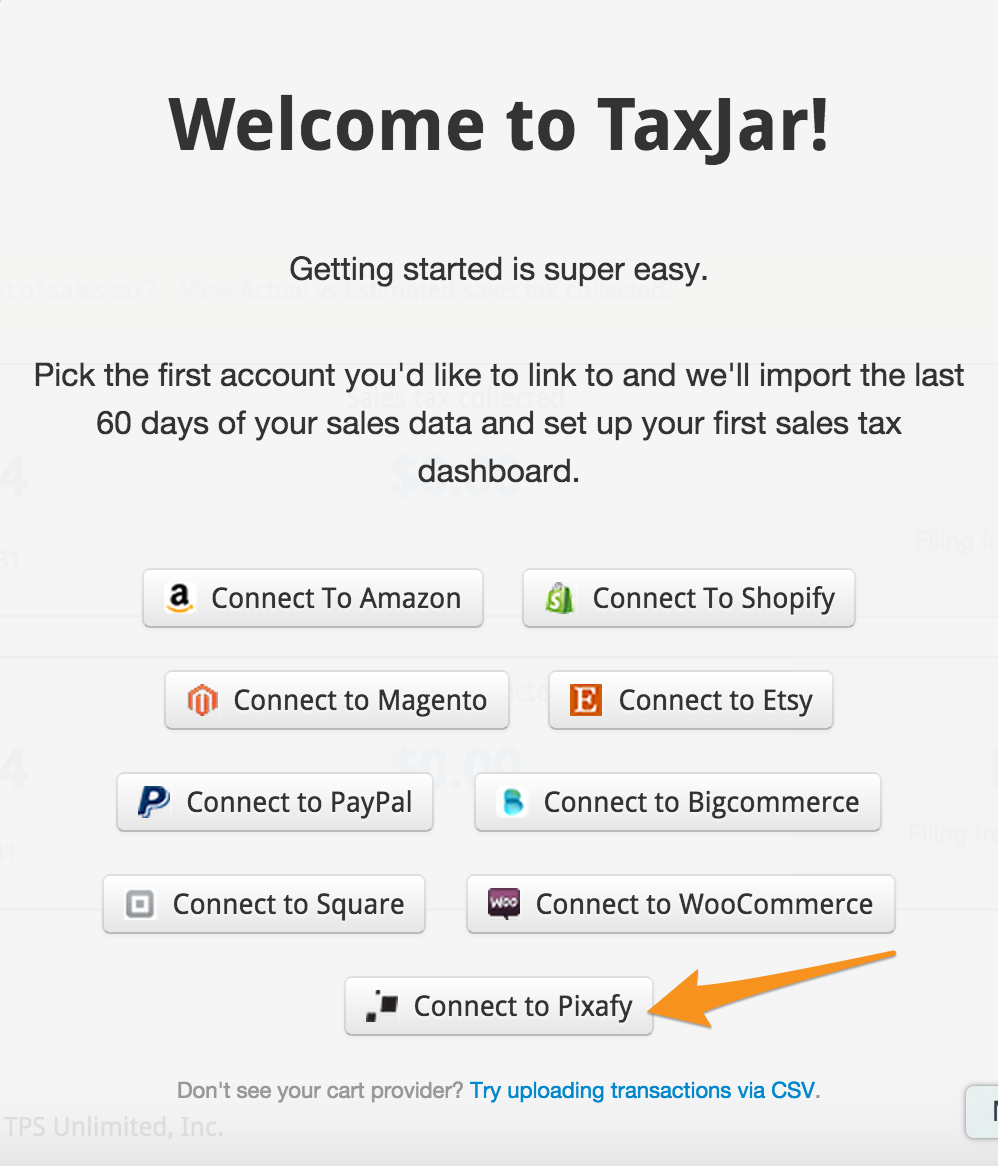
Step 3 - Connect TaxJar to Zoey
From your TaxJar settings, copy your API Token.
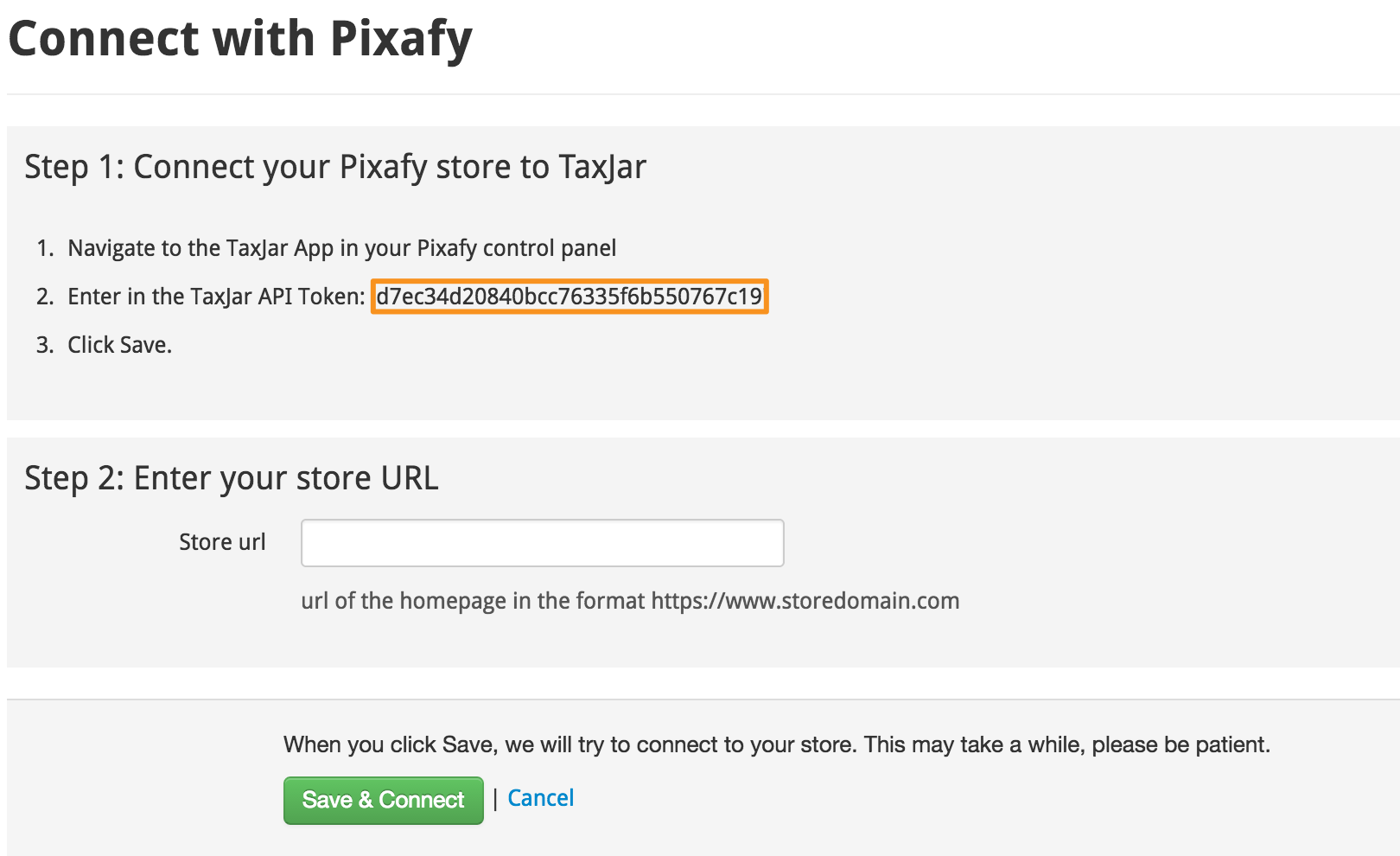
Then, from Zoey's settings, paste the API Token. Click Save in the top-right corner when you are finished.
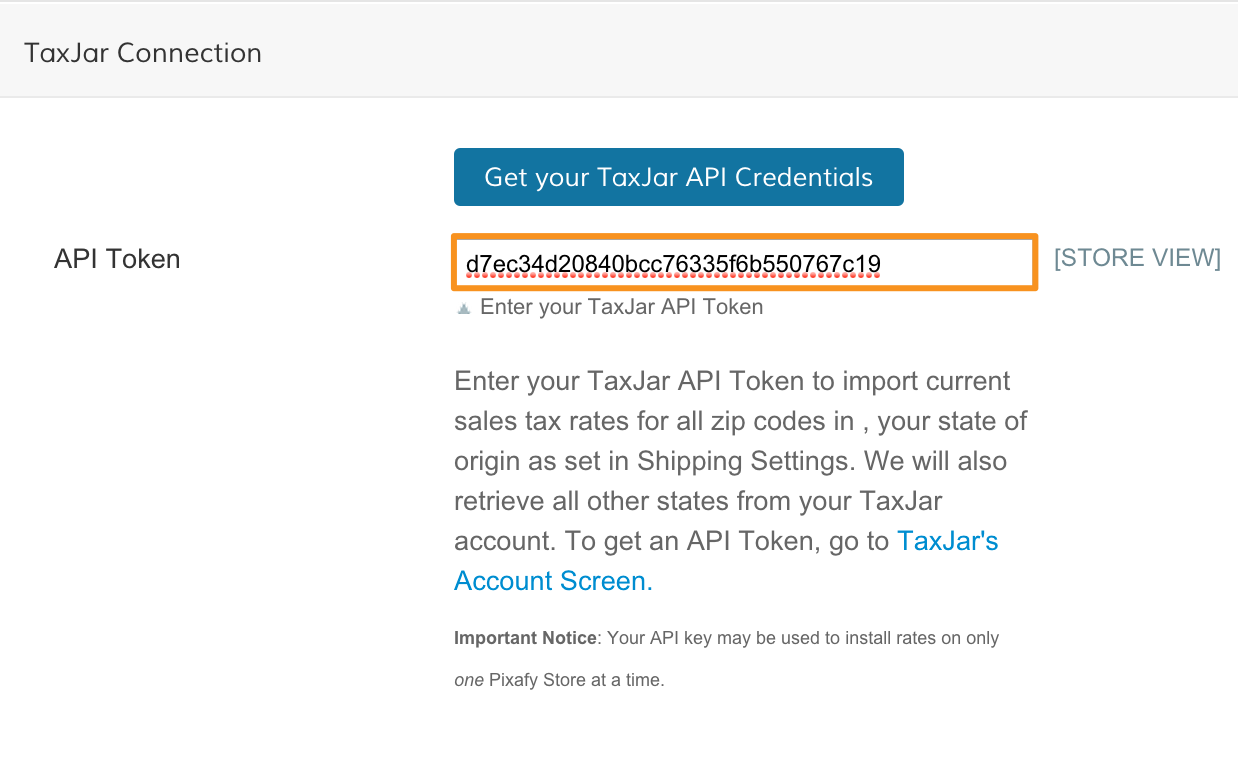
Finally, from in your TaxJar settings, enter your Zoey store URL, then click Save & Connect.
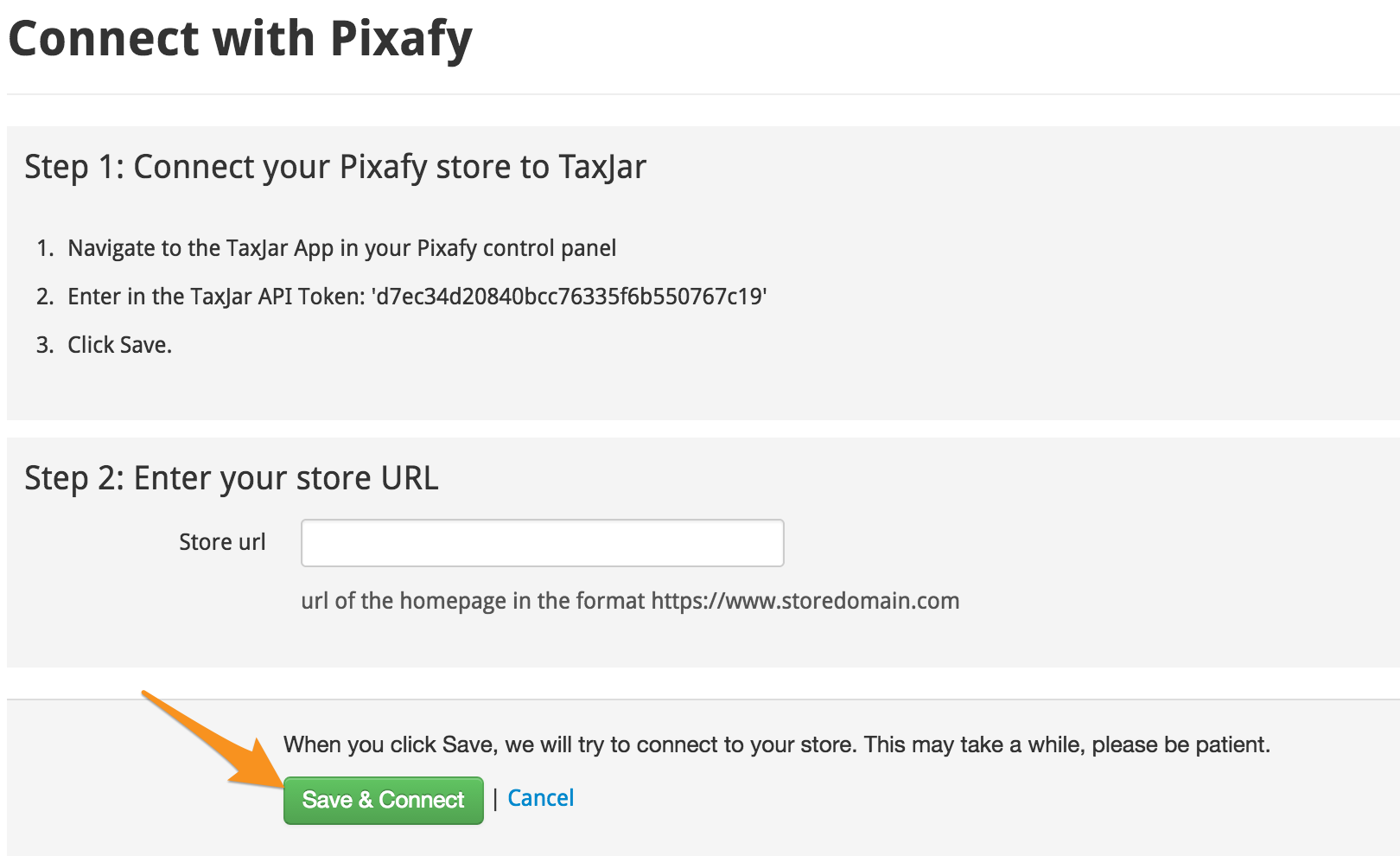
Note: When entering your URL, use your Secure Store URL, the same you see in your Control Panel (e.g. https://yourZoeystore.com)
Learn more about TaxJar
TaxJar offers a free trial, and you can learn about their pricing plans here.
If you have any questions about using TaxJar, you can contact their support team from any page on their site. TaxJar has an extensive knowledge base with helpful support articles on managing your TaxJar account.
Comments
0 comments
Please sign in to leave a comment.