
Zoey offers numerous payment gateway options, offering both popular third party transaction partners and a variety of point-of-sale methods. The Check/Money Order method is a great way to test your checkout process before going live with your store.
| 1 | Add Check/Money Order option to Payment Methods |
| 2 | Enable and configure Check/Money Order |
| 3 | Save |
| 4 | Add another payment method |
Step 1 - Add the Check/Money Order option to Payment Methods
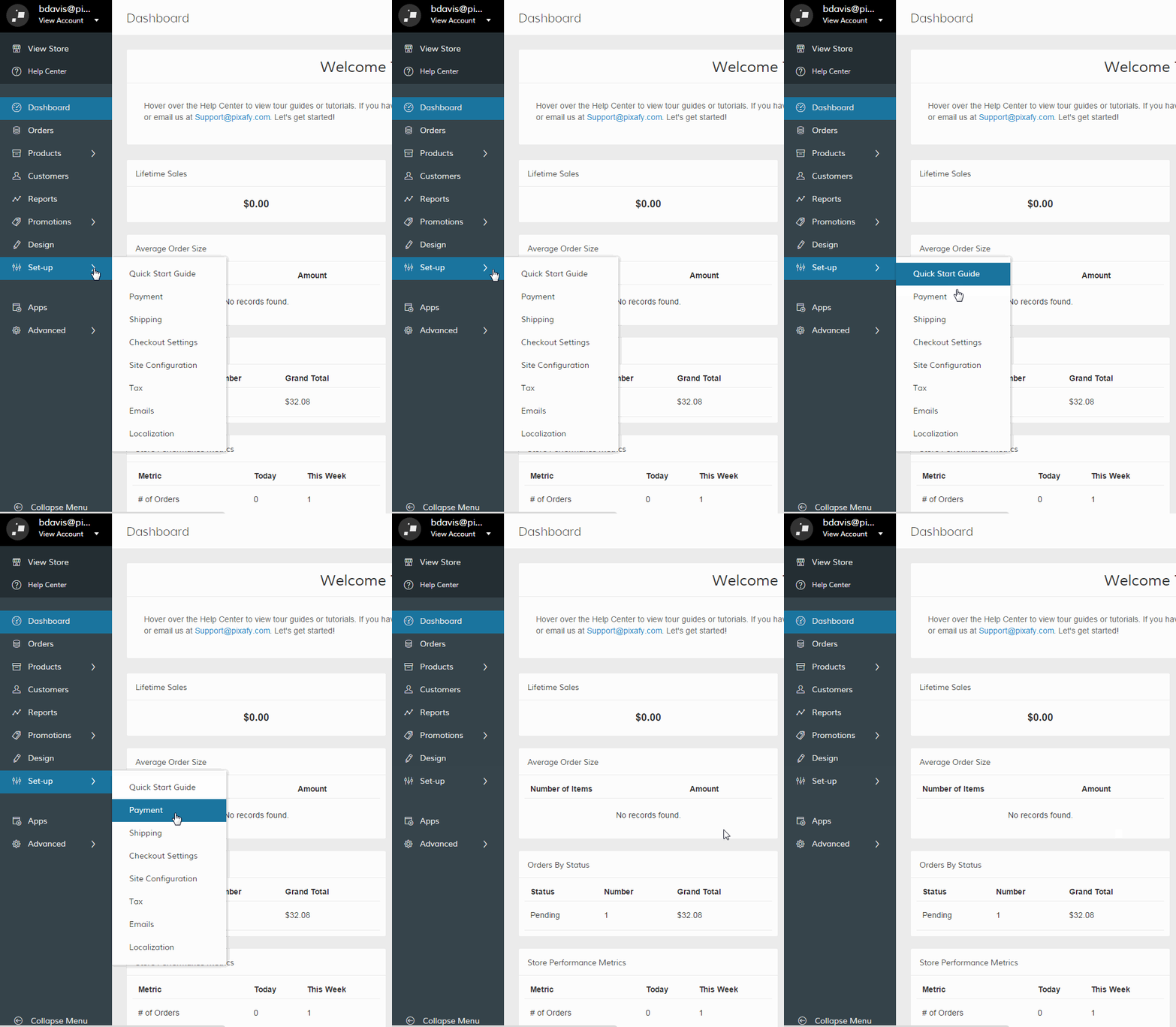
In your Control Panel, hover over Set-up and select Payments.
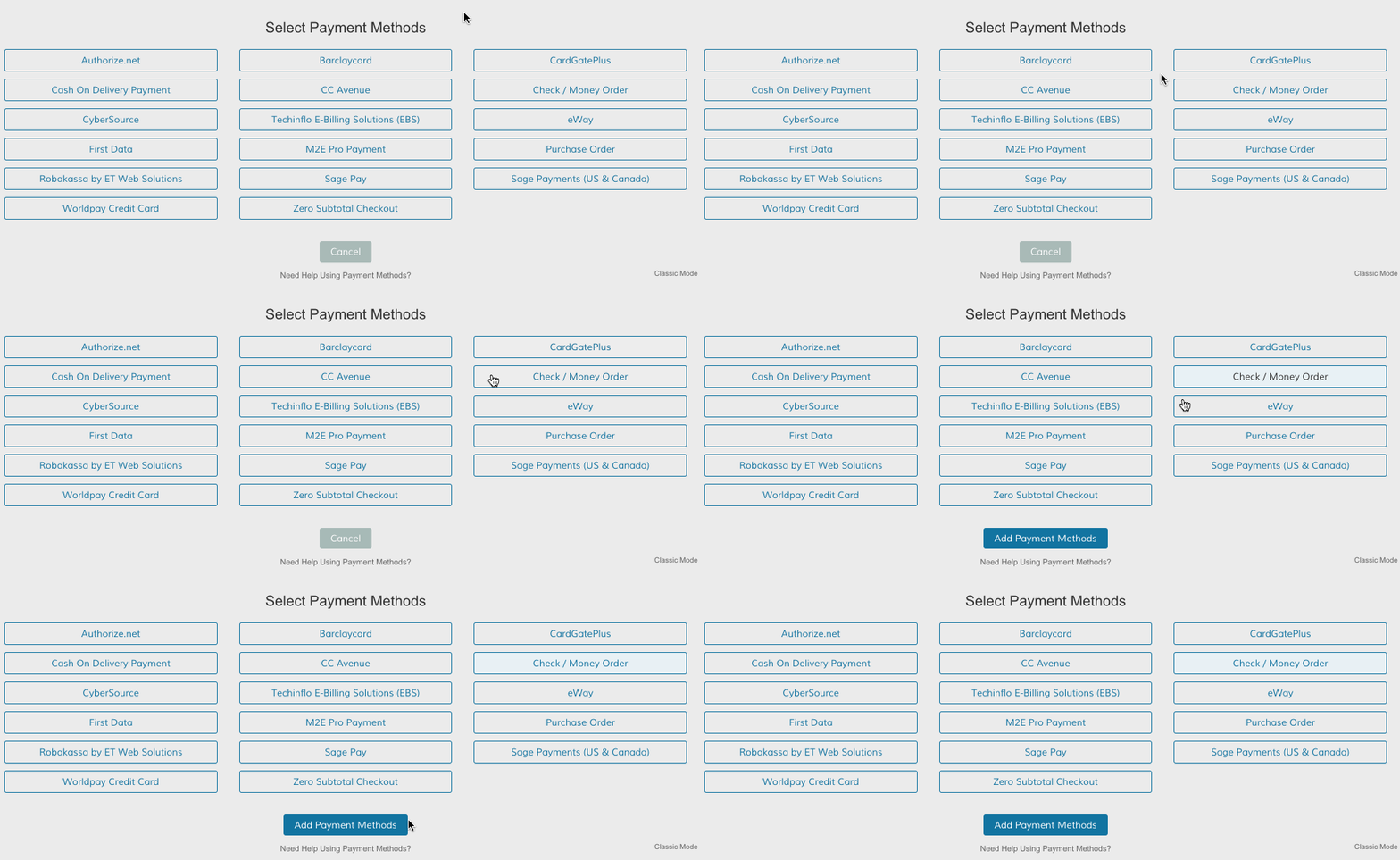
Scroll down and select View More Payment Methods. Select Check/Money Order, then, click Add Payment Methods.
Scroll to the Check/Money Order section and click Set-up.

Step 2 - Enable and configure Check/Money Order
On your Check/Money Order configuration page, set Enabled to Yes. Then, configure the following settings:
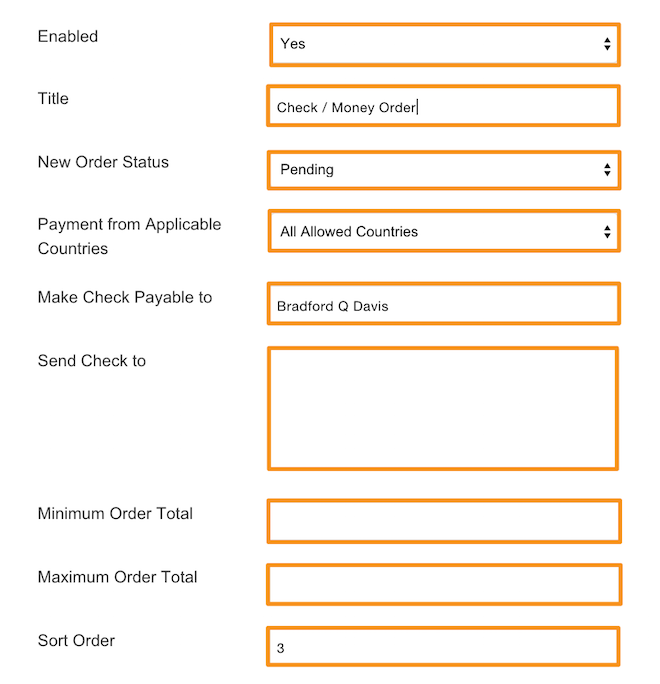
- Title - Select a name for your payment gateway that appears on the frontend.
- New Order Status - Select a status for each order paid with check or money order.
- Payment from Applicable Countries - Select All Allowed Countries to place no country restriction on cash payments. Select Specific Countries to restrict payment to individual countries. Hold Command (Mac) or CTRL(PC) to select multiple options.
- Make Payable To - Enter a name -- usually the name associated your company's checking account -- for checks and money orders you receive.
- Send Check to - Enter an address for sending checks and money orders.
- Minimum and Maximum Order Total - Set the minimum and maximum currency value for orders purchased through cash on delivery.
- Sort Order - Enter a numeric value to determine the order your payment option appears.
Step 3 - Save
When you finish your configurations, click Save.

Add another payment method
Read more about our other payment methods.
Comments
0 comments
Please sign in to leave a comment.