
Tax Rates are the percentage added to the product sales price that to be collected from the customer to account for a local, state, or federal tax. These are paired with Tax Classes to create Tax Rules you can apply across your store.
| 1 | Visit Tax Page |
| 2 | Select Zones & Rates |
| 3 | Add New Tax Rate |
| 4 | Editing Existing Tax Rate |
| 5 | Exporting Tax Rate |
| 6 | Save |
| 7 | Further Reading |
Step 1 - Visit Tax Page
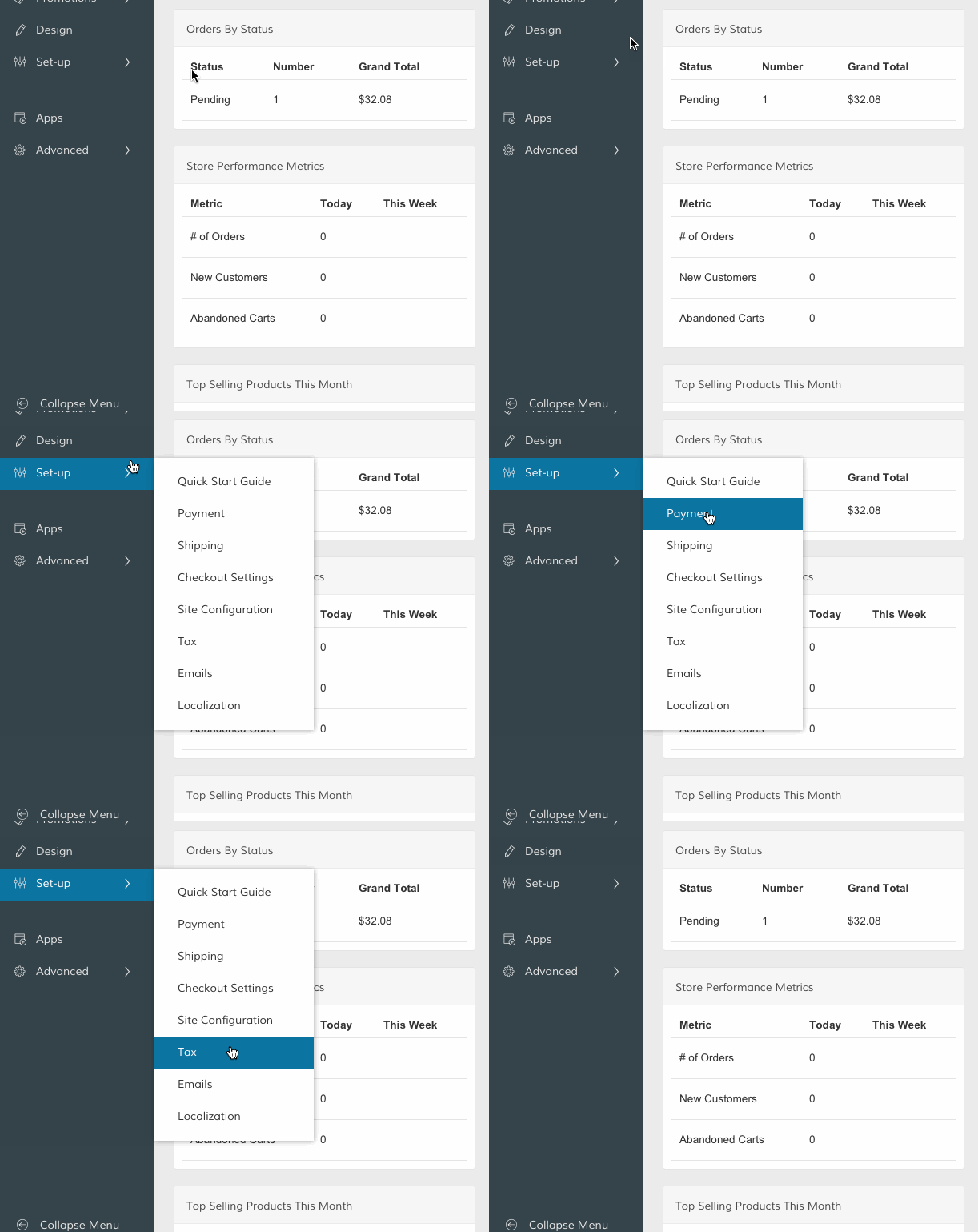
From your Control Panel, hover your cursor over Set-up and select Tax.
Step 2 - Select Zones & Rates
From your Tax page, Zones & Rates.

Step 3 - Add New Tax Rate
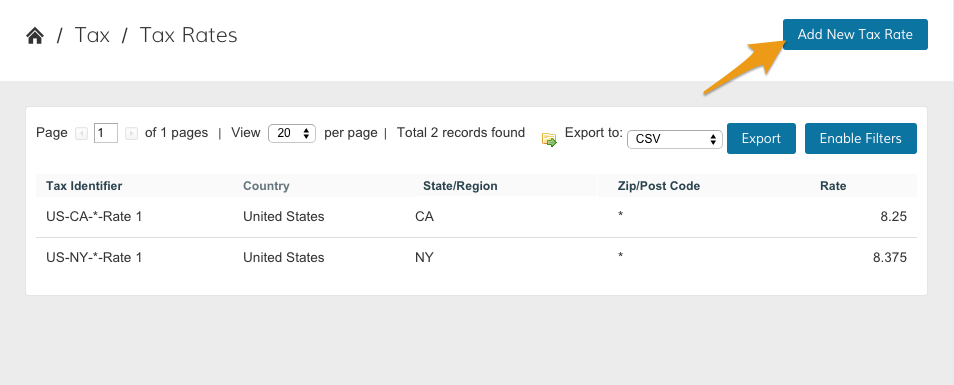
Click Add New Tax Rate to create a new rate.
From the New Tax Rate page, configure your rate information.
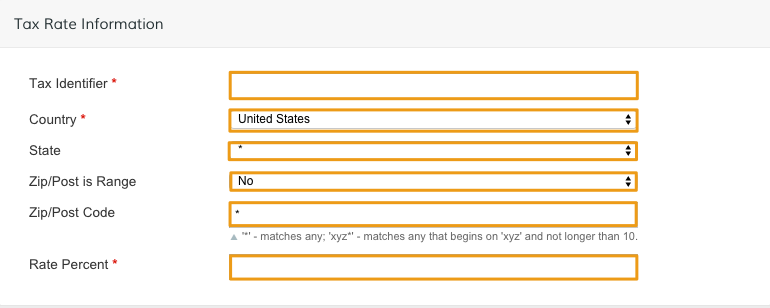
- Tax Identifier - Create a title for your tax rate
- Country - Set a country to apply your rate
- State - Set a state or province within a country to apply your rate. If there's no specified state/province, select the asterisk (*)
- Zip/Post is Range - Select Yes to determine a range of zip or postal codes. This is useful for applying the same tax rate among addresses in close proximity.
- Zip/Post Code - Add a postal code or range of postal codes. Enter an asterisk (*) to match any postal code associated with your customer.
- Rate Percent - Enter a numeric value to set your rate percentage.
Note: All required fields are marked by a red asterisk.
Step 4 - Editing Existing Tax Rate
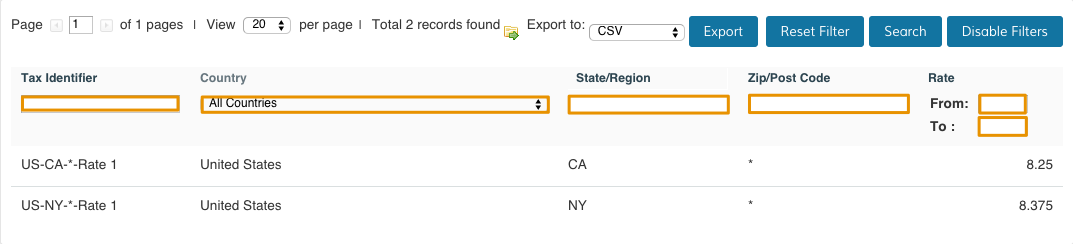
From the Tax Rate page, you can sort and edit existing tax rates. Select Enable Filters to sort and search existing rates.
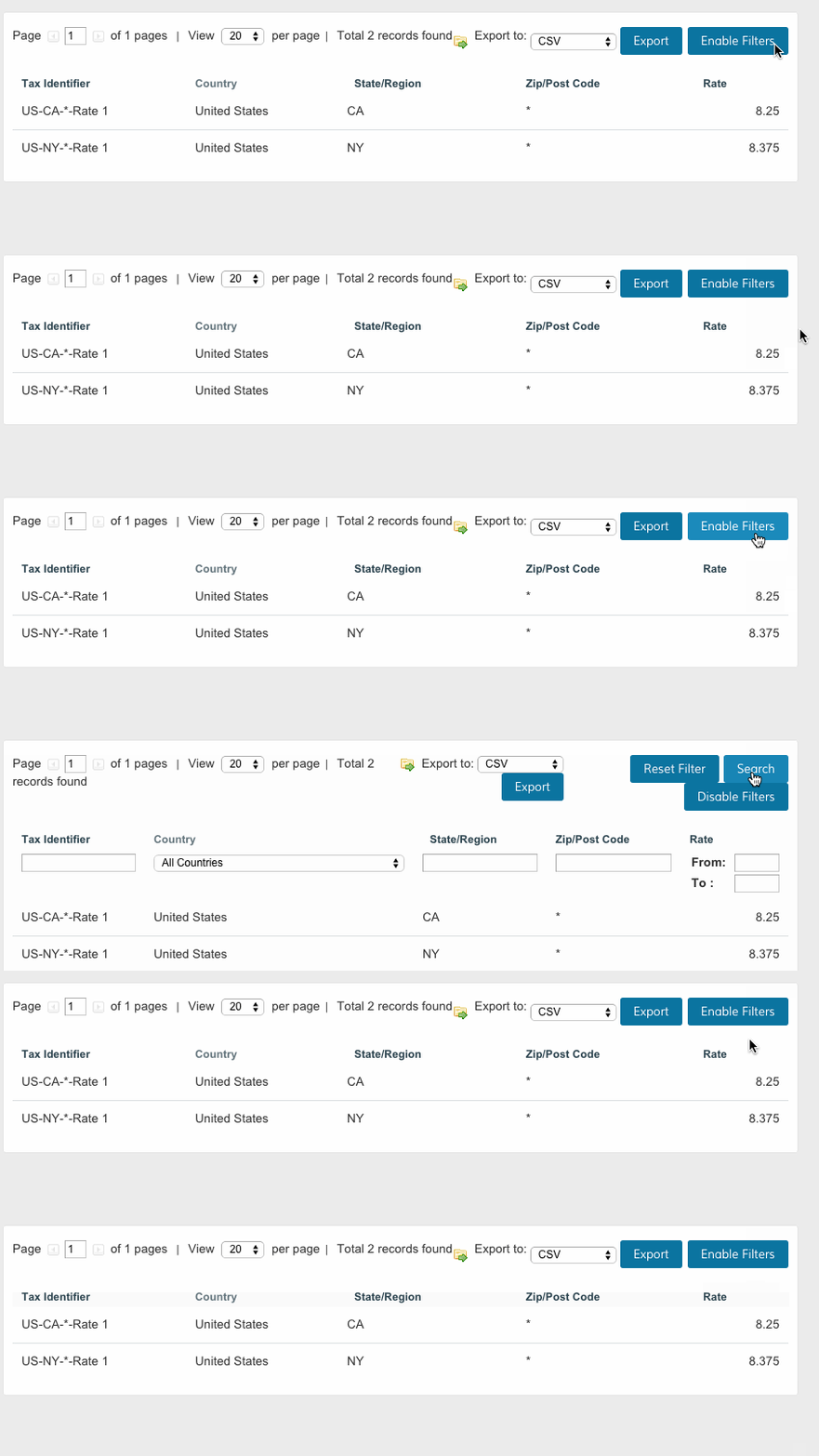
You can sort and search by Tax Identifier, Country, State/Region, Zip/Post Code and Rate.
Step 5 - Exporting Tax Rates
Use the Export to dropdown to choose between exporting to a CSV and an Excel XML file.
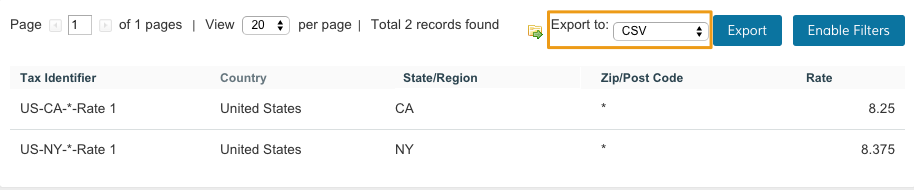
Then, click Export to create a file with information on all your existing tax rates.
Step 6 - Save
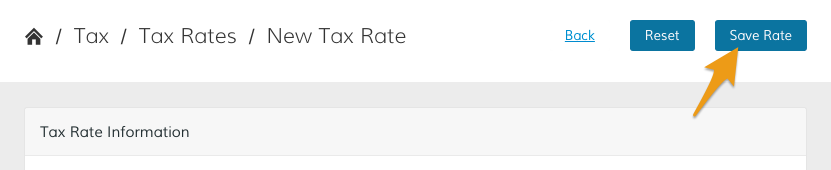
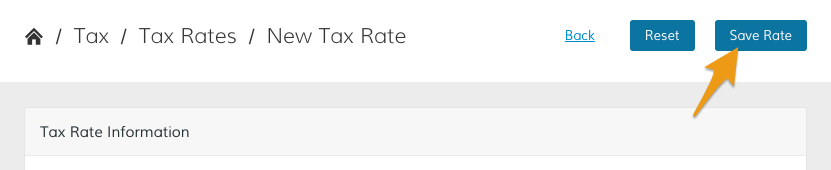
When you've finished configuring your settings, click Save.
Further Reading
Comments
0 comments
Please sign in to leave a comment.