
A purchase order (PO) allows commercial customers to pay for purchases with prior authorization by referencing the PO number. During checkout, the customer is prompted to enter the purchase order number as the method of payment.
If a customer browsing your store represents a business, they may use a purchase order associated with their company accounting system to complete the transaction. Commercial customers may prefer this method so their accounting department can easily track the purchase, as well as any confirmation email, invoice, shipment, or credit memo associated with the transaction.
| 1 | Add Purchase Order to Payment Methods |
| 2 | Enable and configure Purchase Order |
| 3 | Save |
| 4 | Add another payment method |
Step 1 - Add Purchase Order to Payment Methods
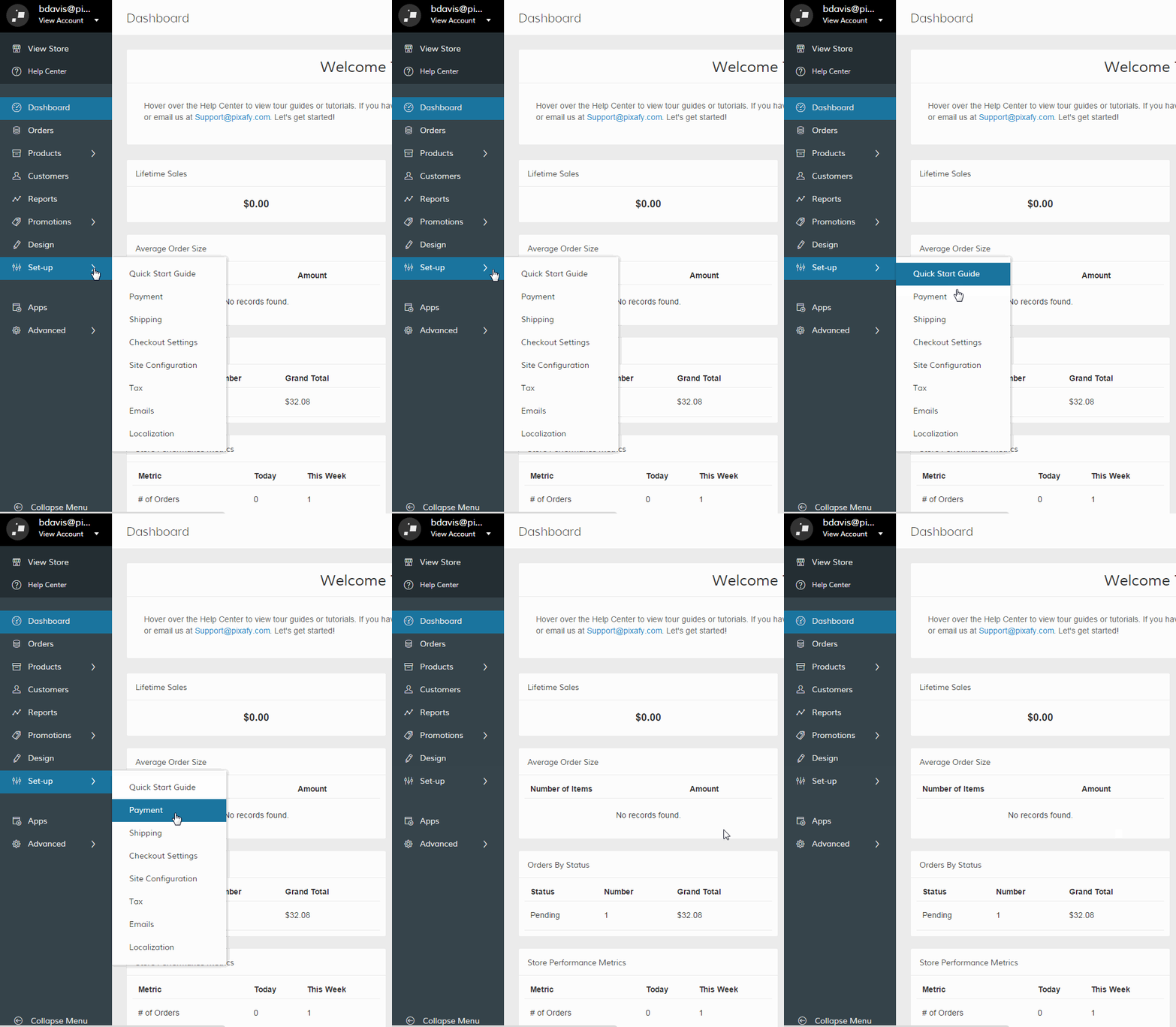
In your Control Panel, hover over Set-up and select Payments.
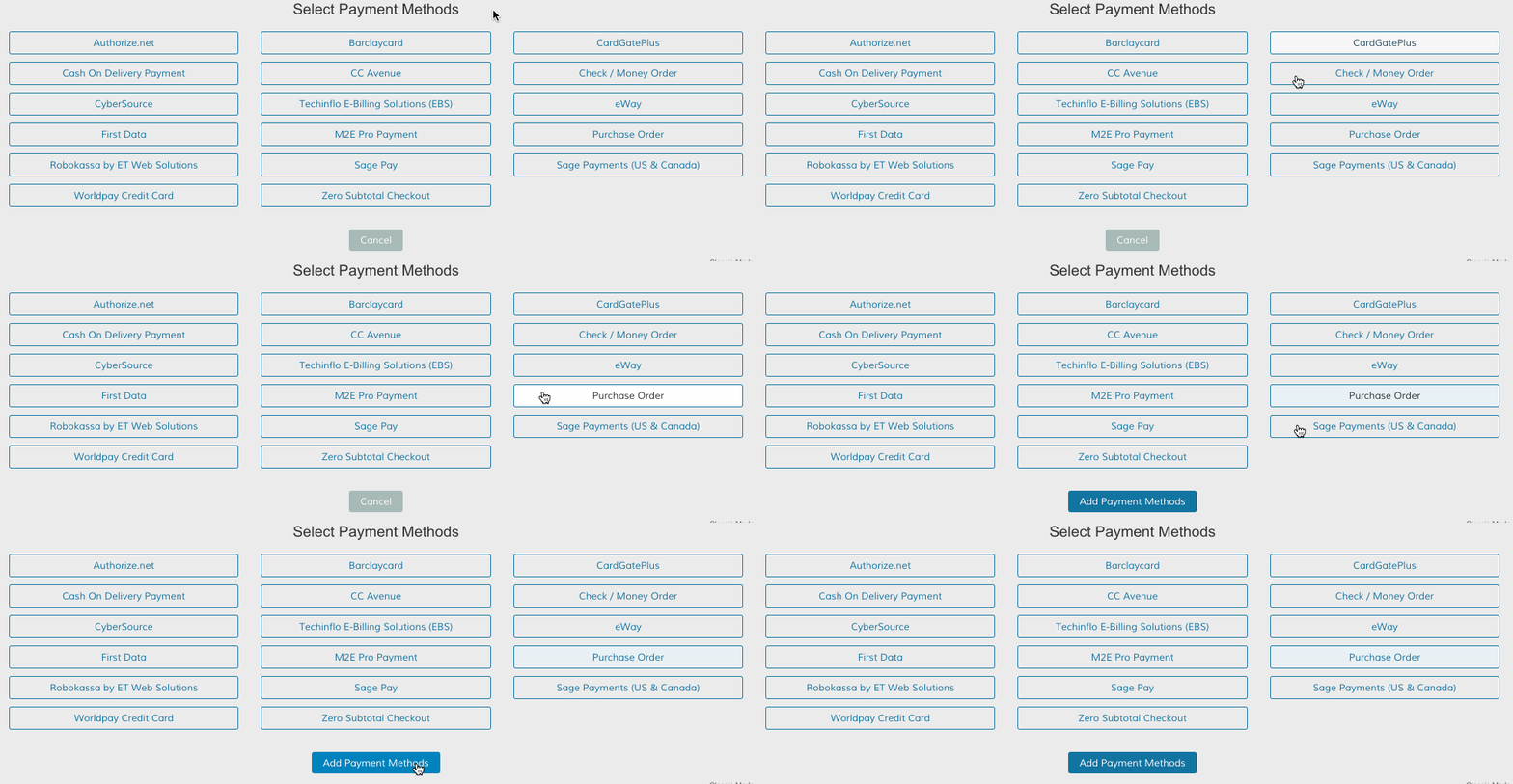
Scroll down and click View More Payment Methods from the top right. Then, select the Purchase Order method and click Add Payment Methods.
Scroll to the Purchase Order section and click Set-up.

Step 2 - Enable and configure Purchase Order
On your configuration page, set Enabled to Yes. Then, configure the following settings:
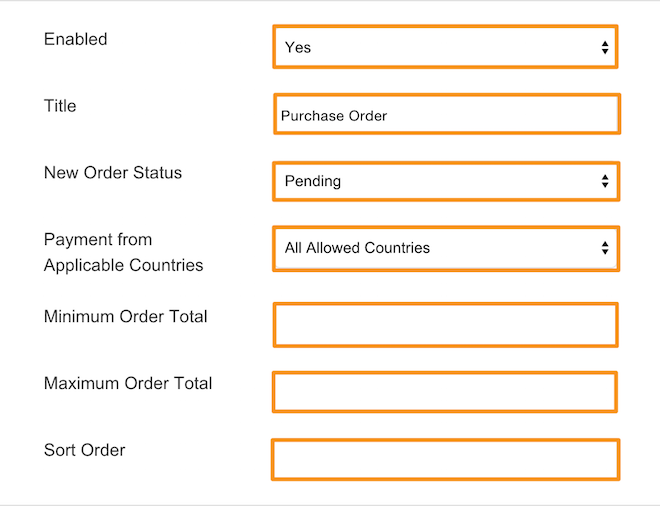
- Title - Select a name for your payment gateway that appears on the frontend.
- New Order Status - Select a status for each order paid with cash.
- Payment from Applicable Countries - Select All Allowed Countries to place no country restriction on purchase orders. Select Specific Countries to restrict purchase order payment to individual countries. Hold Command (Mac) or CTRL(PC) to select multiple options.
- Minimum and Maximum Order Total - Set the minimum and maximum currency value for orders purchased with a purchase order.
- Sort Order - Enter a numeric value to determine the order your payment option appears.
Step 3 - Save
After making your changes, click Save to complete the process!

Add another payment method
Read more about our other payment methods.
Comments
0 comments
Please sign in to leave a comment.