
This article will describe the fields used in setting up your Categories.
Each Category has the following Tabs:

General Information Fields
*Required Fields
- Name*: The Name of your category. This will appear in your Navigation menu
- Is Active*: Yes or No. An Inactive category will not appear on your Store
- URL Key: This is the part of the URL after www.mystore.com/. This is important for SEO. Give this a unique and descriptive name. You can not have any spaces, slashes or special characters.
- Thumbnail Image: This is not currently used in the Zoey 2014 design. You can leave this blank.
- Description: This text will appear on your category page below the category Name. You can use the WYSIWYG editor to add more styled content.
- Image: This is where you can upload an image or banner that will appear at the top of your category page below the category name.
- Page Title: This is the "Browser" or "Meta-Title" field. This is important for SEO. It should be unique, descriptive, and less than 128 characters.
- Meta Keywords: SEO Keywords, should be short comma separated values that are unique. They do not appear on the front-end of your site, they are only visible to Search Engines.
- Meta Description: SEO Description, should be a unique short 1-2 sentence description about the page. This does not appear on the front-end of your site, it is only visible to Search Engines.
- Include in Navigation Menu: Yes/No - this field allows you to have category pages that do not appear in the Navigation Menu on the front-end of your site. Use this feature for special landing pages that you may want to market, but do not want to be linked in the menu.
Display Settings Fields
- Display Mode: Options - Products Only, Static Block Only, Static Block and Products. This option allows the Merchant to display a "Static Block" which can be created in Design>Content. A Static Block is a more flexible tool for creating custom designed content. This feature is mostly used when creating "Landing Pages" that can display banners to link customers to Sub-Category Pages, rather than just showing all products.
- CMS Block: If "Static Block" is chosen as an option in Display Mode, then you should select an available Static Block from this drop-down list.
- Is Anchor: Yes/No - This setting does a few things:
- YES - Allows this category to "inherit" the products from all of it's sub-categories. Makes Filters / Layered navigation appear in the left column of this Category Page.
- Available Product Listing Sort By: A list of the Sorting options available. By Default all are selected, but this can be changed if necessary.
- Default Product Listing Sort By: This is the default sorting of the products that a customer will see when they visit the site. "Best Value" is the manually determined sorting that is set by the Merchant on the "Category Products" tab.
- Layered Navigation Price Step: This is the amount of each Price Filter step for this specific category page. By default, "Use Config Settings" is checked off. Filter Price Step will be calculated automatically by our system.
Custom Design Fields
Zoey recommends that our Merchants not use this screen unless they are familiar with more advanced development principles.
Menu
This section allows Zoey Merchants to add banners into their "Mega Menu" (see image below)

Category Products
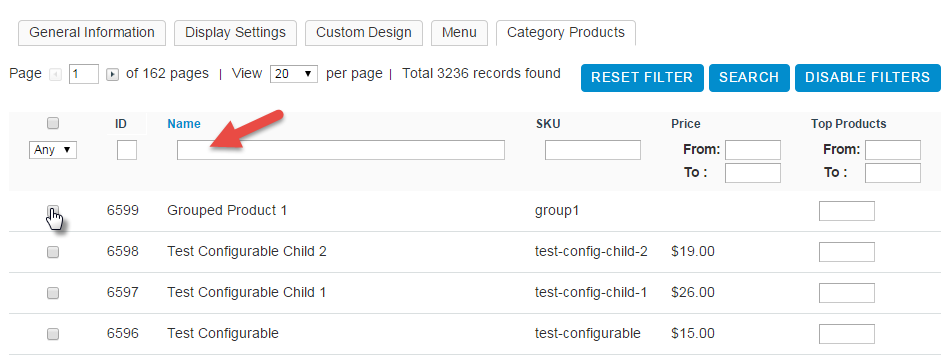
This screen allows the Merchant to add products to the Category and set a default sort order for the "Top Products"
Comments
0 comments
Please sign in to leave a comment.