
Zoey allows you to add and customize translations of key phrases throughout your store. This allows you to ensure your store has the dialect, tone and phrasing to communicate effectively with customers.
Zoey's translation tool is useful for more than translating text into other languages. You can also use the tool to change the phrasing of any text in your default language. For example, you can edit a default word or phrase to something that matches the intended style of your store!
| 1 | Before you begin |
| 2 | Visit Language settings |
| 3 | Add translation |
| 4 | Edit translation |
| 5 | Refresh |
| 6 | Further reading |
Before you begin
- Ensure that your static block content is written in your new language.
- Some areas of your store are auto-populated and may require updating. We have a list of the default areas that you may want to provide a custom translation:
- Login Page
- Checkout Registration Promo Banner
- Checkout Payment Security Seal
- Checkout Order Success Page
- Create Account Page
- Forgot Password Page
- Reset Password Page
- Empty Cart Page
- Top Menu Bar
Step 1 - Visit Language settings
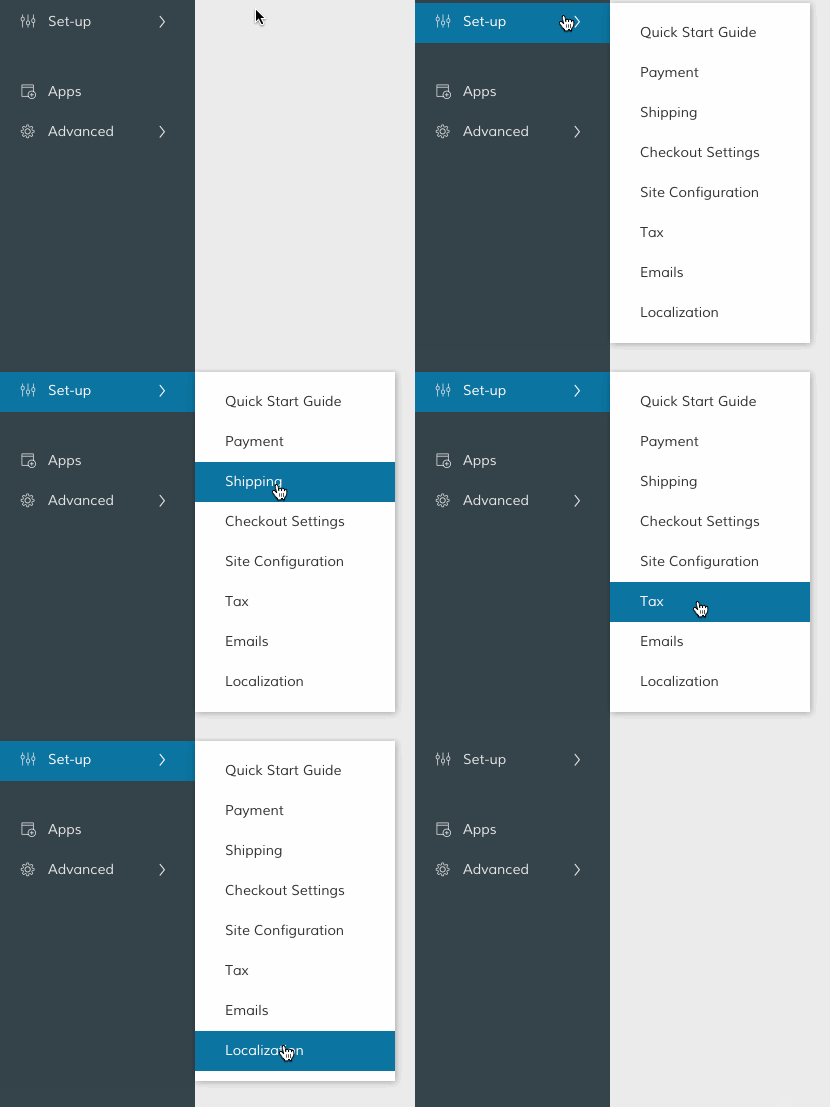
In your Control Panel, hover your cursor over Set-up and click Localization.
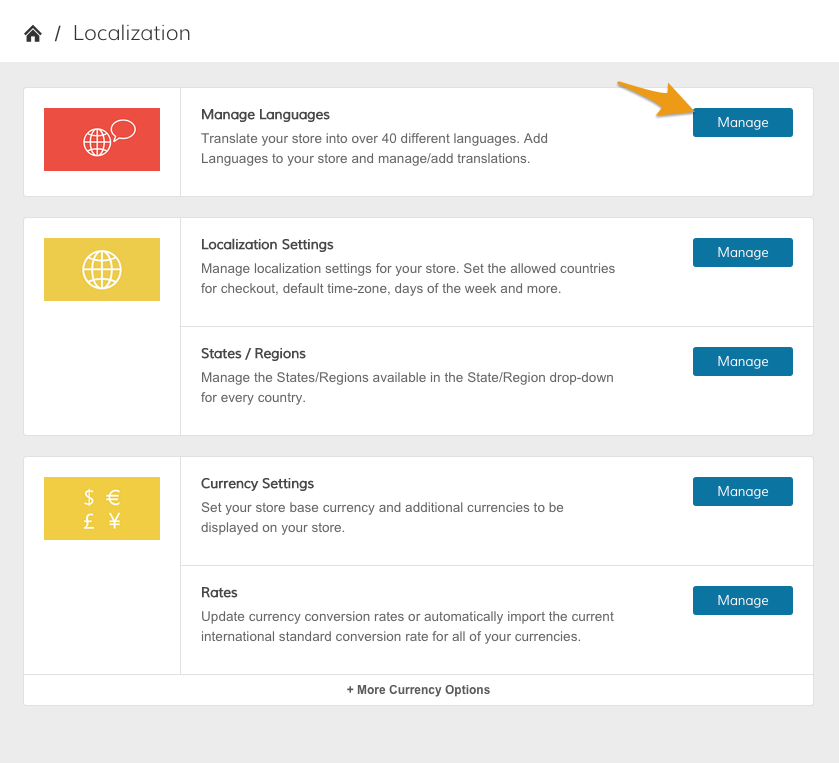
From the Localization page, click Manage in the Manage Languages section.
Step 2 - Add translation
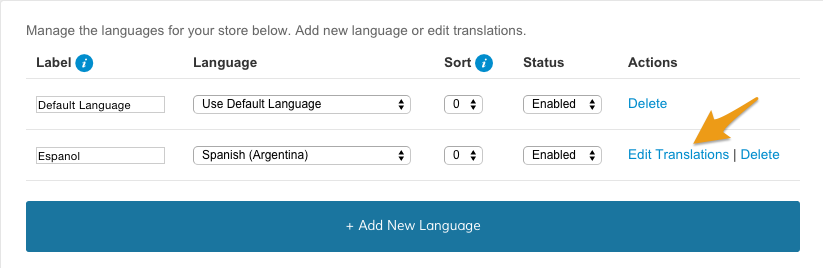
From your Manage Languages page, click Edit Translations.
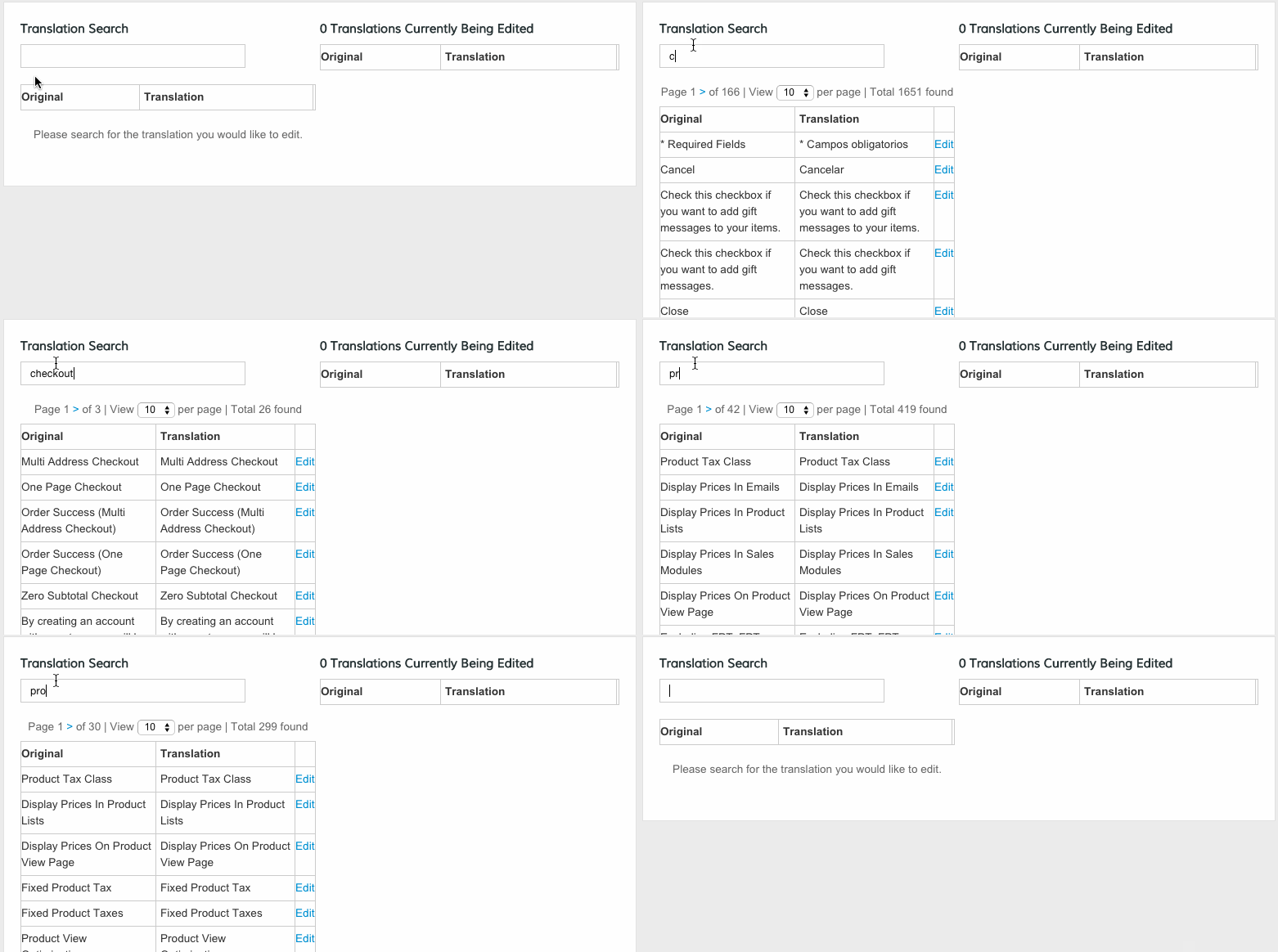
You can search through existing translations and add new ones by entering a word or phrase into Translation Search.
To add a new translation, click Add Translation.
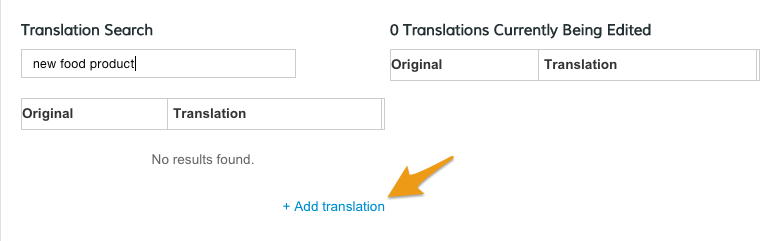
Then, enter in a translation that corresponds with your new language.
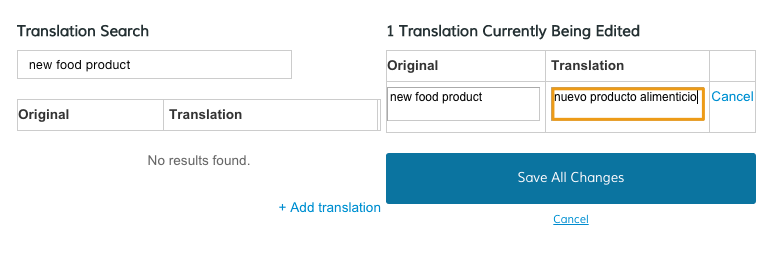
When you finish translating, click Save All Changes.
Note: The translation tool is case sensitive. You will need to use the correct capitalization to utilize your translation tool. Additionally, CSS styling can change how the capitalization displays. For example, text entered as "View All" might display as "VIEW ALL". You can check on the styling with your browser's inspect element tool.
Step 3 - Edit translation
While using the translation tool referenced in Step 2, enter in an existing word or phrase translation. Click Edit to enter in a new translation for the selected phrase.
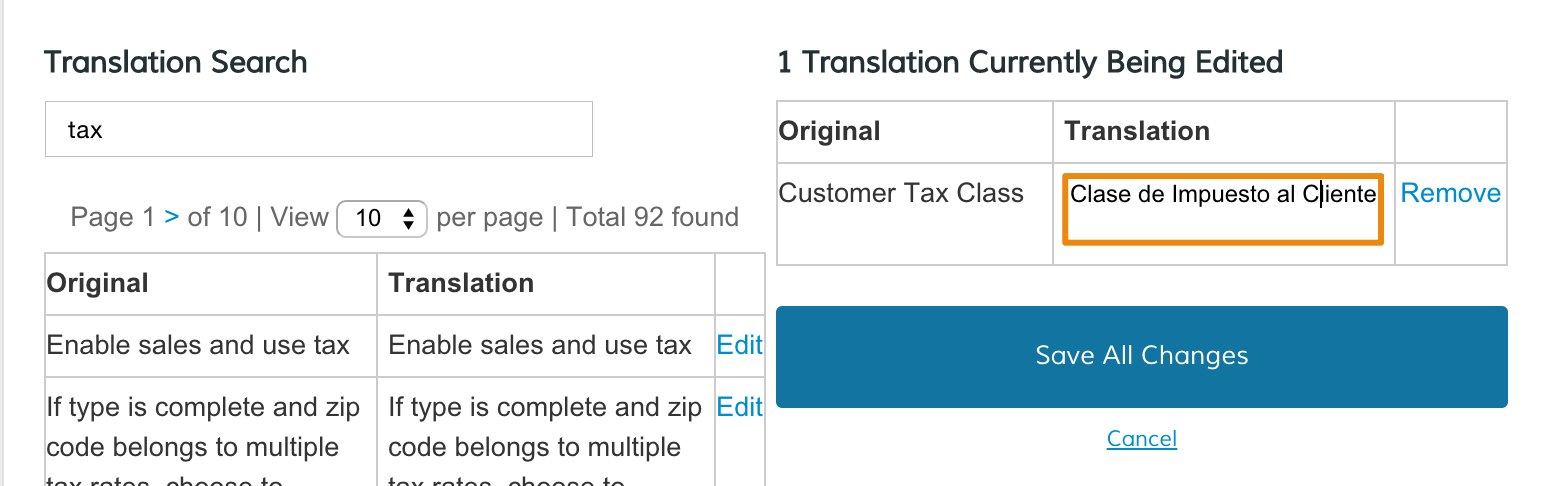
Then, click Save All Changes.
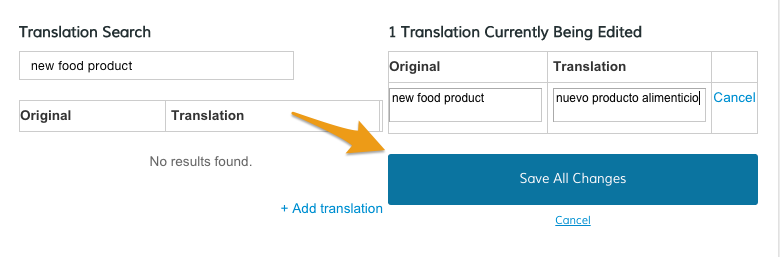
Step 4 - Refresh
In your Control Panel, hover over Set-up and click Localization.
Further reading
How to Create a Store View/Language
Comments
0 comments
Please sign in to leave a comment.