
Please note this tutorial is only for our older Classic design themes and tools. For information on our new themes and how to use the updated tools, please see: Starting with Design and Advanced Design Tools.
A Store View is a distinct set of content, layout, and language you can set for your Zoey store. You can connect your Homepage with one of your created Store Views to present it when customers visit your store.
Note: Zoey does not have a full multisite feature at this time. However, we are working on upgrading our feature set with an elegant and functional solution--coming soon!
| 1 | Connect Homepage with Store View |
| 2 | Save and refresh |
| 3 | Further reading |
Step 1 - Connect Homepage to Store View
From Design > Other Pages > Add a new Page, you can apply a Store View in the Page Information settings.
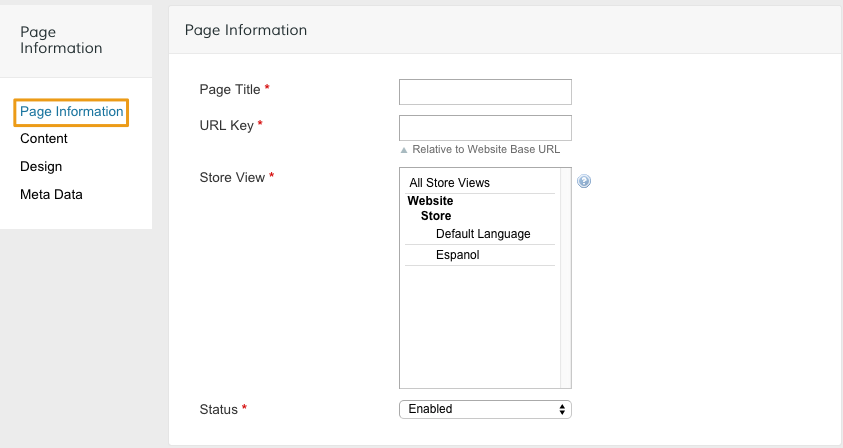
From the Store View field, select the view of your choice.
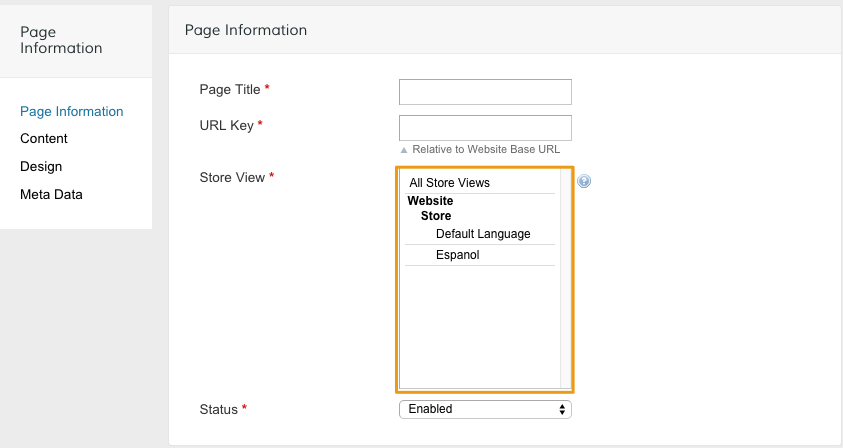
Note: You can also configure other page settings, add content, and adjust the layout. We discussing adding and editing pages in detail here.
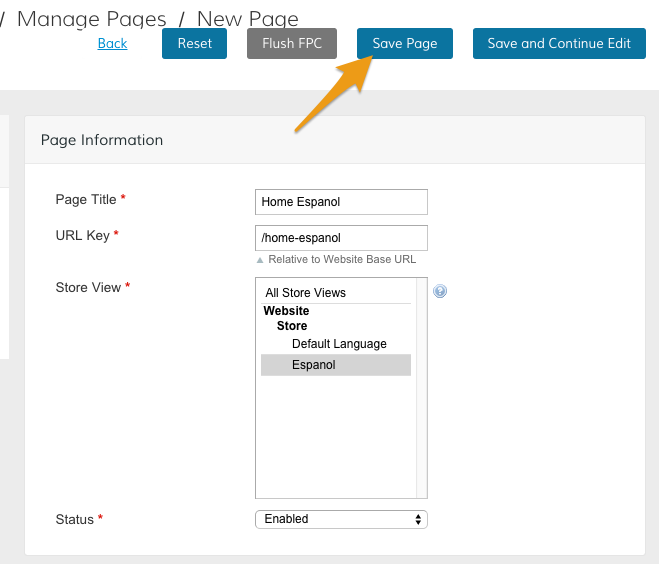
When you've finished creating your page, click Save.
Then, visit Design > Design Settings. From the Store Scope menu in the top right hand, select the Store View you created.
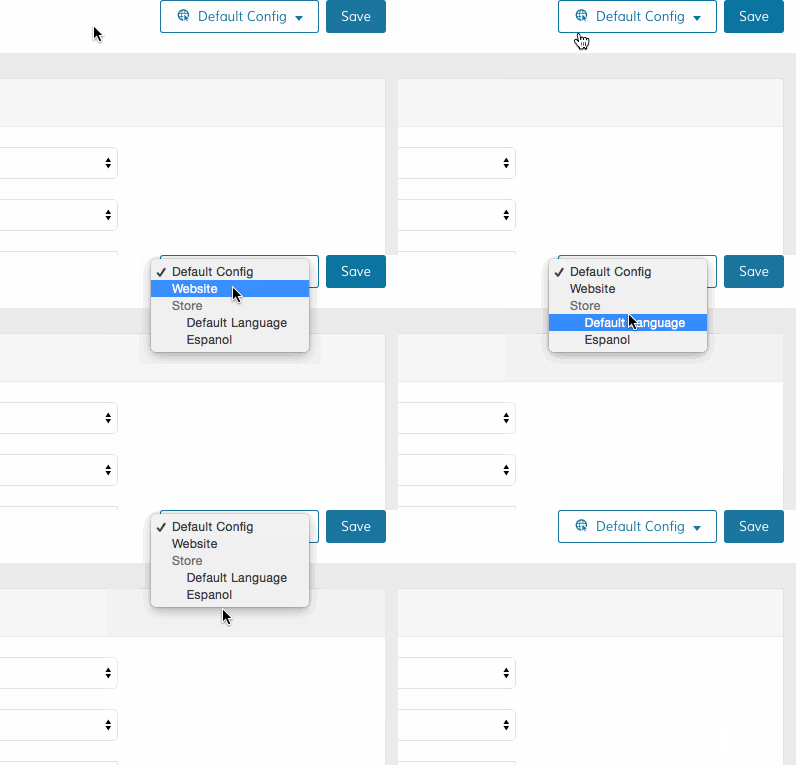
Select your new page from the CMS Home Page menu.
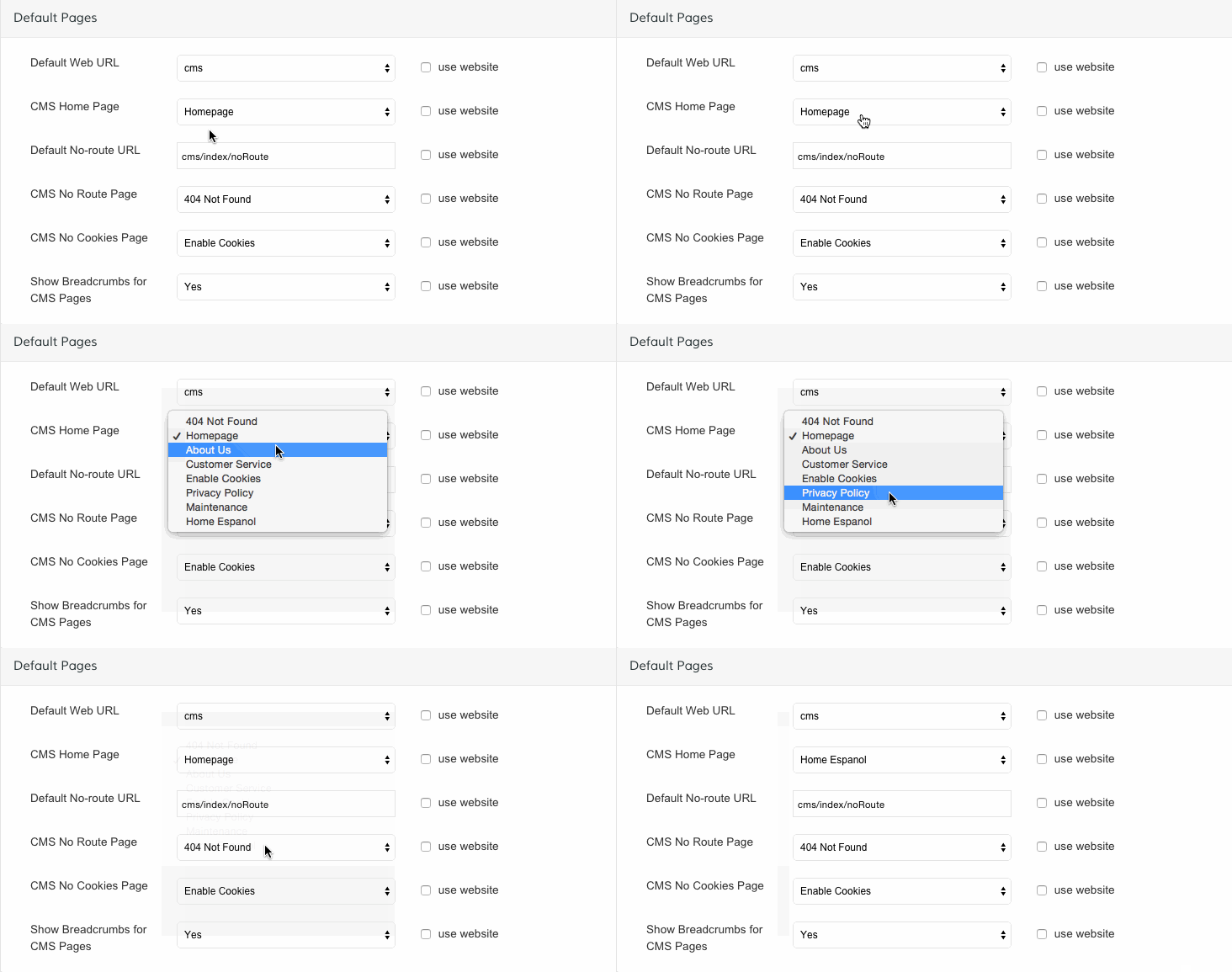
Note: Make sure the use website checkboxes are unchecked.
Step 2 - Save and refresh
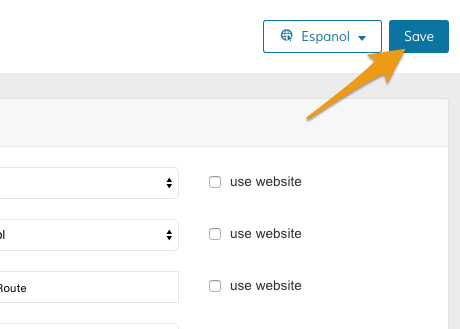
When you've finished your Design Settings configurations, click Save.
[
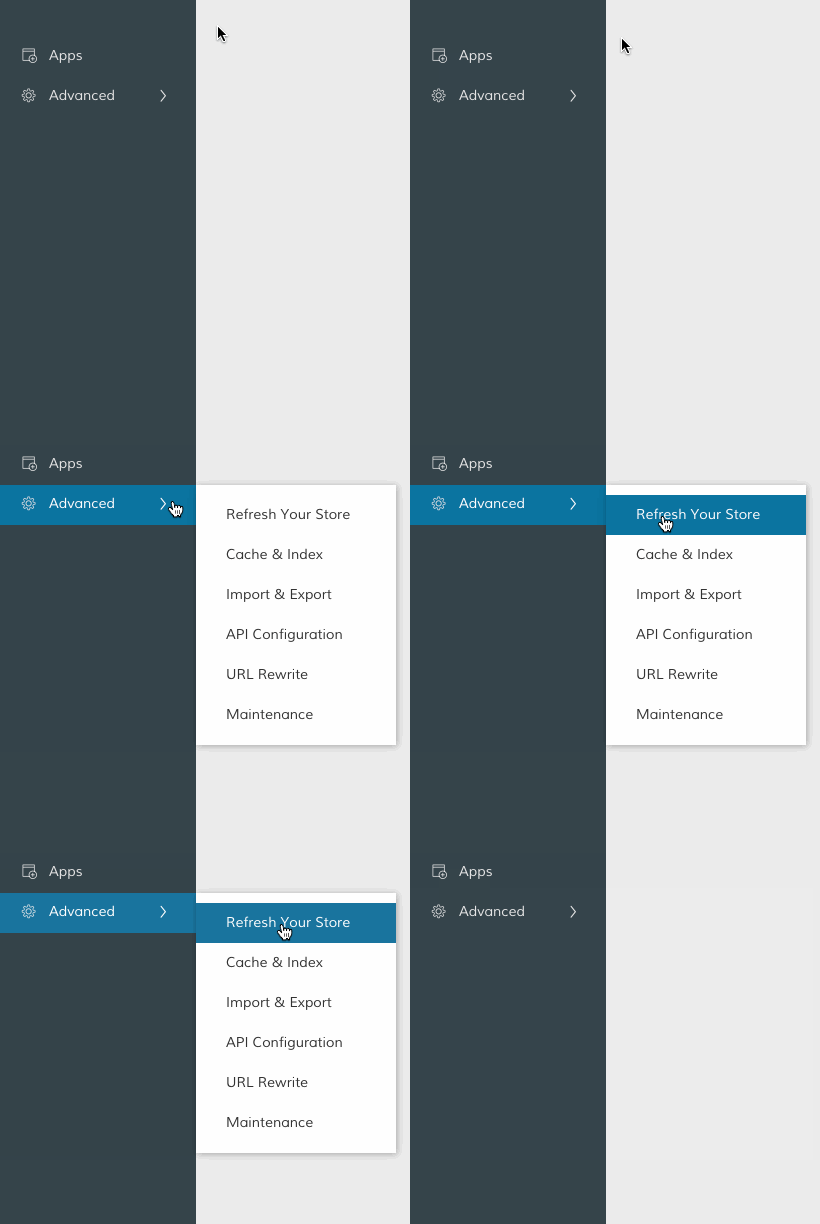
Then, in your Control Panel, hover your cursor over Advanced and click Refresh.
Further Reading
Available languages for store views
Adding translations to your store
Comments
0 comments
Please sign in to leave a comment.