
Product Rate allows you to set a shipping rate for each product. The products are combined for a single fee when your customers check out. This rate does not take into account variables other shipping options do, such as destination, price, weight, or the amount of items in the cart.
Note: This shipping method can not be combined with other shipping methods as a surcharge. All products in your catalog must have a product rate entered in order for this to work for any order.
Note: If you need additional options, such as a domestic or international rate for each, we recommend checking out a more advanced shipping option such as ShipperHQ.
| 1 | Visit Shipping Methods |
| 2 | Add Product Rate shipping |
| 3 | Configure Product Rate |
| 4 | Save |
Step 1 - Visit Shipping Methods
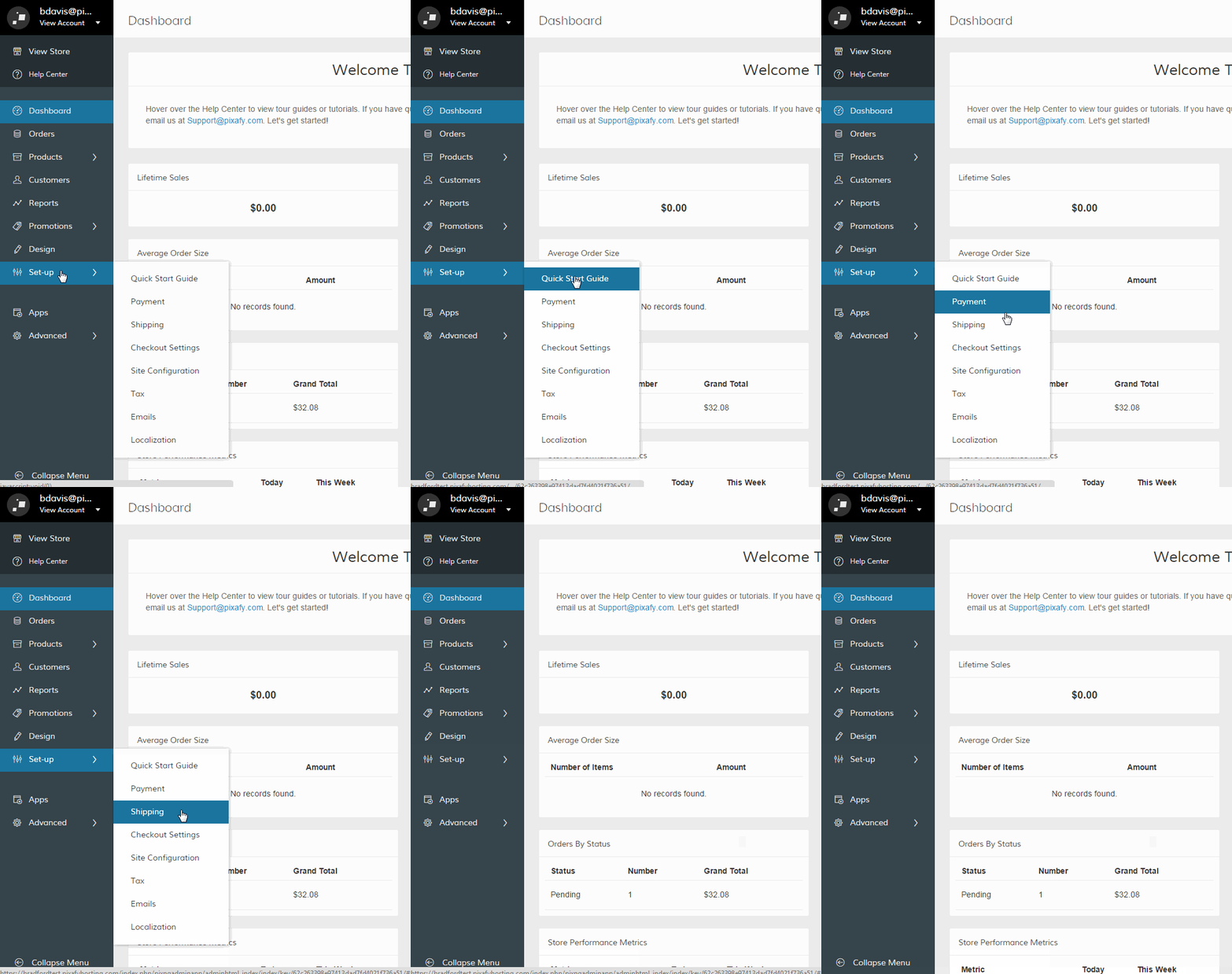
In your Control Panel, hover over Set-up and click Shipping.
Step 2 - Add Product Rate shipping
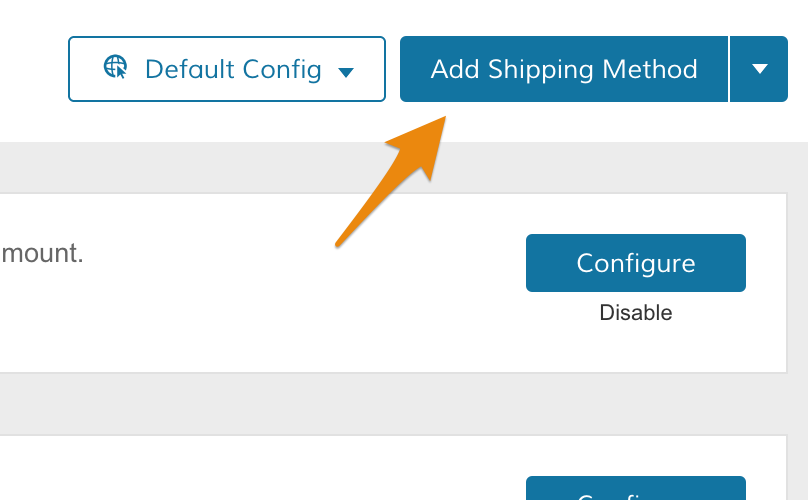
On your Shipping Methods page, click Add Shipping Method.
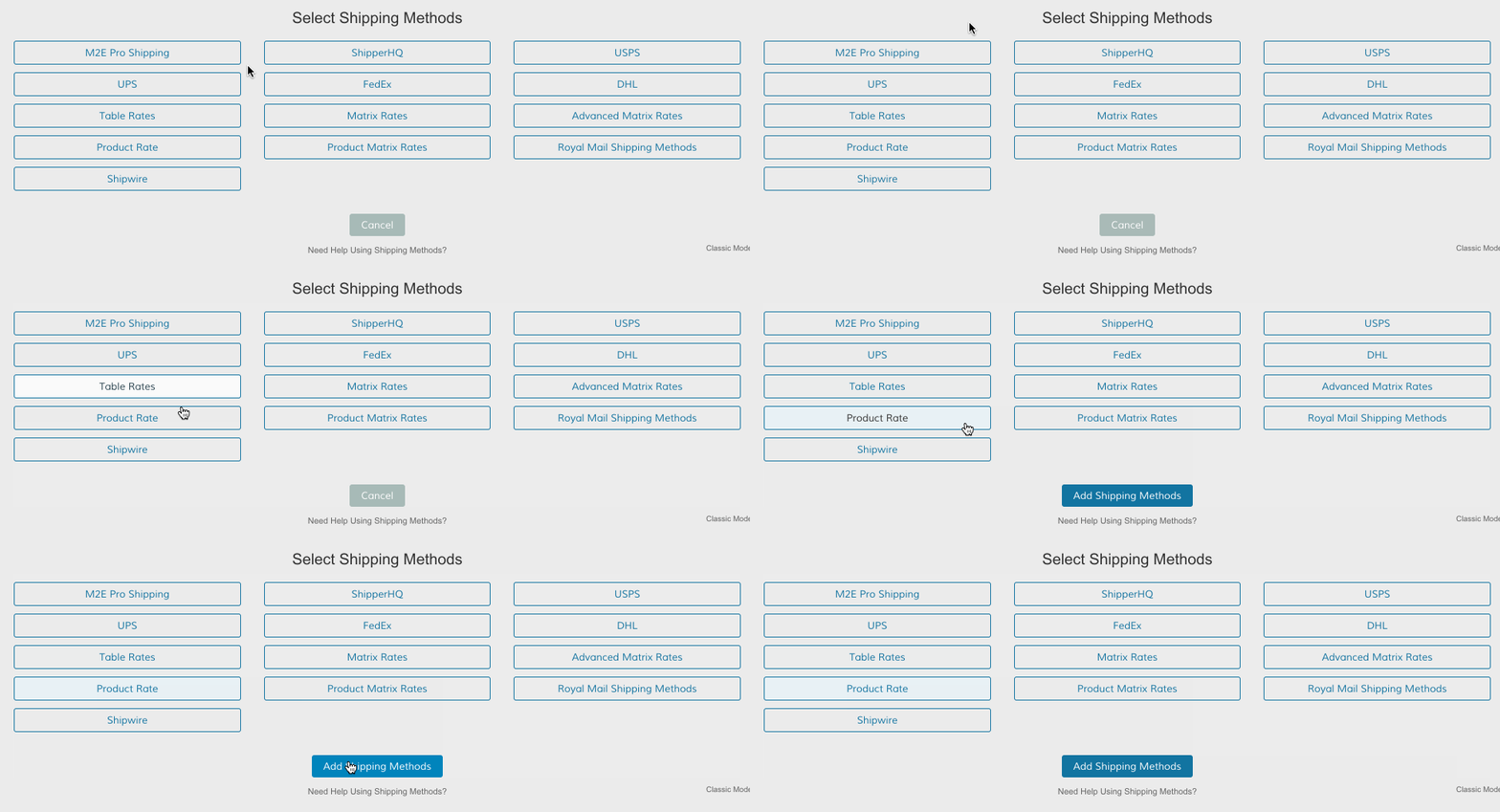
Select Product Rate, then click Add Shipping Method.
Step 3 - Configure Product Rate
Within the Product Rate shipping method, click Set-up.

This will bring you to your Product Rate settings.
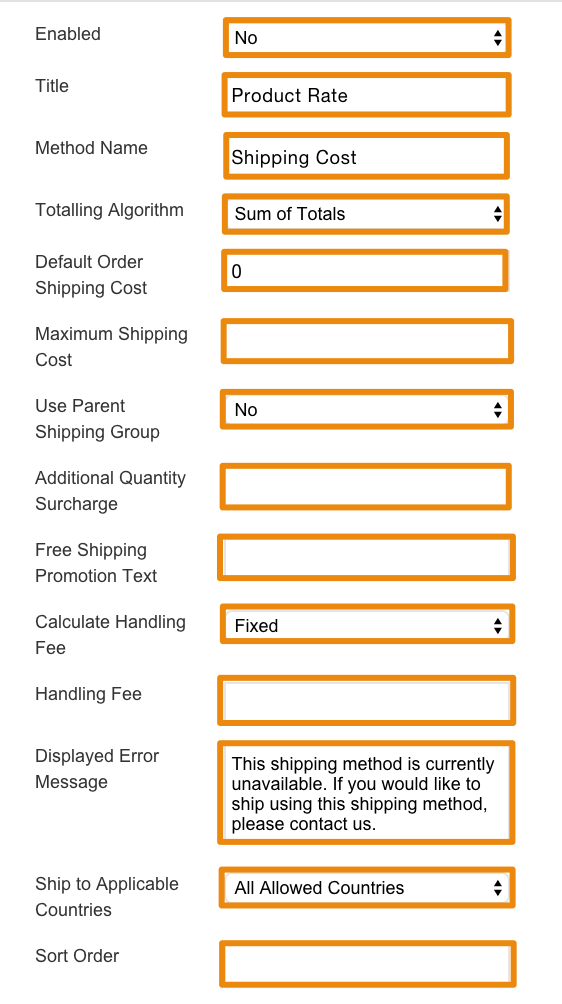
- Enabled - Select Yes to Enable the product rate. You must enable your rate to provide the option on your store.
- Title - Create a name for your shipping rate.
- Method Name - Create a name for your shipping method.
- Totaling Algorithm - Determine how the shipping total is calculated.
- Default Order Shipping Cost - Set the default price for using your product rate.
- Maximum Shipping Cost - Set the maximum price customers using your product rate will be charged.
- Use Parent Shipping Group - When using Bundled and Configurable products you can specify if you want the extension to use the shipping group of the parent/outer product or the child/simple inner product within.
- Additional Quantity Surcharge - Include a surcharge for additional items added to shopping cart.
- Free Shipping Promotion Text - If you configure your product rate method to become free when customers order a certain amount or type of product, you can enter text advertising a free shipping method.
- Calculate Handling Fee - Set a Fixed fee for handling, or set it as a Percentage of the shopping cart total.
- Handling Fee - Enter the numeric value for your fixed or percentage fee.
- Displayed Error Message - Enter a notice or instructions for your product rate when the option is unavailable.
- Ship to Allowed Countries - Select the countries your product rate is available. Select Specific Countries to limit the product rate to the countries of your choice. You can select multiple countries by holding CTRL (PC) or Command (Mac) while clicking on countries with your cursor.
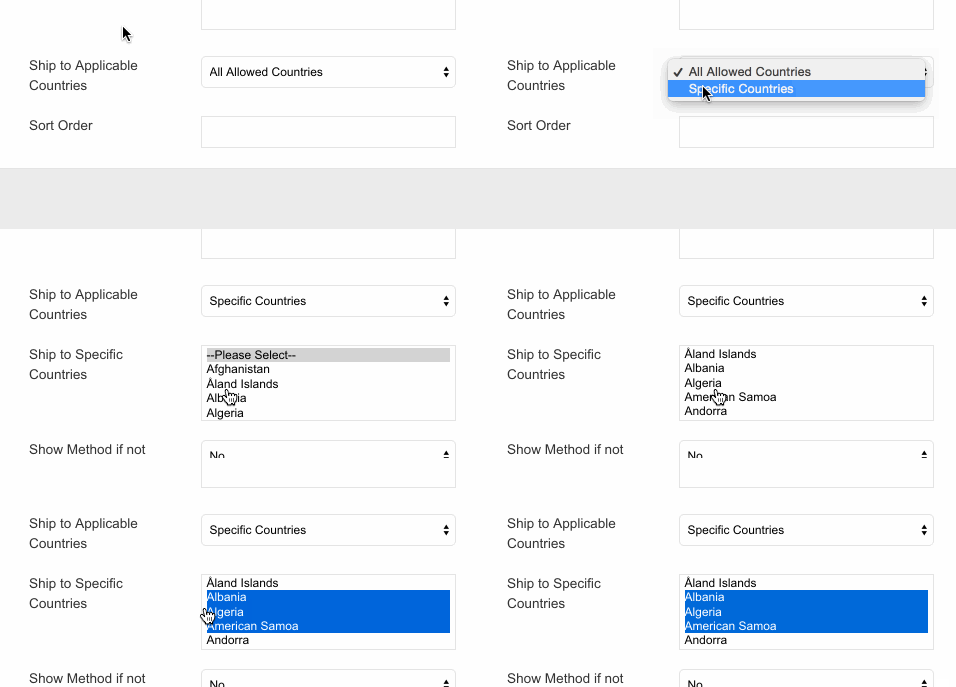
- Sort Order - Enter a numeric value to determine the order of your product.
Step 4 - Save
After configuring your product rate, click Save.
We recommend testing your new shipping rate through placing a test order.
Comments
0 comments
Please sign in to leave a comment.