
Setting up a shipping method allows you to customize the shipping options available to your customers at checkout, including their fees. This can range from simple methods such as flat rate and free shipping, to more complex methods such as calculated costs based on weight, number of items, or total price of goods (matrix rate or table rate). You can also connect directly to a shipping carrier to publish live shipping rates to your customers.
| 1 | Visit Shipping Methods settings |
| 2 | Create a new shipping method |
| 3 | Set up your shipping method |
| 4 | Remove a shipping method (optional) |
Step 1 - Visit shipping methods settings
In your Control Panel, hover over Set-up and select Shipping.

Step 2 - Create a new shipping method
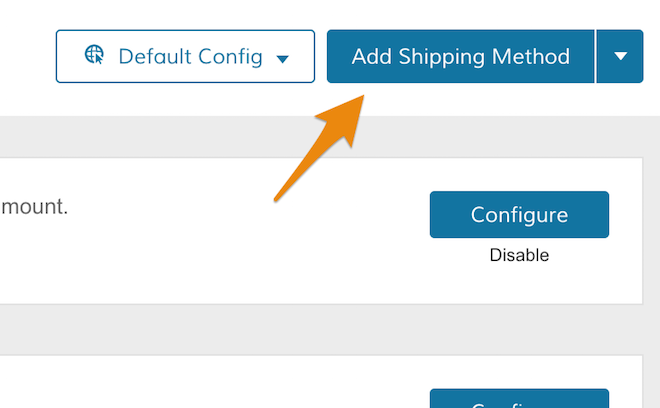
From the Shipping Methods page, click Add Shipping Methods.
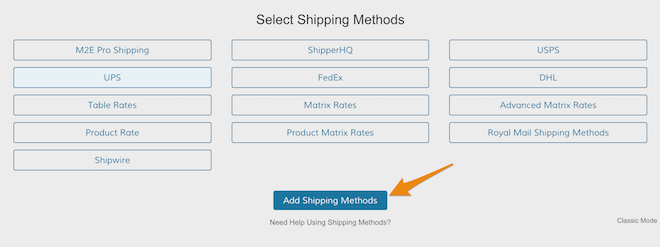
From the Select Shipping Methods area, select the shipping methods you want to add to your store.
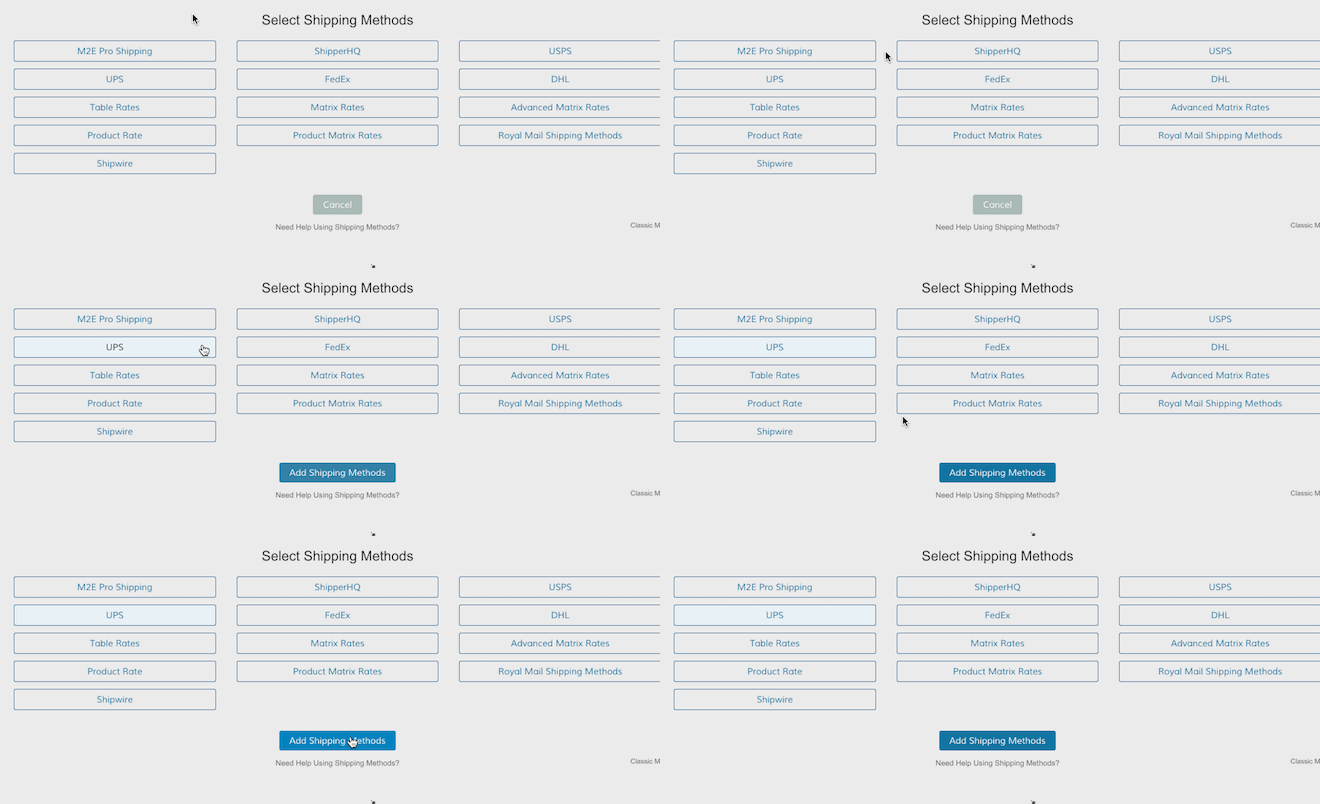
When you finish selecting shipping methods, click Add Shipping Methods.
Step 3 - Set up your shipping method
Click the Set-up icon that corresponds with your shipping method. You can configure your shipping method to make it live on your store.

We have a wide selection of shipping methods available. Choose the methods that best meet the needs of your business:
Free Shipping
Flat Rates
USPS
UPS
FedEx
DHL
Table Rates
Matrix Rates
Advanced Matrix Rates
Product Rate
Product Matrix Rates
Royal Mail Shipping Methods
M2E Pro Shipping
Step 4 - Remove a shipping method (optional)
Every shipping method has the option to Disable with a small link under the Configure or Set Up Button.
Comments
0 comments
Please sign in to leave a comment.