
Flat rate shipping is a fee structure that does not account for product weight or distance. It's a quick and easy option for creating simple shipping rates for your customers.
Note: If you need a more sophisticated shipping option, check out our table rate shipping option. Or, view an expanded list of our of shipping methods.
| 1 | Visit Shipping Methods |
| 2 | Select a flat rate shipping option |
| 3 | Configure flat rate shipping |
| 4 | Save |
Step 1 - Visit Shipping Methods
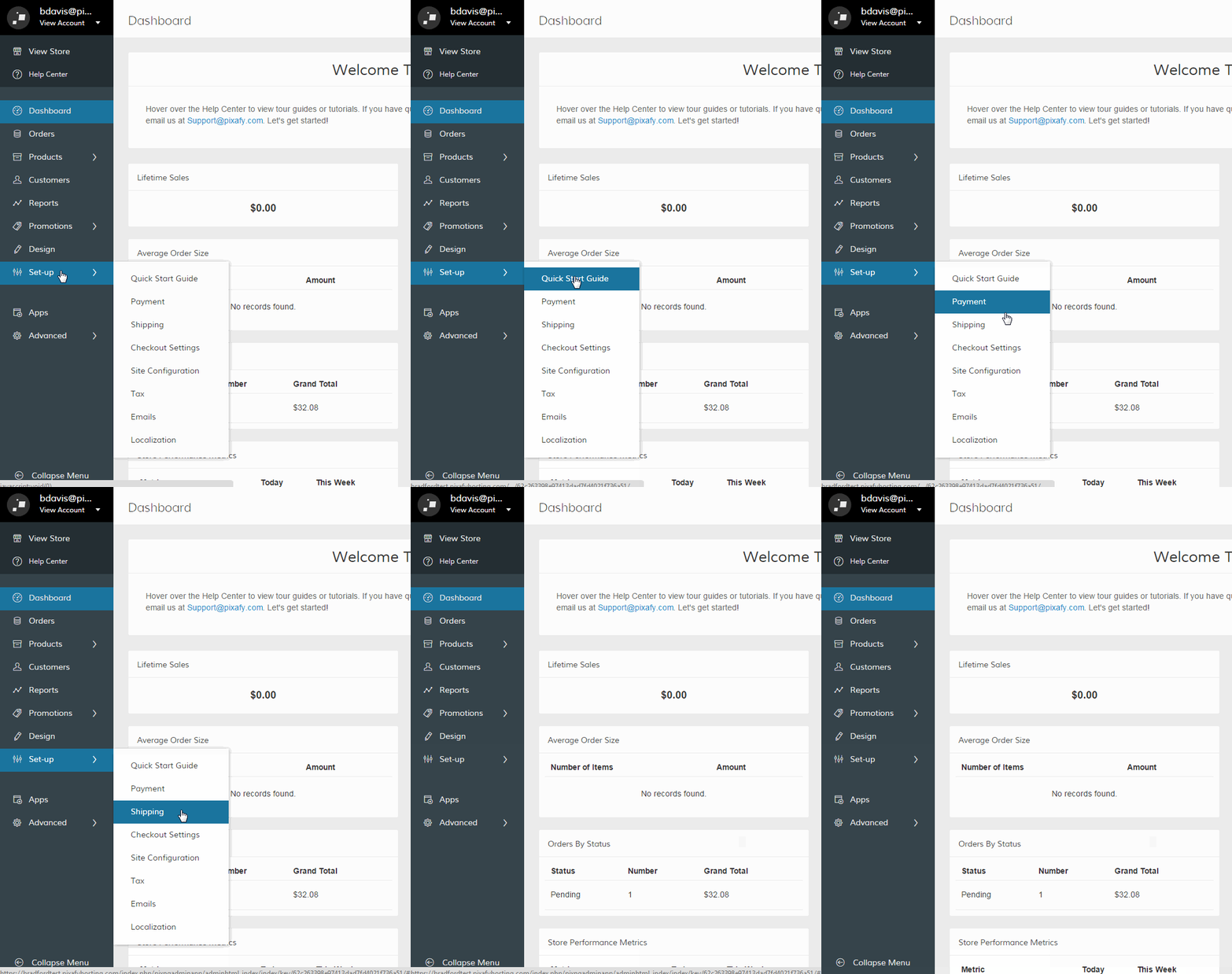
In the Control Panel, hover your cursor over Set-up and click Shipping.
Step 2 - Select a Flat Rate Shipping Option
From the Shipping Methods page, select one of your Flat Rate Shipping options. You can either select Configure to adjust an existing option or select Set-up to create a new option.
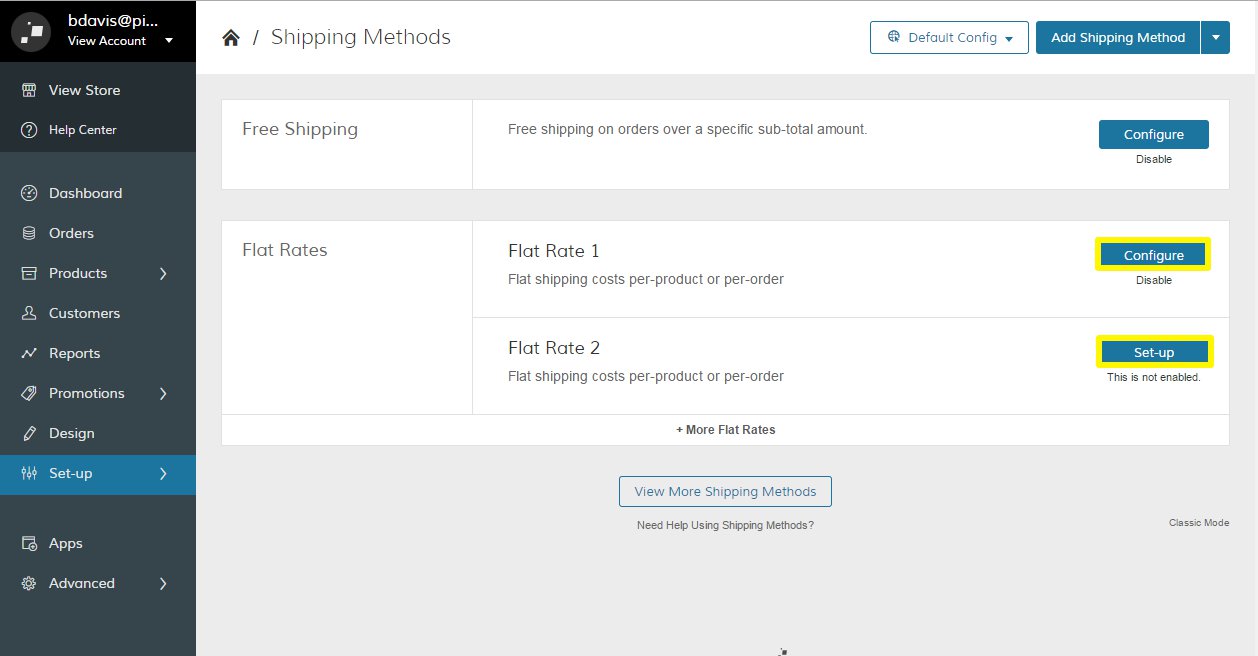
Note: You can create up to five (5) flat rates for your store.
Step 3 - Configure Flat Rate Shipping
We provide a variety of customization for your flat rate shipping. You can define the following options:
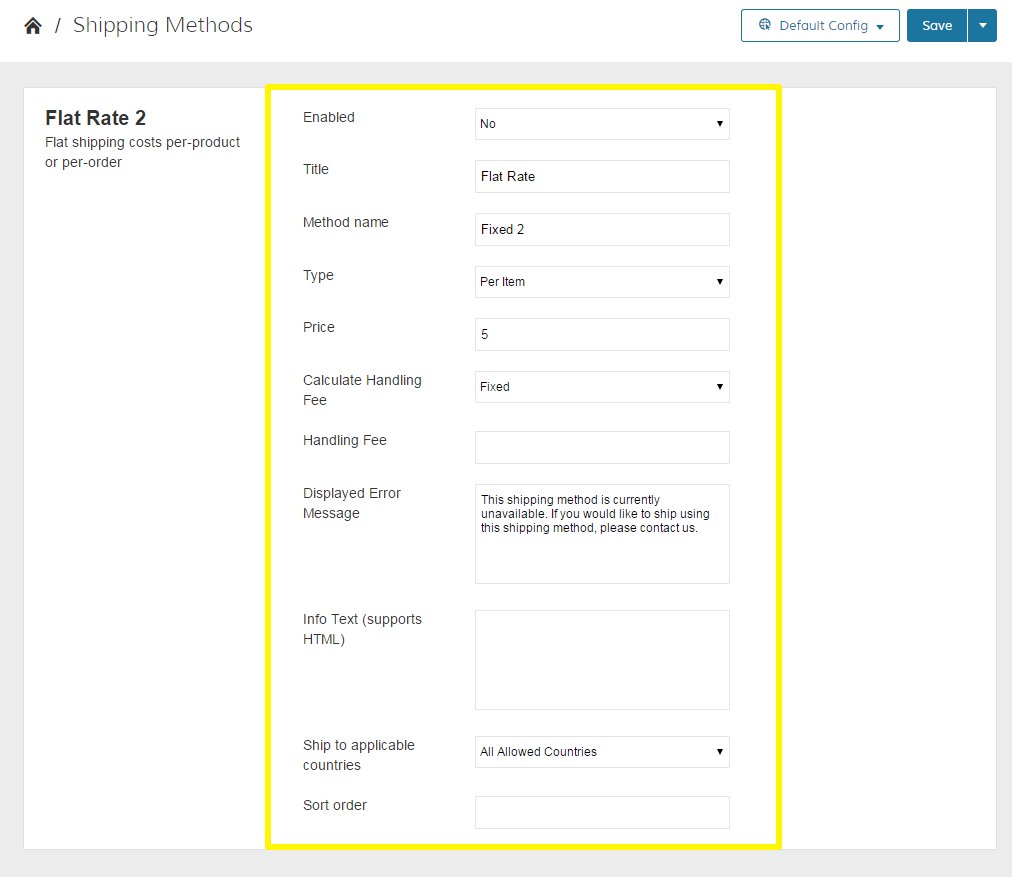
- Enabled - Set Enabled to Yes and the flat rate option will display in the shopping cart and in the shipping section during checkout.
- Title - write a name to identify this method during checkout, such as “Standard Shipping”
- Method Name - type a descriptive label for the flat rate shipping charge, such as “5-7 Business Days”. However, if you are going to charge an additional handling fee, you might set the Method Name to “Plus Handling.”
- Type - Type allows you to include an additional handling fee. There are three options. None removes a handling fee. Per Order charges a single flat fee per order. Per Item multiplies a handling fee by the number of items in the cart.
- Price - Set a price for your flat rate.
- Calculate Handling Fee - Select how your handling fee is calculated. Fixed sets one price for your handling fee. Percent sets your fee as a percentage of the product price.
- Handling Fee - Type a descriptive label for the amount that the customer will see during checkout.
- Displayed Error Message - Type a custom message that appears if your flat rate method is unavailable during checkout.
- Info Text - Provide additional information on your shipping method.
- Ship to Applicable Countries - Set which countries your store will ship with your flat rate. All Allowed Countries will set the price to every country in our platform without restriction. Specific Countries allows you to choose individual countries you want to apply your flat rate. Select each country from the Ship to Specific Countries list. You can hold the Ctrl key to select multiple countries.
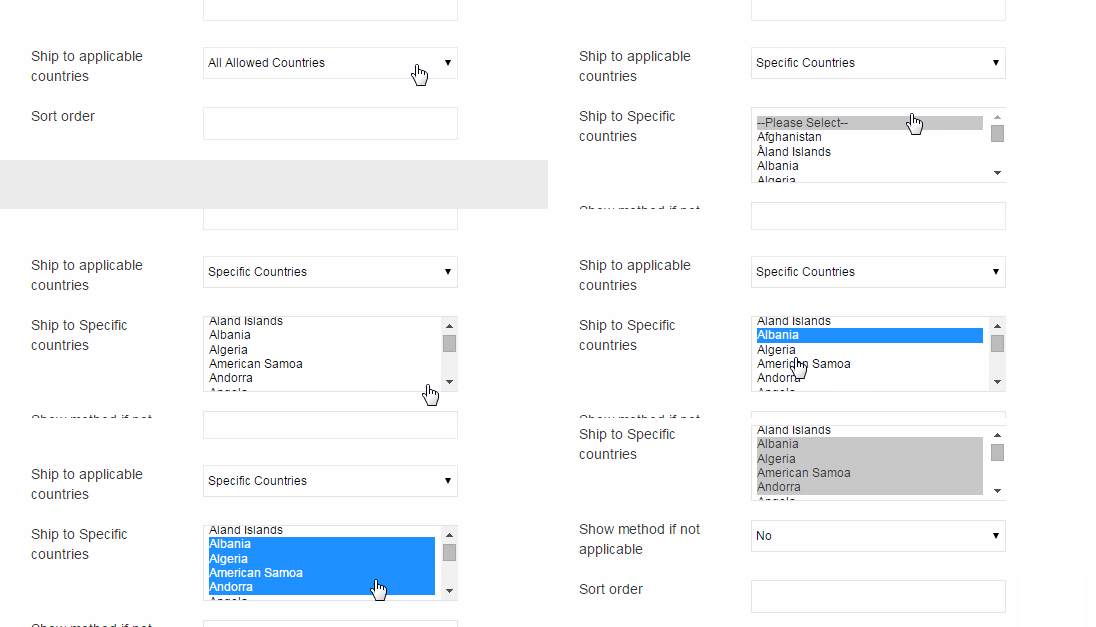
- Show Method If Not Applicable - Allows you to show your flat rate even if it's not available. Yes shows your Displayed Error Message. No hides your flat rate and shows alternative shipping options available.
- Sort Order - Set the order you want your flat rate to display in relation to the other shipping methods. Type a number (e.g. "1" will display first) to place the sequence.
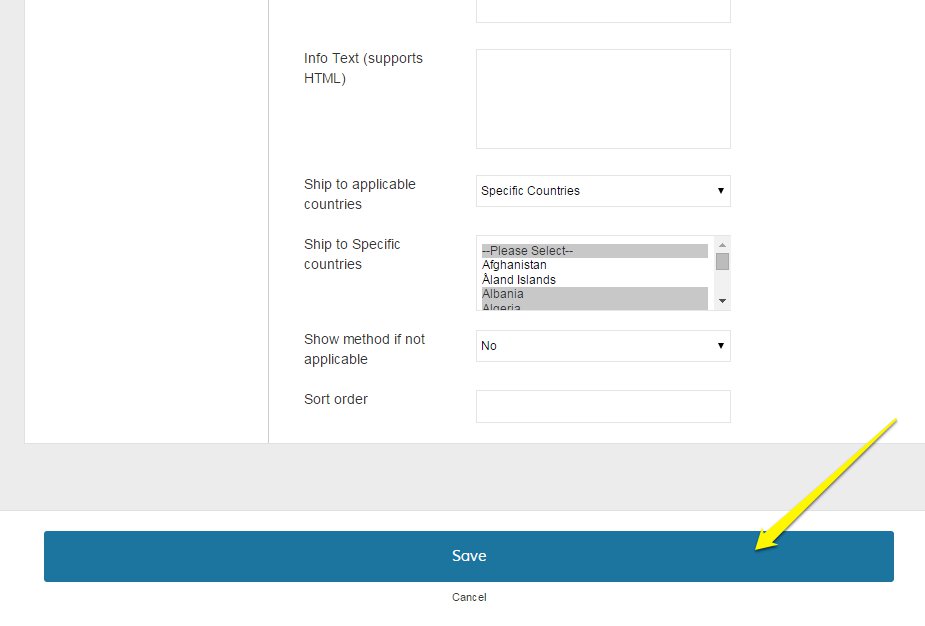
Step 4 - Save
After you've finished customizing your flat rate options, scroll to the bottom of your Shipping Methods page and click Save.
Comments
0 comments
Please sign in to leave a comment.