
Zoey allows merchants to add products to a registered customer's shopping cart or wishlist. This feature allows you to easily assemble the customer's order with their selections. We mainly see this feature used with specialty items customers need help configuring, or with telephone orders for customers who do not want to share payment information over the phone.
Note: We describe how to create orders from the Control Panel in detail here.
| 1 | Visit your customer's page |
| 2 | Add products to the order |
| 3 | Add items to the shopping cart or wish-list |
| 4 | Remove items from the shopping cart or wish-list (optional) |
Step 1 - Visit your customer's page
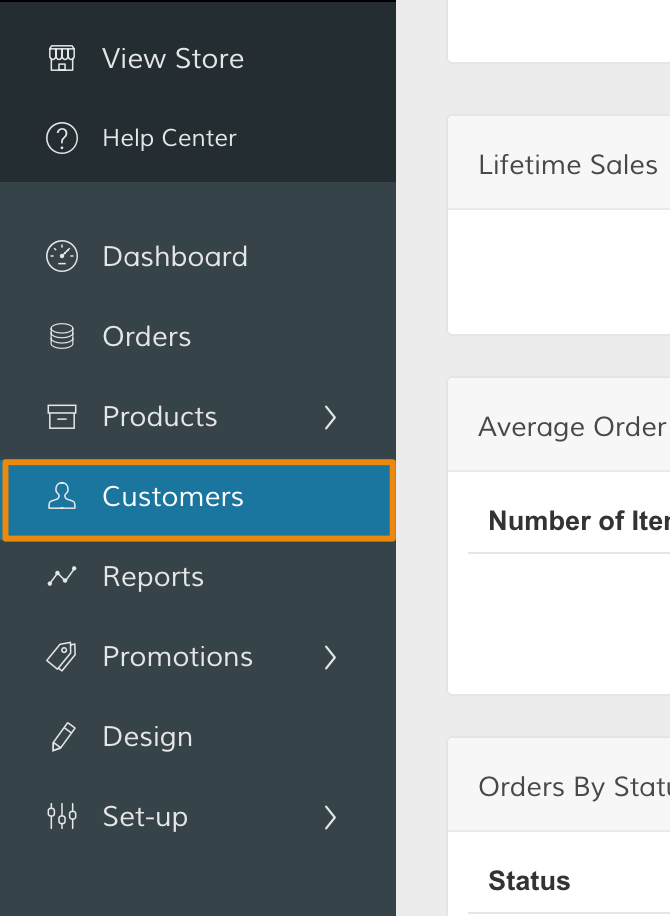
In the Control Panel, select Customers.
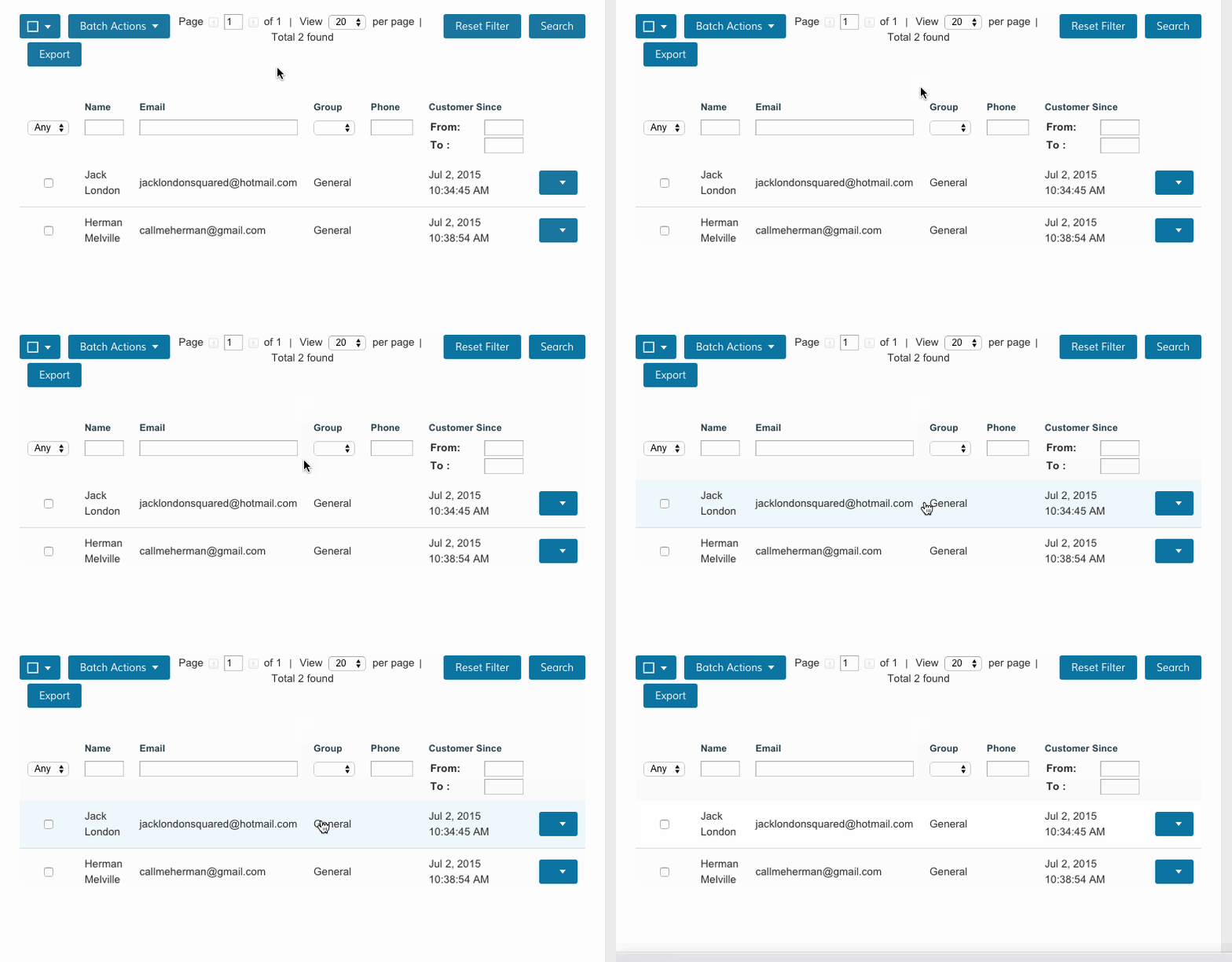
Then, select the customer browsing your store. You can search for your customer by name, email, or phone number. Click on their information to enter their account. If you do not see your customer here, you can create an account for them.
Step 2 - Add products to the order
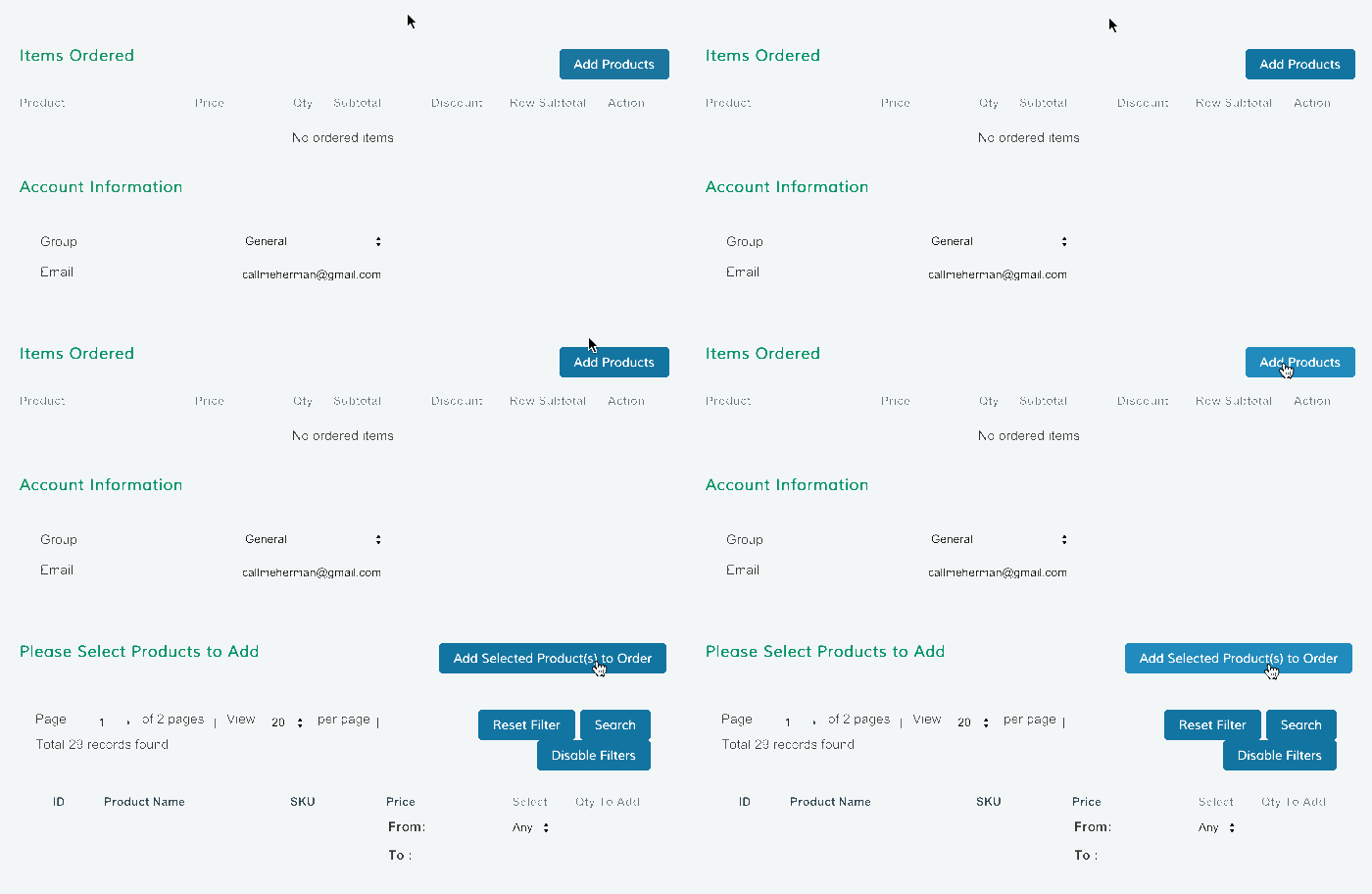
Click Add Products to include the items your customer intends to purchase. You can search for specific products by clicking Search.
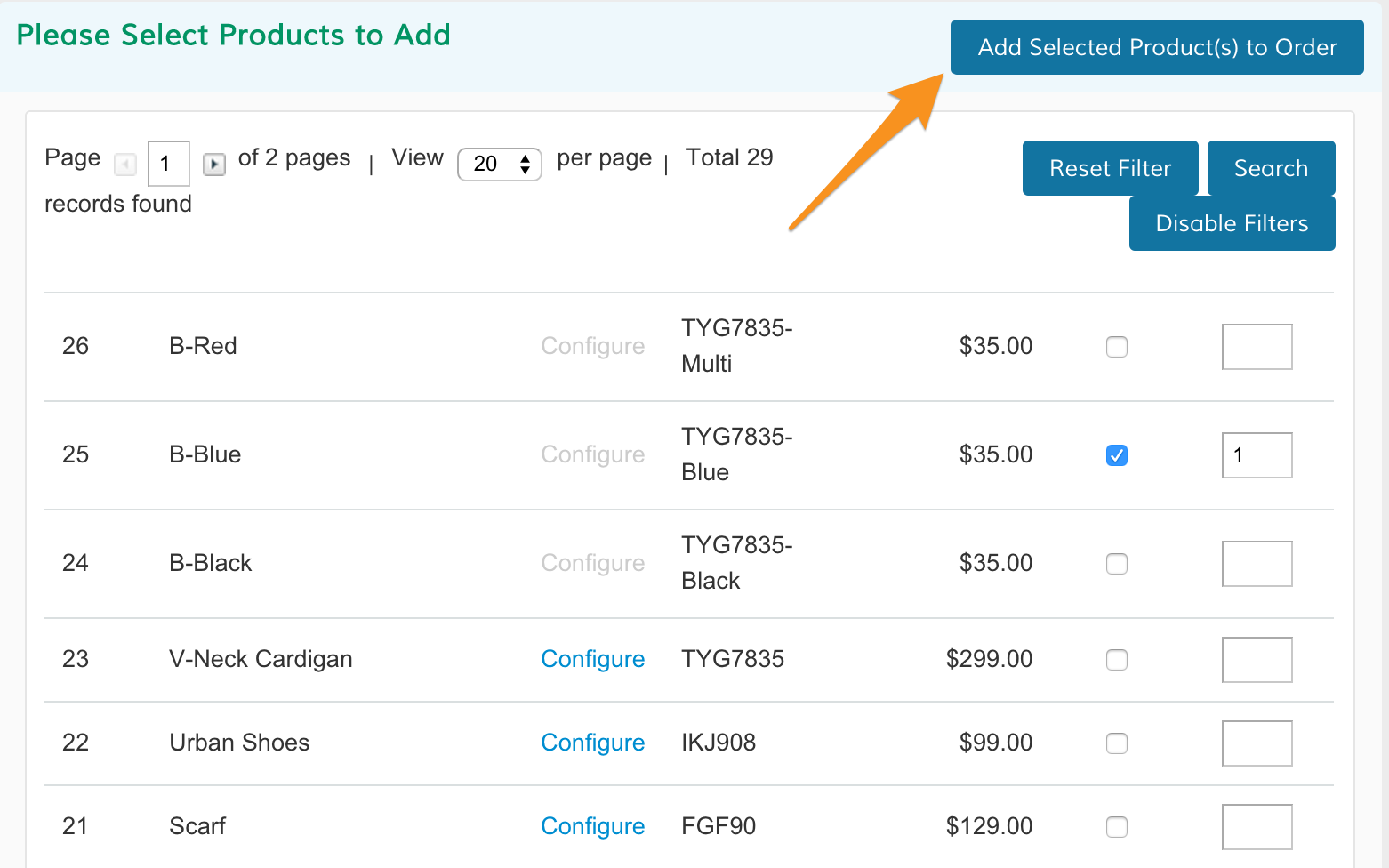
When you finish selecting the customer's products, click Add Selected Product(s) to Order.
Step 3 - Add items to the shopping cart or wish list
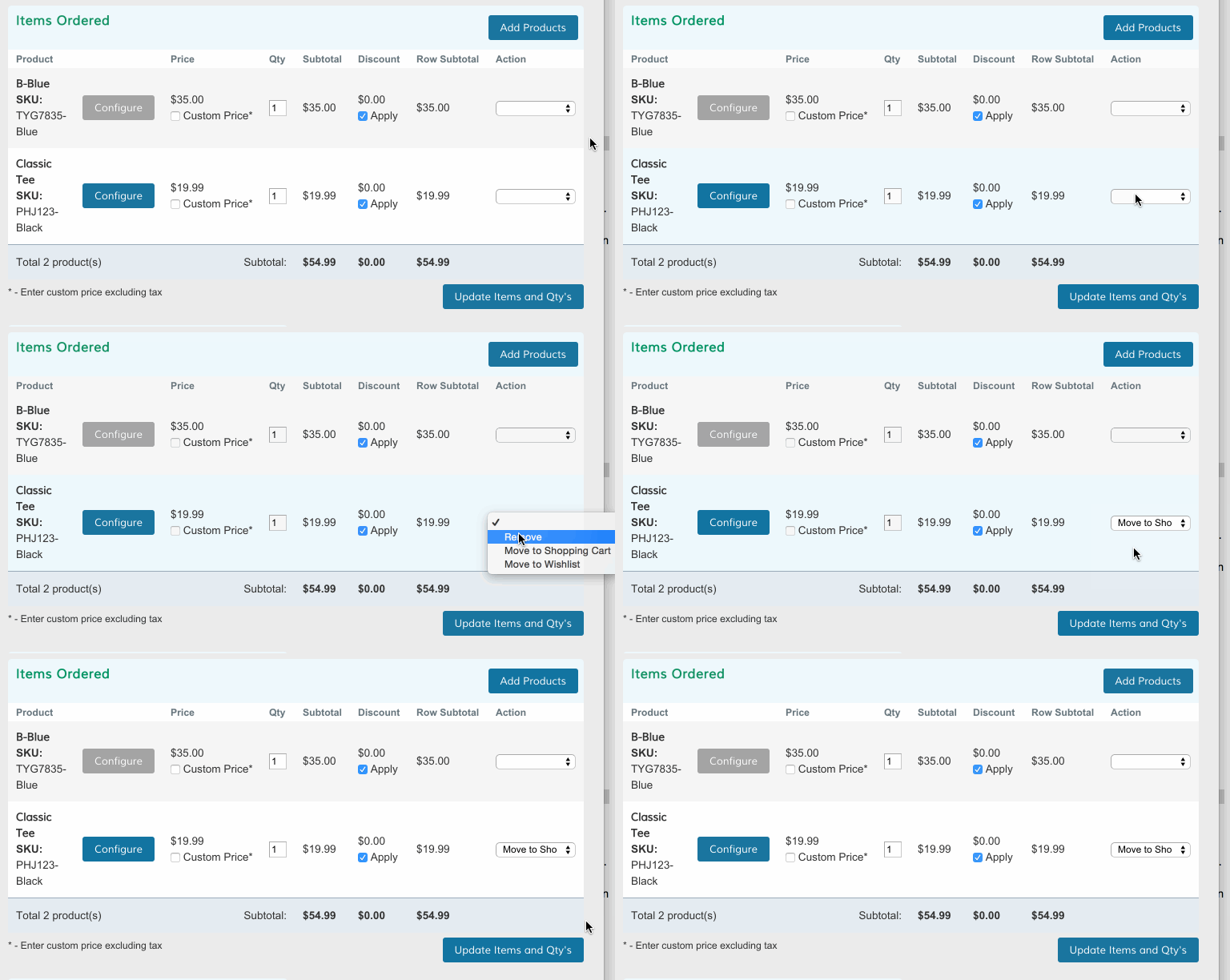
When you finish selecting your products, select Move to Shopping Cart or Move to Wishlist.
Then, click Update Items and Qty's.
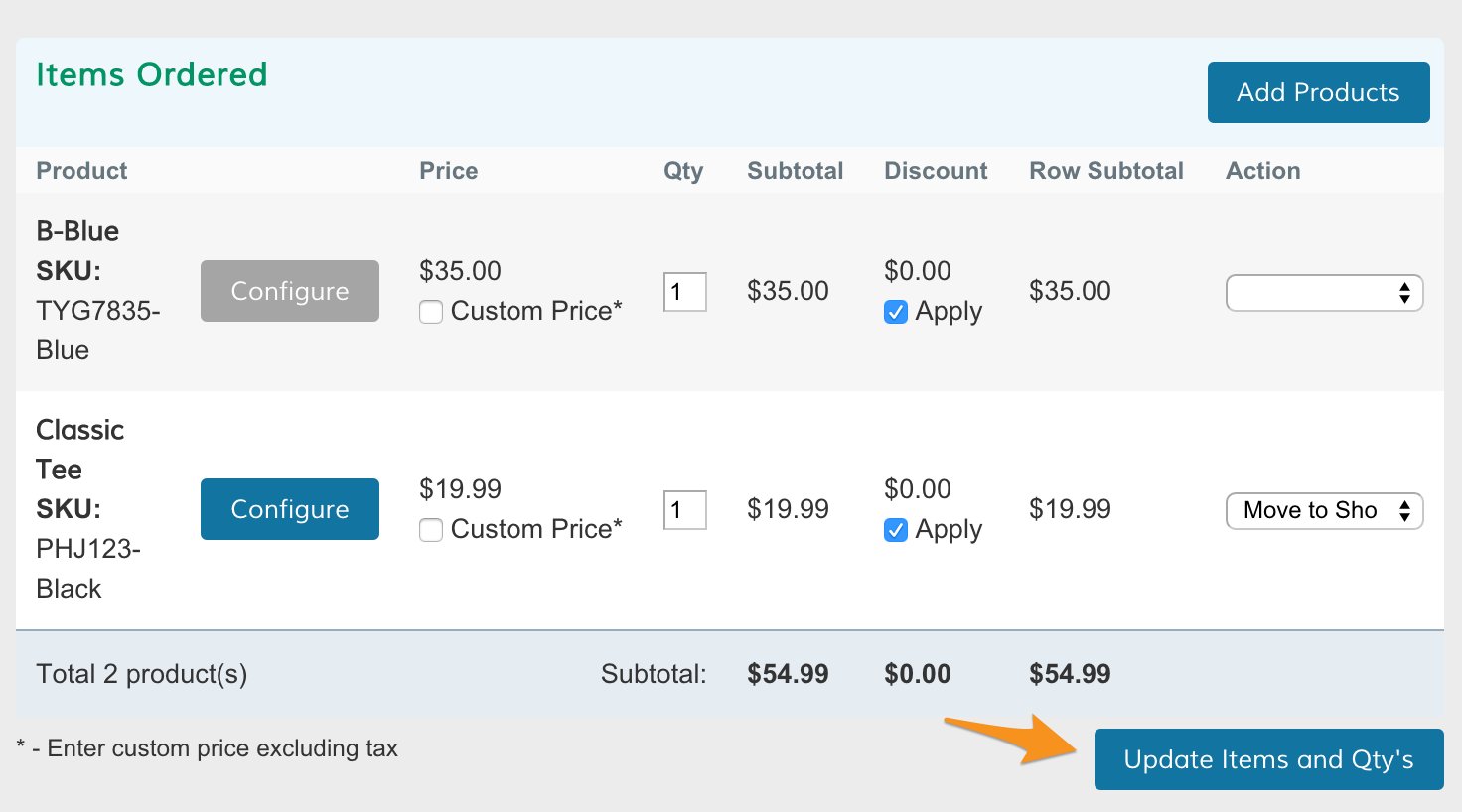
Finishing this step completes the process -- your customer's items are ready and visible from their end!
Step 4 - Remove items from the shopping cart or wish list
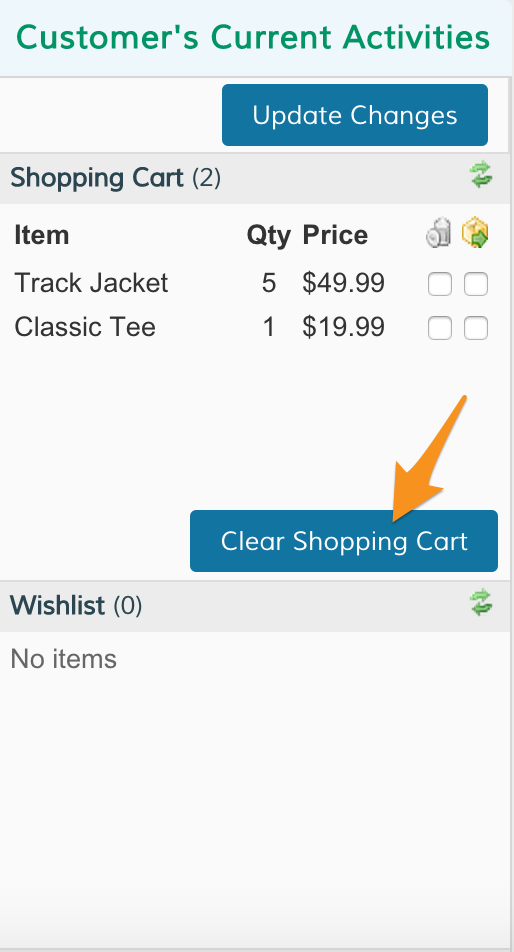
On the customer's account page, from Customer's Recent Activities, click Clear Shopping Cart.
Comments
0 comments
Please sign in to leave a comment.