
If your customer wants to purchase a product from your store but cannot complete the order from online checkout, you can manually create an order for them! This is an excellent option to further accommodate your customer's needs.
Note: If you create an order, you will have to process the customer's payment independently at the same time, either by having their credit card in hand or enabling an option such as Check / Money Order to allow for Cash transactions.
| 1 | Visit orders |
| 2 | Assign a customer |
| 3 | Create an order |
| 4 | Add products to customer's shopping cart or wish list (optional) |
| 5 | Submit order |
Step 1 - Visit orders
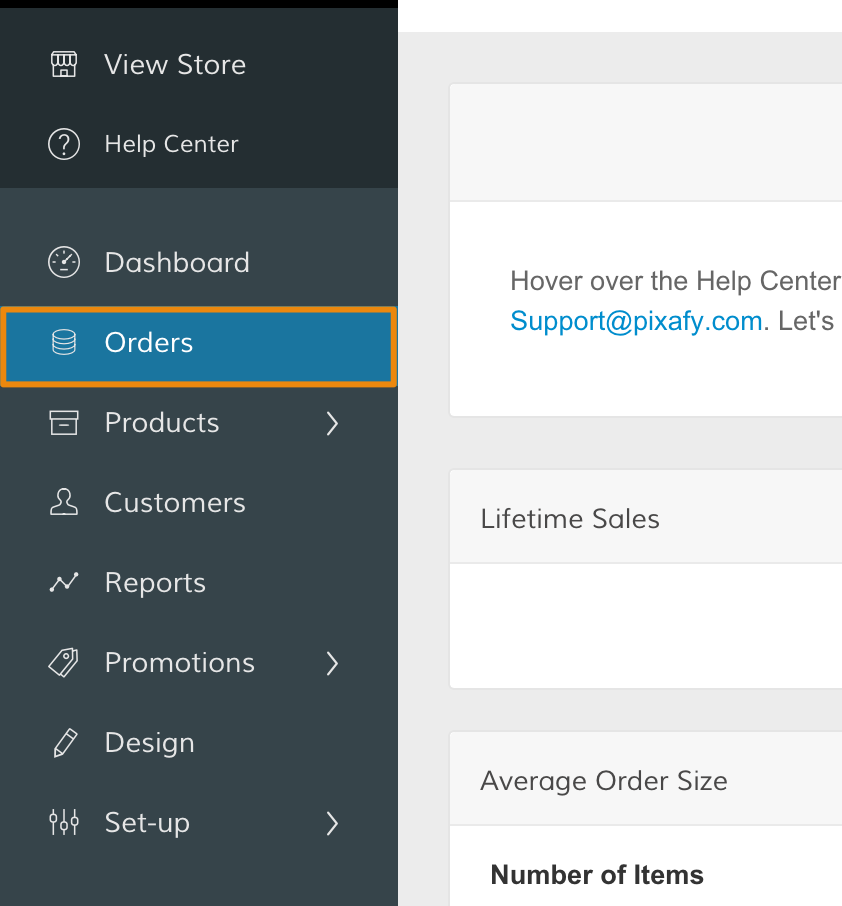
In your Control Panel, select Orders.
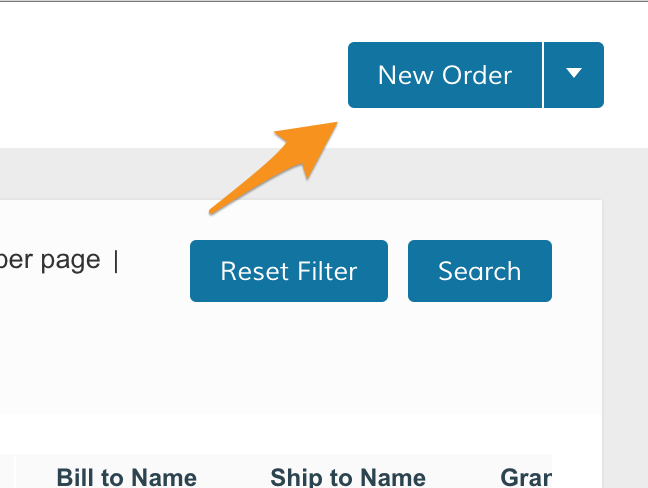
Then, click New Order.
Step 2 - Assign a customer
Now, you can assign your customer to their order. There are two ways to select a customer.
Option 1 - Use an existing customer
Any customer that has purchased a product from your store can be selected under Please Select a Customer.
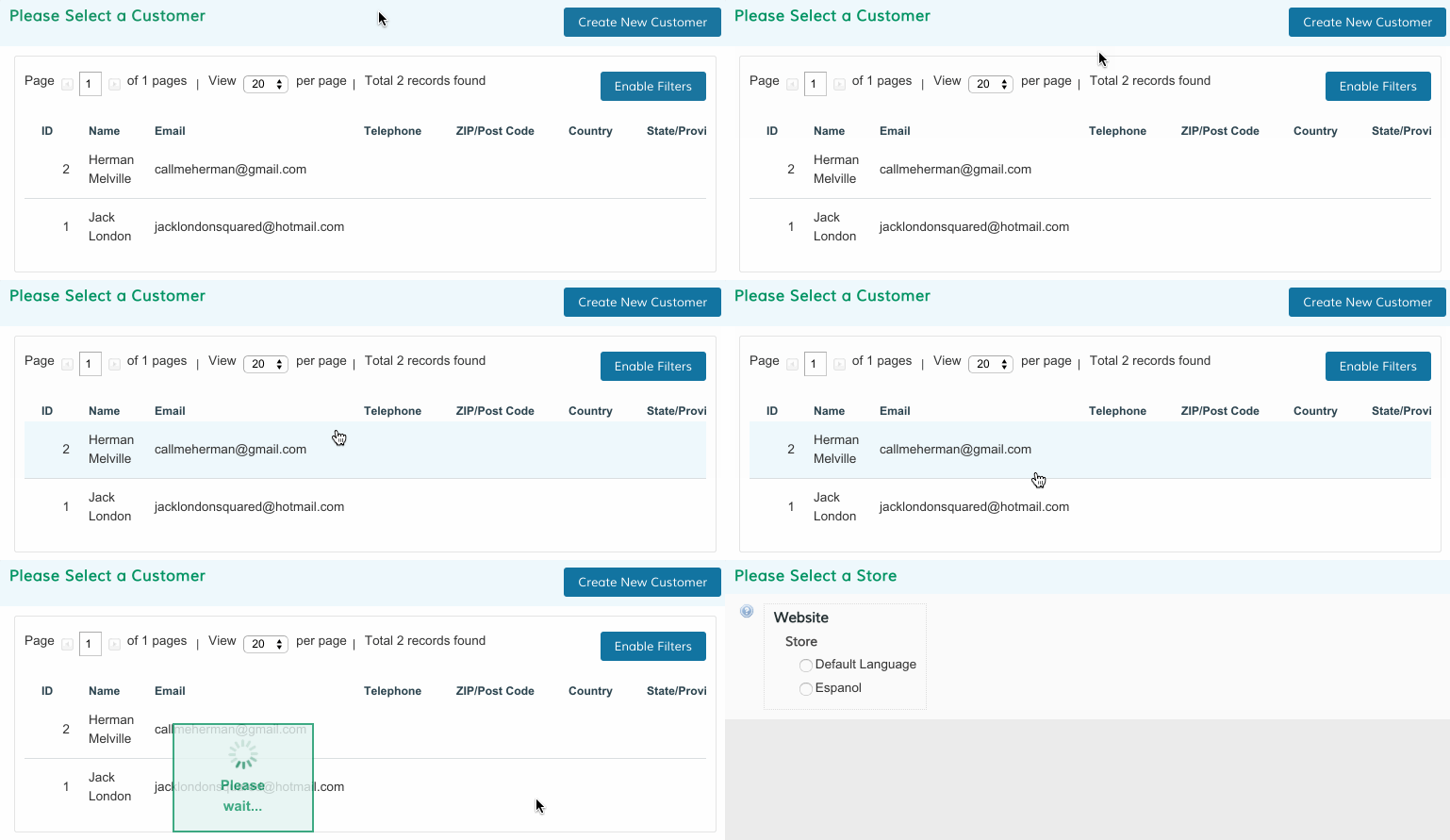
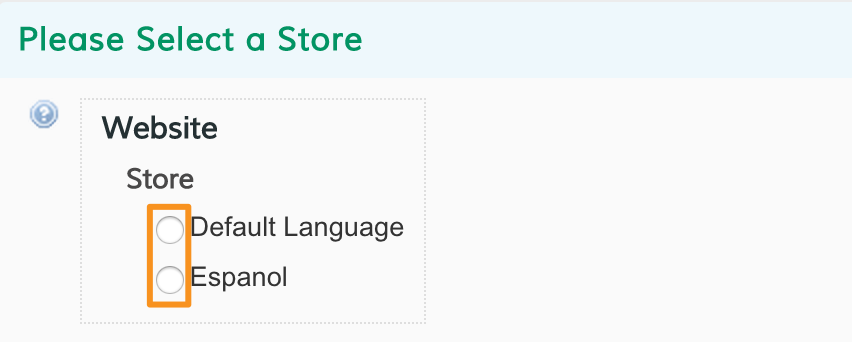
Then, choose the Store View your customer will browse your store from.
Option 2 - Create a new customer
If your customer has not purchased from your store, click Create New Customer.
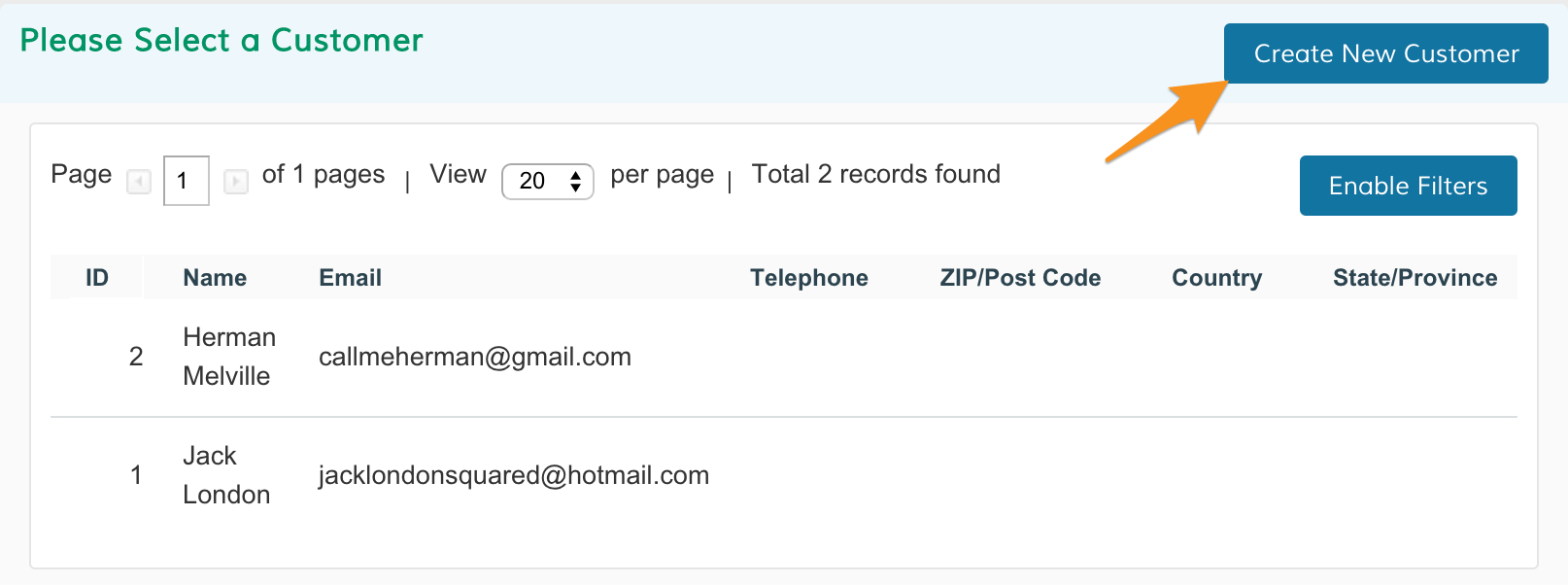
The information entered while creating your new order will display as a new customer when the order is complete.
Step 3 - Create an order
From here, begin configuring your order.
Items Ordered
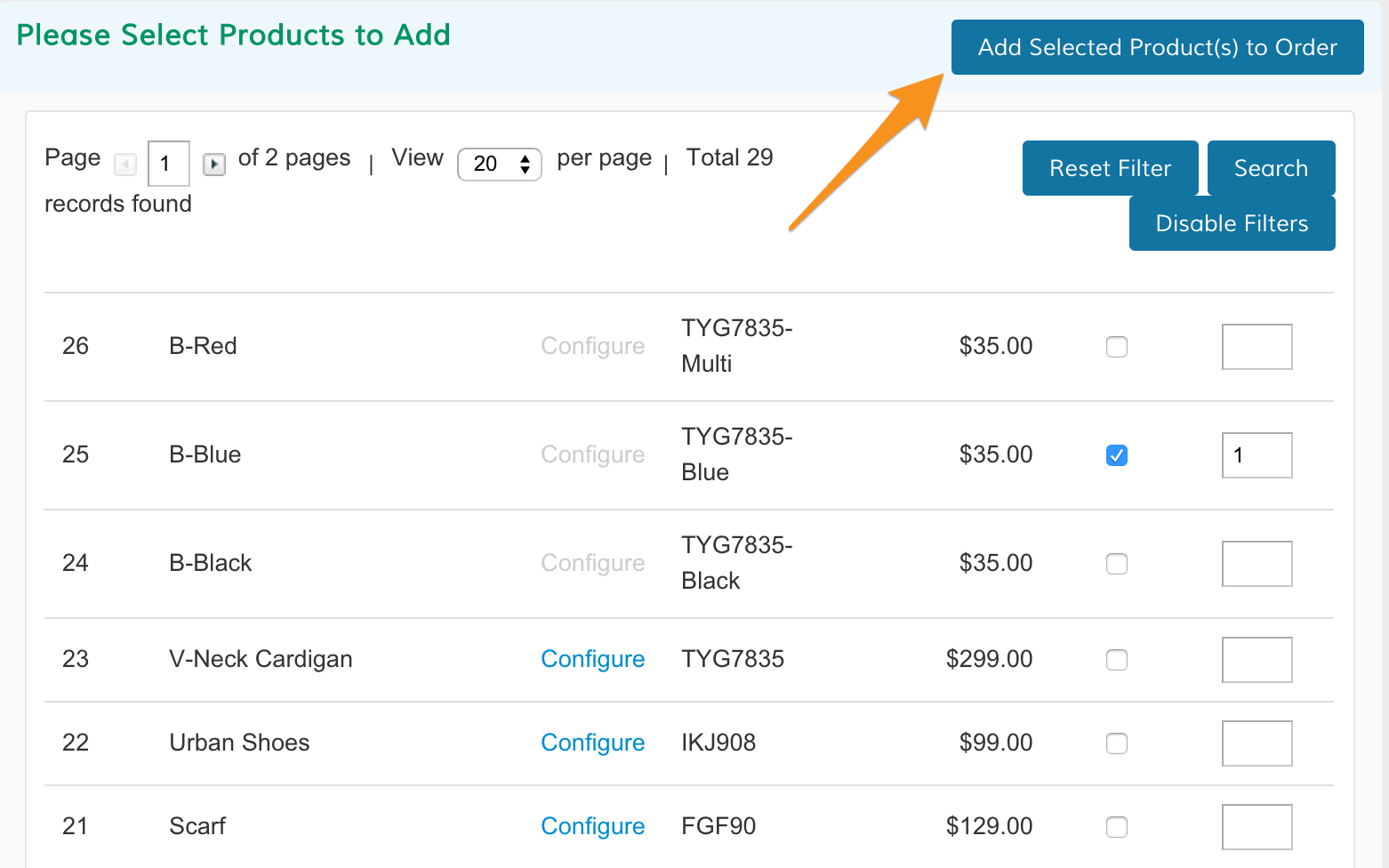
Click Add Products to include the items your customer intends to purchase.
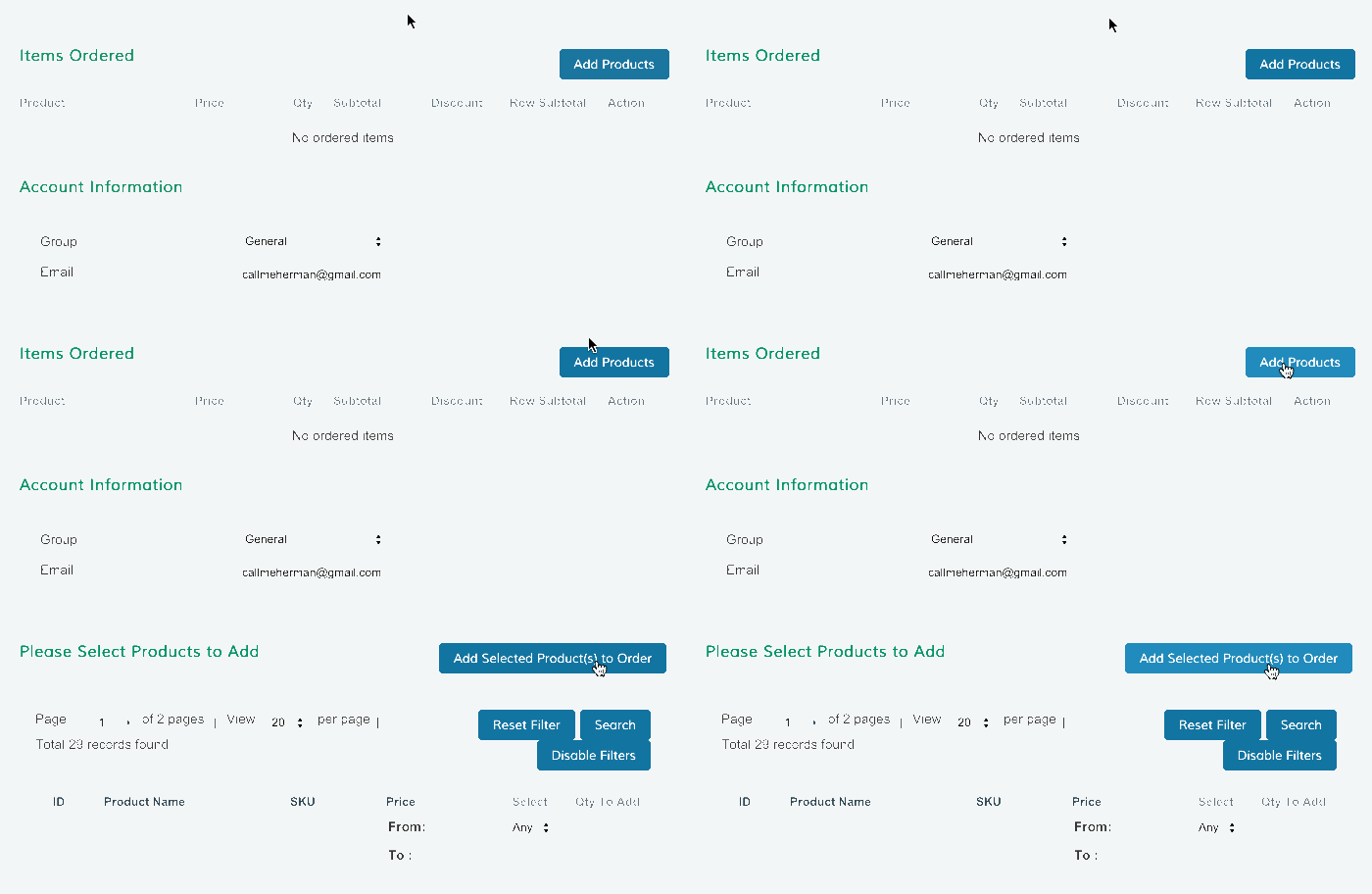
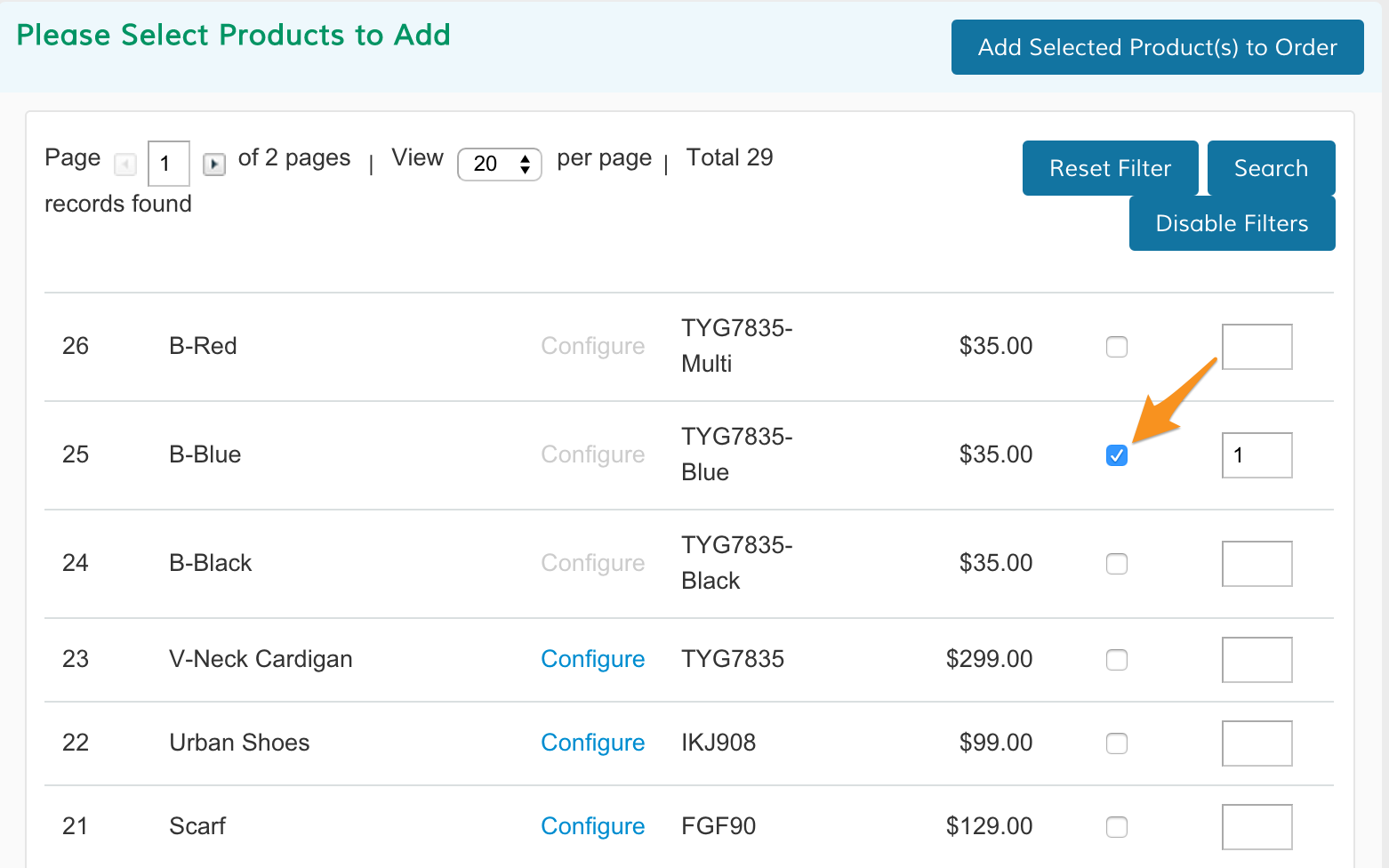
Then, select the checkbox from each product your customer wants to purchase.
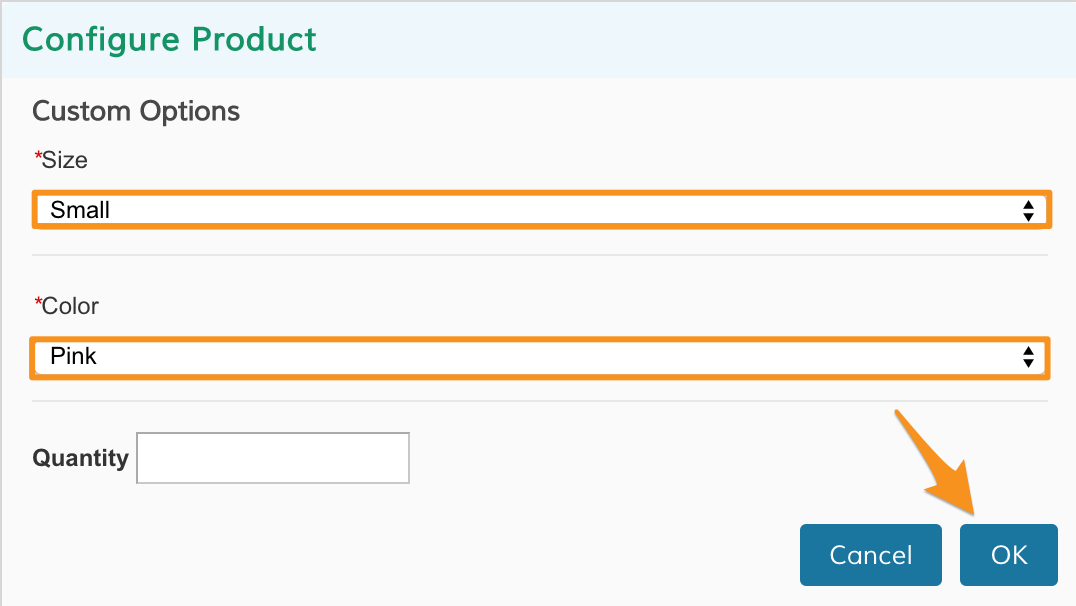
Configurable products will receive a prompt to customize the order. After customizing the product, click OK.
When you finish adding the customer's products, click Add Selected Product(s) to Order.
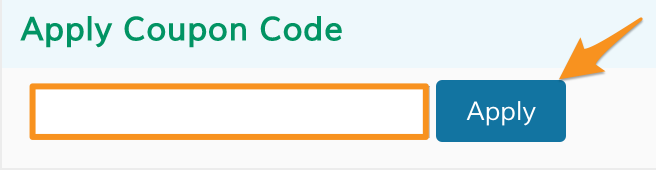
After adding the product, you can apply a coupon to your customer's order in Apply Coupon Code. Enter the coupon and click Apply.
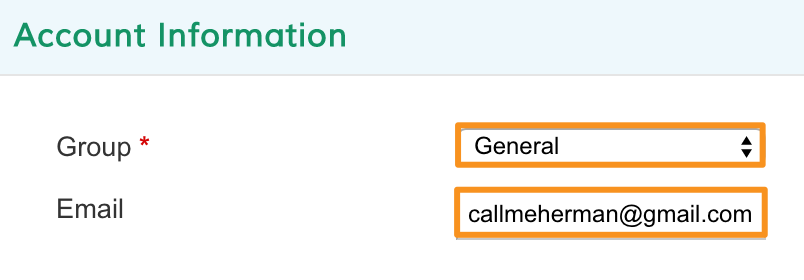
Account Information
Edit information about your customer's account. Use Group to select the customer group you want your customer's order to be aligned with.
Billing and Shipping Address
Enter your customer's address.
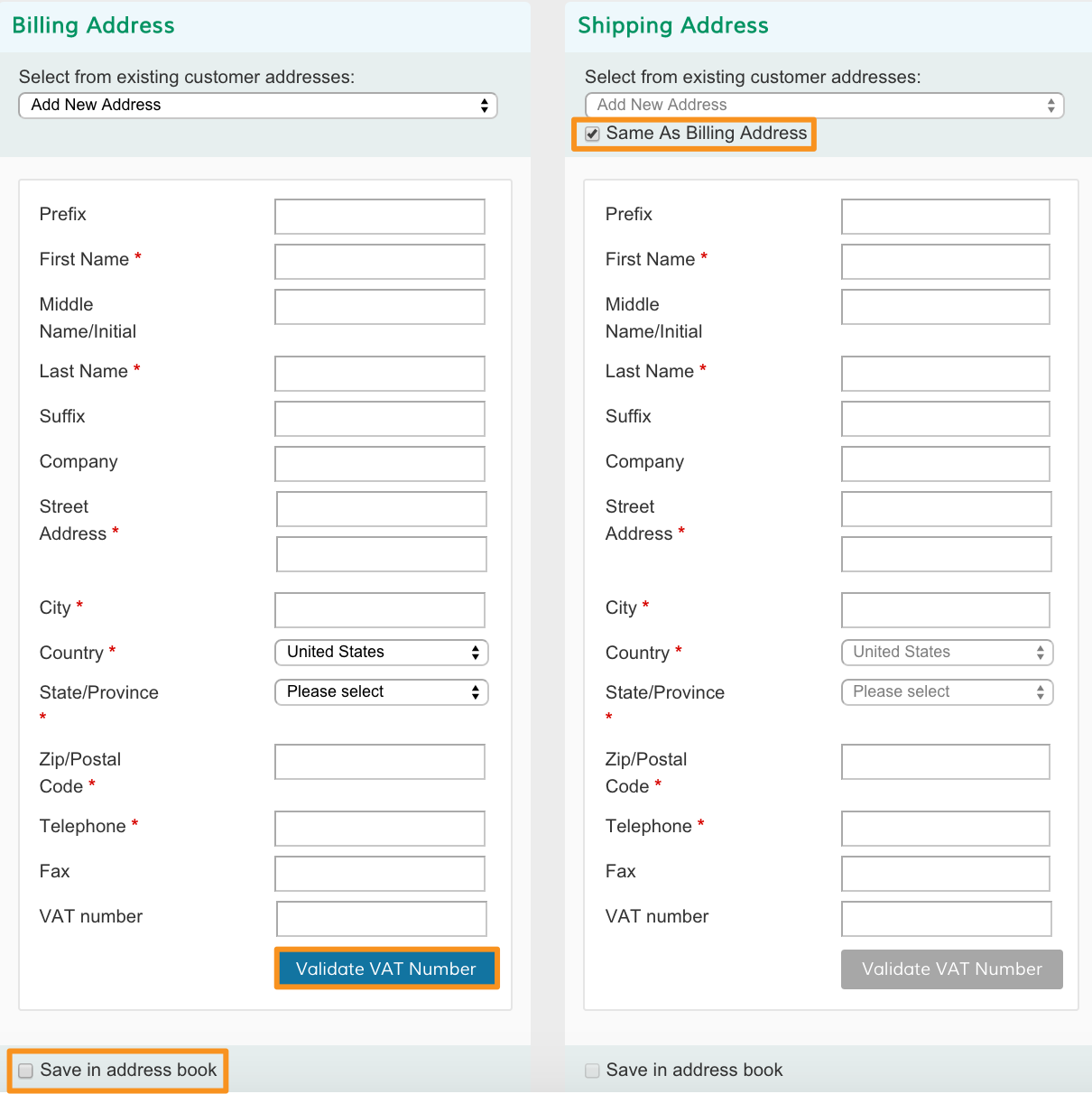
- Same As Billing Address - Select if your customer's billing and shipping addresses are identical.
- Save in address book - Select if you want to save the customer address to their account.
- Validate VAT number - If your customer provides a VAT number, click Validate VAT Number to ensure it is correct.
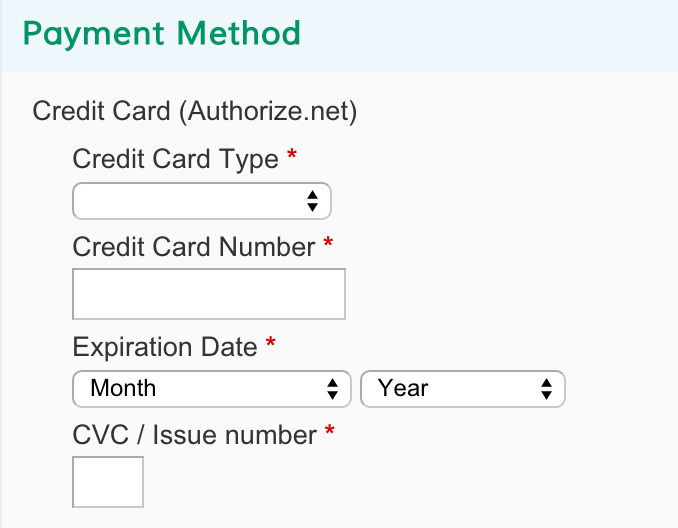
Payment Method
Enter your customer's credit card information.
Shipping Method
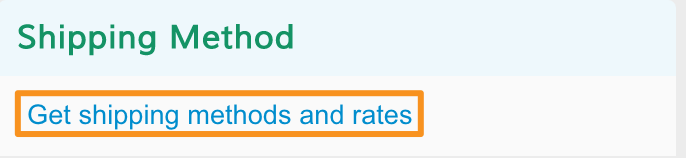
Click Get shipping methods and rates to select a shipping method to apply to your customer order.
Note: We explain how to create shipping methods here.
Order History
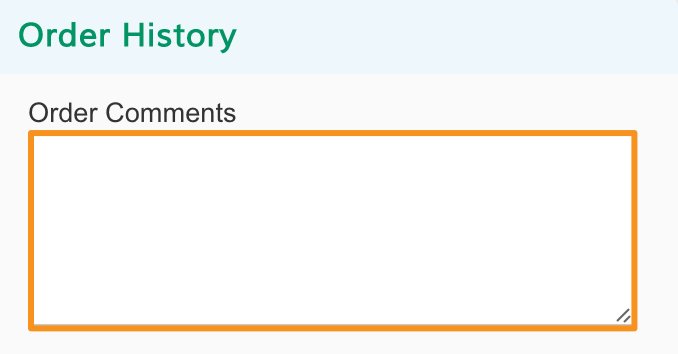
If you have notes about the order or additional information for your customer, you can enter it in the Order Comments box.
Current Activities
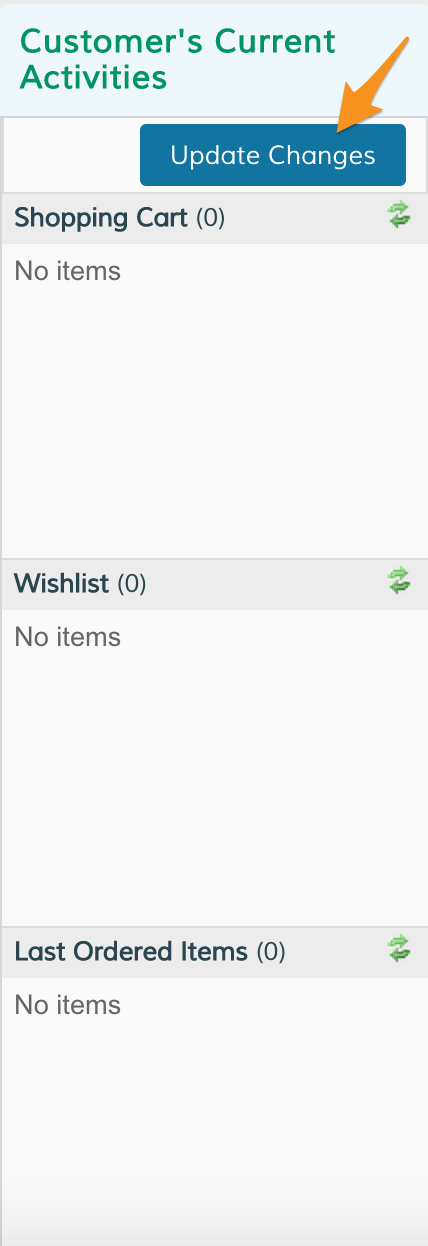
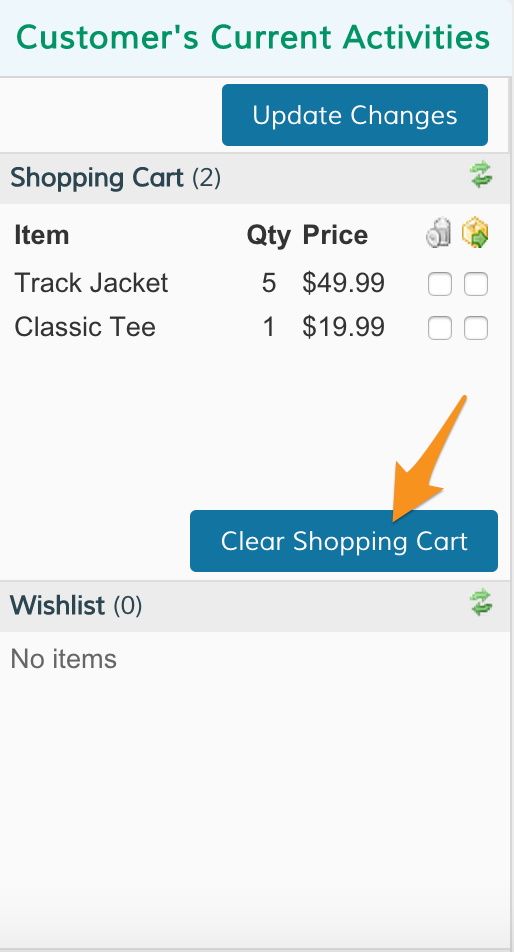
If you selected an existing customer, you can view their recent behavior under Customer's Current Activites. Click Update Changes to refresh their recent history.
Step 4 - Adding products to shopping cart or wish list (optional)
If you want to adjust your customer's shopping cart or wish list, you can do that from the order as well.
We explain how to adjust this in detail here.
Step 5 - Submit order
When you finish customizing your customer orders, scroll down to Order Totals. Click Submit Order to complete the order.
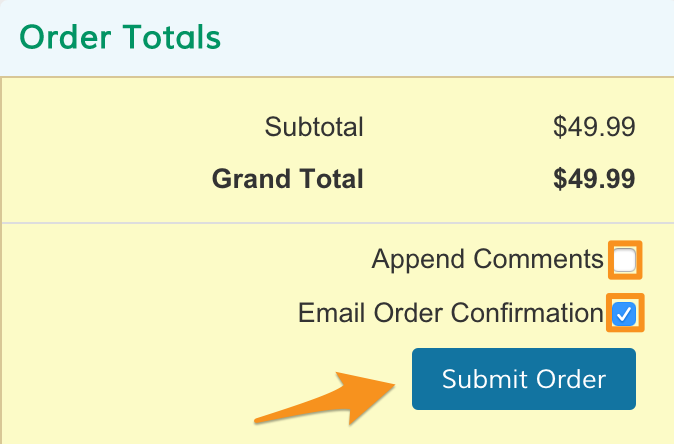
- Append Comments - Select to send your comments (under Order History) as a notification.
- Email Order Confirmation - Send an order confirmation email to your customer.
Comments
0 comments
Please sign in to leave a comment.