
Royal Mail is a popular, United Kingdom-based shipping service. Merchants, especially those located in the UK, can use Royal Mail to automatically calculate shipping rates based on total weight order, shipping origin, and package types.
| 1 | Visit Shipping Methods |
| 2 | Add Royal Mail shipping method |
| 3 | Configure Royal Mail |
| 4 | Save |
Step 1 - Visit your shipping methods
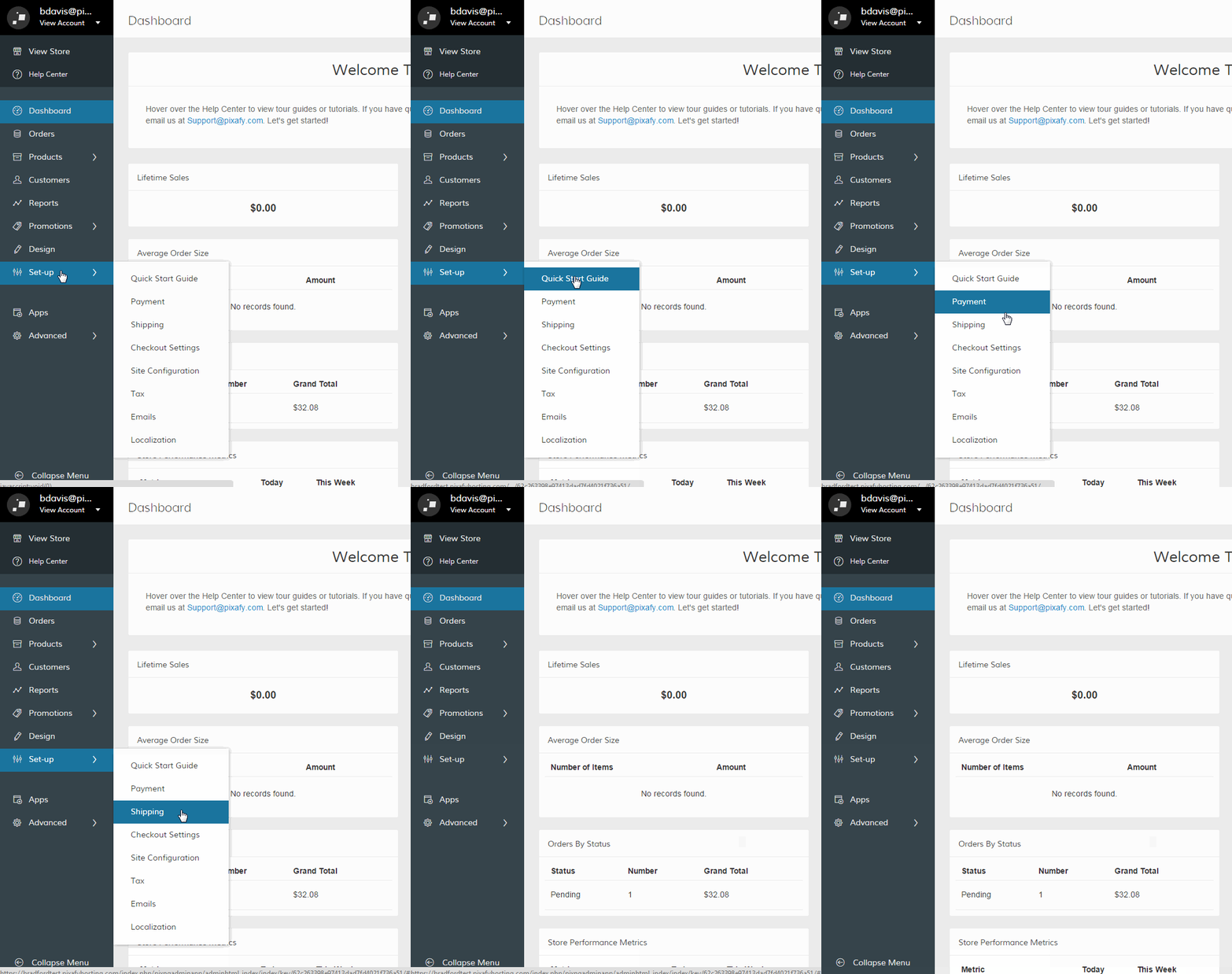
In your Control Panel, hover over Set-up and click Shipping.
Step 2 - Add Royal Mail shipping method
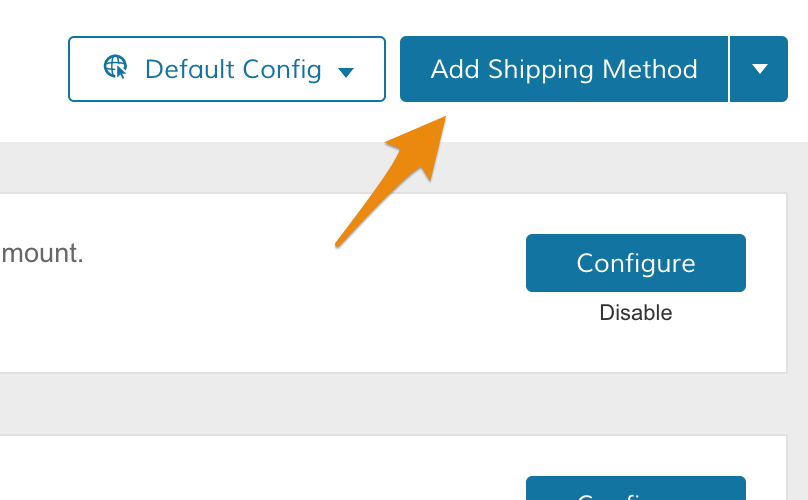
On your Shipping Methods page, click Add Shipping Method.
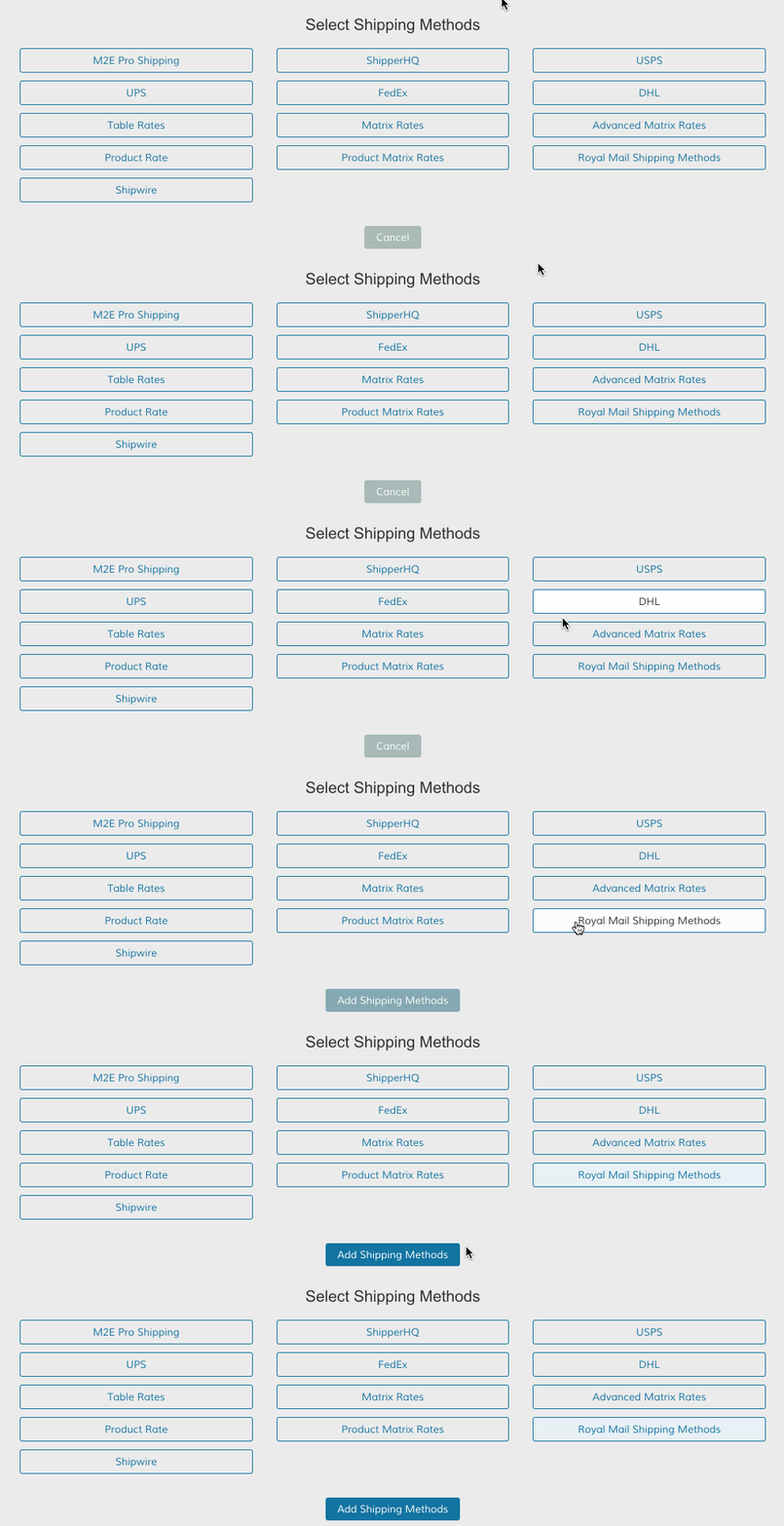
Select Royal Mail, then click Add Shipping Method.
Step 3 - Configure Royal Mail
Within the Royal Mail Shipping Methods section, click Set-up.

This will bring you to your Royal Mail settings.
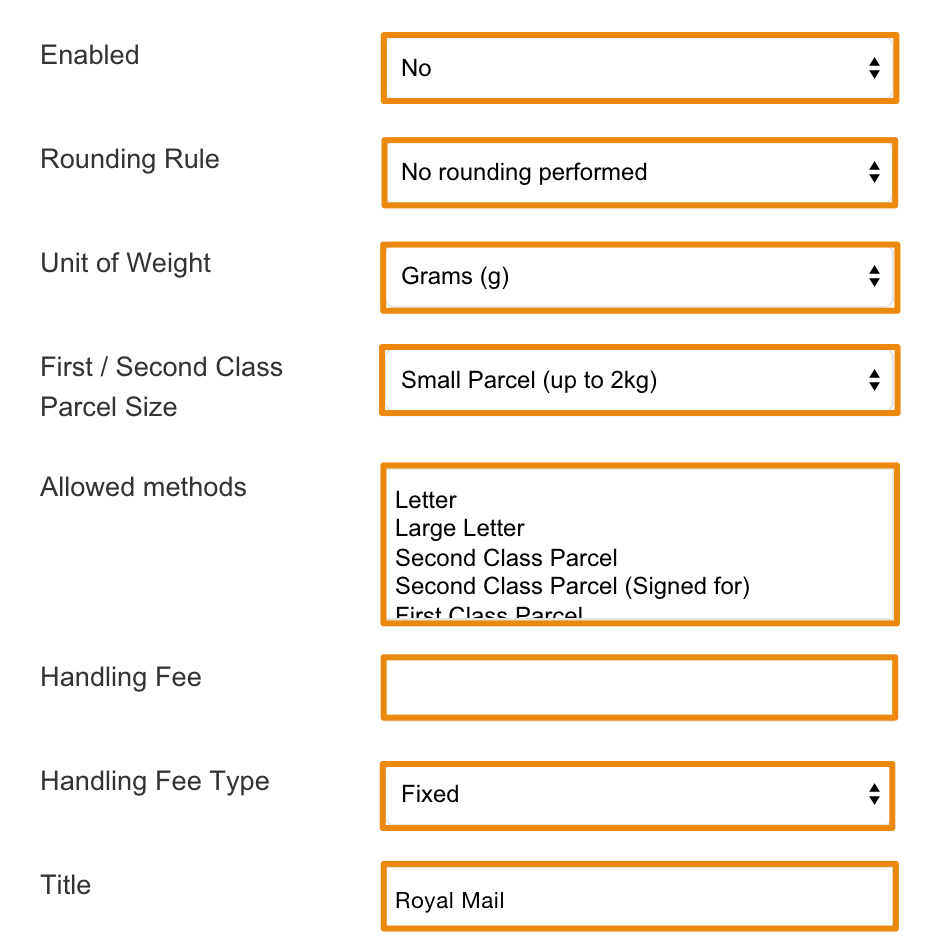
- Enabled - Select Yes to Enable the Royal Mail method. You must enable your rate to provide the option on your store.
- Rounding Rule - Select a currency value to round your shipping rates. If you don't want to round your rate, select No Rounding Performed.
- Unit of Weight - Select between Kilograms (kg), Grams (g) and Pounds (lb)
- First/Second Class Parcel Size - Select between Small Parcel (max 2kg) and Medium Parcel.
- Allowed Methods - Select between Royal Mail's variety of methods. Hold CTRL (PC) or Command (Mac) while clicking to select multiple options.
- Handling Fee - Enter a numeric value for your handling fee.
- Handling Fee Type - Choose Fixed to charge a fixed fee. Choose Percent to charge a percentage of the total cost of products in the shipping cart.
- Title - Enter a title of your shipping method for the frontend of your store.
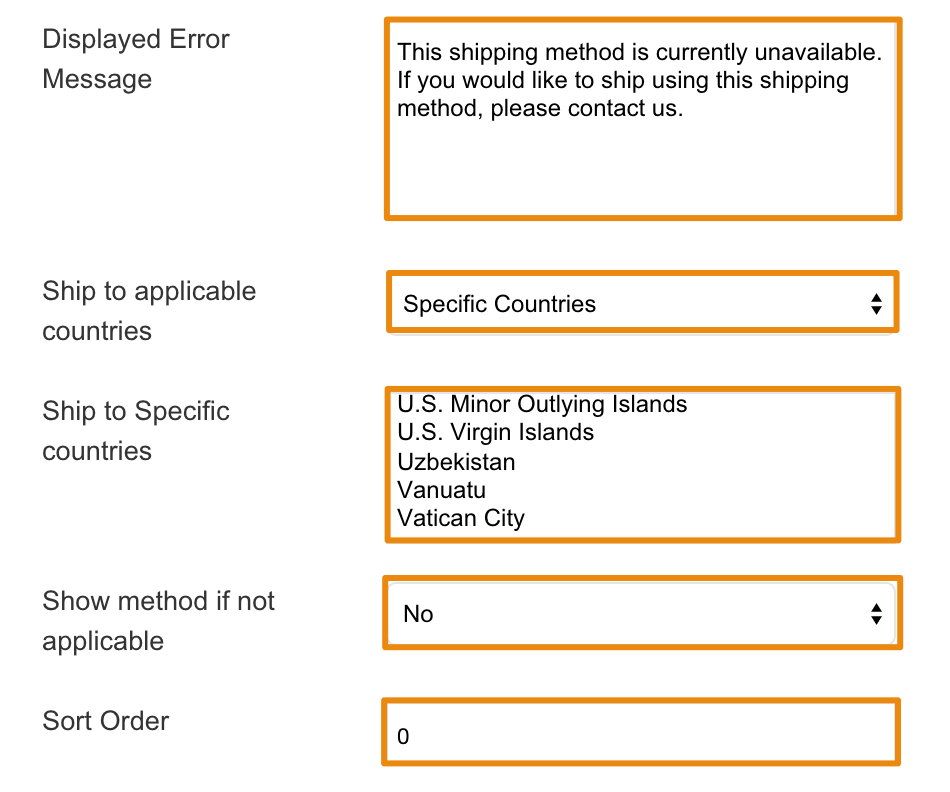
- Displayed Error Message - Enter a notice or instructions for your Royal Mail method when the option is unavailable.
- Ship to applicable countries - Select the countries your Royal Mail method is available. Select Specific Countries to limit the method to the countries of your choice. You can select multiple countries by holding CTRL (PC) or Command (Mac) while clicking on countries with your cursor.
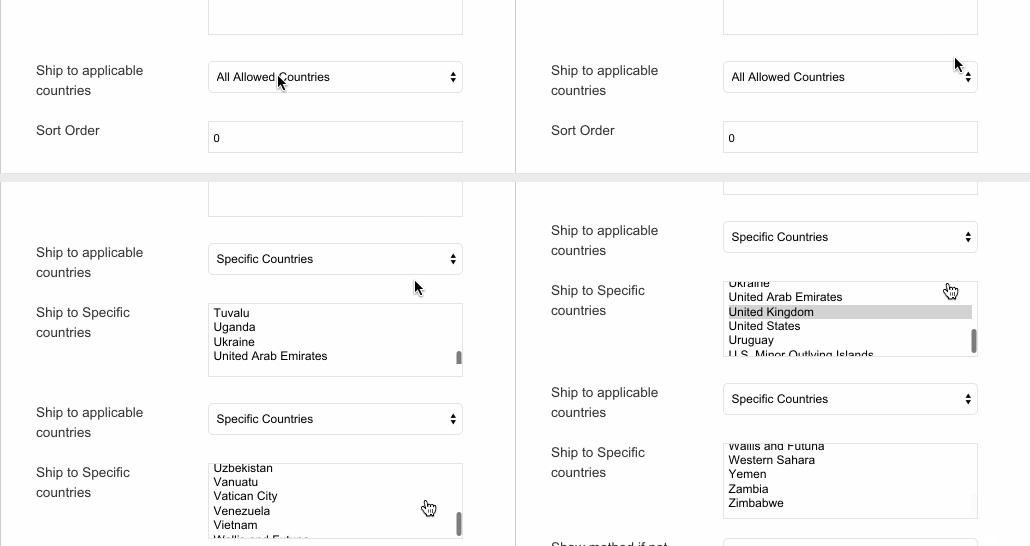
- Sort Order - Enter a numeric value to determine the order of your product.
Step 4 - Save
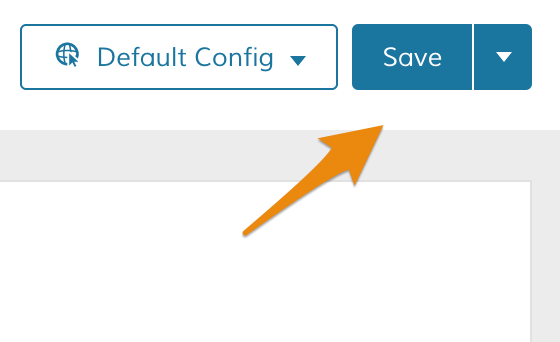
After configuring your settings, click Save.
Comments
0 comments
Please sign in to leave a comment.