
Gift cards allow your customers to purchase credit that can be used exclusively with your online store.Customers can use gift cards for themselves or purchase and send them to their friends and loved ones directly from your store . You can also use this feature to email your customers store credit from your Control Panel.
| 1 | Visit gift card settings |
| 2 | Add a gift card |
| 3 | Edit an existing gift card |
| 4 | Further reading |
Step 1 - Visit gift card settings
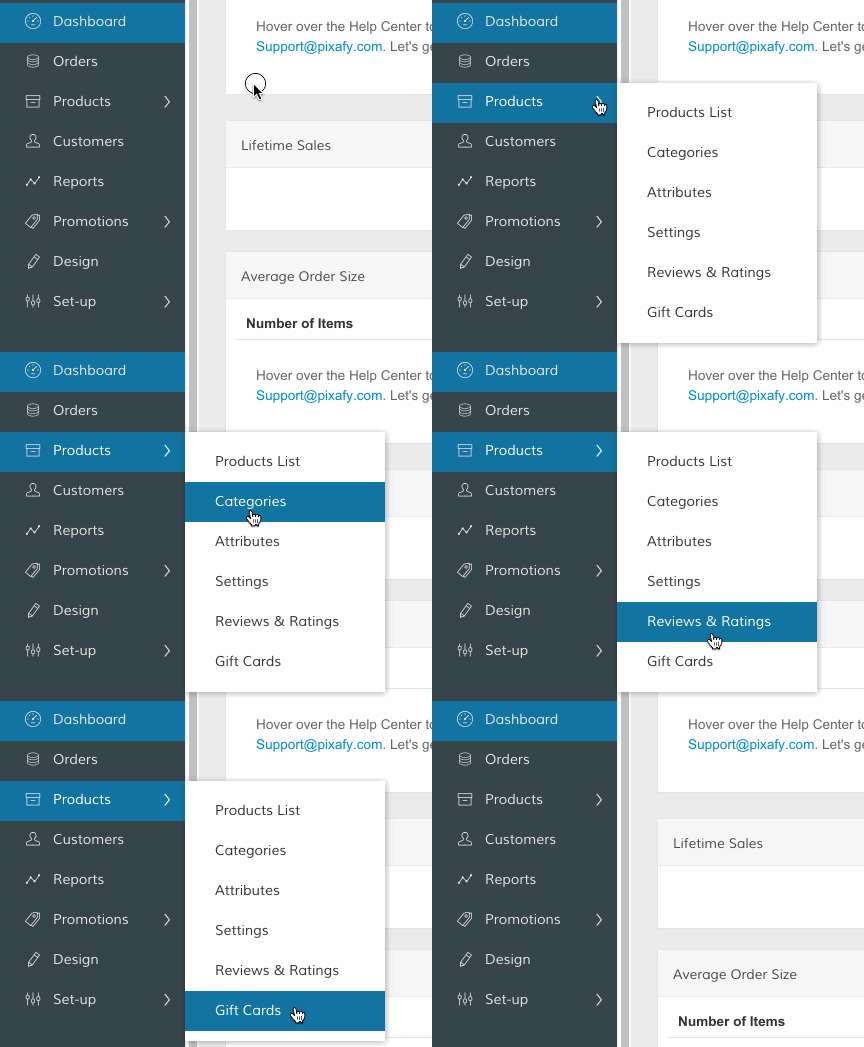
In your Control Panel, hover over Products and select Gift Cards.
Step 2 - Add a gift card
We offer two different ways to create gift cards. One option is creating a gift card product your customers can purchase from your store.You can also use this function from your control panel to email your customers a gift card as store credit. Sending a gift card directly can be a useful workaround for providing store credit as a refund or promotion.
Option 1 - Add your gift card as a product
- Click Create Gift Card Product.
- Enter your gift card's product information, enable the product, and assign the appropriate categories. You can also create custom options for your gift card here.
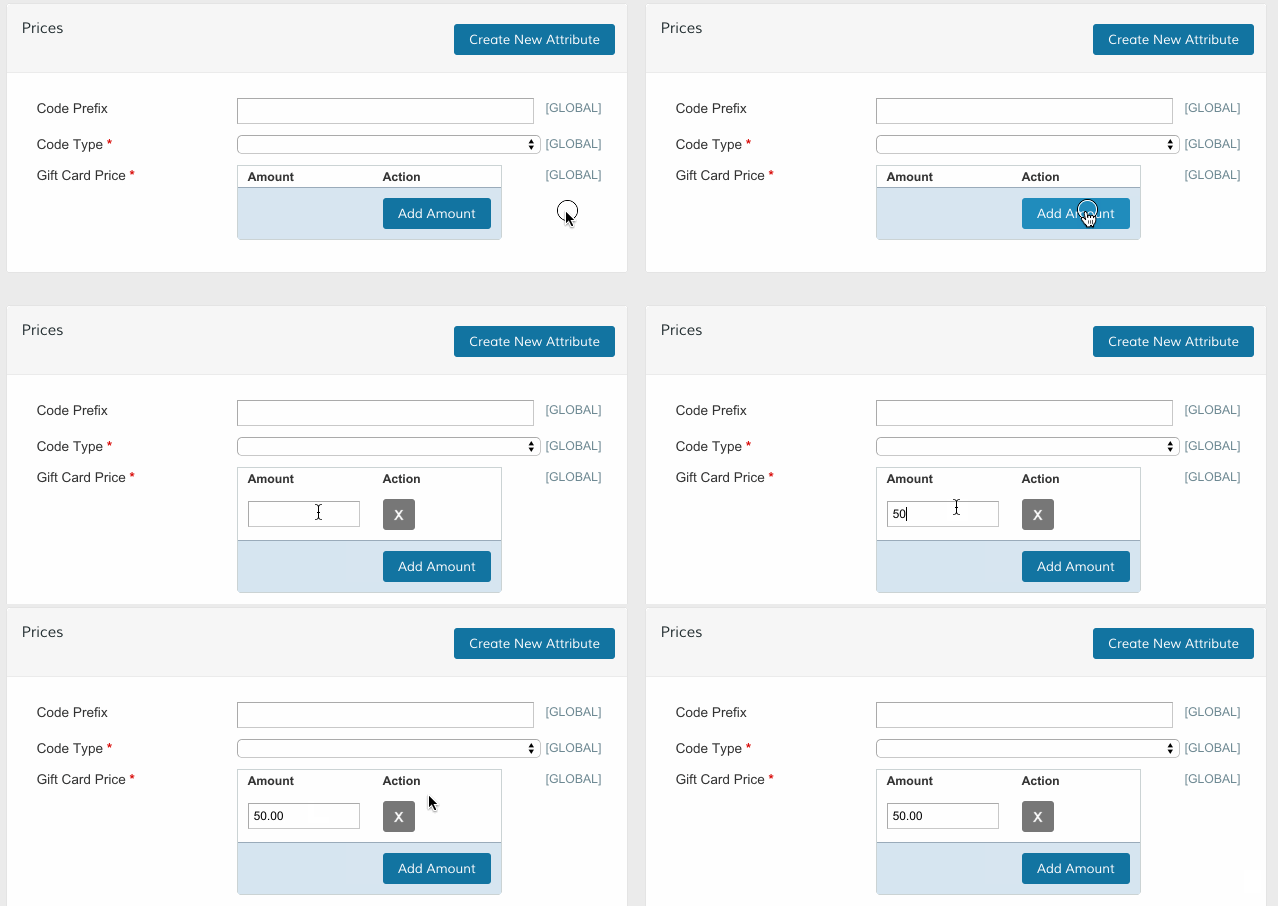
- Under Prices, add prices for your gift cards. You can also select whether a combination of letters, numbers, or both are automatically generated for the gift card code.
- When your product is complete, click Save. Then, refresh your store (Advanced > Refresh Your Store).
- Your new gift card will display from your Products List (Products > Products List).
Note: We recommend viewing our guide on adding simple products to familiarize yourself with our key product settings.
Option 2 - Send a gift card directly to your customer
- Click Create Gift Card.
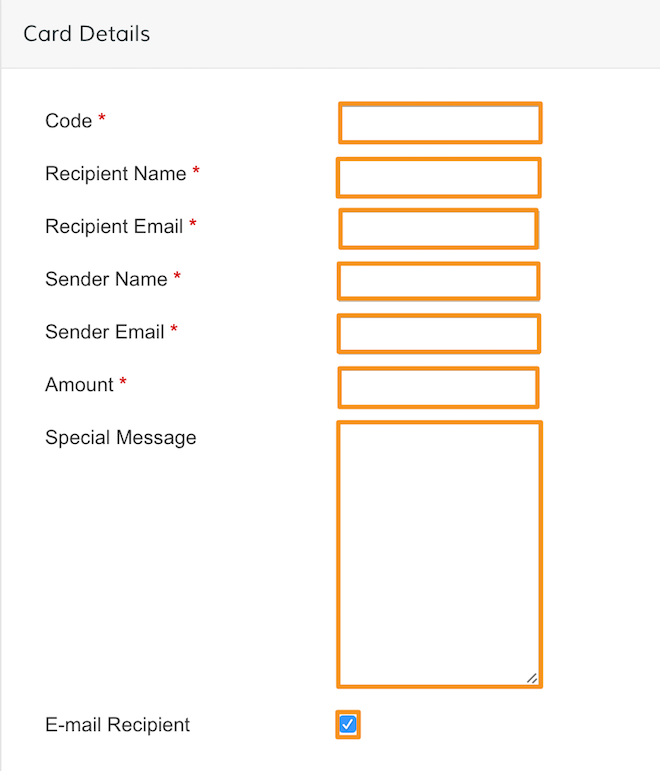
- Enter the customer's gift card information, including your customer's email. This card will not appear on any of your product pages.
- Once you're finished, click Save.
- Your new gift card will display in Products > Gift Cards, separate from other products.
Step 3 - Edit an existing gift card
Similar to adding gift cards, editing a card you've created is done differently, depending on the type of card you're adding.
Option 1 - Edit a gift card product
- Visit Products > Product List, and select your gift card product.
- Update your gift card product where needed.
- When you're done, save your product and refresh your store.
Option 2 - Edit a direct gift card
- Visit Products > Gift Cards, and select your gift card.
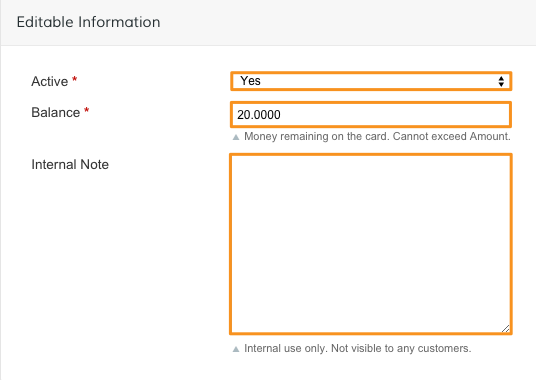
- Update your gift card information. You can set the balance on the card, make the card active (or inactive), and leave an internal note about the gift card.
- When you're done, click Save.
Comments
0 comments
Please sign in to leave a comment.