
Please note this tutorial is only for our older Classic design themes and tools. For information on our new themes and how to use the updated tools, please see: Starting with Design and Advanced Design Tools.
Blocks are containers of content you can place across your Zoey store. They allow you to add and edit HTML, text, images, videos and a variety of embedded content. Blocks are great for creating uniquely styling an important announcement or special promotion.
Step 1 - Visit Design Settings
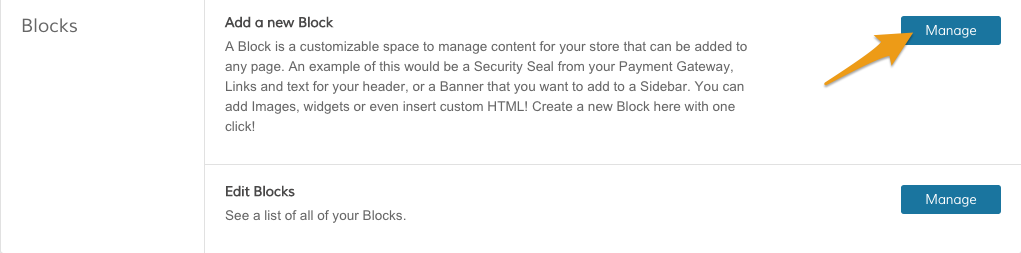
From your Design page, scroll to the Blocks section. Within Add a new Block, click Manage.
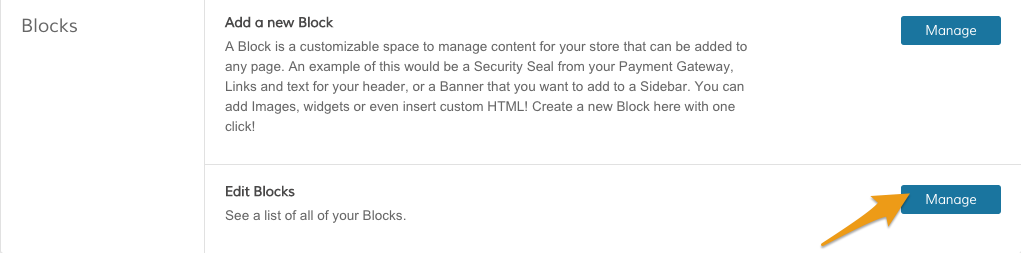
If you want to edit an existing block, click Manage within Edit Blocks.
Step 2 - Add General Information
From your Add Block or Edit Block page, you will see four fields to update.
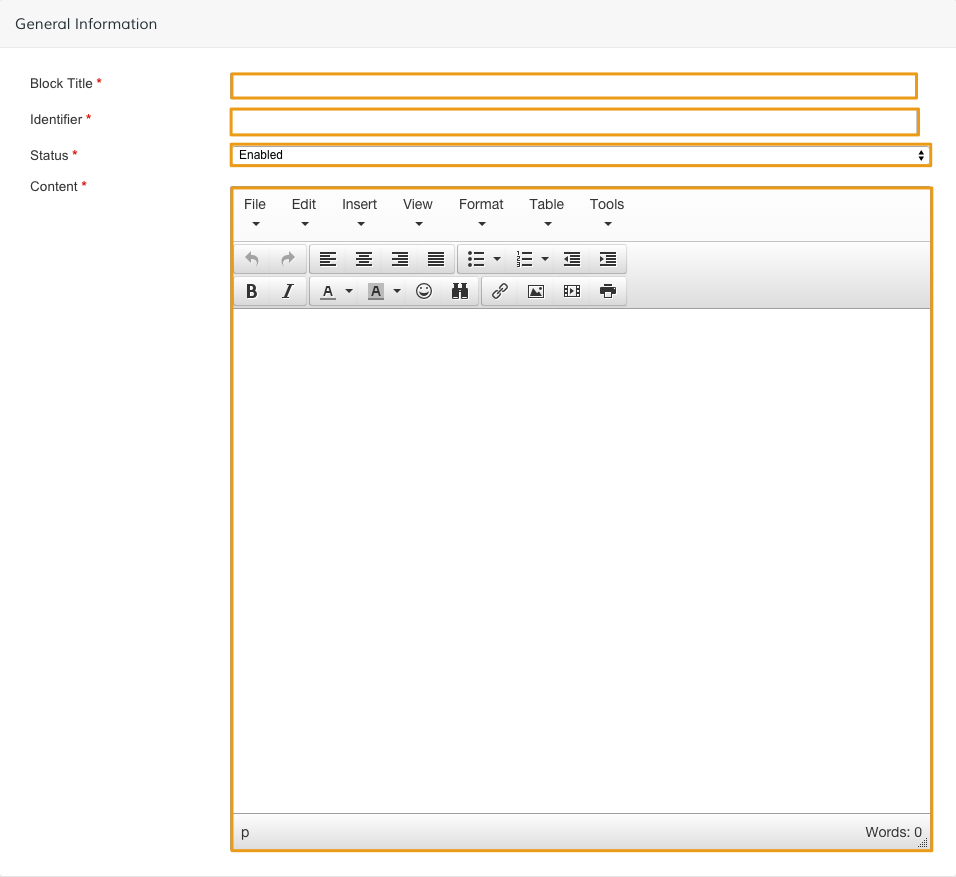
- Block Title - Create a name for your block so you can easily refer to it when you work on your store.
- Identifier - Create a specific address (also known as URL slug) for your block.
- Status - Enabled sets your block to display on your store, Disabled hides the block.
- Content - Add images, text, and video using the block WYSIWYG.
Note: Required fields are marked with a red asterisk.
Step 3 - Save
When you're satisfied with your block, click Save.
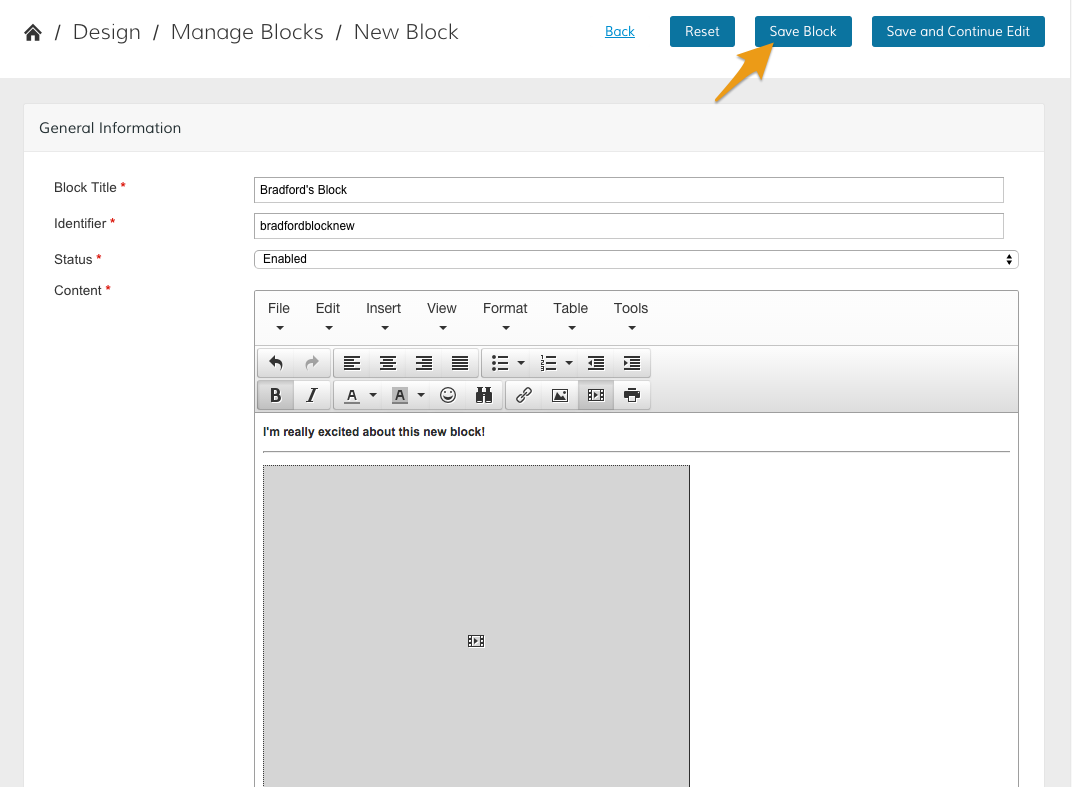
Note: If you want to save your progress while continuing to adjust your block, click Save and Continue Edit.
Further Reading
Comments
0 comments
Please sign in to leave a comment.