
In early October 2015, we released brand-new design tools that were completely revamped in March 2016. If you signed up for our platform prior to October 2015 and you are using the classic design tools, we highly recommend moving to our new interface! It's more flexible, intuitive and just more fun!
Using the design tools requires migrating your content from our older platform. If you're using our older tools, then you'll be redesigning your site using one of our new templates, then recreating your content.
| 1 | Select a theme |
| 2 | Add content from your old store |
| 3 | Modify your theme |
| 4 | Publish your changes |
| 5 | Further reading |
Step 1 - Select a theme
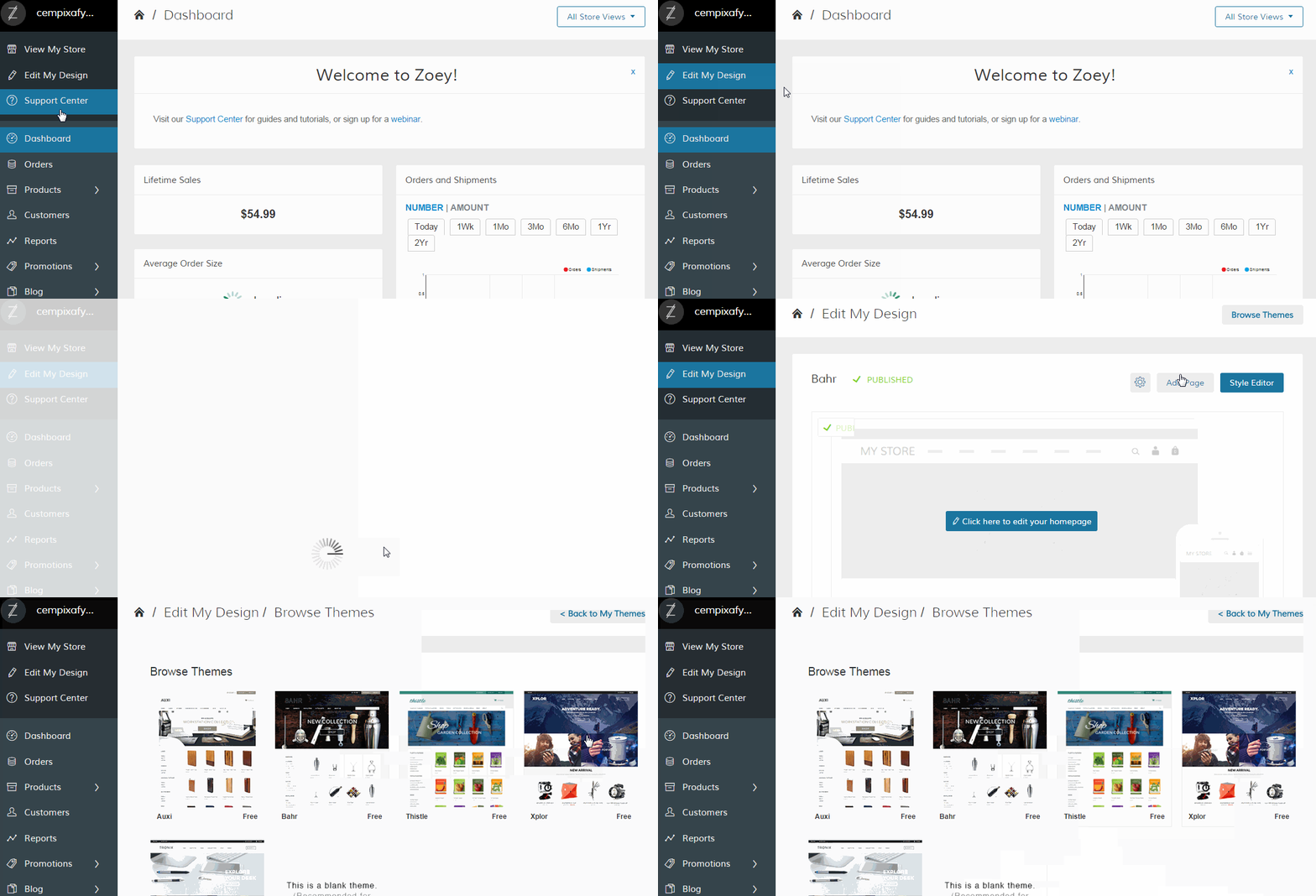
In your Control Panel, select Edit My Design - start with selecting a new theme from Browse Themes.
Step 2 - Add content from your old store
Content from your classic design theme, including CMS pages, embedded videos, and images, must be manually placed into your store's frontend. Save existing content to your computer, then paste or upload the content into your store with the new design tools.
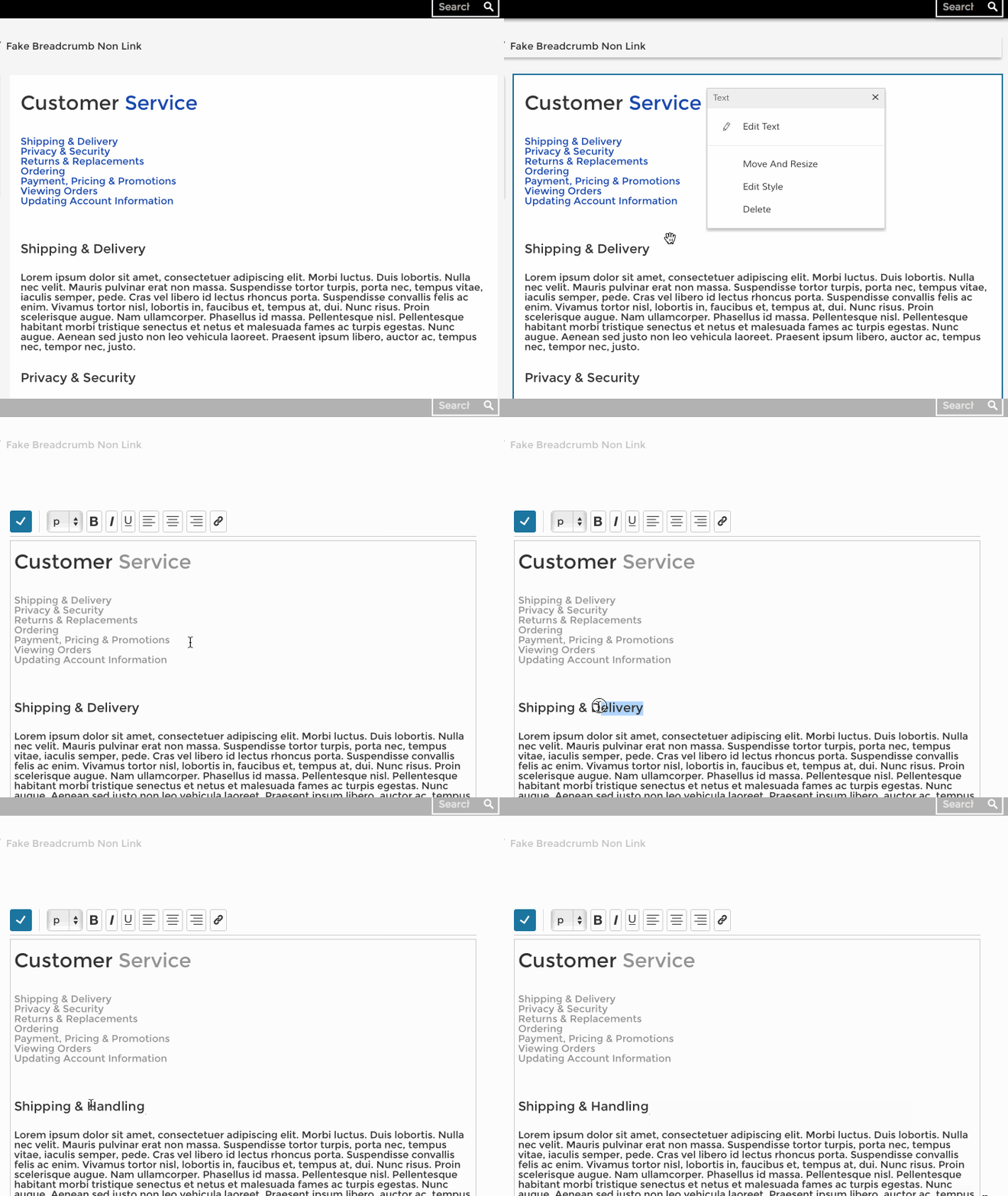
Content from your categories and products will not be affected by switching to the new tools.
Page content is added to the design tools with blocks. Blocks are flexible content boxes that can be placed almost anywhere in your store website. Learn more about Zoey's variety of blocks from our guide, Using Blocks.
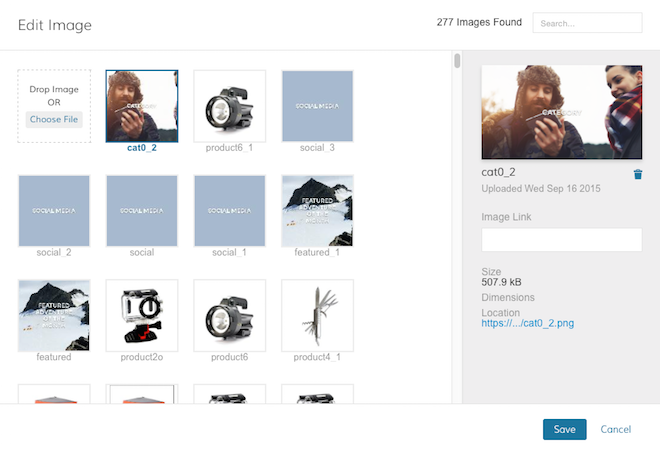
You can upload images onto Image Blocks and Sliders by adding first a Block to your page and then upload the image onto the Image or Slider Block. Once an image is added to any block it is stored in the Media Storage and you can access all the uploaded images from there.
Step 3 - Modify your theme
Use the Theme Fonts & Colors to update fonts, colors, and the layout of your theme. You can also add a logo and favicon to brand your store.
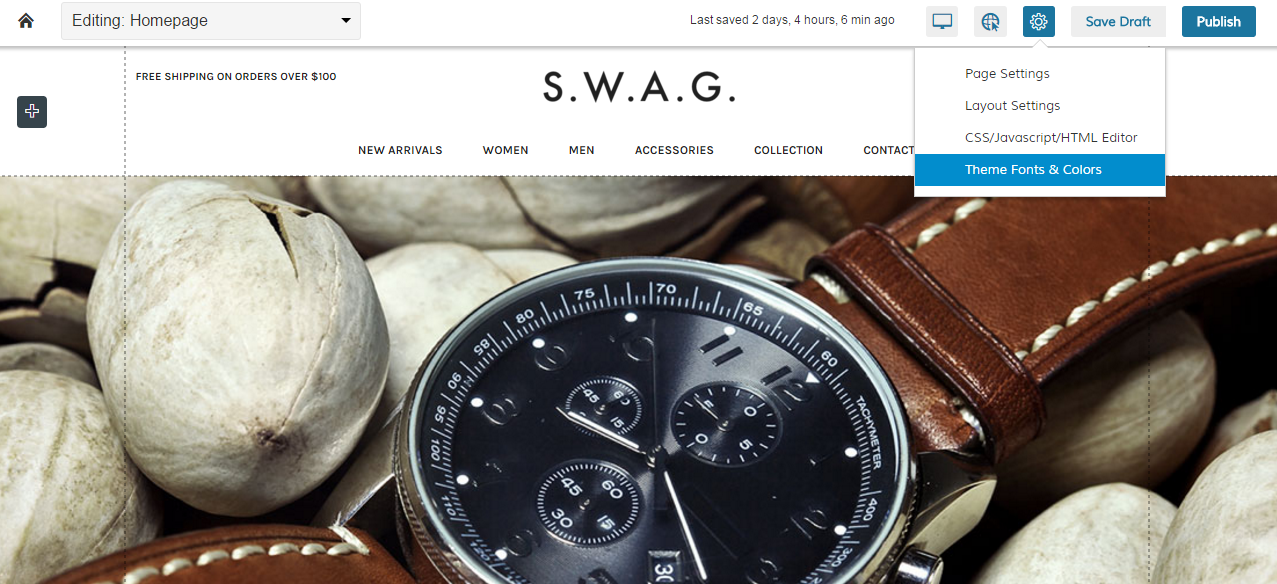
You can read more about styling your site in Using the Style Editor.
Step 4 - Publish your changes
When you finish making changes to your store, click in the top right of your page Publish. If you still want to work on edits, just click Save Draft and the changes won't be visible in the frontend.

Comments
0 comments
Please sign in to leave a comment.