
Please note this tutorial is only for our older Classic design themes and tools. For information on our new themes and how to use the updated tools, please see: Starting with Design and Advanced Design Tools.
Want to draw attention to certain products or your latest updates? You can use a New Products Widget to showcase these.
- From your Control Panel, go to Design > Widgets > Add a new Widget
- For your settings, choose Type > Catalog New Product List
Click Continue - Enter a Widget Instance Title and Assign Store Views and Sort Order if necessary.
- Select Add Location under Widget Locations to choose which pages this block will display on and where.
- Once finished, click on Options
- Here you will see two options for display type:
All Products > Pulls the most recently added products to your catalog
New Products > Pulls only products marked as new. - Select at least Number of Products to Display- Displaying Page Control and the Cache Lifetime are optional and can be left as the default No and blank.
- Once you make your selections, be sure to click Save.
Run a Store Refresh and you're all set!
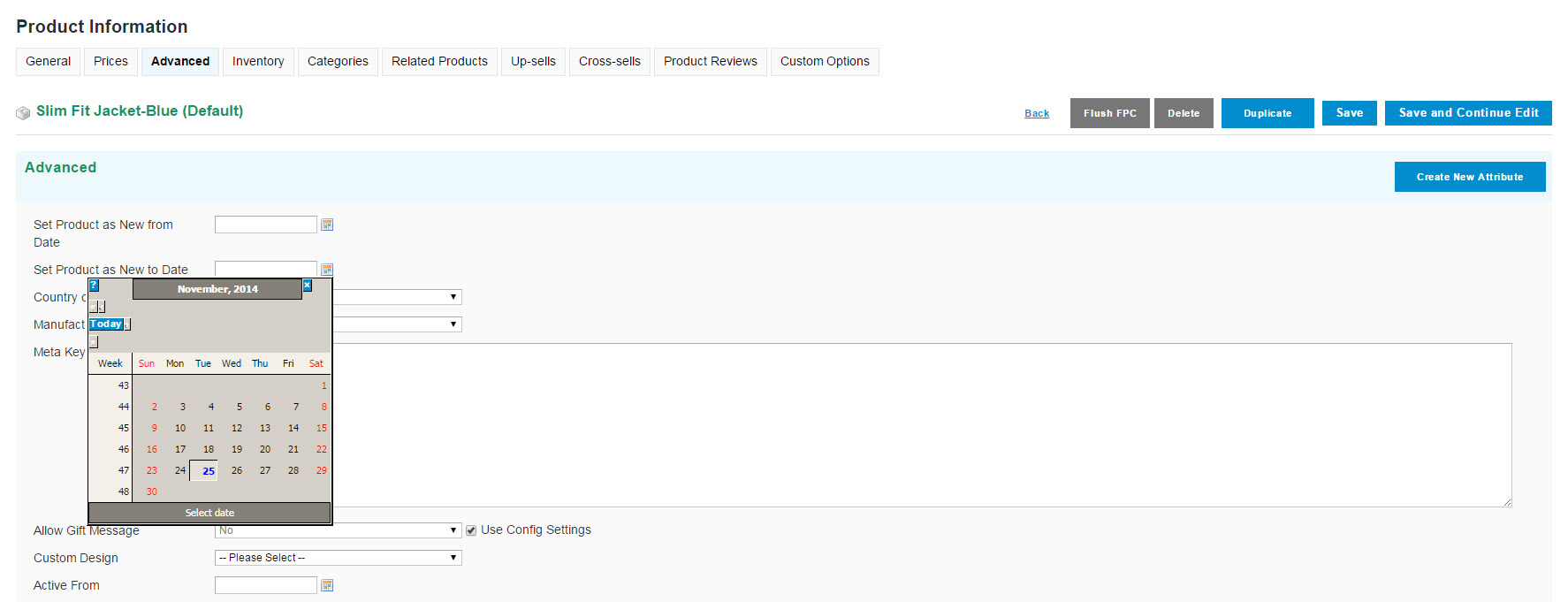
Chose "New Products" and need some products to highlight? You can do this by going to Products > Product List and selecting the product you want to add to this block.
Under Product Information select Advanced and add "Set Product as New from Date" and "Set Product as New to Date". The product will show for the dates you have set.
Comments
0 comments
Please sign in to leave a comment.