
Please note this tutorial is only for our older Classic design themes and tools. For information on our new themes and how to use the updated tools, please see: Starting with Design and Advanced Design Tools.
Looking to gather some more information from your customers? Using JotForm you can put together questionnaires, surveys and more.
- Start by signing up for an account on JotForm. The Starter package is free to use!
- To get started, click on "Create New Form"
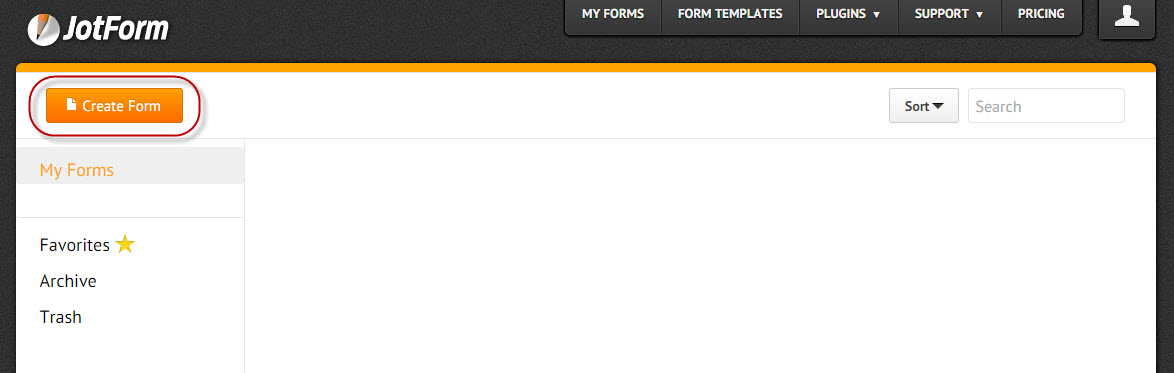
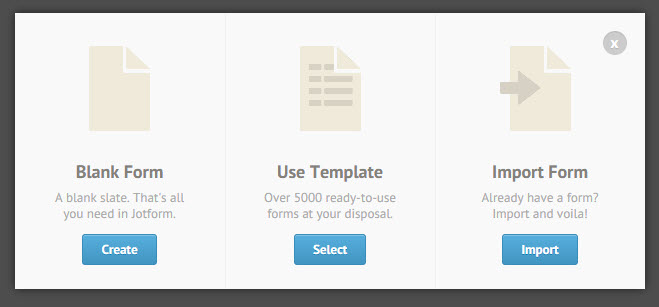
- Chose an already designed template or start from scratch with a new form.
- Now you can start using the tools to create your own customized form.
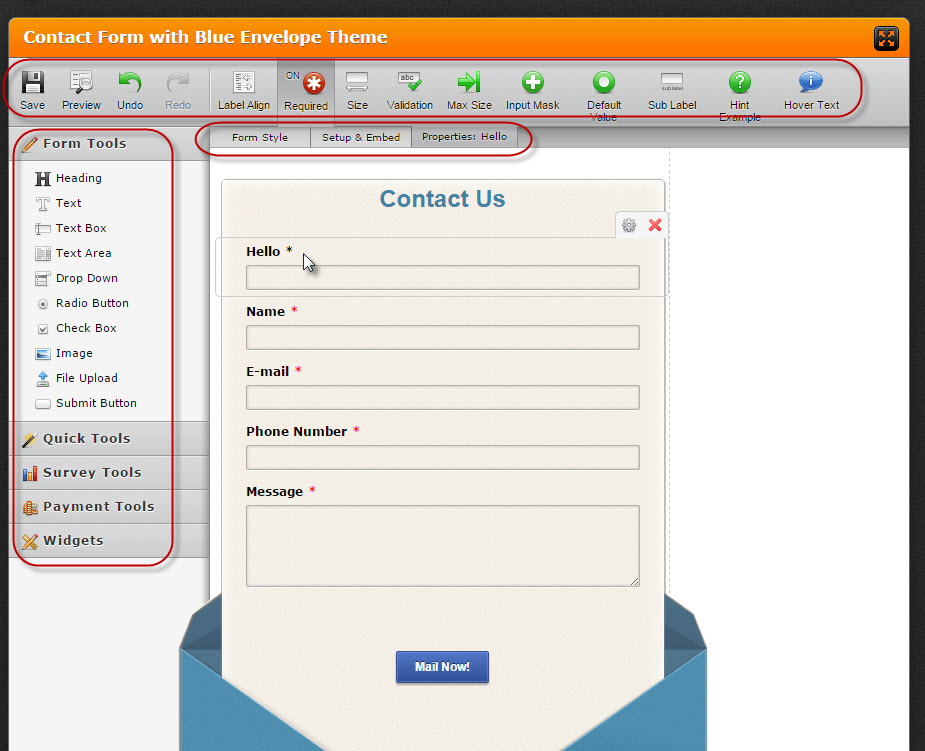
- Once you have customized your form, you will want to set a Thank You page for customers to see after they submit the form. Click on Setup & Embed and Thank You. You can link to any page, although we recommend making a new page in your store using this tutorial: How to Add New Pages to your Website
- When you are ready to post on your store, you will need to use the embed tool.Make sure you have Secure Form selected before you click "Embed" on the Wizard.
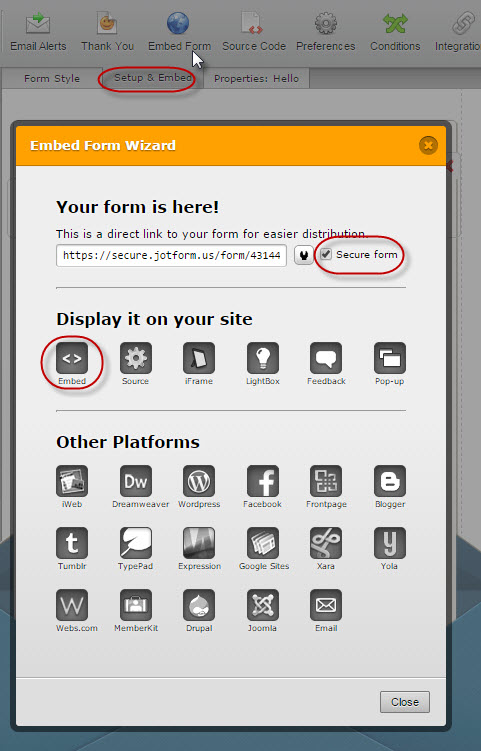
Please note that if you already created your form, you will not be able to use the "embed" option from the forms list. You will need to select Edit and use the more advanced embedding tools as shown above. - Now let's go back to your Control Panel and go to Design > Pages > Add New Page.
- Give your new page a title and URL key. Click on Save and Continue.
- Click on the "Content" section and from the WYSIWYG open the Source Code tool.

- Paste in the embedded code you were given in Step 5 and save!
- Run a Store Refresh ( Advanced > Store Refresh ) and admire your good work on the front end!
Comments
0 comments
Please sign in to leave a comment.