
Please note this tutorial is only for our older Classic design themes and tools. For information on our new themes and how to use the updated tools, please see: Starting with Design and Advanced Design Tools.
Many of your store's pages including the catalog pages have the option of various configurations of columns. If you have 2 or 3 columns including the left bar, you can also add your category tree / navigation to this area! The "Category Sidebar" appears separately from the Layered Navigation. If you are using both, this may look familiar:
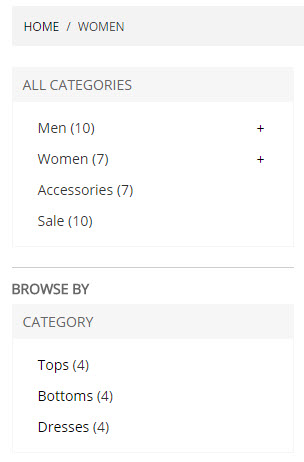
The first box All Categories, is the Category Sidebar. Under Browse By we have the Layered Navigation which in this case includes Categories as well. This tutorial will show you how to turn on and off both!
Category Sidebar - Classic Design Tools
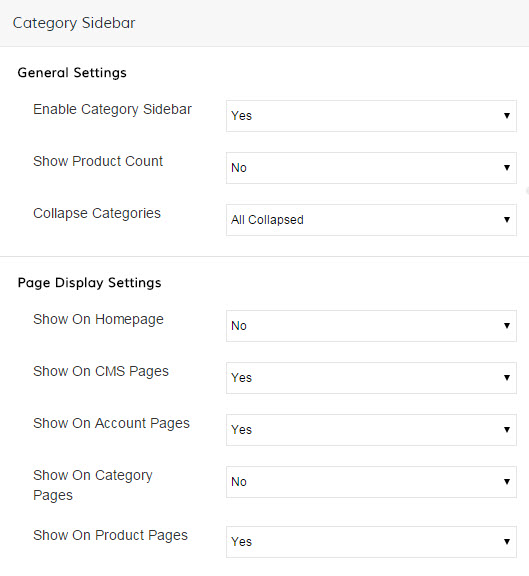
All the settings for the Category Sidebar can be found by going to Design > Design Settings and clicking on the Manage button. In the Category Sidebar section, you can find the following options:
- Enable Category Sidebar - Select Yes to turn on, No to turn off.
- Show Product Count - If you choose Yes, each category will have a numerical value for how many products are in that category.
Mens (10) - Show Product Count
Mens - Not Showing Product Count - Collapse Categories - Depending on how many categories you have, you may want to display them all expanded with all options and subcategories showing or collapsed with only the main categories showing.
- Next under Page Display Settings you can choose which pages will have this feature and which will not. Remember, even if it is enabled here your page will need to have the left bar enabled as well.
- Homepage
- CMS Page (About us, informational pages, any pages you built in the "Other Pages" area of the Design section)
- Account Pages (My Account & the customer's dashboard)
- Category Pages
- Product Pages
Here's what your settings may look like, however you can change these around to suit your needs and image!
Categories in Layered Navigation
Want to see Categories in your Layered Navigation (the Browse By / Shop By)? You will need to make sure the Category is set to Is Anchor. Setting a Category to Anchor means it takes the information of the child categories as well. When visitors click on "Jewelry" do you want them to see only the products you manually assigned to this category, or do you want them to see not only the ones that are in this category but also the ones in the subcategories like "Rings" and "Necklaces". Setting the Category to Is Anchor = Yes will allow them to see all the options for the category and the categories that live under it.
You can manage this on a per Category basis by doing the following:
- Navigate to Products > Categories
- Click on the Category you wish to edit
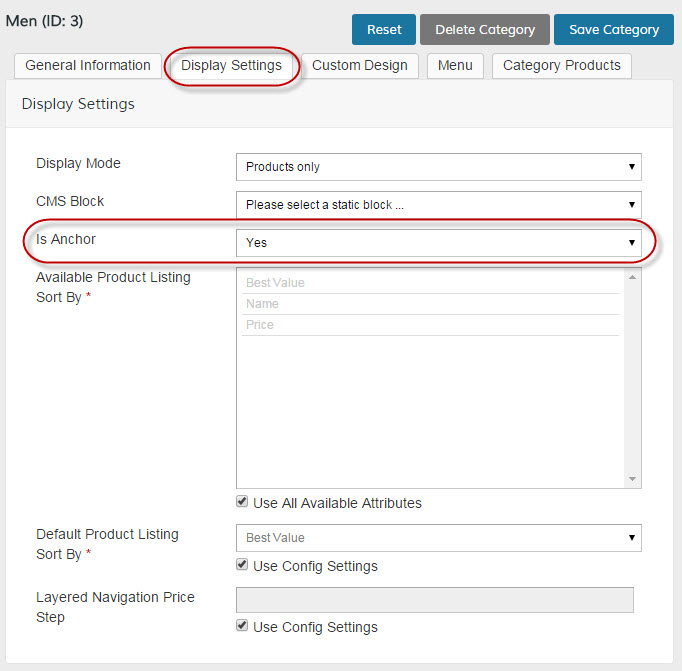
- Click on the Display Settings Tab
- To have this Category show in Layered Navigation, set "Is Anchor" to Yes. To only have attributes in your Layered Navigation, choose No.
Comments
0 comments
Please sign in to leave a comment.