
Please note this tutorial is only for our older Classic design themes and tools. For information on our new themes and how to use the updated tools, please see: Starting with Design and Advanced Design Tools.
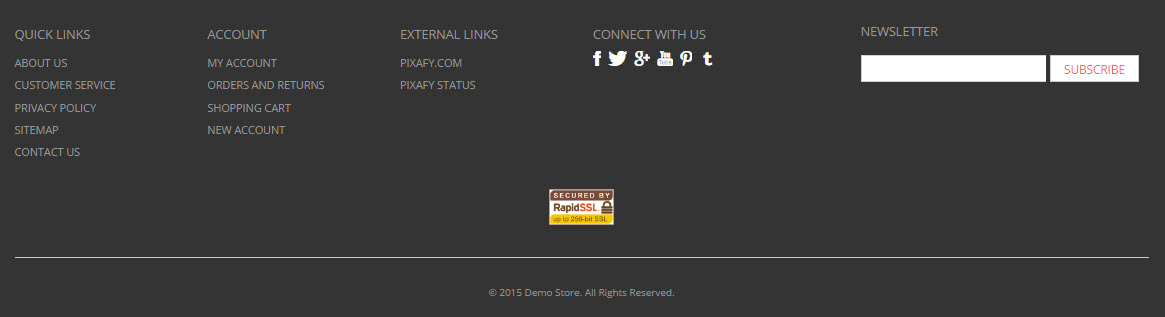
In your footer, you'll find a great start on the links that you and your customers may find useful and are pre-configured in your pages.
In this tutorial, you'll learn where to edit each of these:
- Links & Headings
- Social Media Links
- News Letter
- Trademark
- Security / Secured By RapidSSL image
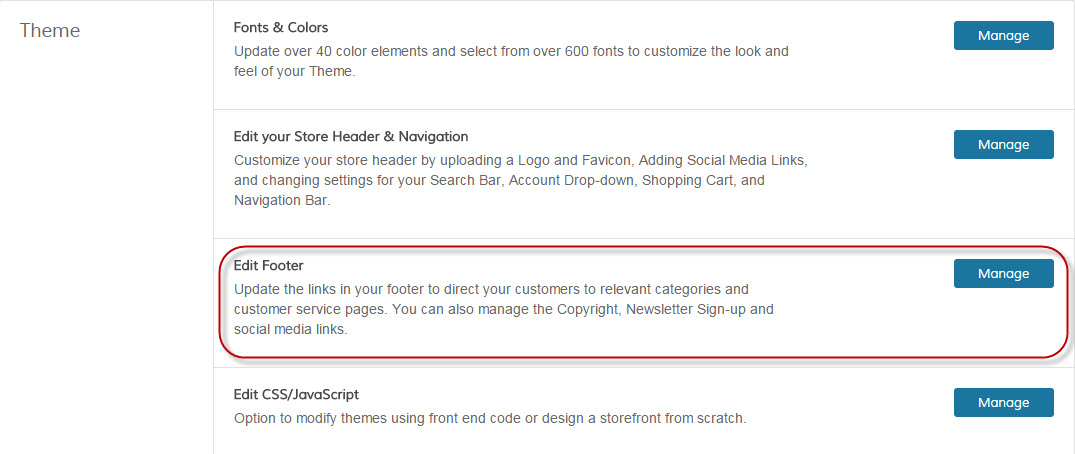
Most of this information, you'll find under Design > Theme > +More Theme Options > Edit Footer. Click on Manage to get started!
Links & Headings
- You will see the Quicklinks, Account and External Link Headers which show in your footer.
- Click on a Header to edit the text
- Click on a Link to edit the text and also where this will direct people to.
- If this is a link to another area of your site, use only the URL key such as /about-us for the About Us page.
- If this is an external link, use the whole link such as: http://www.zoeycommerce.com - You can also Add a New Header or Add a New Footer Link below the existing information.
Although there is not a limit on how many links you can have, at this time you can only have three columns.
Social Media Links
- Here you can Hide the Social Media Block. Which icons are used and where they go can be set in Design > Theme > Edit your Store Header & Navigation
Newsletter
- You can Hide newsletter bar in this area. We recommend looking into the Apps section's Mandrill and MailChimp to get started on sending these newsletters to your subscribers!
Trademark
- There are two options, to Hide COPYRIGHT or Change COPYRIGHT(©) Text. It's up to you if you want to use this with your store's name or turn this off!
Security / Secured By RapidSSL image
Now we venture out of this area and back to Design > Edit Blocks and click on Manage.
- Locate the Zoey_pixfooter_block / Zoey Footer Static Block and click to edit.
- Change the Status to Disabled to turn off completely or edit the Content to use this for another purpose!
Comments
0 comments
Please sign in to leave a comment.