
Please note this tutorial is only for our older Classic design tools
Zoey has a variety of themes you can use for your store. We're working on new designs, too! Switch themes to apply a beautiful update for your website.
Step 1 - Visit Design Settings
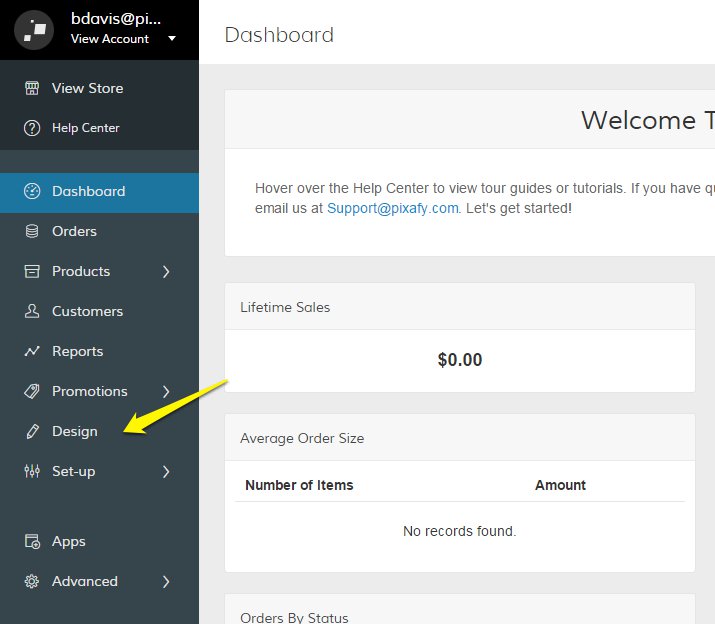
In the Control Panel, click Design.
Step 2 - Change Theme
In your Design page, click +More Theme Options from the Theme section. This will expand additional options for customizing your website theme.
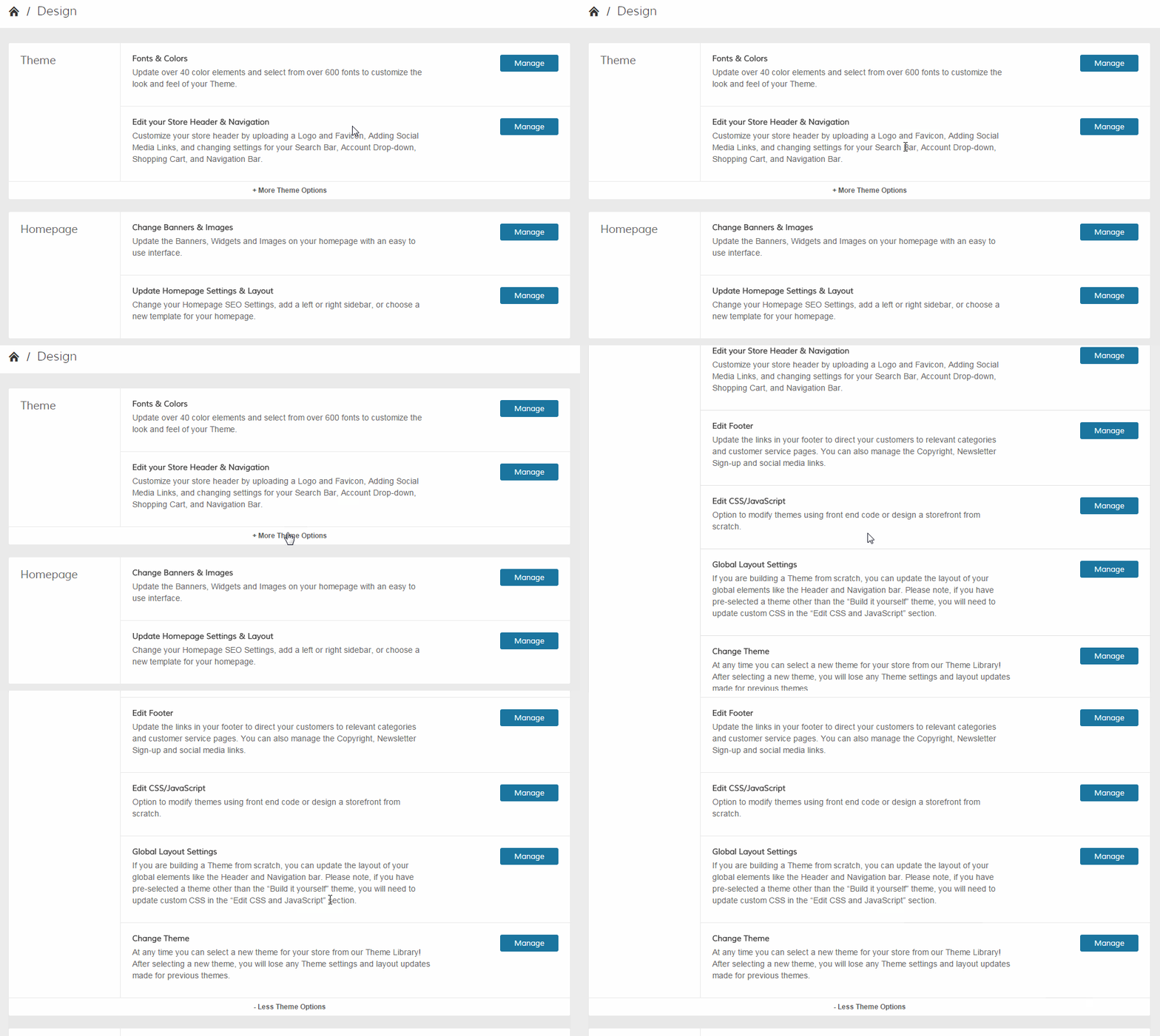
From the Change Theme section, click Manage.

Click Preview Theme to test an interactive demo of the corresponding theme.
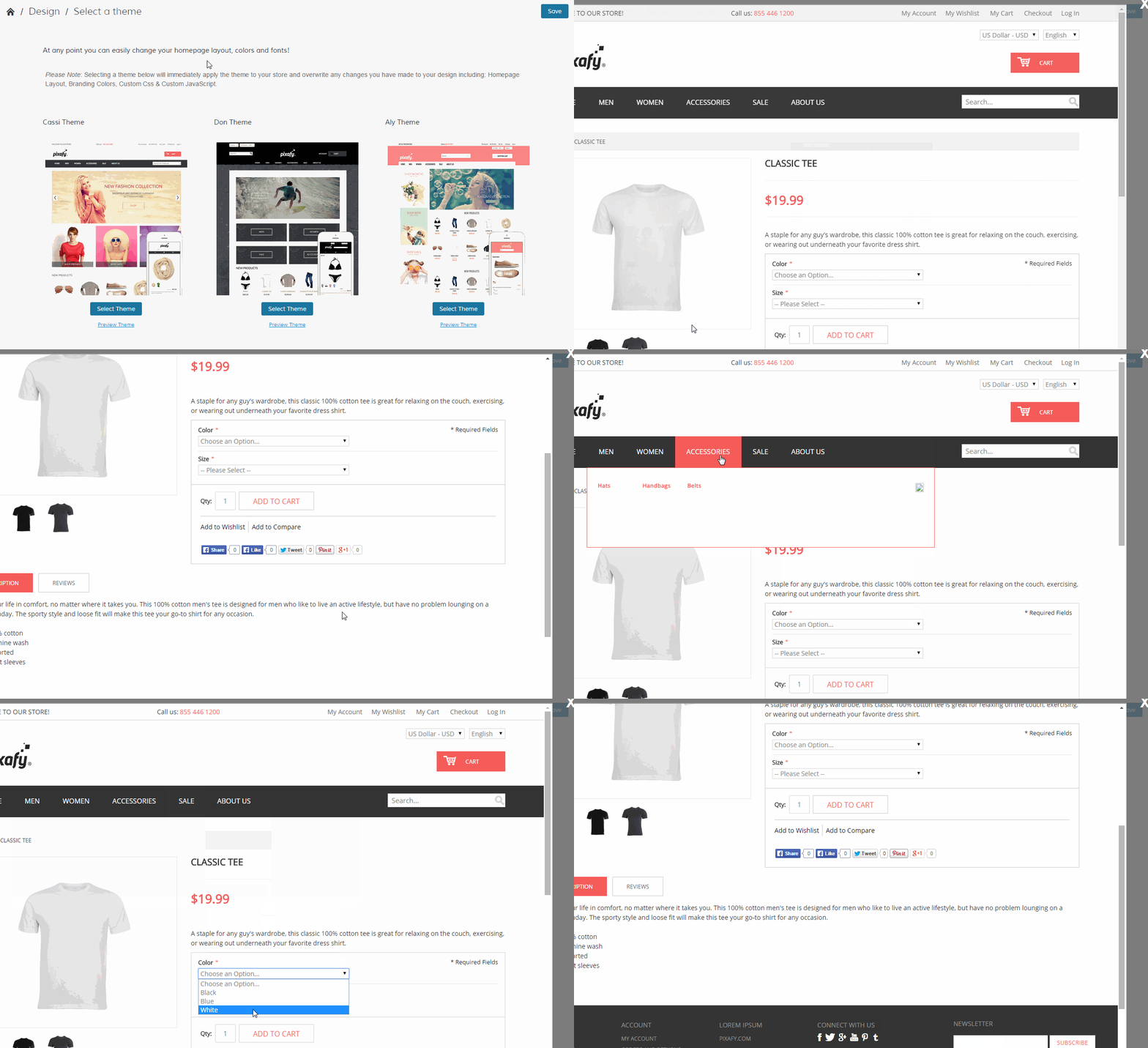
Note: The theme displays the sample content and does not include any updates you have made to your store.
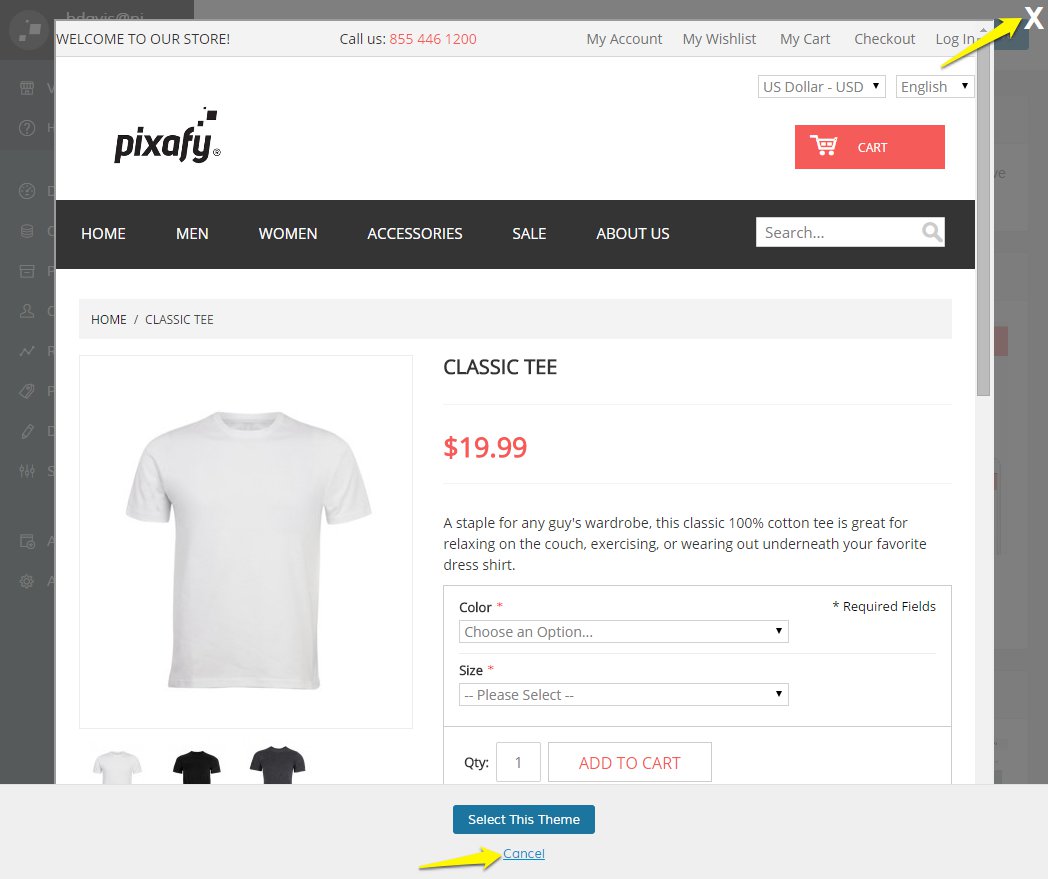
You can cancel the preview by clicking Cancel or the X icon in your top right hand corner.
Step 3 - Save
When you are ready to switch your theme, click Select Theme.
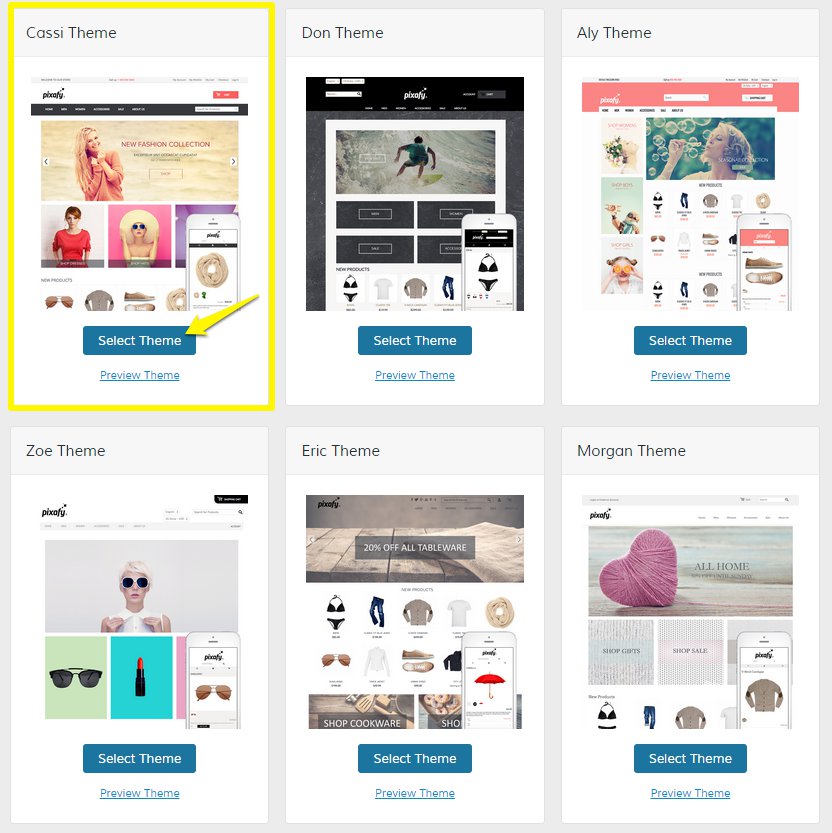
You will be presented with a notice reminding you that previous styling changes on your current theme will be overridden and cannot be reverted. Check Confirm once you have read and understood the reminder, then click Save Theme.
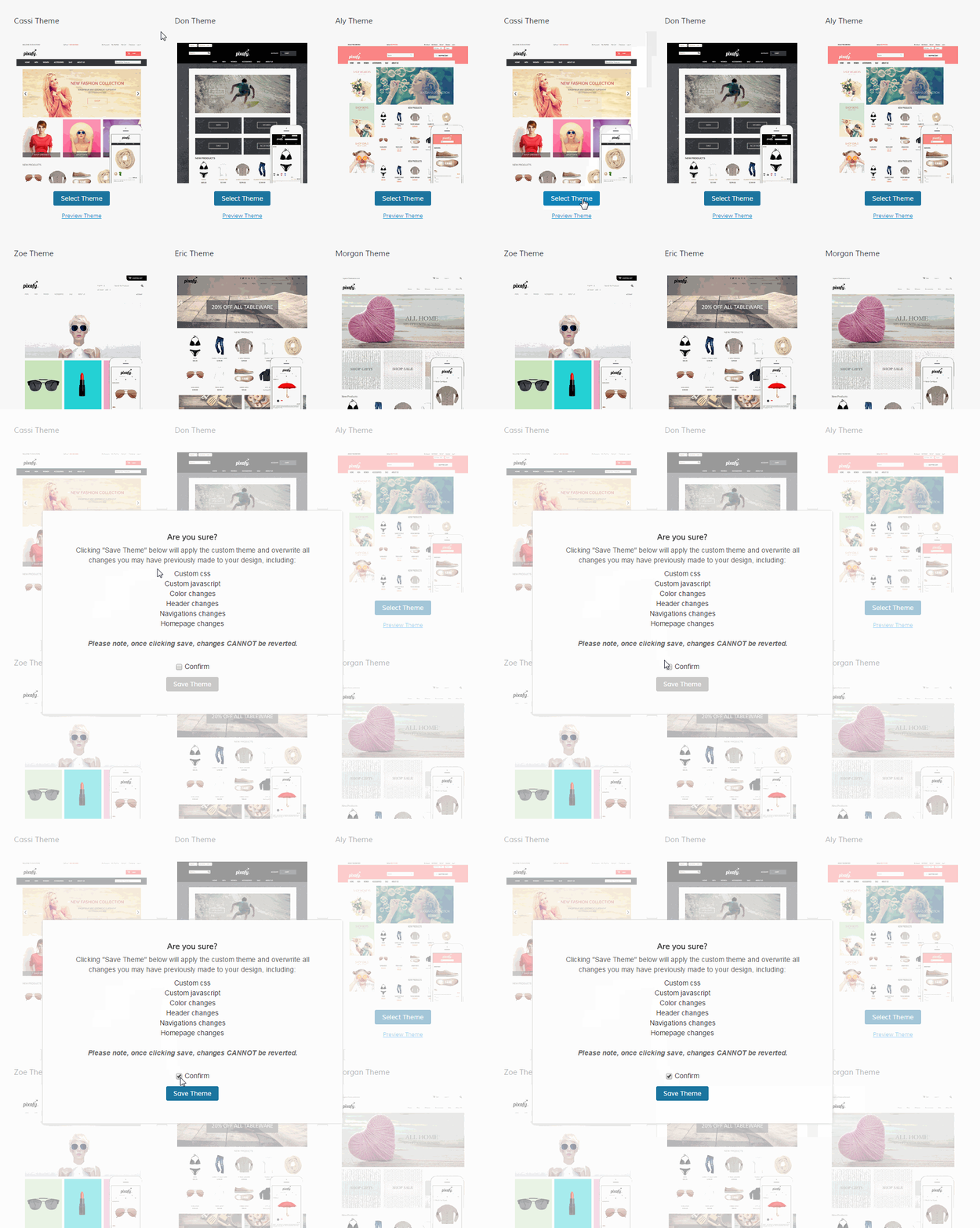
Note: The previous changes that have been overridden include custom code injections (CSS and Javascript), color, header, navigation, and homepage changes.
Comments
0 comments
Please sign in to leave a comment.