
Zoey offers a simple migration tool for users coming from Shopify. Using this allows you to quickly launch your new store with the important information of your current store already built in!
| 1 | Set up API in Shopify |
| 2 | Enter Shopify API Credentials in Zoey |
| 3 | Decide What to Migrate |
| 4 | Begin Migration |
| 5 | Stopping a Migration |
| Learn More |
Step 1 - Set up API in Shopify
To get started, you will need create a Shopify Private App in order to obtain the API information.
From your Shopify Control Panel, navigate to: Apps > Private Apps > Create a Private App. Your Private App's Title should be "1-ClickMigration"
Be sure to save the API Key and Password in full for the next step. Many of our users find it easiest to save this information as a text file.
Note: For more on creating a private app in Shopify, see Shopify's documentation on this.
Step 2 - Enter Shopify API Credentials in Zoey
In your Control Panel's Apps section, scroll down to find the Zoey Shopify Migration app. Click on the app for more information and to Add to My Apps
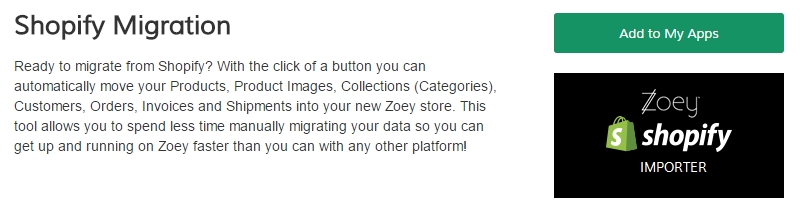
Now that you have added this to your collection of apps, select Manage to begin entering your information. You'll need:
- Shopify Site URL
- API Key
- Password
You'll want to also enter your email address and a phone number in case our team needs to reach out regarding your migration.
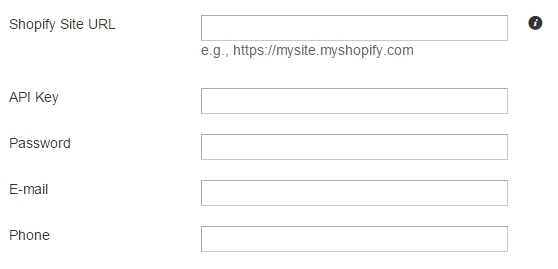
It's always a good idea to double check the information you are entering here as incorrect API keys are the most common issue with migrations.
Step 3 - Decide What to Migrate
Scroll down and select the items you want to migrate from Shopify.
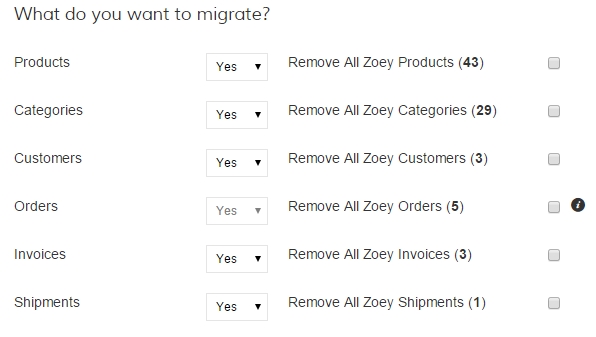
Here are the items from your Shopify store you can import to Zoey:
- Products
- Categories
- Customers
- Orders
- Invoices
- Shipments
Note: Each Zoey site begins with a default sampling of products, categories, and more. If you want the imported items to replace their corresponding elements within your Zoey store, select the appropriate Remove checkbox.
At the bottom of the page, click Next to continue.

Step 4 - Begin Migration
After entering in your information, you will be presented with the information that will be imported into Zoey from Shopify. When you are ready, click Verify and Begin Migration.
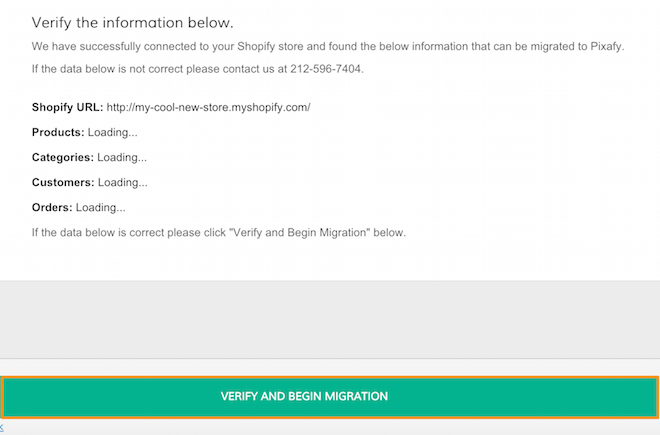
The time it takes to complete a migration depends on the volume of inventory you migrate from your Shopify store. You will receive an email to the address provided earlier letting you know the migration is complete.
Our team recommends not altering the parts of your store that will be updated by the migration such as orders, categories and products. A great time to work on design!
Step 5 - Stopping a Shopify Migration
This is very rarely needed but if you do decide to cancel your migration from Shopify to Zoey, you can do this by entering the migration app and clicking Show Progress.You will find both your progress and the option Stop Migration.
You can always run a new or second migration at a later date.
Learn More
Now that you have the beginnings of a store, you're probably wondering what's next. Here are some great places to get started:
Comments
0 comments
Please sign in to leave a comment.