
There are many ways to refine and limit what is indexed by your store to be searched. The easiest way to set up your search is with modifying the Catalog Search Settings in Product > Settings.
Here are our recommended settings:
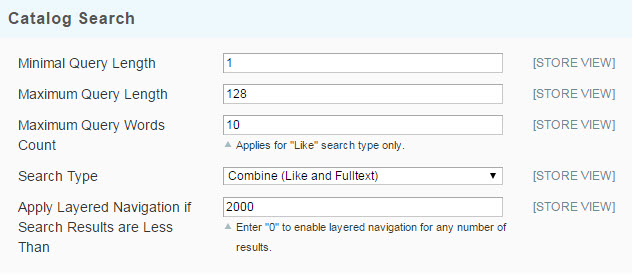
Most of our customers prefer these settings, however you should play around with only using Fulltext or Like to see if that works better for your business. After changing these settings you must Re-Index and Refresh your store
- Advanced > Cache/Index > Index Management - Re-index Catalog Search Index
- Advanced > Refresh Your Store
Still not seeing the results you are looking for or maybe seeing too many?
You can first of all change from "Full and Liketext" search to just using Full text. This will give you a much closer match to what you were looking for but it will not give additional options and variations.
Another slightly more complex method, is to change what is indexed in the search. By going to Products > Attributes and selecting any attribute, you'll be able to choose which areas are indexed in the search.
- Turn off Quick Search indexing for attributes that are used many times through out the site, such as Brands. These customers can sort through using the layered navigation instead.
- Turn on indexing for Meta Keywords- many of our stores use meta keywords as a way to catch searches with spelling errors.
- Create a new attribute as a text area to use as the Search for products. You can hide this from the front of store but enter all keywords you would like to use.
- Use "Search Terms" found in your Reports Area to redirect users to specified page or category when they enter a certain search term.
Yet another option is to try out InstantSearch, an app you can find in your control panel which has been helping many of our users get the best out of their catalog past their navigation.
Comments
0 comments
Please sign in to leave a comment.