
Downloadable products are digital goods your customer can order directly to their computer or mobile device when they purchase from your store. Music, books, videos, and more are often sold digitally. Learn how to set up Downloadable Products for your Zoey store.
Step 1 - Visit Product List Page
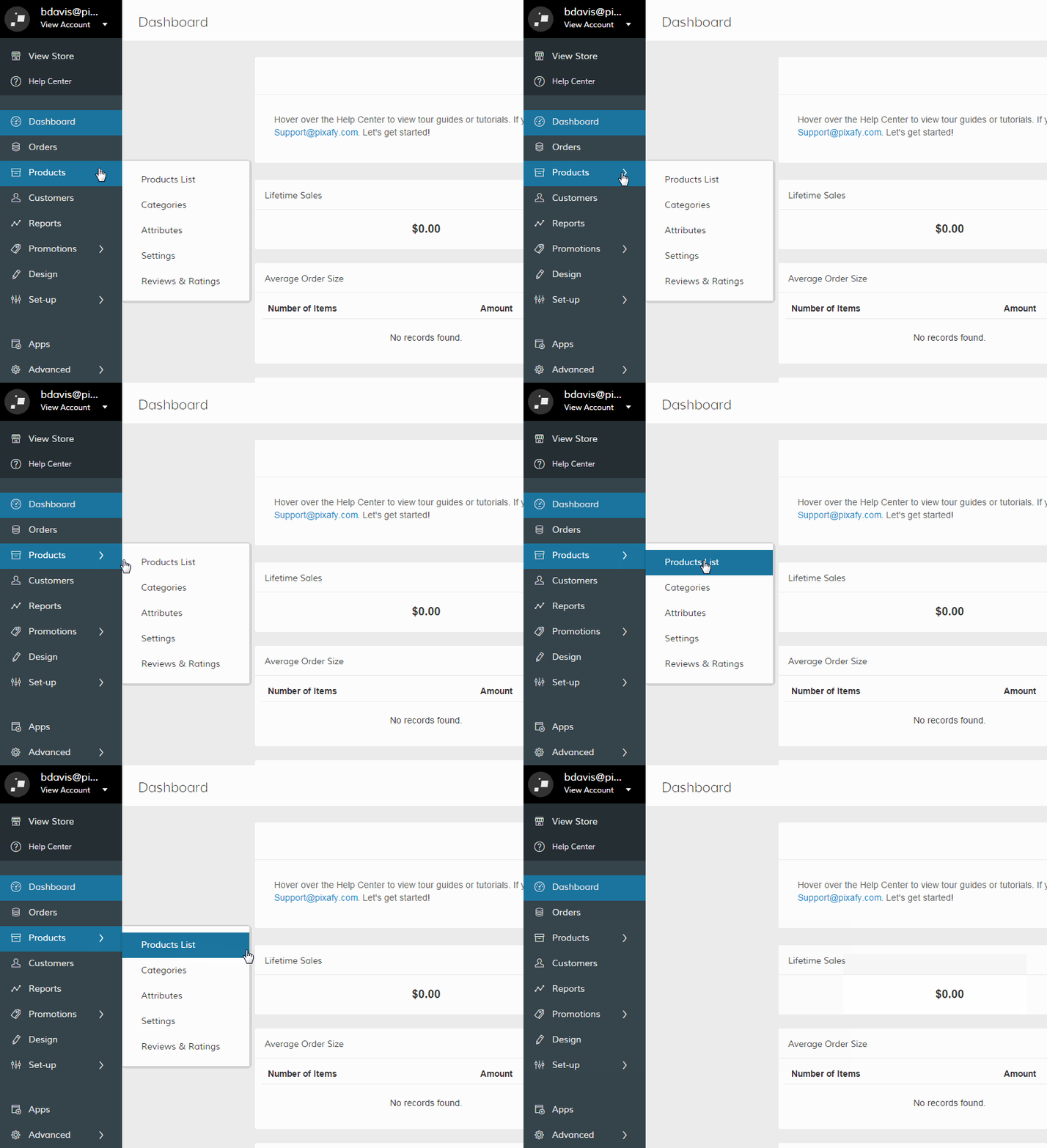
From your Control Panel, hover your cursor over Products and select Product List. You will see a list of existing products.
Step 2 - Choose Downloadable Product Type
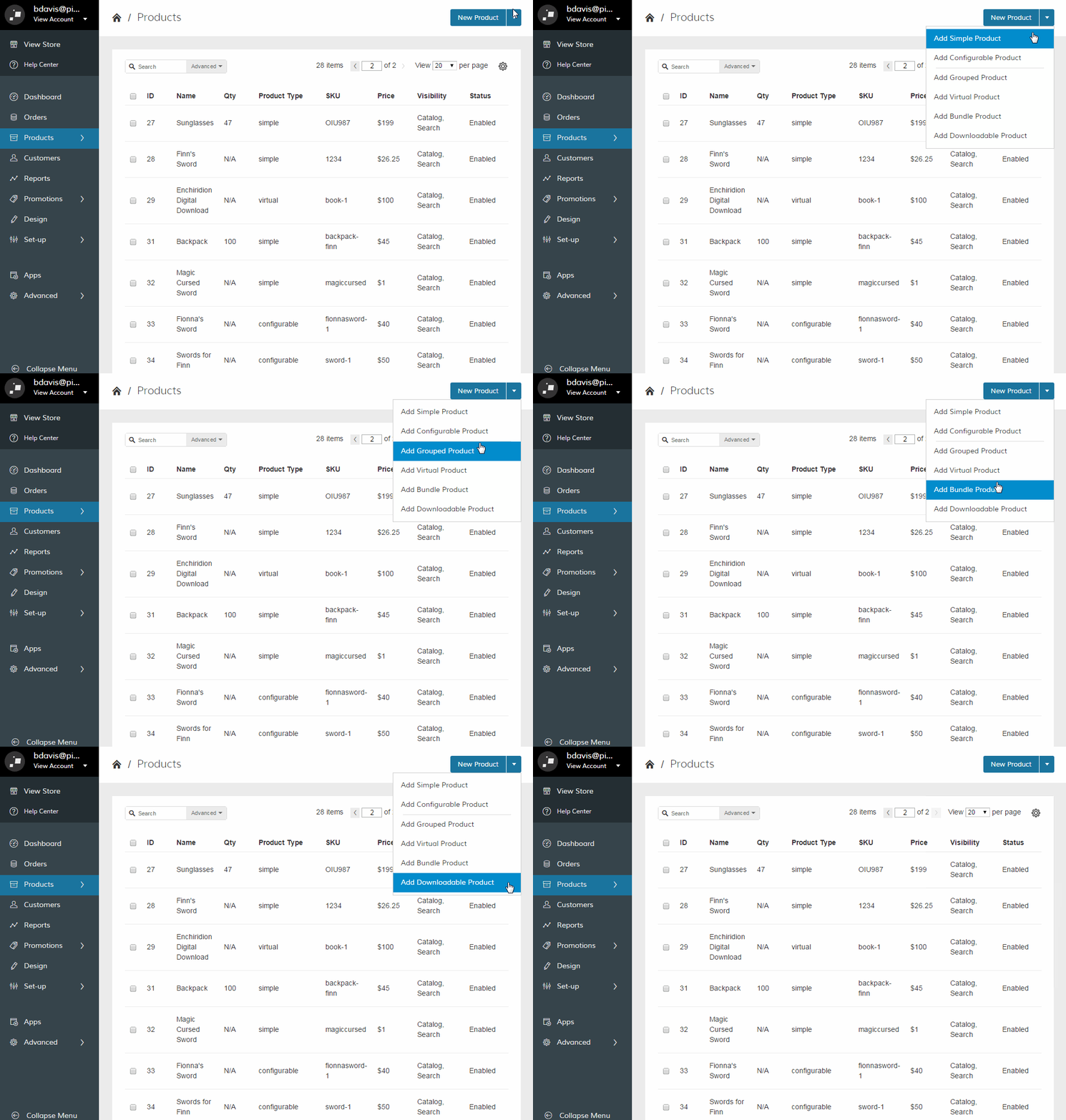
Zoey allows you to create six different product types. They can be selected from the dropdown menu in the top right corner. Click the arrow next to New Products to select a Downloadable Product.
Note: You can learn more about Product Types here.
Step 3 - Choose Attribute Set
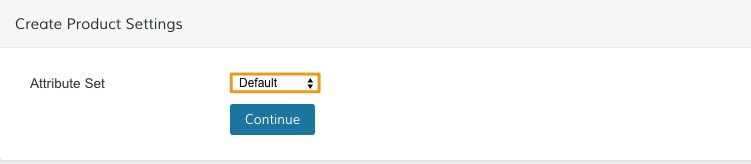
Depending on the specifications of your downloadable product, you may want to select a custom attribute set. Choose from the Attribute Set dropdown.
Note: We explain how to create attribute sets here.
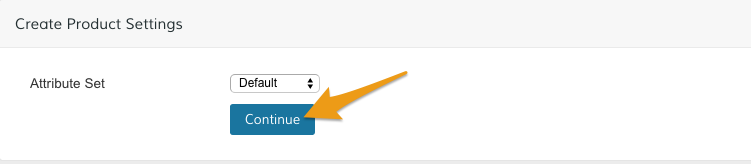
Once you choose your attribute set, click Continue.
Step 4 - Edit General Information
Use the General Information area to enter in key details about your downloadable product, such as the Name, Price, and SKU.
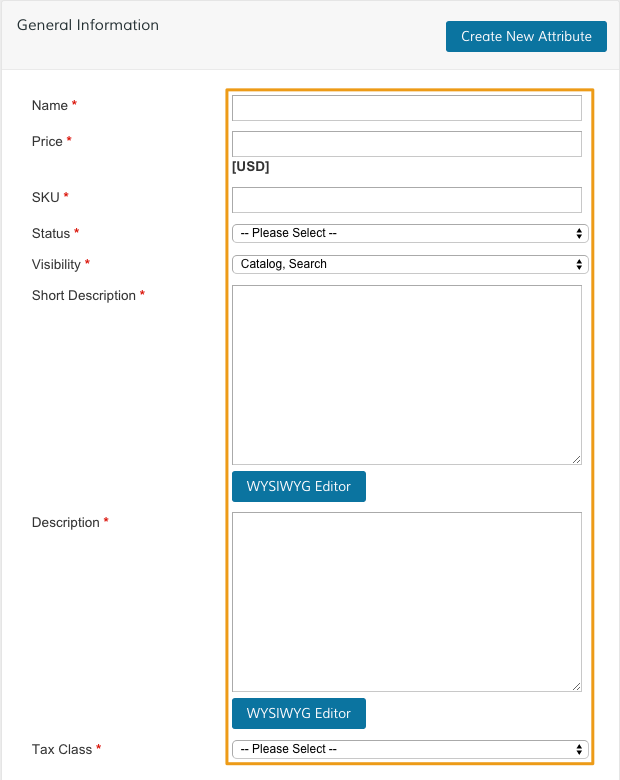
Note: Required fields are marked by red asterisks.
Step 5 - Edit Additional Product Information (Optional)
From the Product Information menu, configure different settings for your product. From here you can add an image to your product, adjust special pricing options, and optimize meta information on search.
Step 6 - Edit Downloadable Information
After you've customized your product, add the file or set of files you want customers to receive when they purchase the downloadable product. First, select Downloadable Information in the product navigation.
From the Downloadable Information section, configure and upload how your file is presented to customers.
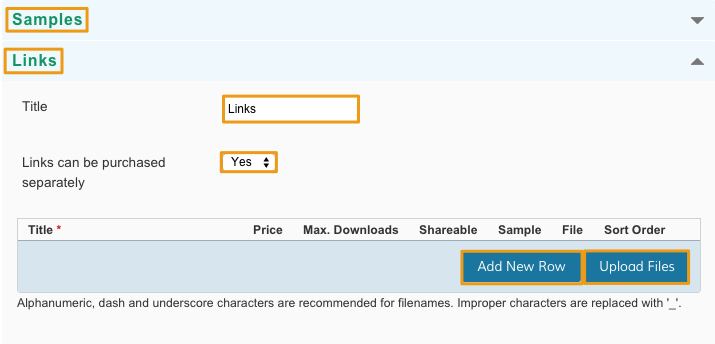
- Samples - Configure the sample file(s) that gives your customer a preview of your product. You can expand and contract the settings by clicking the arrow icon.
- Links - Configure the file your customers receive when purchasing your product.
- Title - Default name for the sample or linked file.
- Links can be purchased separately - Select Yes to allow your customers to purchase your files within the downloadable product separately.
- Add New Row - Enter a new file by selecting a file from your computer or referencing an external URL. Each row you add allows you to enter a new file.
- Upload Files - Sync your files to the product.
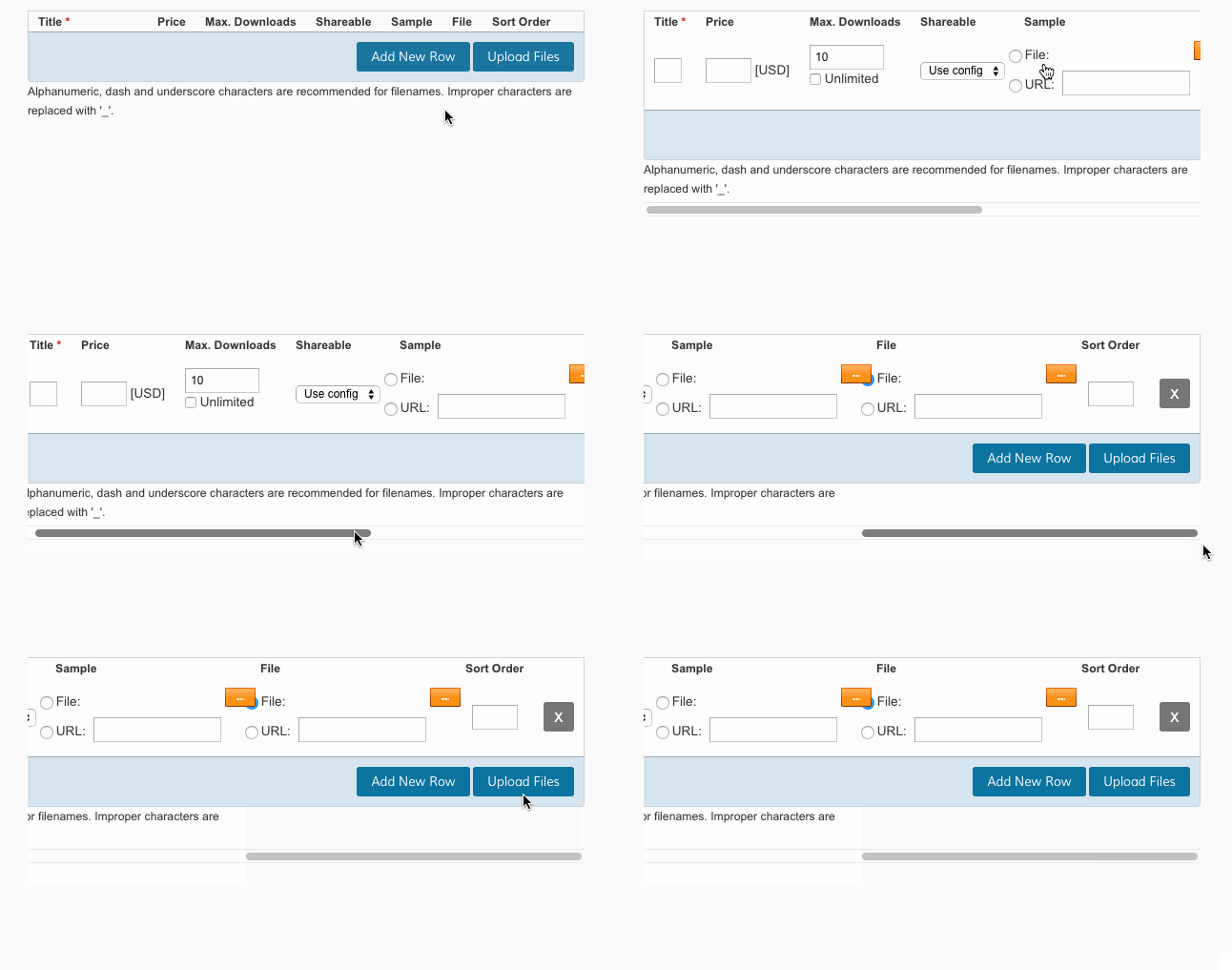
Note - If your file exceeds 25mb you will need to upload them externally with a URL Link. You can use a third party service like Dropbox, Google Drive, or Amazon S3 to host your file and generate a URL.
Step 7 - Save and Refresh
When you are happy with your products, click Save.
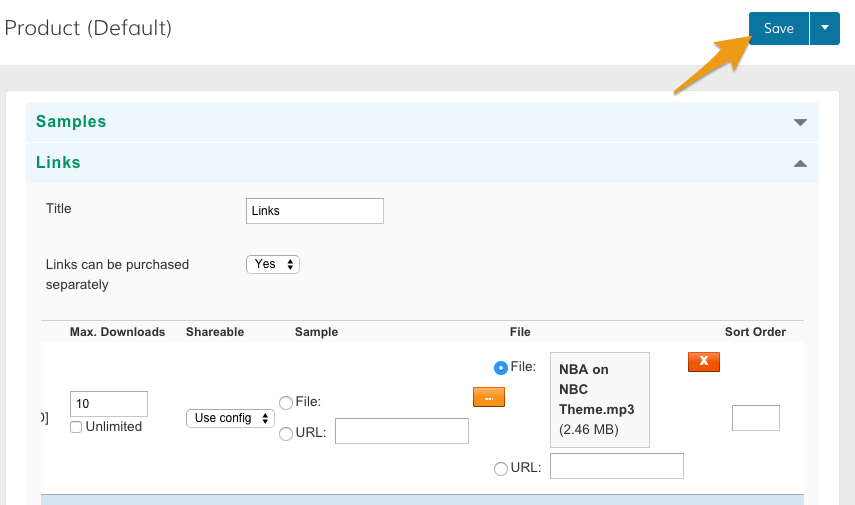
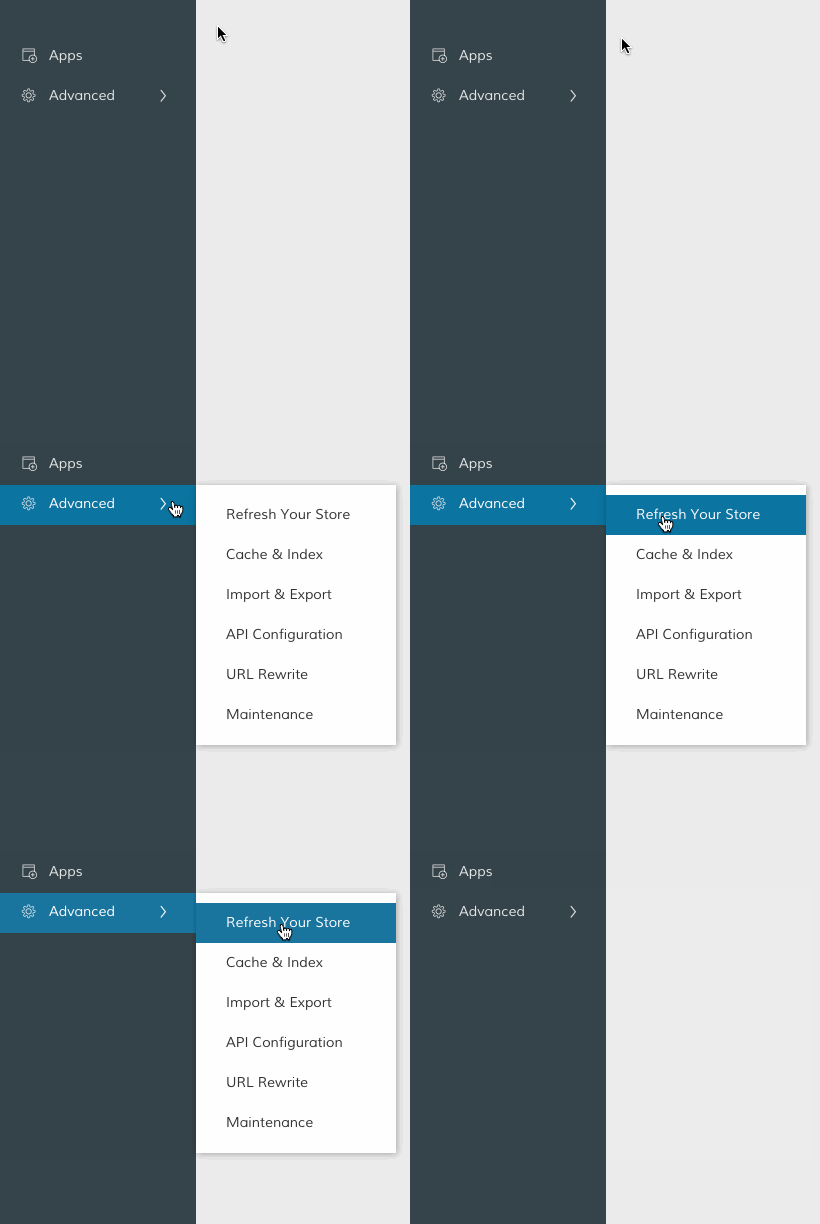
From your Control Panel, hover your cursor over Advanced and select Refresh Your Store to apply the changes.
Step 8 - Edit Downloadable Product Information (optional)
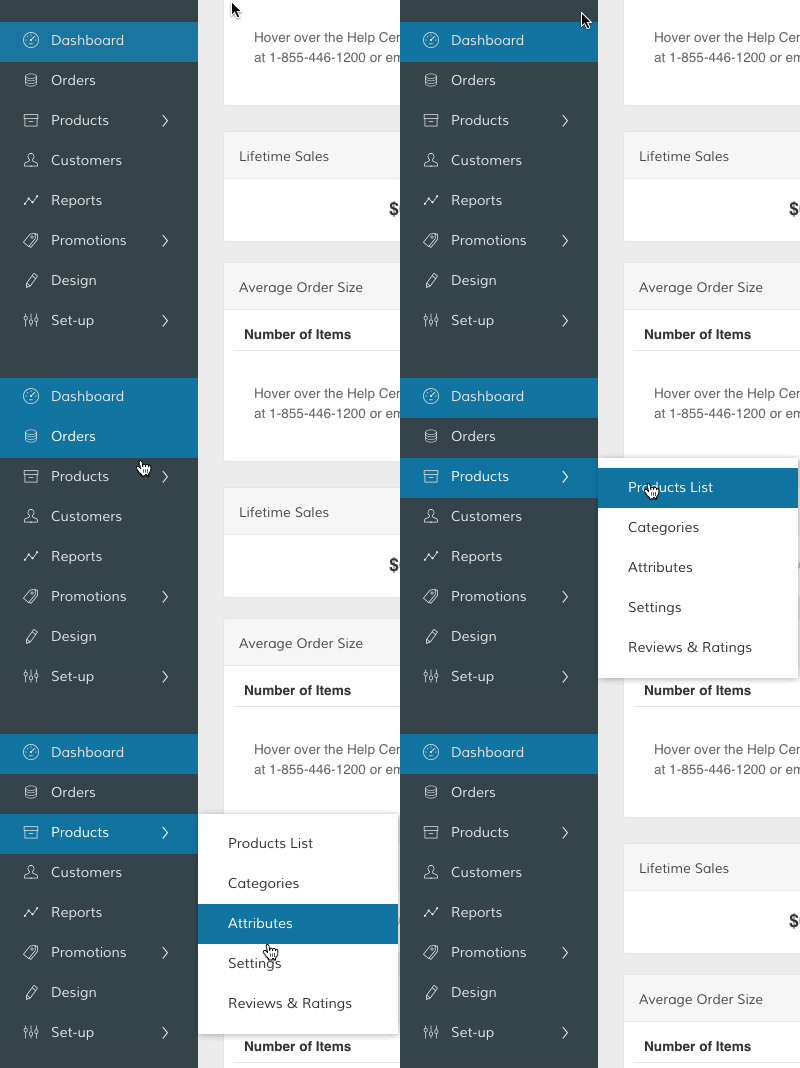
From your Control Panel, hover over Products and click Settings.
Scroll to the Downloadable Product Options area to adjust how your downloadable products interact with customers
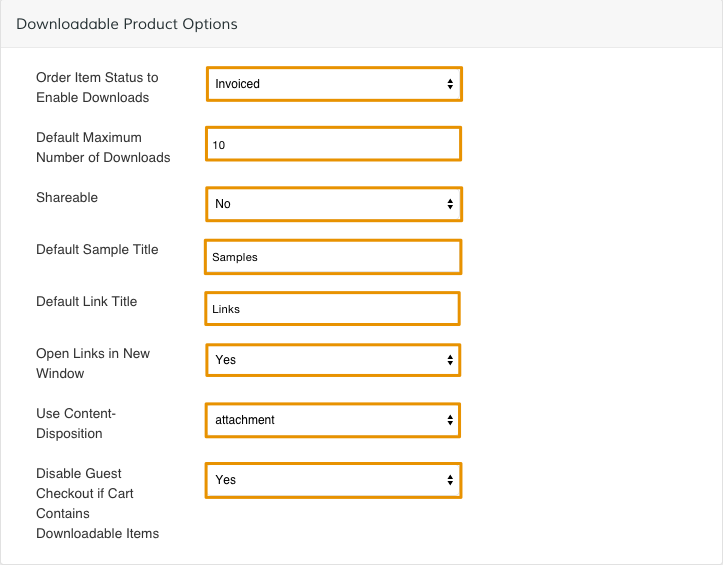
- Order Item Status to Enable Downloads - Determine if a customer's download is available immediately after the order is placed or after the customer is invoiced.
- Default Maximum Number of Downloads - Set to 0 for unlimited downloads
- Shareable - Shareable downloadable products can be bought and downloaded by guests. Select No to restrict downloadable product purchases to registered customers.
- Default Sample Title - Create a title for uploaded samples of your downloadable files.
- Default Link Title - Create a title for link your customers use to download
- Open Links in New Window - Select Yes to open link a new window.
- Use Content Disposition - Define how browsers will attempt to download a customer file. Select Inline to have browsers attempt to open downloads in a new window. Select Attachment to have browsers open a Save as dialog window.
- Disable Guest Checkout if Cart Contains Downloadable Items - Select Yes to require customers register or sign in if their shopping cart is holding downloadable items. Recommended if you have the Shareable setting set to No.
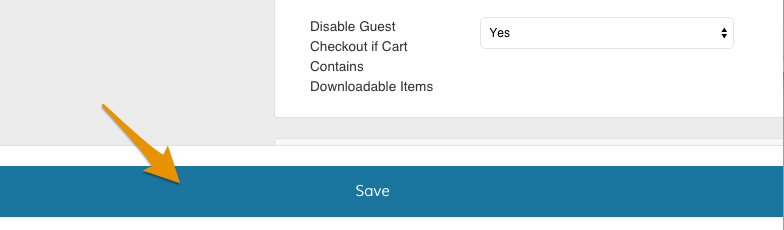
After finishing your adjustments, click Save.
Comments
0 comments
Please sign in to leave a comment.