
| 1 | Visit Products List |
| 2 | Add a Grouped product |
| 3 | Add associated products |
| 4 | Select an Attribute Set |
| 5 | Enter your product information |
| 6 | Save and refresh |
A Grouped product combines related Simple or Virtual products as a single item in store. This allows you to offer those closely-related products as a single purchase for your customer, as well as give your customers the option of selecting individual items associated with the Grouped product.
Note: We explain basic product creation here.
Step 1 - Visit Products List
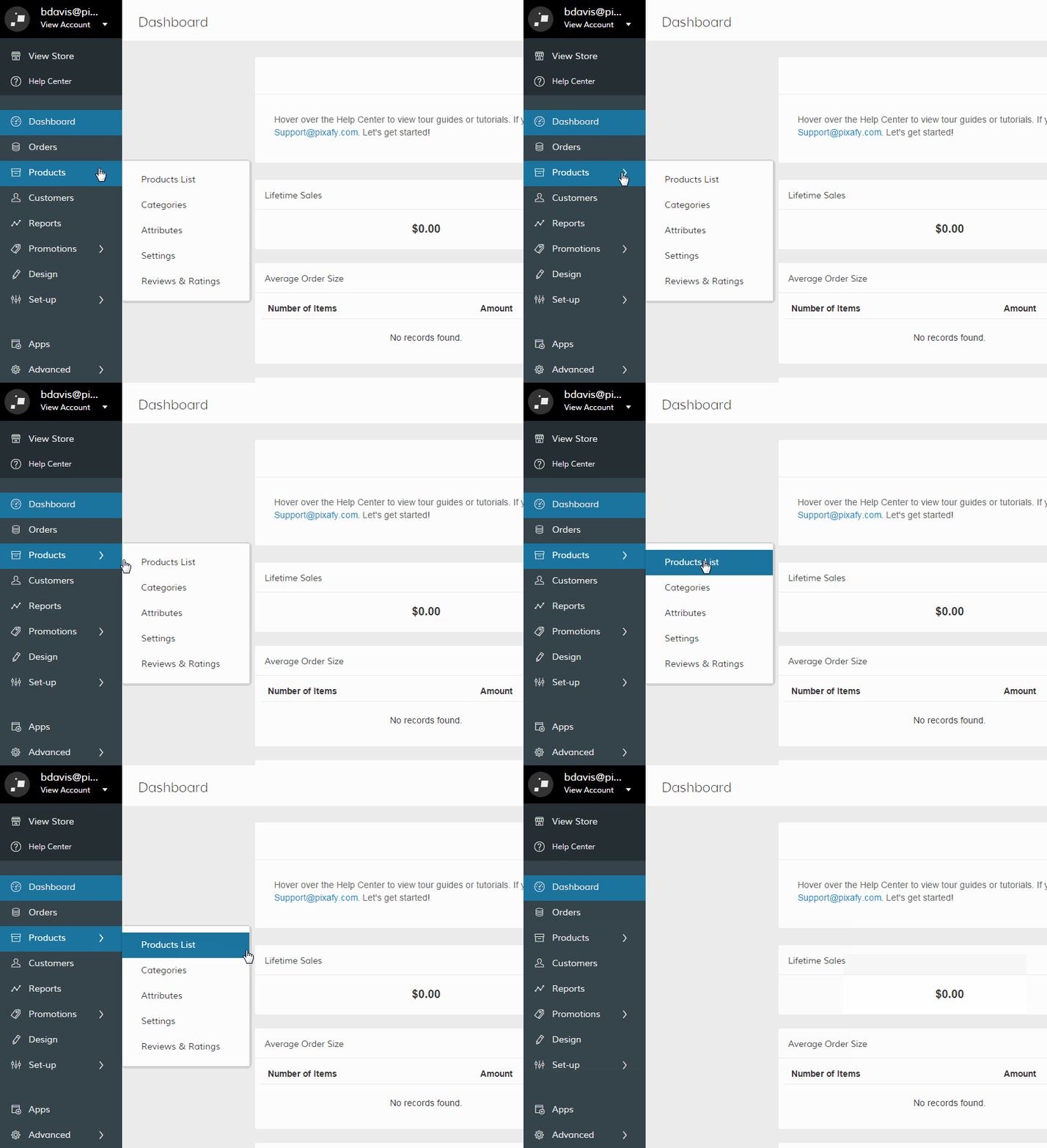
In your Control Panel, hover over Products and select Products List.
Step 2 - Add a Grouped product
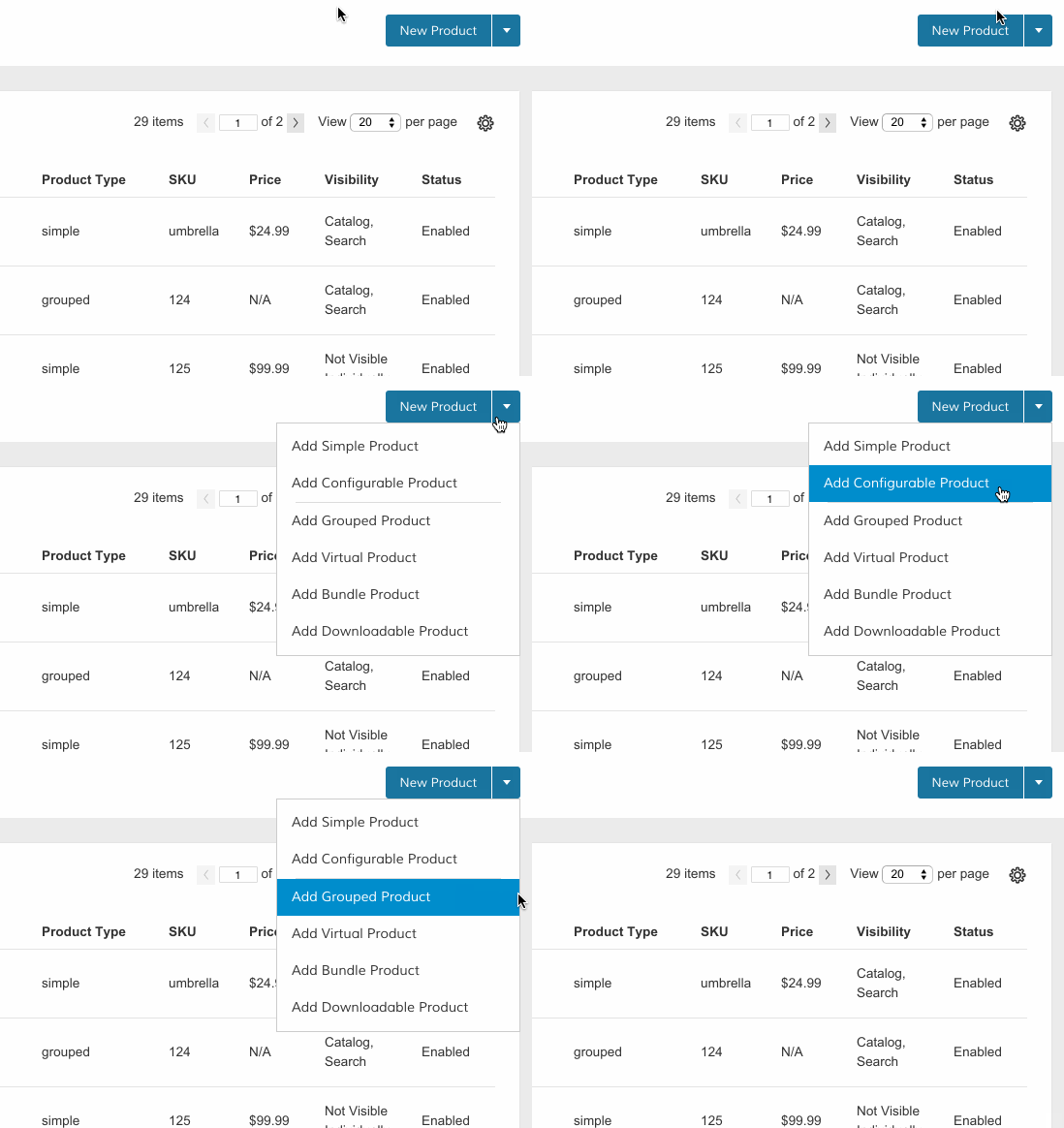
On your Products List, click the arrow icon in the top right corner. This will expand the types of products available. Then, select Add Grouped Product.
Step 3 - Add associated products
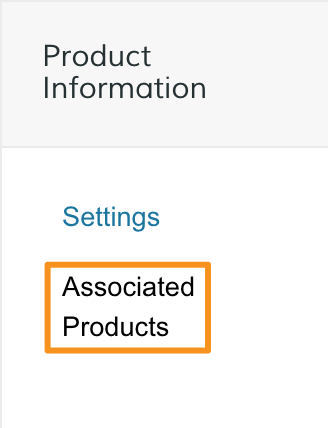
Under the Product Information navigation, select Associated Products.
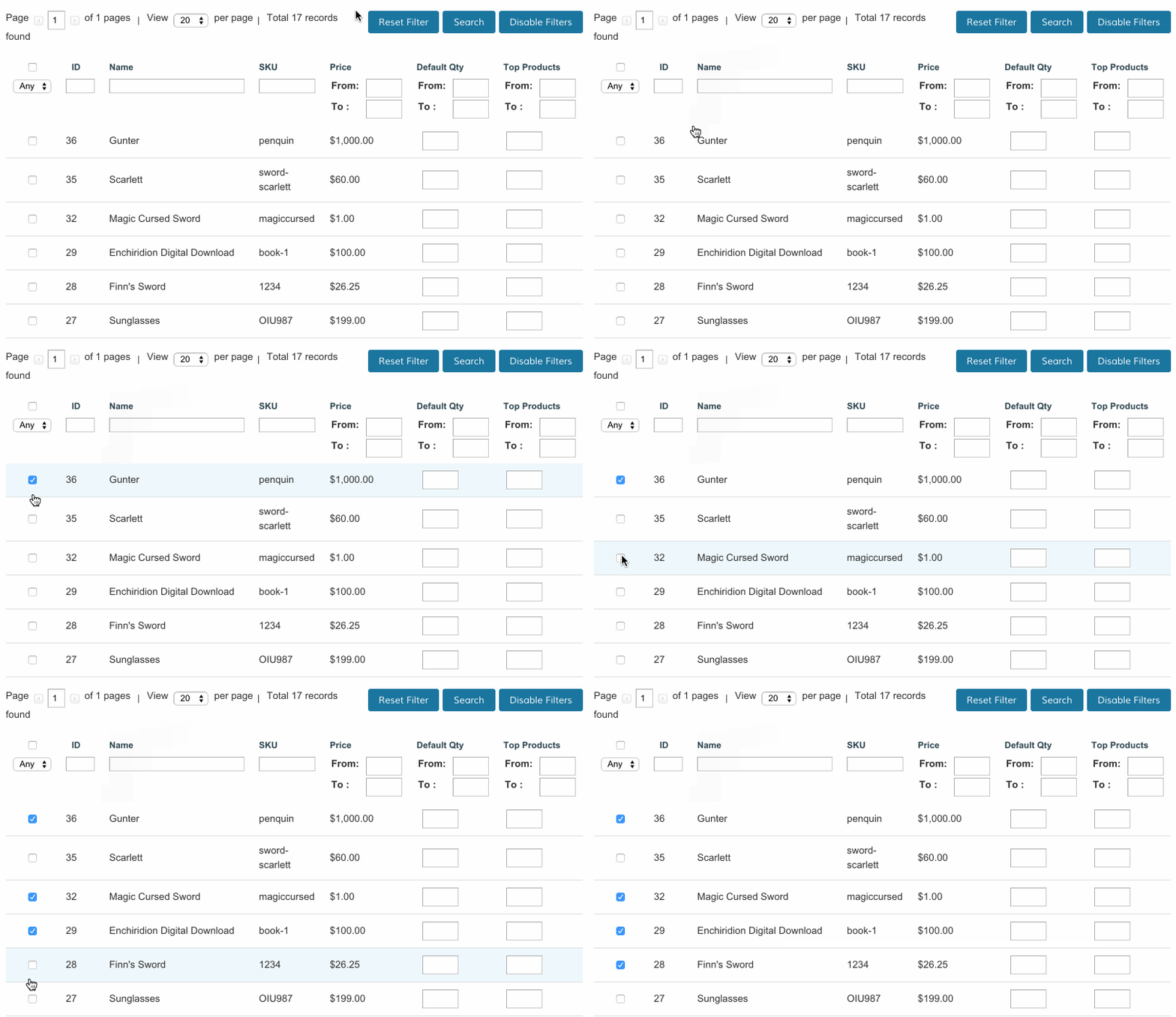
Then, select the products you want to combine with your Grouped Product.
Step 4 - Select an Attribute Set
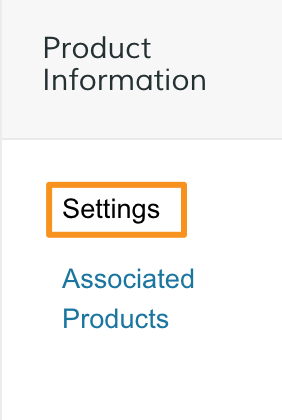
Under the Product Information navigation, select Settings.
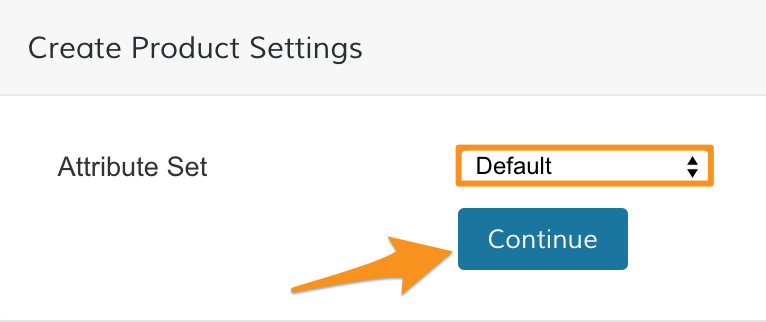
Then, select an attribute set. After selecting, click Continue.
Note: We illustrate how to create Attribute Sets here.
Step 5 - Enter your product information
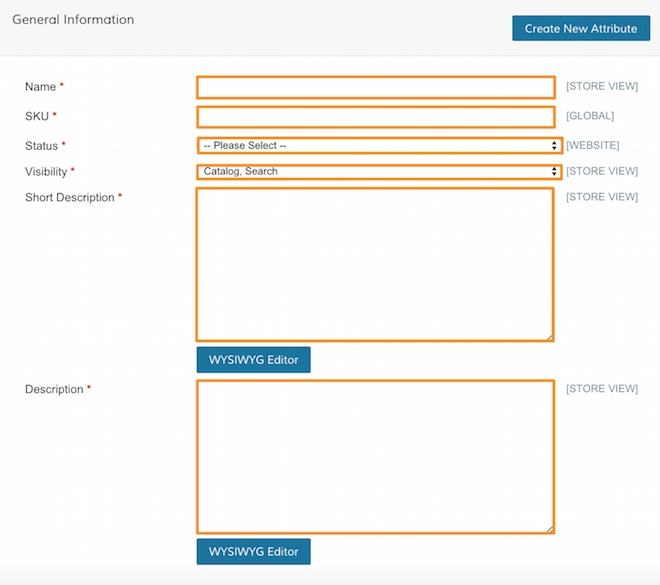
Under the General Information section of your product settings, fill out all required fields. Required fields are marked by red asterisks.
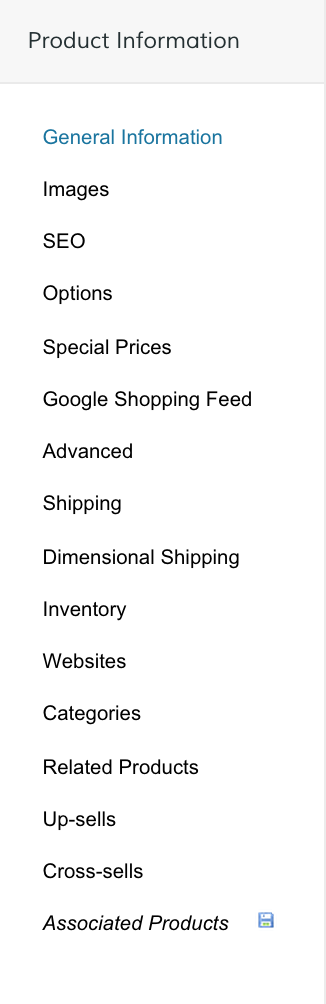
Then, under the Product Information navigation, fill out the rest of your settings.
Note: If you want to offer a discounted rate for your grouped product, create a new Shopping Cart Price Rule.
Step 6 - Save and refresh
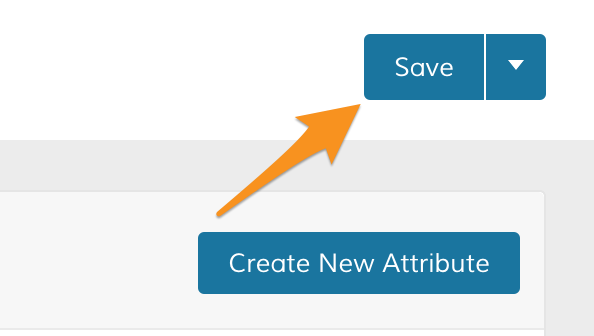
When you finish updating your settings, click Save.
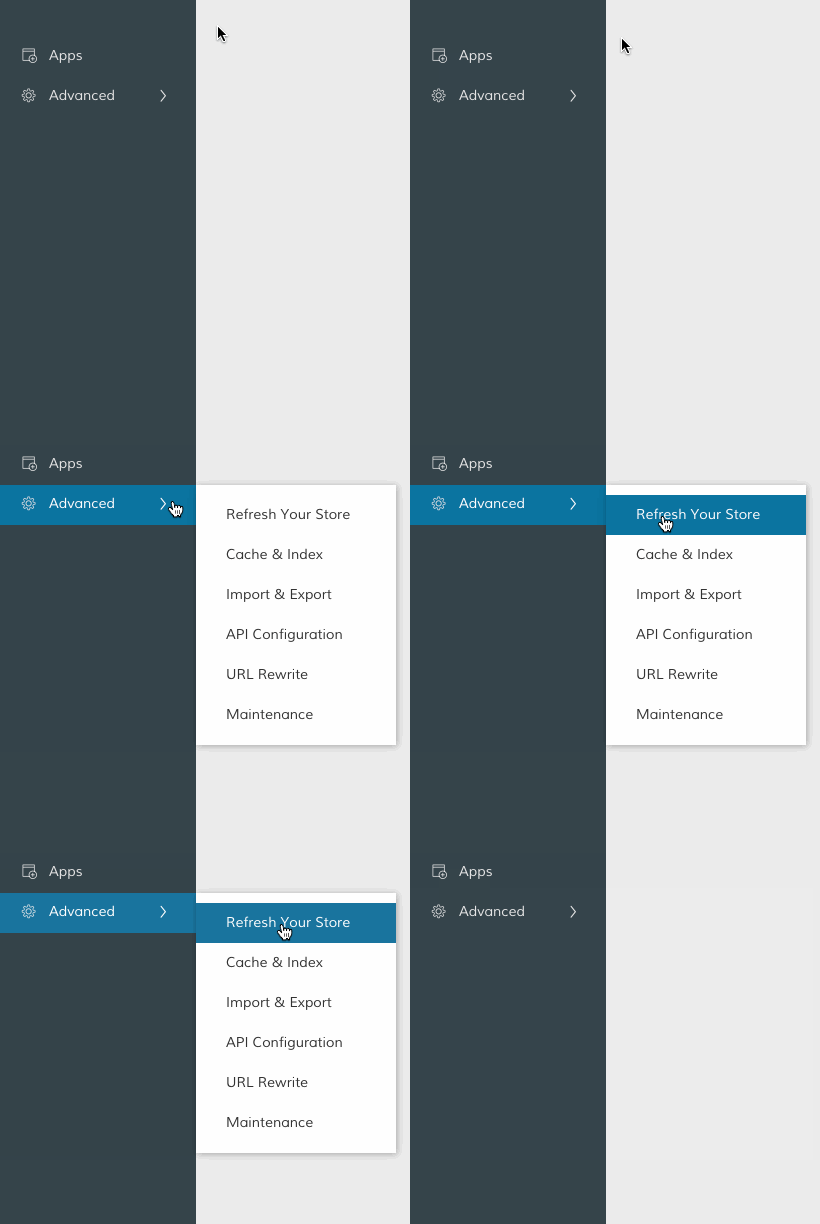
Then, in your Control Panel, hover your cursor over Advanced and select Refresh.
Comments
0 comments
Please sign in to leave a comment.