
Sometimes you will want to highlight certain products in your category pages, and choose which comes first. Here we have products that are not in a specified order, so are appearing in order of creation:
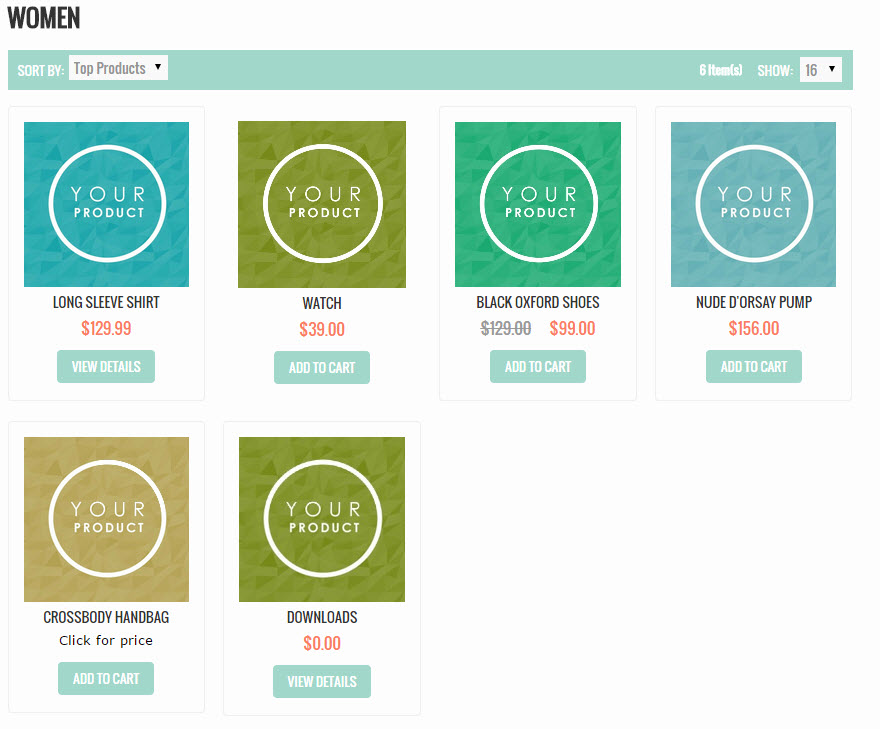
To put these in the order you would for Top Products...
- Log in to your Control Panel
- Go to Catalog > Categories and select the Category you wish to sort
- Choose the "Category Products" tab
- On the right, you will see the "Top Products". By default the products that have not been assigned a number will be set to 0.
- Give each product a number to assign the order it will display in. 1 will display first, 2 second, and so on.
As in our example below, you may want to start with 10, 20, 30 and so on to allow for other products to be place in between.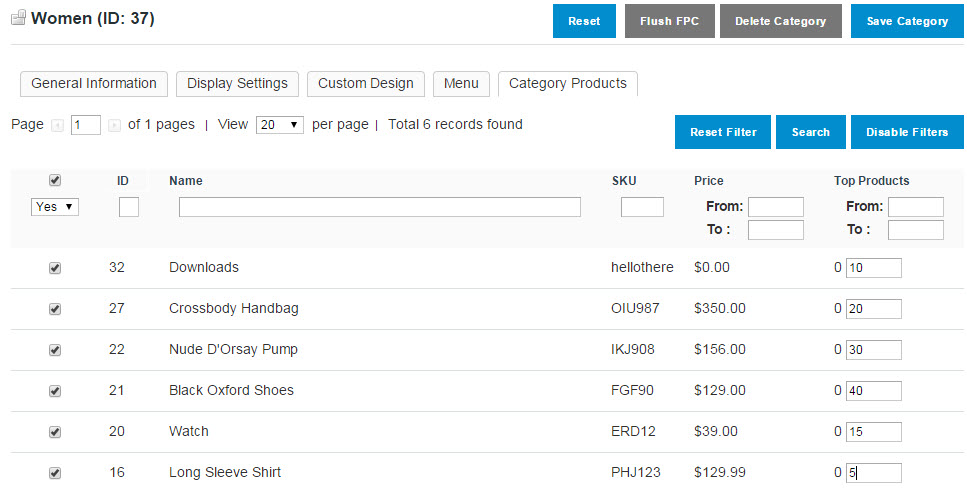
- Once you have assigned the sort order to your products, save and run a store refresh.
Now enjoy your newly organized view!
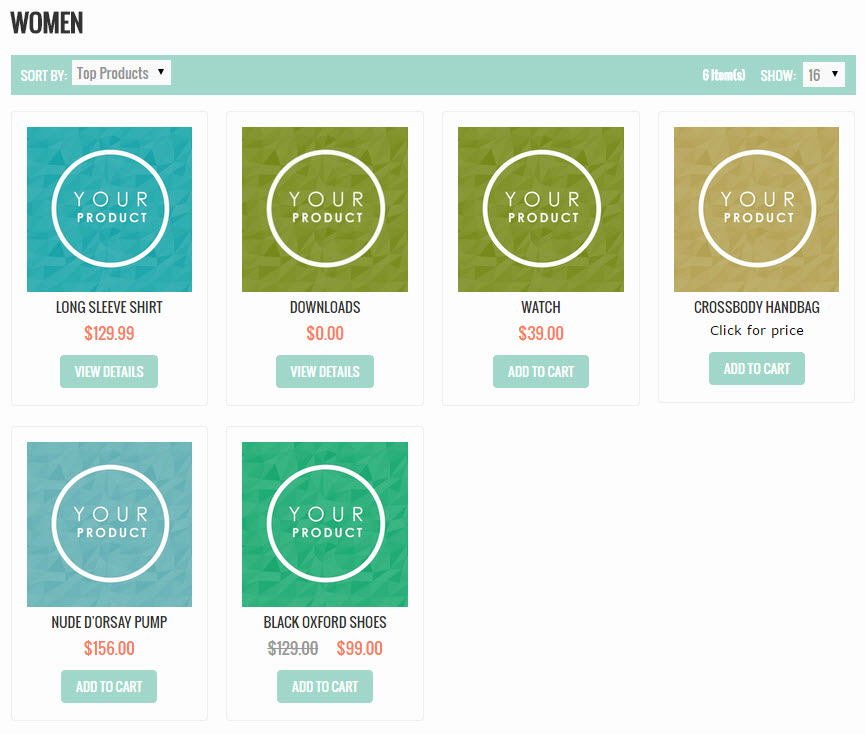
Still not showing up the way you organized it? Check what you have the Default Sort Order set to- many users change the default to "Name" which will not change with this tutorial.
You can change the default option as a whole by going to Catalog > Settings > Front End and changing Product Listing Sort by (Best Value will use the positions you have set).
You can also change this for each Category by going to Catalog > Category > Display Settings and making your adjustments there!
Comments
0 comments
Please sign in to leave a comment.