
Bundle products allow customers build their own customized version of a product from an assortment of options. Bundled products are great for presenting things like build-your-own gift baskets, computers, makeup kits, or anything else that can be built from multiple products.
Bundled products can be created from Simple Products or Virtual Products.
To create a bundled product, you must first have your simple or virtual products for the bundle created. This tutorial assumes you have already created these.
Once complete, follow the steps below:
- From your Control Panel, navigate to Products > Product List
- In the top right hand corner, you'll see the New Product button. Hover over this to see a list of options including Add Bundle Product. Click to continue.

- Continue through the setup as usual, with the exception of the following:
- SKU, Price and Weight fields will need to be set to one of the following:
- Dynamic
Updates and Changes with the selections the customer makes - Fixed
If using a Fixed value, enter the actual value in the field to the right.
- Dynamic
- In the Prices tab, set the Price View to one of the following:
- As Low as
Shows the customer the lowest price available using the items you have selected to include in the bundle. - Price Range
Shows the customer the lowest price available as well as the highest price available.
- As Low as
- SKU, Price and Weight fields will need to be set to one of the following:
- Click Save and Continue Edit to save your progress.
- Now select the last tab option, Bundle Items.
- Set Ship Bundle Items to one of the following:
- Together
- Separately
- In the Bundle Items section, click the Add New Option button.
- In the Default Title box, enter a label for the bundle item, as you want it to appear on the Customize Product page.
- Set the Input Type to one of the following:
- Drop-down
- Radio Buttons
- Checkbox
- Multiple Select
- Set Is Required as needed.
- In the Position field, enter the order that you want this item listed in relation to other items included in the bundle. "0" will appear first followed by 1, then 2, then 3 and so on.
- Click the Add Selection button.
Remember, you can only use Simple or Virtual Products with Bundles. - Click the Reset Filter button to display the list of all products, use the fields to search as needed.
- Select the checkbox of each product that you want to offer in this bundle.
- In the Qty to Add column, enter the quantity of each item to be included.
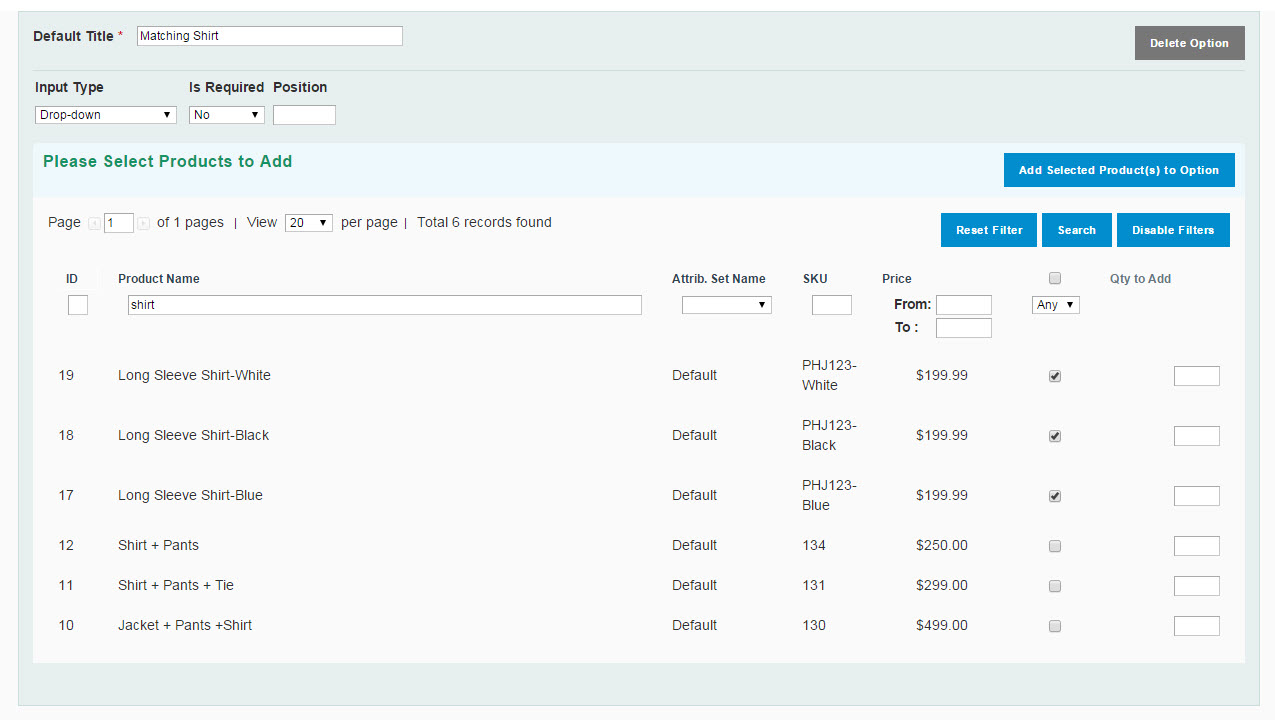
- Click the Add Selected Product(s) to Option button.
- When the items appear in the Bundle Items list, do the following:
- If you want to prevent the customer from changing the quantity of the item, set User Defined Qty to “No.” Otherwise, accept the default setting of “Yes” which displays an input box so the customer can enter their preferred quantity.
- To change the order in which the items are listed, enter a number in the Position column of each item to determine its position in relation to other items.
- Select the Default option of the item you want to be pre-selected in the form.
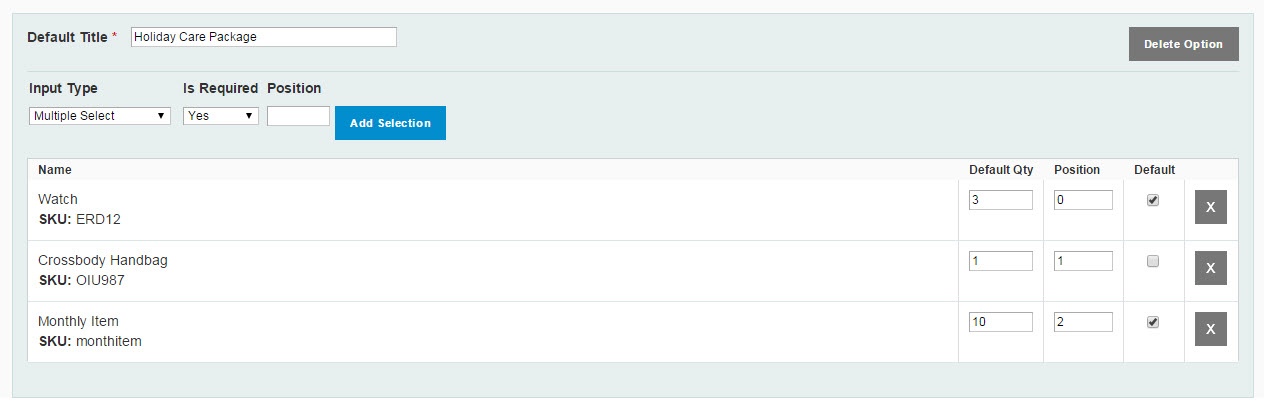
- Repeat Bundle Item steps for each item you want to include in the bundle.
- When complete, click the Save button to save the Bundle product.
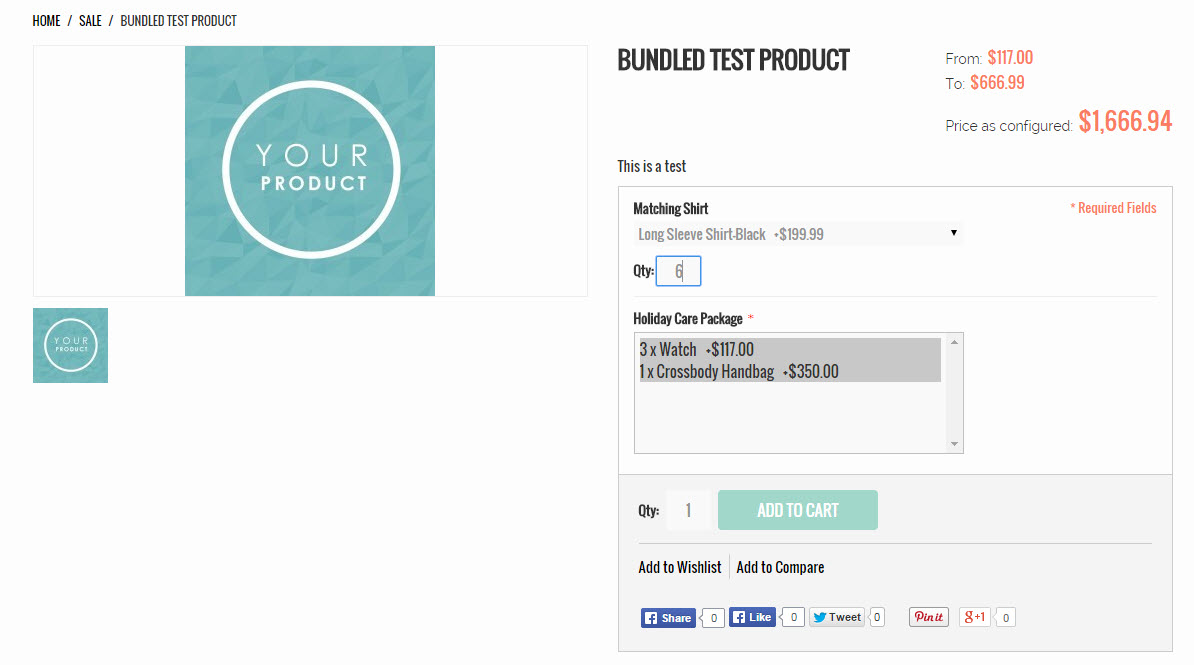
Points to Remember
- A Bundle is a “build your own” product type
- Bundle Items can be Simple or Virtual products, but without Custom Variants and Options
- The Price View of a Bundle can be set to display a price range or “As Low as”
- The SKU and Weight of a Bundle product can be set to either “Fixed” or “Dynamic”
- Items can have either a preset or user-defined quantity
- Items can be shipped together or separately
- Bundle product data cannot be imported via CSV into your catalog.
Comments
0 comments
Please sign in to leave a comment.