
Updating your Products in bulk is quick and easy in the Zoey Control Panel!
- Start by logging into your Control Panel and navigating to Products > Products List
- Select the products you would like to edit by using the check boxes. Use the first checkbox (shown to the left of ID or your first filter) to select all or check off one item and click Select All in the green line shown along the top. You can also use Filters to define your search.
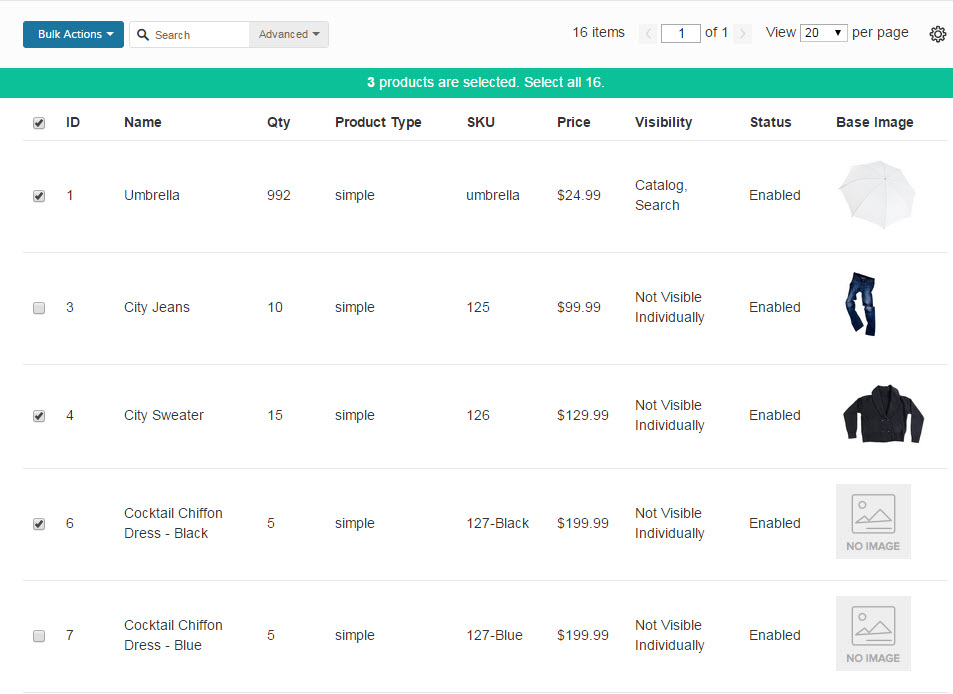
- Above the check boxes we just used, you'll see Bulk Actions. Click on this to display a dropdown with the following options.
- Delete - Remove these items from your store permanently.
- [Change Status] - Enabled - "Turn on" products that were temporarily disabled or otherwise not used in the store such as they were works in progress.
- [Change Status] - Disable - "Turn off" this product, allowing you to temporarily remove items from your site but not lose the information by deleting it.
- Update Attributes - Once you click this option you will be given a further list of actions. The main items you can change in each are listed below. Note that you will need to check Change or un-check the Use Config Settings boxes to make adjustments.
- Attributes - Name, Description, Short Description, Price, Special Price (as well as From and To dates), Weight, Meta information, Status, Visibility, Tax Class, Shipping Price & Group if you are using Product based shipping methods.
- Inventory - Everything you would find on the individual product, including Manage Inventory, Stock Availability, Quantity, and Backorders
- Websites - Add and remove from your Websites.
- Remember to Save once you have made your changes!
- *If you do not see the option you need here or if not all your changes are uniform, you can always export your information as a CSV file and import the updated products back.
- Refresh your store ( Advanced > Refresh your Store ) and admire your work!
Remember, this will make the same changes for all selected products. If you are changing product specific items such as the Descriptions or Quantities, you may want to use the CSV update method.
Comments
0 comments
Please sign in to leave a comment.