
Attribute Sets are a selection of traits used to identify and customize your products. They help organize attributes for specific types of products.
For example, if your store sells clothing and light bulbs; your clothing may need attributes that handle size and color, while your light bulbs may need wattage. An attribute set allows you to assign wattage to the right products, while hiding it from products that do no not need that attribute.
Note: We recommend understanding how to add and edit attributes before managing Attribute Sets. We explain how to do so here.
| 1 | Visit Manage Attribute settings |
| 2 | Add new set |
| 3 | Customize Attribute Set |
| 4 | Add group (optional) |
| 5 | Save |
Step 1 - Visit Manage Attribute settings
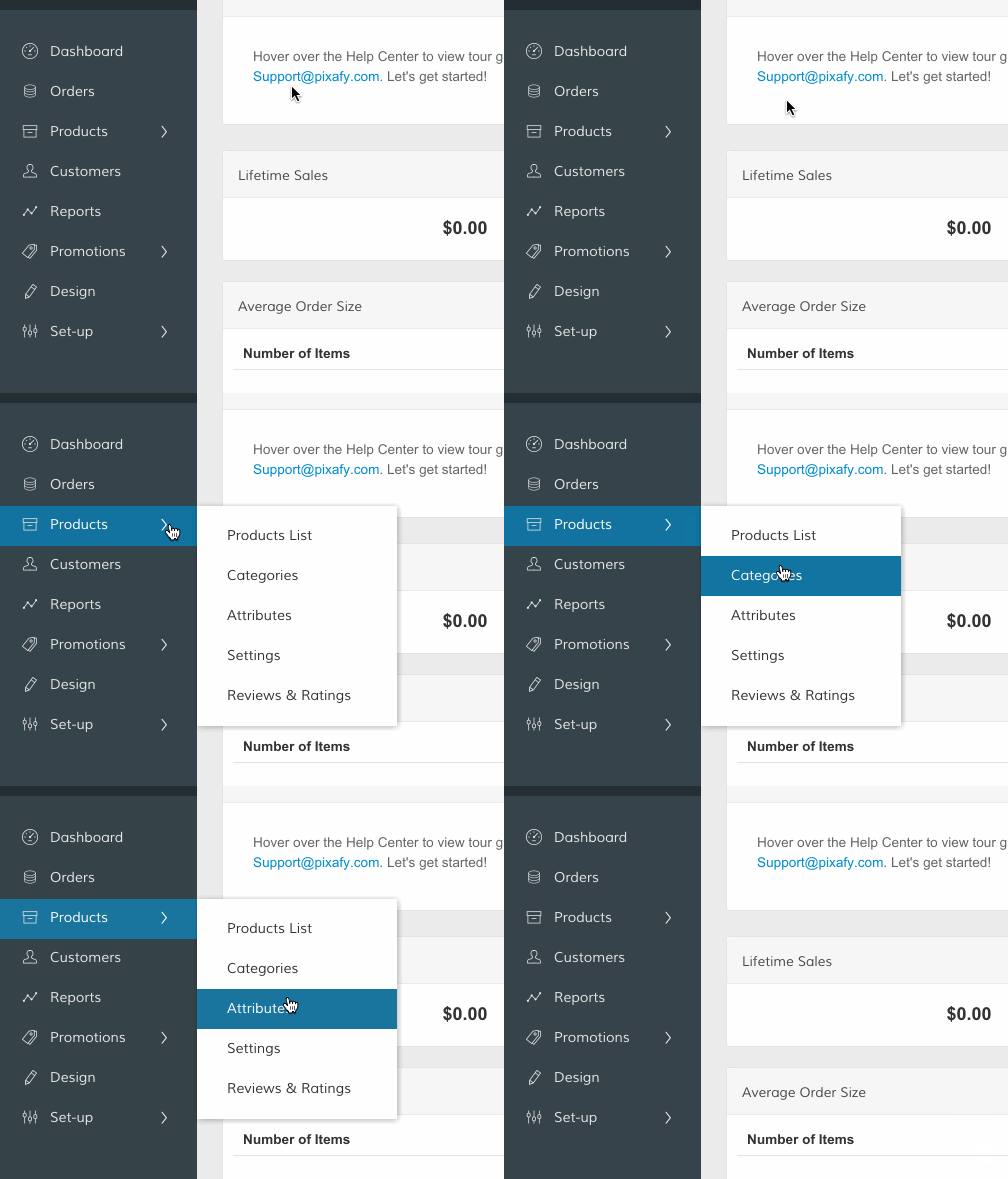
In your Control Panel, hover over Products and select Attributes.
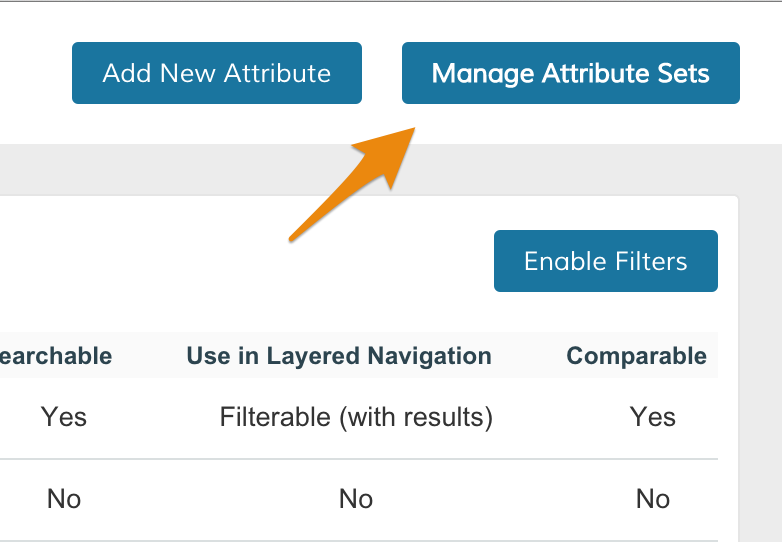
From the Attributes page, click Manage Attribute Sets.
Step 2 - Add new set
From your New Set page, enter information for your new Attribute Set.
- Name - Create a name for your set so you can reference the attributes internally.
- Based on - Choose a template of attributes to use as a starting point.
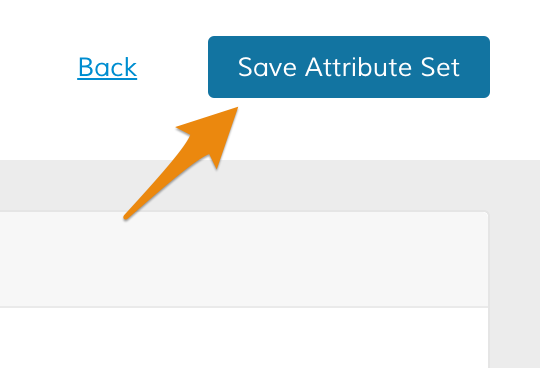
Then, click Save Attribute Set.
Step 3 - Customize Attribute Set
To customize your attribute to your set, drag and drop the attribute into the group of your choice. You can either move attributes to and from the Unassigned Attributes column, or between attribute groups within the Groups column.
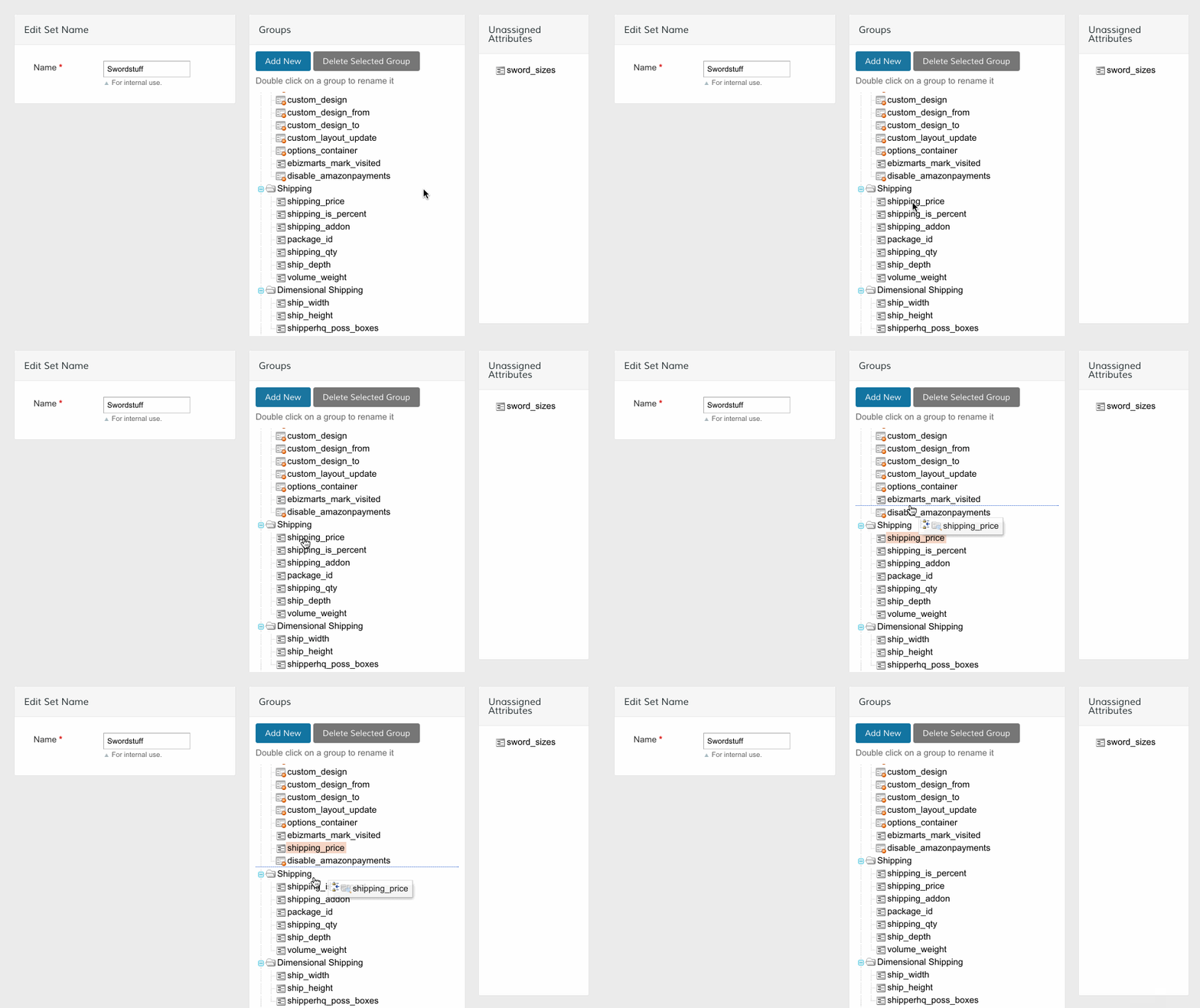
Note: If you have attributes from the Attribute Set that you no longer need, you can drag the attribute into Unassigned Attributes.
As you drag and drop attributes, some are able to be moved, but cannot be placed in certain areas. These are marked by a small red icon that hovers while you attempt to move the attribute.
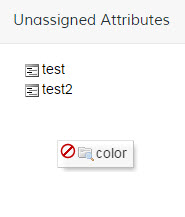
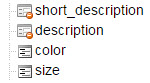
Attributes that cannot be moved are also marked by a red icon.
Step 4 - Add group (optional)
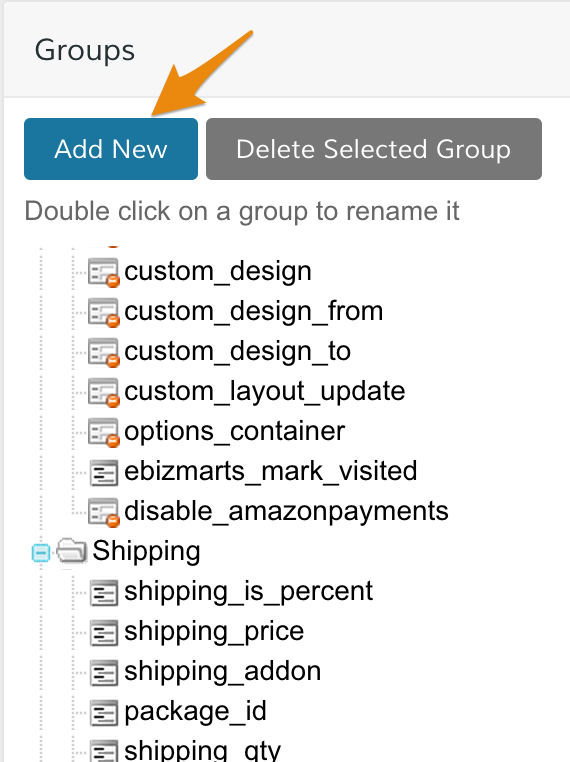
If you want to create a new group for the attributes in your Attribute Set, click Add New.
Step 5 - Save
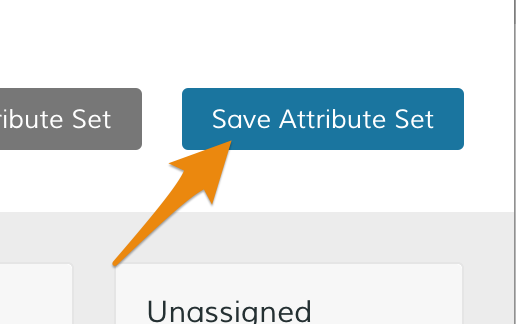
When you finish adding or removing attributes from your set, click Save Attribute Set.
Comments
0 comments
Please sign in to leave a comment.