
Merchants are sometimes prohibited from displaying a price that is lower than the manufacturer's suggested retail price (MSRP). Zoey's Minimum Advertised Price (MAP) gives you the ability to remain in compliance with the manufacturer's requirements, while offering your customers a better price. Because requirements differ from one manufacturer to another, you can configure your store to prevent the display of your actual price on pages where it is not allowed to appear according to the terms of the manufacturer.
There are a variety of configuration options that you can use to remain in compliance with the terms of your agreement with the manufacturer, while still offering your customers a better price. Your store's MAP settings can be applied to all products in your catalog, or configured for only specific products.
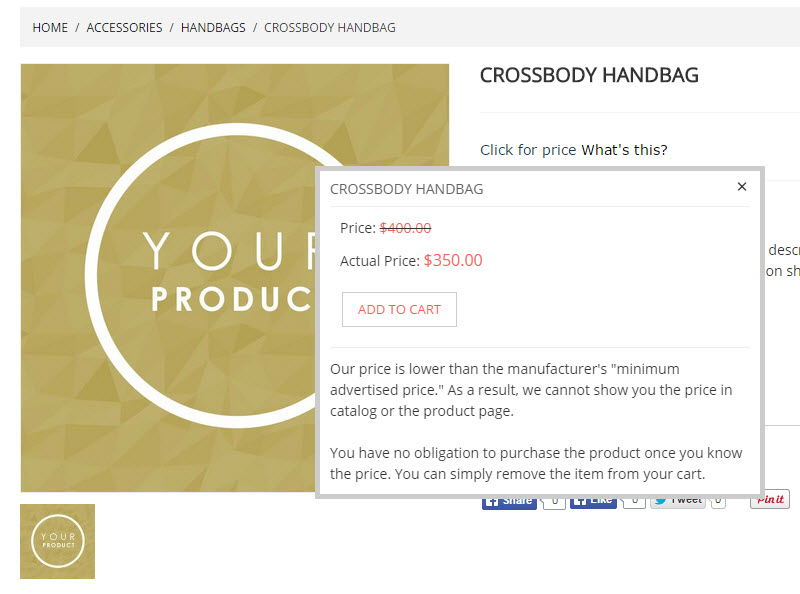
“Click for Price” on Product View Page
To Configure this Globally:
- From the control panel, select Set-up > Checkout Settings.
- Click on the Minimum Advertised Price section on the navigation or scroll down to find it.
- Set Enable MAP to Yes.
- Set Apply MAP (Default Value) to one of the following:
- To apply MAP only to certain products, select No.
- To apply MAP, by default and to all existing products, hiding all prices throughout your store, select Yes.
- To determine when and where you want the actual price to be visible to the customer, set Display Actual Price to one of the following:
- In Cart - The customer can see the price after selecting Add to Cart and views their cart or begins checking out.
- Before Order Confirmation - Visible after the customer begins to checkout.
- On Gesture - On the product page they will be prompted to hover over an area to see the price. This will also become available in the cart.
- Edit the text, as needed, for each Popup Text Message, letting the customer know why they can not see the price and what they must do to see it.
- When complete, click the Save button.
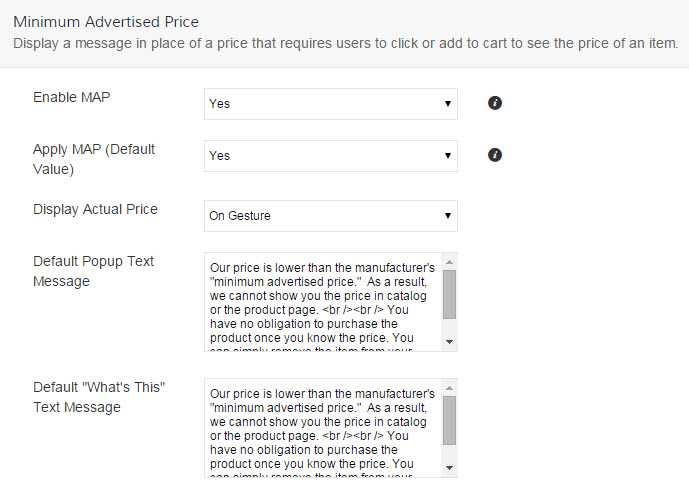
Minimum Advertised Price Configuration
To enable this on specific products:
- From your Control Panel, select Products > Products List and click the item you wish to edit.
- Click on the Special Prices tab
- Here you will find all the information for MAP. Set to use the configuration you set up in the last part, or make the selections you need for that product.
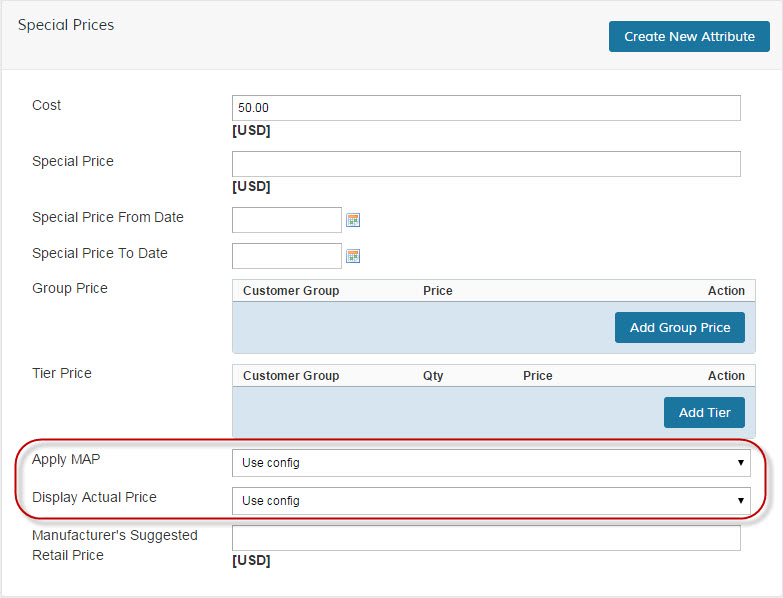
- You may also want to add the MSRP in this same area!
- Save and you are all set!
Comments
0 comments
Please sign in to leave a comment.