
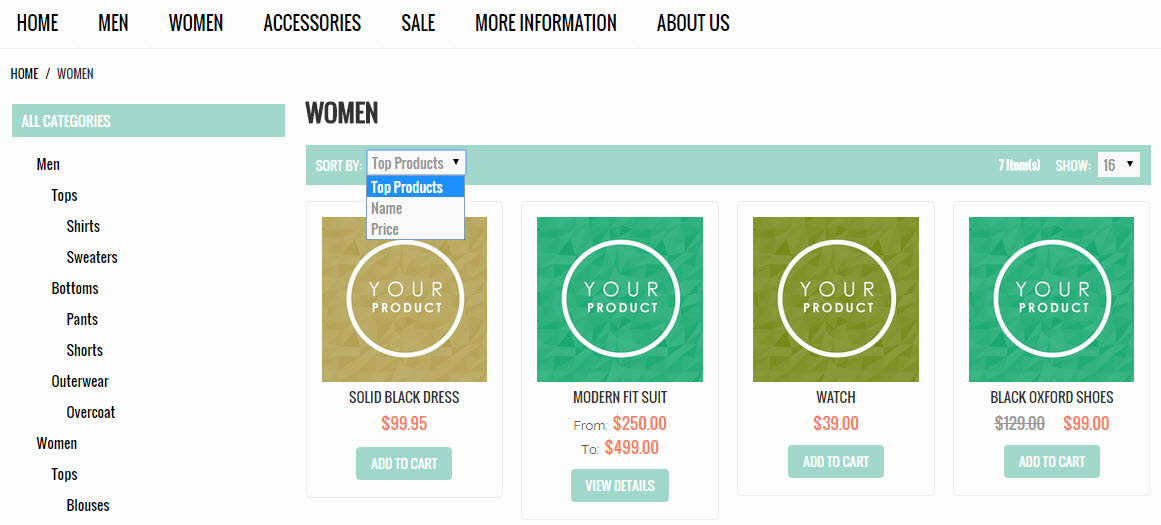
When customers view your Category pages,they have several choices for how they want to sort the products. You can add attributes to sort by as well as change the default on a category or global basis.
To add attributes to the drop down list, we are following steps very similar to Removing and adding attributes to Shop By.
- In your Control Panel go to Products > Attributes
- Next, click on the Attribute you wish to modify. Under the "Properties" tab, you will see "Front End Properties".
- Find Used for Sorting in Product Listing and set to "Yes" to enable and "No" to disable.
- Save and go to Advanced > Refresh your Store to see the the new attribute in the dropdown.
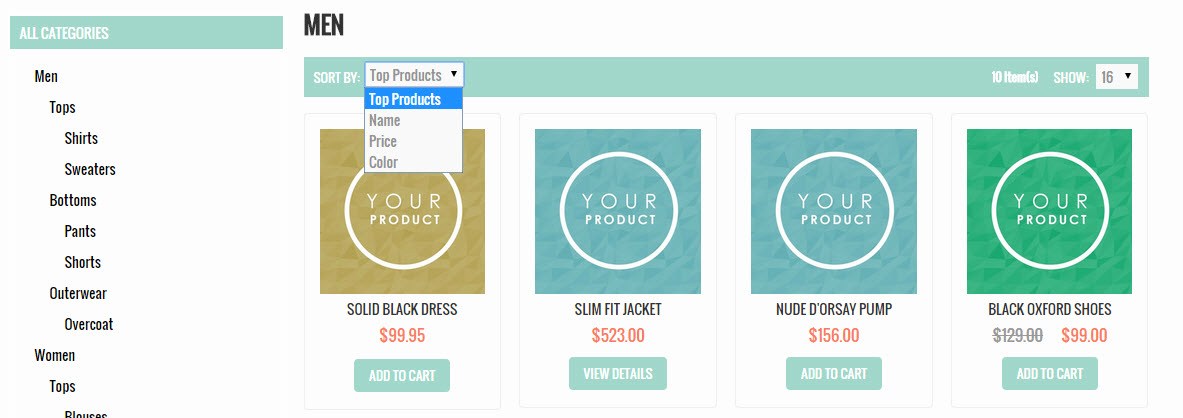
To change the default Sort By option in a category, we will need to go to the individual category to get started.
- From the Control Panel go to Products > Categories
- Select the Subcategory you wish to edit
- Under the Display Settings Tab, find Default Product Listing Sort By
- Select the attribute you want to sort by by default
Also note that you can select which attributes are available for that category to be sorted by as not all attributes will apply to all categories.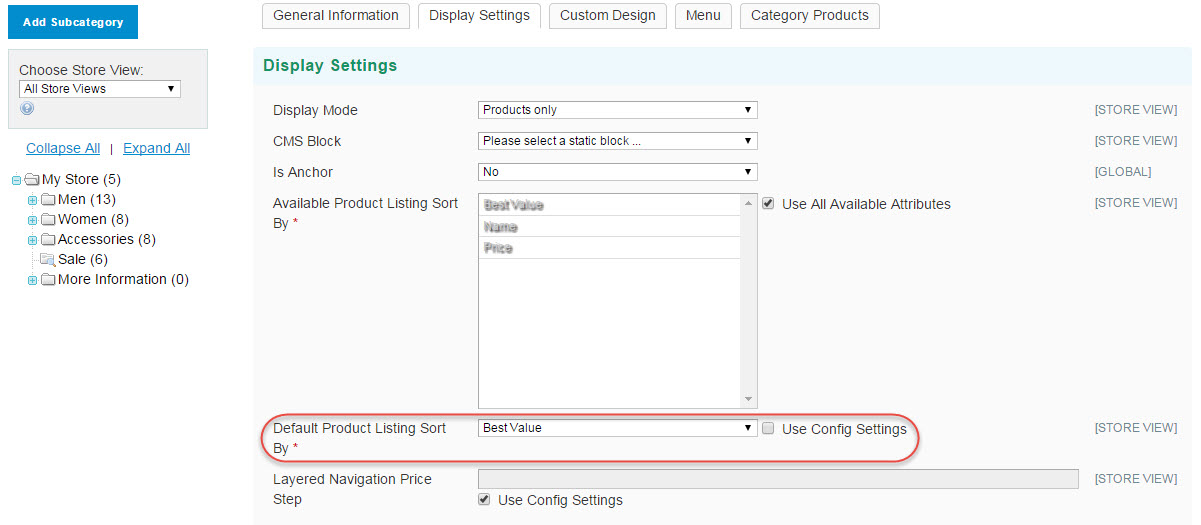
- Save, run a store refresh and you're all set!
If you want to change the Config Settings, you can go into Products > Settings and change Product Listing Sort by to the value you would like to use.
Comments
0 comments
Please sign in to leave a comment.